Category: Blog

  • The 2019 State of DevOps Report–Webinar

    Tomorrow I get to chat with another giant in the world of DevOps: Jez Humble. I actually met Jez years ago at a conference, and I was honored to shake his hand. If you haven’t read anything he’s written, you’re missing out. He has truly been someone that both works hard to build better software and teach others to do so as well.

    The Accelerate State of DevOps report 2019 is available from Google and might be useful in trying to convince others in your organization to adopt a process that improves software quality.

    You can also register and watch our webinar tomorrow. It will be broadcast at 4pm BST and 9am Mountain time, which are the main time zones I care about.

    You can ask us questions or just listen as we discuss some of the findings.

    Register today and we’ll be live tomorrow.

  • Delete an Azure DevOps Project

    Not something you’ll do too often, but you might find yourself doing this if you are setting up PoCs and removing them. A reminder for me, since I stumbled around for 5 minutes before Googling and finding a note on the docs site.

    Project Settings

    This is the key, and there are a lot of useful things here, including deleting your project. To get to the settings, open your project from Azure DevOps. In the current view, you see a number of items along the left: the overview, repos, pipelines, etc..

    2019-09-02 14_33_55-Summary - Overview

    Look below these items and you’ll see the gear icon. That will take you to the settings.

    2019-09-02 14_34_16-Summary - Overview

    The settings page as the name of the project, and a number of tabs on the left. You can change lots of the items, but for this post, stick with the Overview.

    2019-09-02 14_35_35-Settings · Overview (AzureMySQLLab) - Settings

    Below the Process, are the various sections of Azure DevOps listed, the Boards, repos, etc. If you scroll down the Overview page, you’ll see the Delete Project at the bottom.

    2019-09-02 14_35_46-Settings · Overview (AzureMySQLLab) - Settings

    Click this, and you’ll get a confirmation dialog. You need to enter the correct name of the project to delete it.

    2019-09-02 14_35_52-Settings · Overview (AzureMySQLLab) - Settings

    Microsoft knows this is a big deal, so you have time to recover this if you make a mistake. That doesn’t mean you shouldn’t treat this seriously, but in case you make a mistake, you can recover things right away if you need to do so.

    Once you start to experiment and work with Azure DevOps, you can find the number of projects will grow. Some of those will be test projects or PoCs, which need cleaning up at some point. This is the process to remove those old projects.

  • SQL in the City Sydney in Two Weeks

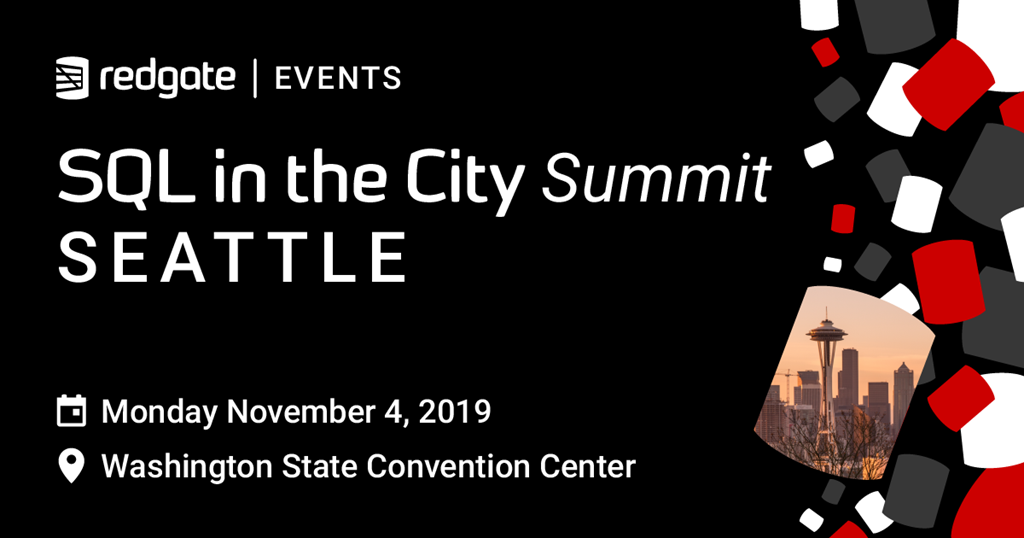
    It’s two weeks to our next SQL in the City Summit, this time in Sydney. I’m excited to be going back, though it’s a quick trip for me. Likely I’ll be fueled on lots of coffee for the two days I’m in Australia, so if I’m speaking a bit fast, remind me that the rest of you aren’t on a whirlwind, halfway around the world trip.

    2019-08-29 10_29_58-Redgate's SQL in the City Summit Sydney

    We had great reviews on our previous tour, and I was sad to miss Sydney, but we’re coming back on Sept 27. The schedule is slightly different, but we’re thrilled to have Damian Brady from Microsoft talking about their DevOps transformation.

    Anderson and myself will represent Redgate and deliver a few session on our tools, and we’ll have the amazing Hybrid DBA, Hamish Watson coming as well.

    Register today and come learn more about Compliant Database DevOps and Redgate solutions to help you write database code more efficiently.

  • Changing the SQL Data Masker Connection Target

    This post will explain how to change the connection in your masking set when using SQL Data Masker from Redgate.

    I’m writing this more for myself than anyone else. I find myself using Data Masker for different databases at times, and I keep forgetting this. I just spent more than the 2 minutes I’d expect on Google searching, so I’m adding a post in hopes that I’ll remember this.

    When you start creating a masking set, you’ll connect to a SQL Server and choose a database. Later, you might want to change this, or test the masking set elsewhere. Where is the connection string? I had thought it would be in the settings somewhere, but it’s not.

    It’s in the controller.

    The controller is usually at the top of the list, but there could be other ones. However, they are the most left displayed items.

    2019-09-02 14_28_27-SimpleTalk_Prod_Mask_ Data Masker for SQL Server

    Double click the controller, and you’ll see something like this.

    2019-09-02 14_29_14-Edit Rule Controller

    Here you can change the instance and database needed. To save the changes for your session ,click the “Update Rule Controller” on the right. To save the changes in the set, save the entire set.

    Hope this helps you, and hope it helps me remember how to do this.