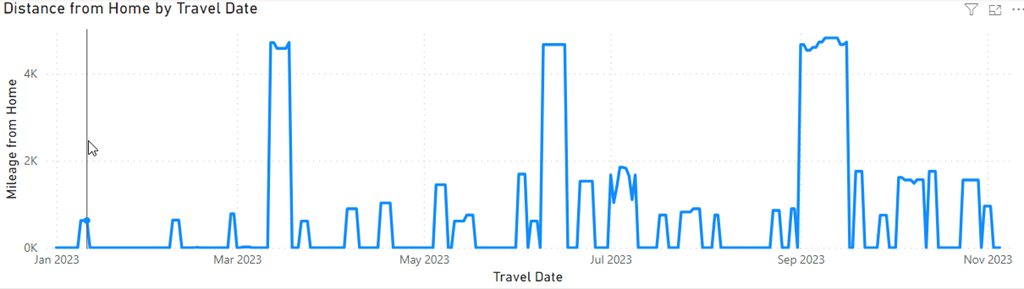
This is timely, as I’m currently on a boat in the Adriatic taking a break with my wife. I think I’m in Croatia (or off the coast) today, but who knows. Any who cares.
In any case, the invite this month from Pat Wright is an interesting one, asking about our design decisions and the risk vs reward calculation that we might make. I’ll give you a few thoughts and tie this in to my time away.
Evaluating Risk
Most of the time that I have had to consider risk and reward in the past relates to the effort to fix a problem. Not necessarily the time, or data loss, because those are factors that are secondary to me to the ability to get a fix in. Time can matter, but if the organization has a tolerance for time, then I can work with that.
This also goes to whether the organization is willing or likely to try to fix things, or even if they are willing to let me fix things. If not, then I am way more careful about how to approach a design decision.
This also means that when a design decision is made, I’m cognizant of timing. For example, I’d be hesitant to implement some changes before I left for vacation, or approve those that others made before they left. I’m out of touch for two weeks, so last week I wouldn’t have started a AG seeding, or added a new node unless everyone on the team was confident they could handle a change.
A few examples.
We were considering replication to move data to a reporting system instead of using an ETL process. The idea was that this would be automatic and ensure that data was readable elsewhere. I get that, and it makes sense.
However. In this case, we realized that too many of the schema changes we made would likely break replication. Since we were evolving the schema regularly, we’d be stopping and restarting replication, or more likely, tearing it down and rebuilding it. This would be more disruptive, and less reliable than ETL.
Even though ETL was a time sync to update. At least with ETL, we could keep existing data moving, and only new things needed to be updated.
A second case was looking at an EAV table for storing attributes in an application. This was pre-sparse columns, where the data modeling showed a need for many disparate types of attributes for an entity. However, we realized that the business was pivoting and hoping to win business. As a result, for many of these attributes, we didn’t necessarily expect many of our customers would need them.
To put this in context, we wanted a secondary contact for some customers. We also wanted a picture for others and a default location for some. For the main table storing customer things, we didn’t want to keep adding columns that might be mostly null. As we experimenting with a few of these items, we realized that relatively few (< 5%) of rows would even have data.
What’s more, these weren’t items that were queried often. They didn’t populate a screen for each customer, but were used in narrow cases, queried rarely, and were of disparate types. We could have had a few extra tables specifically for purpoases that were included joins for that data, but that created the complexity of knowing where these items were located. Our data model would have grown quite a with many small linked tables.
We decided EAV was better, but sql_variant was not. We stored an attribute type and the data as string, as that’s most easily converted to numeric or date as needed. We also included a column that noted the stored type, so it could be handled by the application. The risks of lots of small queries here were outweighed by a simpler, expandable data model, for lots of rarely queried data.
This worked well, and this table was very rarely queried. Performance wasn’t impacted much, and complex areas that had to query this table multiple times for many attributes just absorbed the hassles of many queries. Again rare.
Risk and reward is often clear, but it’s always worth a little time to evaluate your decision and decide which choice makes the most sense for now, and for the foreseeable future.