Tag: Flyway

  • Flyway Tips: Object History

    It’s a small change, but a handy one. Flyway Desktop (FWD) now includes the object history for different schema changes, so as you are evaluating how your changes might fit in with others, or you are trying to determine where something broke, you can see a list of historical changes. This post looks at checking history quickly in FWD.

    I’ve been working with Flyway and Flyway Desktop and helping customers improve their database development. This series looks at some tips I’ve gotten along the way.

    Checking History

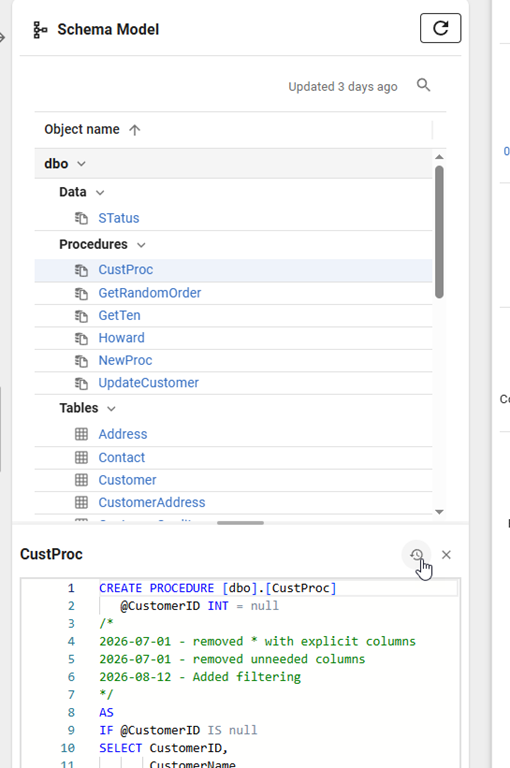
    In Flyway Deskop, I can see all of my objects on the Schema Model tab on the right side. Here I’ve selected CustProc in the list, and at the bottom I see the current version of the code. However, if you look where my cursor is, there’s a small clock there.
    2026-09_0103

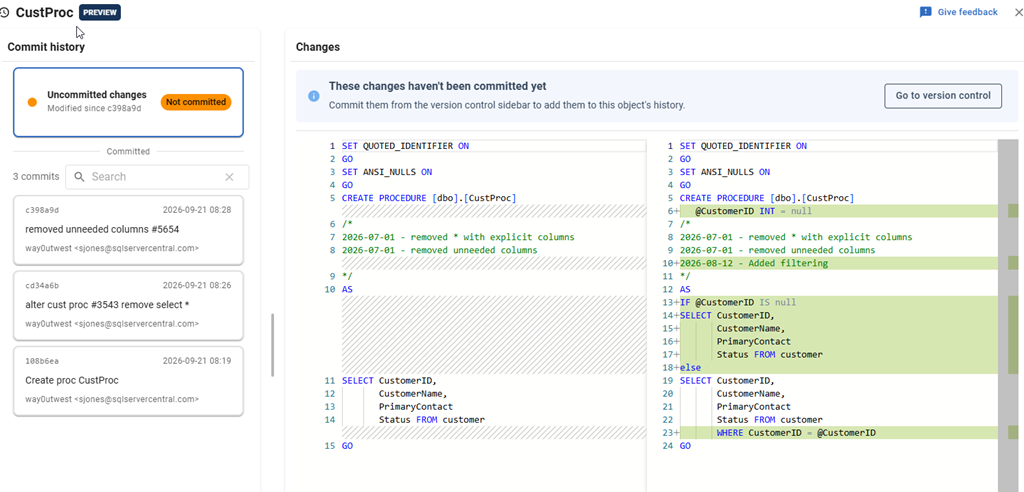
    If I click this, I see a blade pop out with history. On the left, I see the various versions. At the top, I have the uncommitted change I just saved. This is shown as the older version on the left, which is committed in Git. My new changes are on the right, with green shading to highlight what I’ve changed in code.
    2026-09_0104

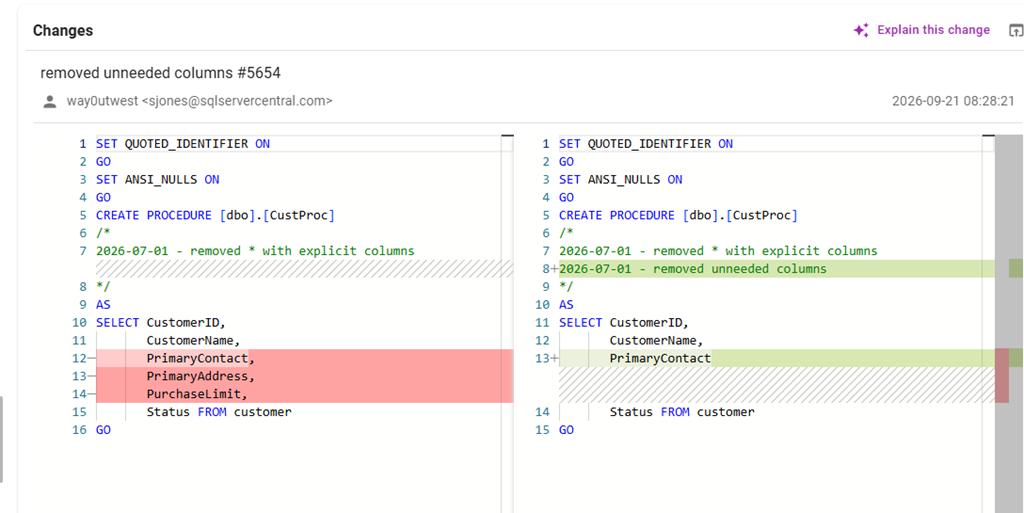
    However, maybe I wonder what was the previous change. If I click the top commit (c398a9d), I see this view. Note the red shading on the left, which are the columns I removed. I also have the green shading on the right, where I’ve added a comment and removed a comma. My commit message is at the top with my name and the time (upper right).
    2026-09_0105

    I can flip through the various history iterations of code here, just as I did with Git, but I can do this while I’m doing development work in the same place I’ve capturing changes.

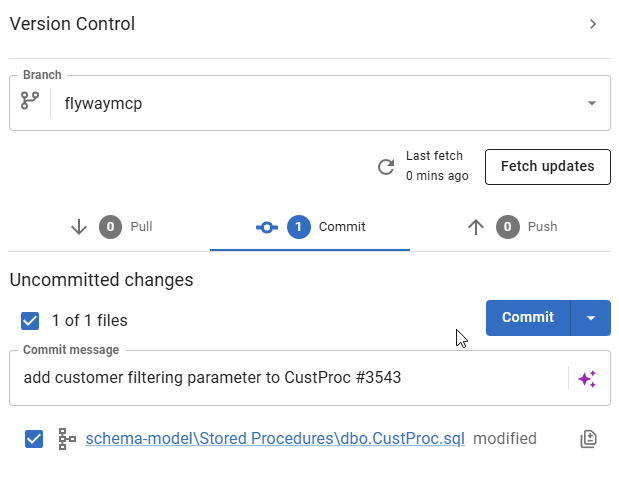
    I have a “go to Version Control at the top as well, which opens the VCS tab. Here I can commit the change.
    2026-09_0106

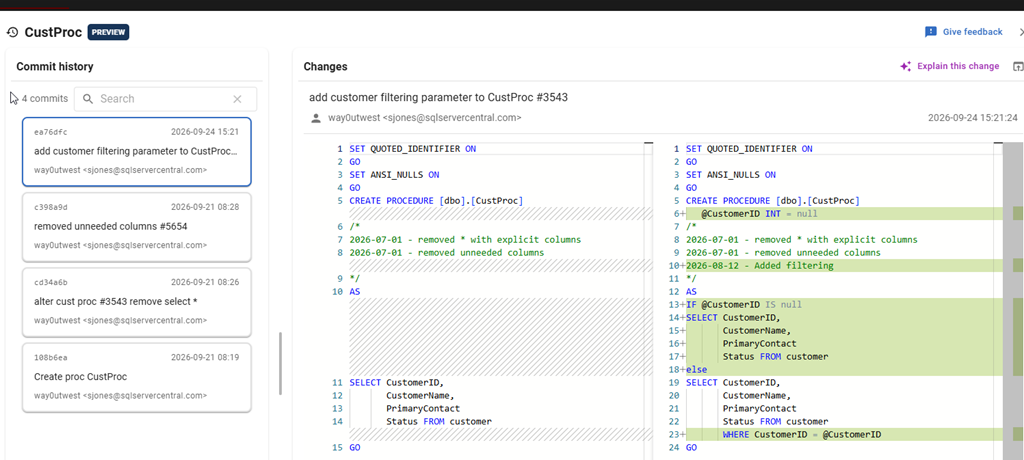
    Once I do that, my change appears as a new commit for this object in the history.
    2026-09_0107

    AI Sparkle

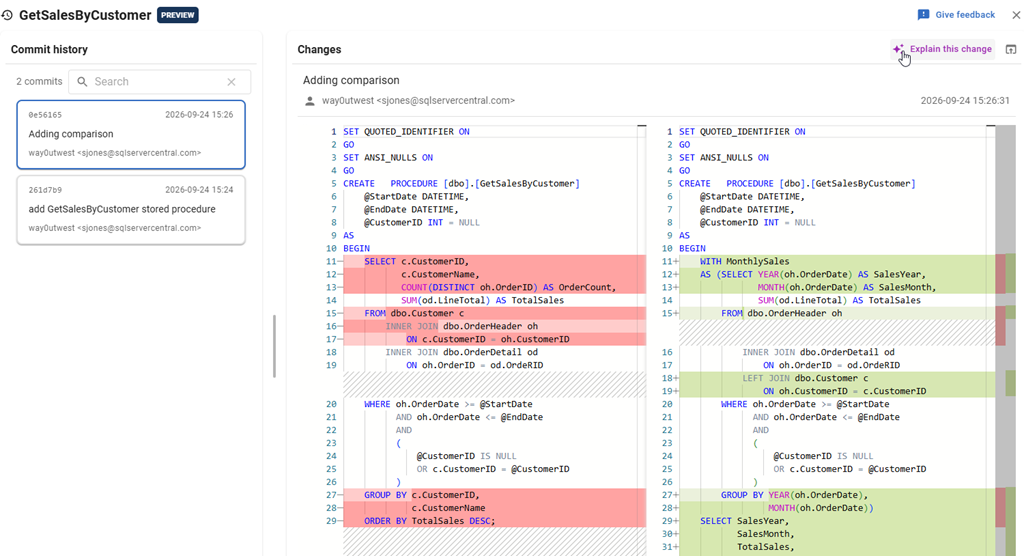
    It can be easy to sometimes see the changes made by a developer and understand them. However, sometimes there are complex changes, or you don’t notice something. Here I’ve got a more complex object history.
    2026-09_0108

    In the upper right, there’s an AI sparkle next to the “Explain this change”. If I click that, and have AI features enabled, I get an explanation. I’ve zoomed in to see this at the top.

    This is a summary of the changes, which in the chaos of work, can be helpful. I get a quick summary.

    2026-09_0109

    I wouldn’t just trust this, but instead this guides me along the code to look at what’s been removed and added, and this summary helps me double check that the code does this, and that I understand it.

    Summary

    This a small improvement, but one that keeps you focused on the work: what changed. No hunting down the changes in Git or changing somewhere else. This also is easier to see than a git diff for me. It also gives me a quick summary where there are a lot of changes.

    If you work with Flyway, update your desktop and give it a try. We would love to hear your feedback.

    Flyway is an incredible way of deploying changes from one database to another, and now includes both migration-based and state-based deployments. You get the flexibility you need to control database changes in your environment. If you’ve never used it, give it a try today. It works for SQL Server, Oracle, PostgreSQL and nearly 50 other platforms.

    Video Walkthrough

    Watch me do this in video:

  • Flyway Tips: Immediate Code Review for Developers

    At the Redgate Summits this year, we’ve highlighted a few things in the Flyway solution that help developers improve their ability to get work done safely and quickly. While lots of developers are moving to automated systems and catching issues in pipelines, plenty of you are still working in an IDE.

    This post looks at the new code analysis feature in Flyway Desktop that can help warn you of potential issues before you create that PR.

    I’ve been working with Flyway and Flyway Desktop and helping customers improve their database development. This series looks at some tips I’ve gotten along the way.

    Generating Good Migration Scripts

    Flyway gives you determinism and consistent scripting when you generate migration scripts. Plenty of developers still do this manually, often after a lot of work and testing is done on the schema model. Once you’re sure of the changes you want to make, you can select those changes to include in a deployment.

    As you can see below, I have a lot of changes, but I want to just pick one to put into a deployment.

    2026-07_0253

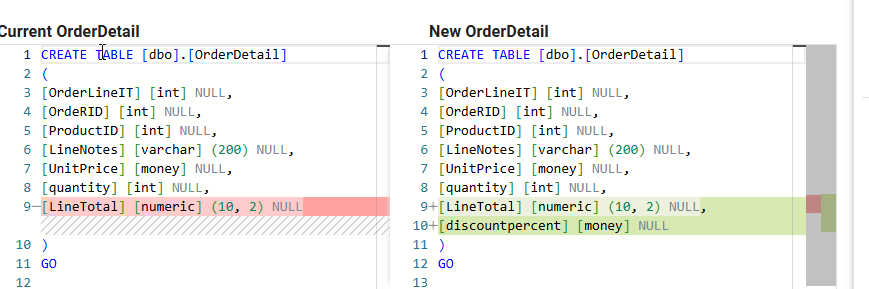
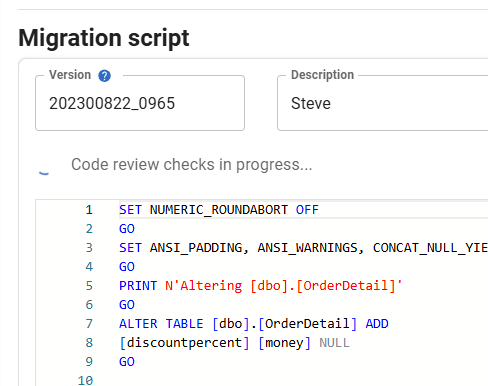
    If I click on the change, you will see that this is simply adding a new column, something developers do all the time. I’ll select that and click “Generate Migrations”2026-07_0254

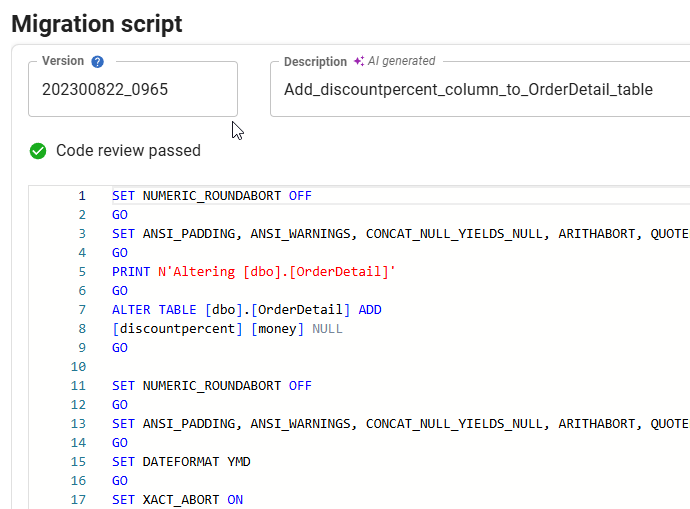
    When the tab changes, the default screen shows the next numbered migration script, based on my patterns and a default description of my name. Note that there is also a “Code review checks in progress” item to the left, which is running as the code is generated.

    2026-07_0256

    Once this completes, you can see my code rules passed, and the Flyway AI has generated a better description of the changes than I might have typed in.

    2026-07_0257

    There are a number of rules by default, and these are run when the migration script is generated. You can change, add, disable, customize, etc. for these rules as appropriate for your project.

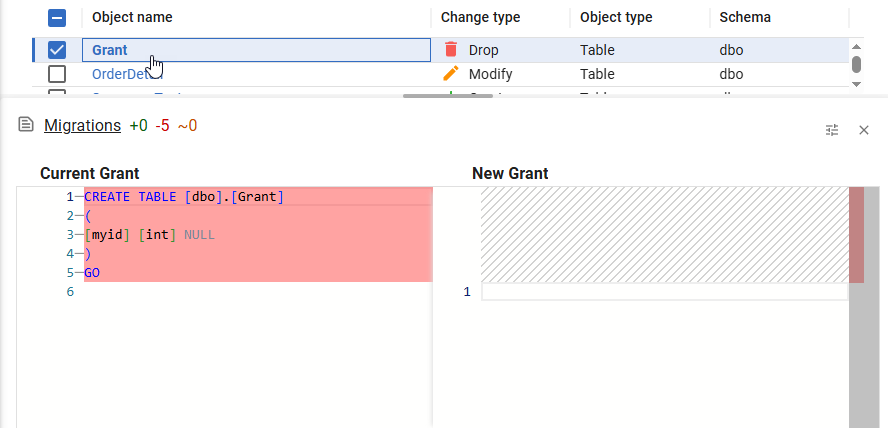
    Let’s go back and select a different change. In this case, I’m selecting the “Grant” table and dropping it. It’s in the current view of the db, but not the next one.

    2026-07_0255

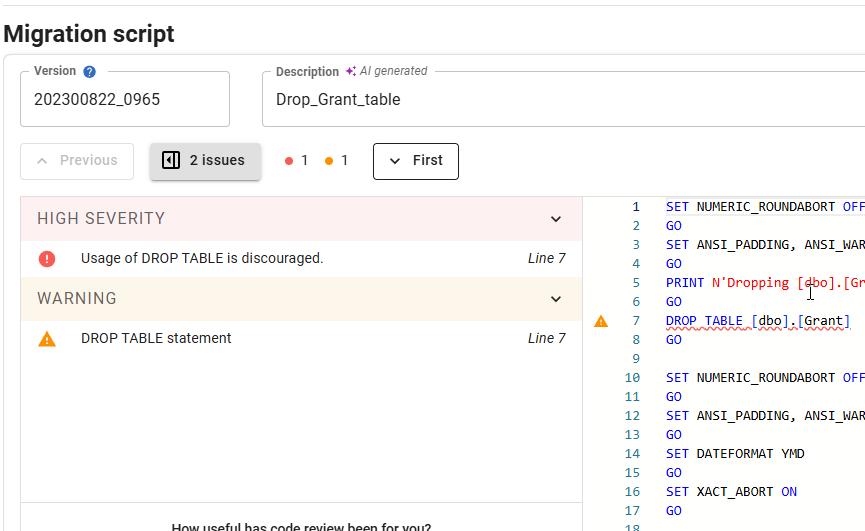
    When I click Generate Migrations and go to the next tab, you can see that the code review shows me two things: a high severity error and a warning. These are summarized at the top next to the “2 issues” button (which hides or reveals the details) as dots. If I had a lot of issues, and some of you do, this gives me a quick look.

    2026-07_0258

    Below that I get the details. Both of these are for the same line, which is highlighted in the middle by a triangle next to that line.

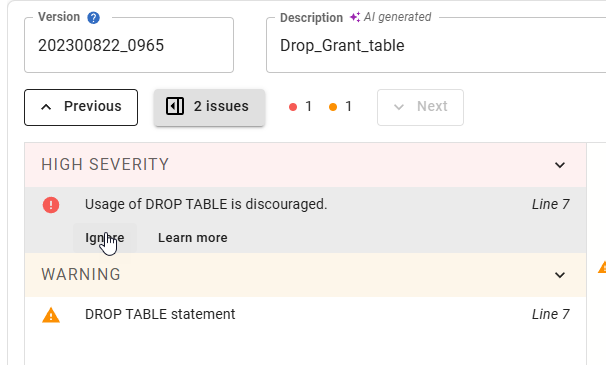
    If I click the High Severity item, I have the options to learn more, which links to the actual rule on the Redgate documentation site. Or I can ignore it. This allows me to comment in the code to not run this review again.

    2026-07_0259

    For the warning, since this wouldn’t stop a deployment anyway, I just have a Learn more link.

    2026-07_0260

    There are certainly times this might be the desired action, so I like the ignore button. However, much of the time developers might be making changes to objects and not thinking about potential future issues. Code review here catches things early, before others have to get involved, and helps educate developers about the styles and standards we want enforced in our projects.

    If you work with Flyway, update your desktop and give it a try. We would love to hear your feedback.

    Flyway is an incredible way of deploying changes from one database to another, and now includes both migration-based and state-based deployments. You get the flexibility you need to control database changes in your environment. If you’ve never used it, give it a try today. It works for SQL Server, Oracle, PostgreSQL and nearly 50 other platforms.

    Video Walkthrough

    Watch me do this in video:
  • Flyway Tips: Multiple Projects

    One of the nice things about Flyway Desktop is that it helps you manage your database code as a project and see what changes are being built. However, many of our customers end up working with multiple databases, so there is a need for multiple projects.

    This post looks at the new addition to the GUI: the ability to work with multiple projects at one time in the same GUI.

    I’ve been working with Flyway and Flyway Desktop for work more and more as we transition from older SSMS plugins to the standalone tool. This series looks at some tips I’ve gotten along the way.

    Opening a Project

    Flyway Desktop (FWD) used to only allow one project to be open at a time. This proved cumbersome. We debated allowing multiple instances of FWD, but keeping track of them can be cumbersome. We decided to allow multiple projects inside the same FWD instance.

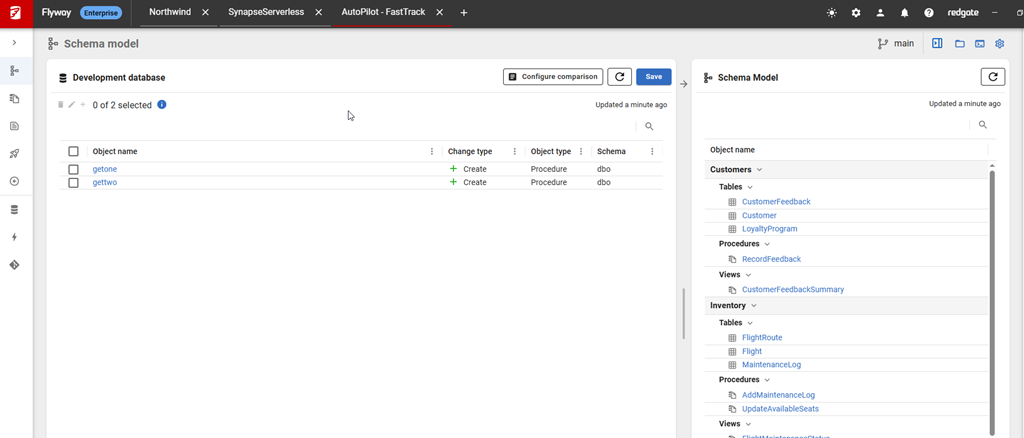
    You can see this below, where I have three projects open at once. I have Northwind, a Synapse project, and an Autopilot project. These are listed across the top as tabs, and clicking each brings that project to the front. The current project is showing the Autopilot one.

    2026-02_0167

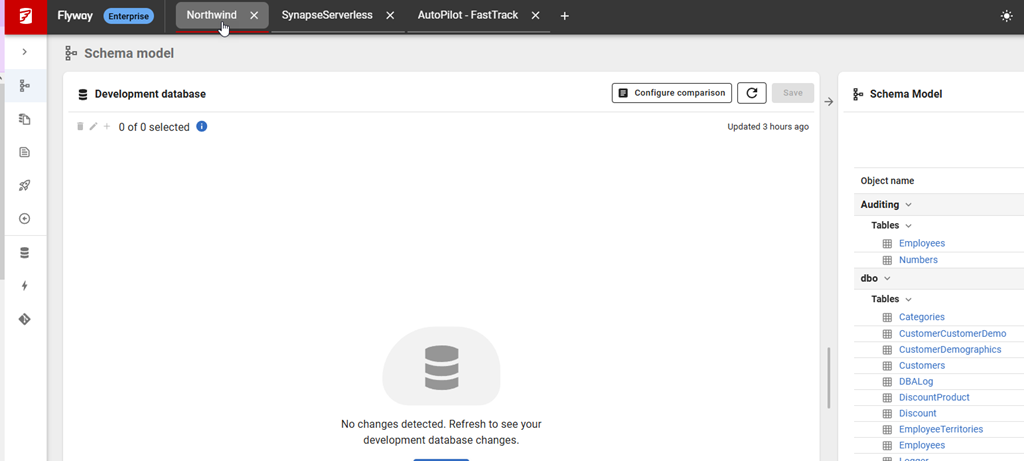
    If I click the Northwind project, notice the little red underline. This indicates the project being shown.

    2026-02_0172

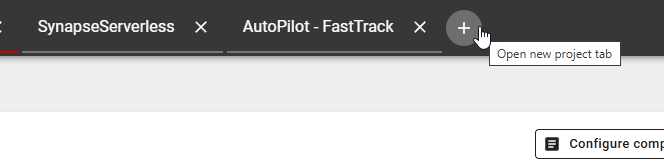
    To add a new project, I click the plus (+) at the top to the right of my projects.

    2026-02_0173

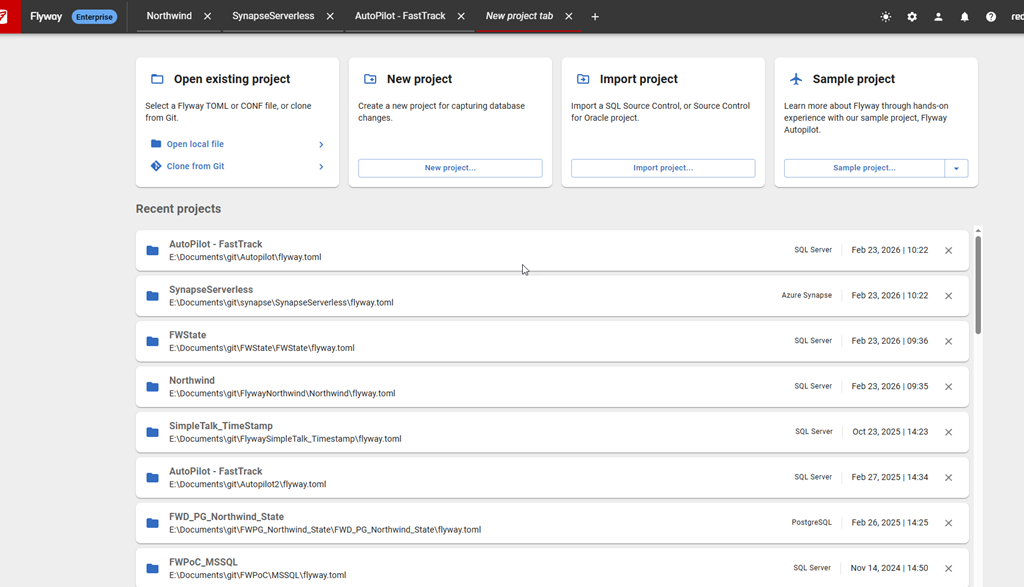
    This gives me a list of my projects, the same way I’d see them when I started Flyway Desktop. Notice the 3 I have open are listed first, as they were most recently touched.

    2026-02_0174

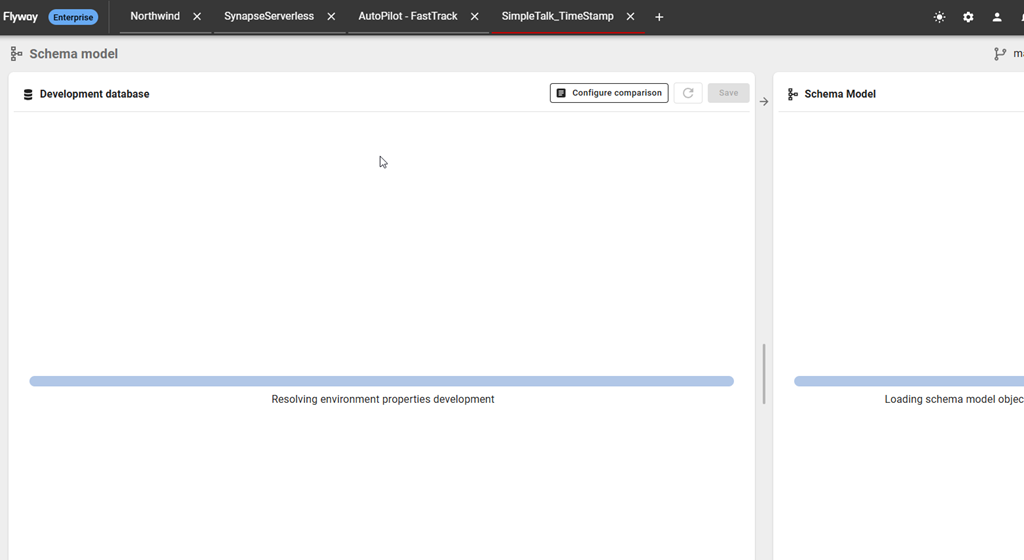
    If I click any of these projects, like my SimpleTalk_Timestamp project, it opens up. As with any project, the comparison on the Schema Model tab starts automatically.

    2026-02_0175

    Now I can switch projects quickly with a click, and my existing projects don’t close.

    Summary

    This is a small change, but one that has a big impact. The teams are constantly working on small and large changes like this. The ability to manage multiple projects is one that’s been requested and we were working on it, testing designs with customers and finding the best balance for most of them.

    We settled on multiple projects in one GUI, which I like and seems to be working well.

    If you work with Flyway, update your desktop and give it a try. We would love to hear your feedback.

    Flyway is an incredible way of deploying changes from one database to another, and now includes both migration-based and state-based deployments. You get the flexibility you need to control database changes in your environment. If you’ve never used it, give it a try today. It works for SQL Server, Oracle, PostgreSQL and nearly 50 other platforms.

    Video Walkthrough

    Watch me do this in video:
  • Flyway Tips: AI Helps with Commit Messages

    At Redgate, we’re experimenting with how AI can help developers and DBAs become better at their jobs. Everyone is asking for AI, as well as the ability to turn AI off. We’re working hard to accommodate both requests as we look for ways to leverage AI.

    One of the areas we’ve started to add some AI is in Flyway Desktop (FWD), with a few features designed to help reduce the cognitive load and save time as they work with databases.

    I wrote about summaries of migrations scripts and migration script naming recently. This post looks at another of those changes, which is the generation of a commit message..

    I’ve been working with Flyway and Flyway Desktop for work more and more as we transition from older SSMS plugins to the standalone tool. This series looks at some tips I’ve gotten along the way.

    Summarizing My Changes

    Commit messages are hard. There are numerous posts on the art of writing one, as well as no shortage of examples showing poorly structured messages. As I look through my own messages in the SQL Saturday repo, I’m somewhat surprised at times at ow well I’ve described something, or how poorly. I’ve certainly had the “fix” messages creep into my work.

    When we start making database changes, we often have a number of things we might touch. A new column could necessitate view and stored proc changes. One view might impact another, or a function. A piece of work might include alterations of a few tables, and fixes that might not be obvious need a bit of a description in the commit message.

    If nothing else, we need to ensure we’re linking commits to planned work on Azure DevOps boards, in Jira, or wherever a project manager might be assigning tasks.

    Flyway has added an AI feature to help us summarize our changes. It’s in preview as of Jan 12, 2026, and is designed to help ensure we get a better commit message than “fixed.”

    Generating Commit Messages

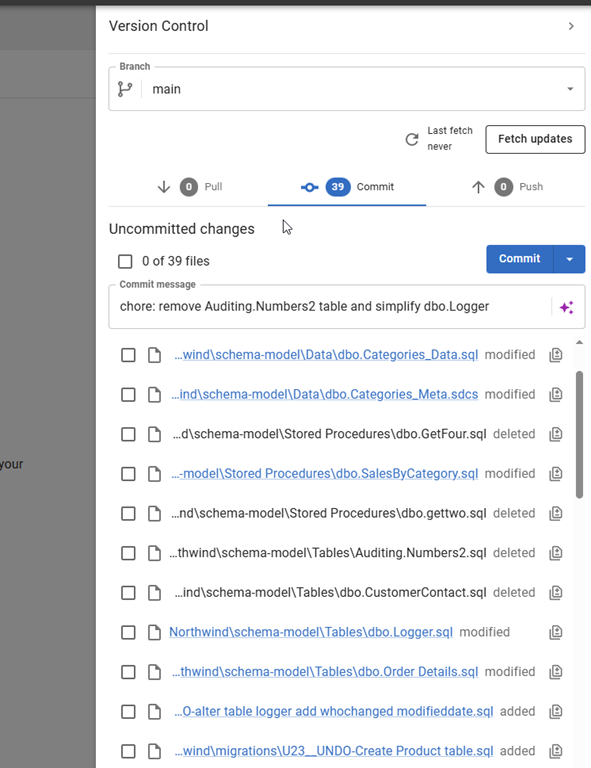
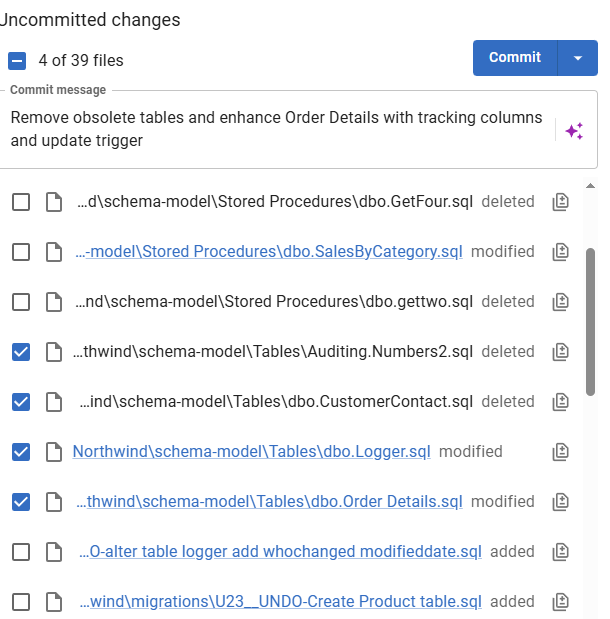
    When I go to the VCS tab in Flyway Desktop (FWD), I see all my changes listed. In this case, I’ve been demoing and testing a lot of things that I haven’t committed. Bad practice, and I’m a little upset with myself for not keeping my repo clean.

    2026-01_0186

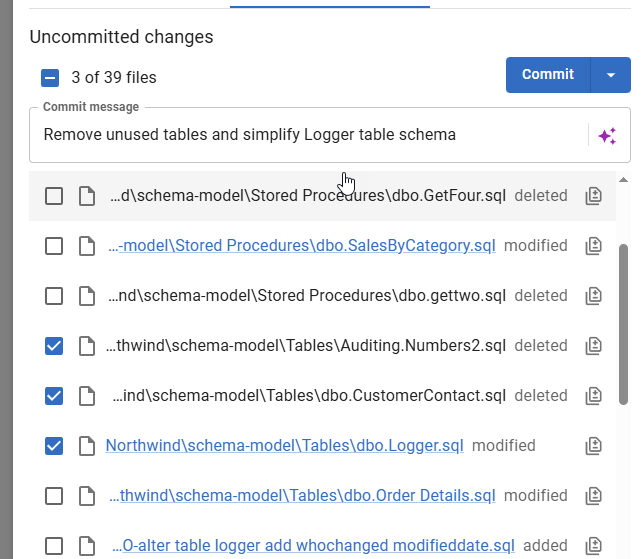
    Notice the little sparkle below the Commit button? This is where the AI help lives. If I select a few files, in a few seconds I’ll get a message generated for me. This is a decent summary, at just over 50 characters.

    2026-01_0187

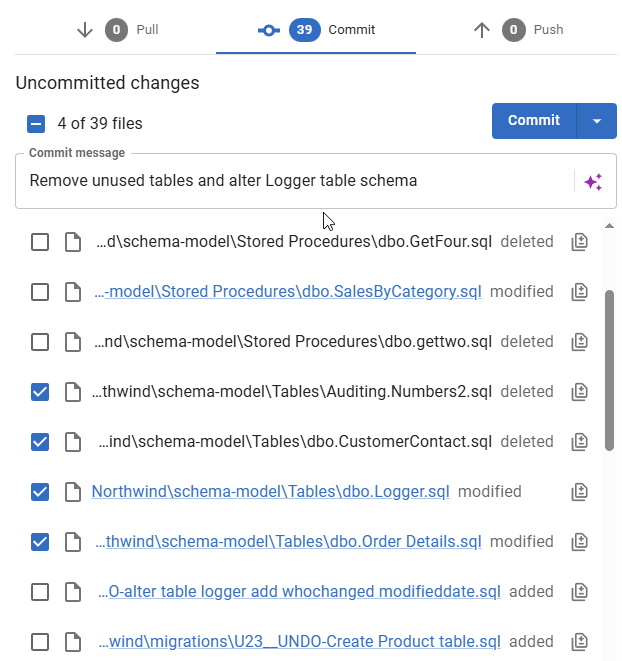
    If I don’t like this and want to edit it I can. If I do that, the AI won’t overwrite this. I’ll change the wording and select another file. Notice that the message remains the same.

    2026-01_0188

    If I want a new message, I can click the AI sparkle and it will regenerate this. I’ll show this in the video below.

    2026-01_0189

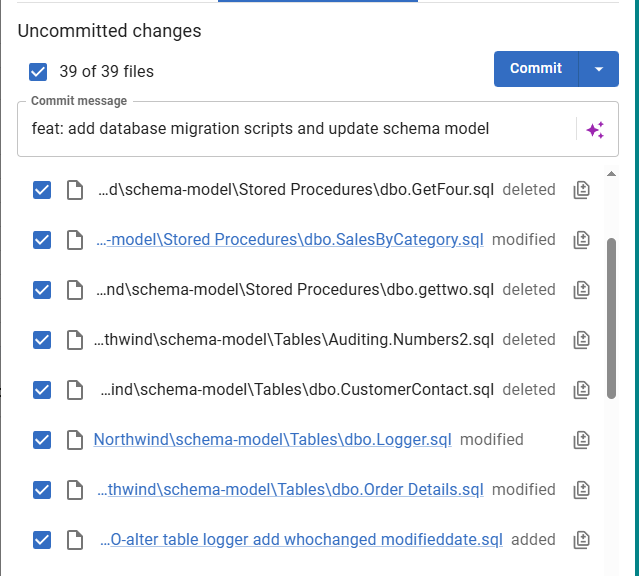
    If I select all the files, the AI summary isn’t great, but then again, I don’t know how I’d summarize all these changes. I might not do any better.

    2026-01_0190

    This is a small thing, but I often find that I struggle to come up with a meaningful message at times. Sometimes I do a good job and add something relevant with a work item number. Sometimes I want to just type “new table” or “fixed bug”.

    This reduces some of the creativity burden when I’m working through database changes.

    Enabling AI Features in Flyway

    This is a preview feature as of Jan 5, 2026 as I write this. To get this in your FWD, your organization needs to have enabled AI features in your portal. I’m just a member, but whoever is an admin for your Redgate products would find it here.

    2026-01_0173_thumb[1]_thumb

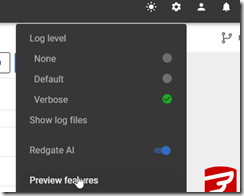
    In FWD, you need to look at the Preview Features item under the config menu.

    2026-01_0171_thumb_thumb

    In this area, you can enable or disable features as needed. I see these marked as Red-gate only, but I think they are supposed to be released to some customers by this time. It’s likely I need to upgrade my FWD, which I’ll do when I have time.

    2026-01_0172_thumb[1]_thumb

    Once you do this, you should start seeing some AI stuff with the purple/pink shaded area and the sparkle icon that we’re all seeing everywhere.

    2026-01_0174_thumb_thumb

    Summary

    Getting meaningful commit messages can be hard, but it’s also a tedious thing. I find that developers often get lazy and do the minimum. That AI might not be much better, but it does reduce the need for a user to think of a message and gives them a starting point from which to work.

    To me, this is one of the better uses of AI, handling a common, but tedious task. Now to go clean up my repo and take advantage of this with a bunch of smaller commits.

    This feature is documented, but we are likely to enhance and change it a bit, so all feedback is welcome. If your organization doesn’t want you using AI, and you could share some schema from a migration script, I’d be happy to test it for you and see what summary is produced and send it back to you. Ping me on X/LinkedIn/BlueSky if you want.

    Flyway is an incredible way of deploying changes from one database to another, and now includes both migration-based and state-based deployments. You get the flexibility you need to control database changes in your environment. If you’ve never used it, give it a try today. It works for SQL Server, Oracle, PostgreSQL and nearly 50 other platforms.

    Video Walkthrough

    See a video of me looking at this feature below.