

It’s a small change, but a handy one. Flyway Desktop (FWD) now includes the object history for different schema changes, so as you are evaluating how your changes might fit in with others, or you are trying to determine where something broke, you can see a list of historical changes. This post looks at checking history quickly in FWD.
I’ve been working with Flyway and Flyway Desktop and helping customers improve their database development. This series looks at some tips I’ve gotten along the way.
Checking History
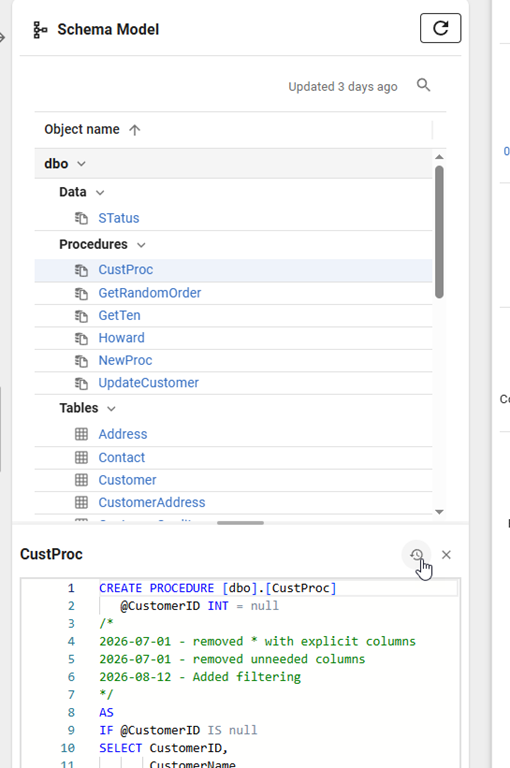
In Flyway Deskop, I can see all of my objects on the Schema Model tab on the right side. Here I’ve selected CustProc in the list, and at the bottom I see the current version of the code. However, if you look where my cursor is, there’s a small clock there.
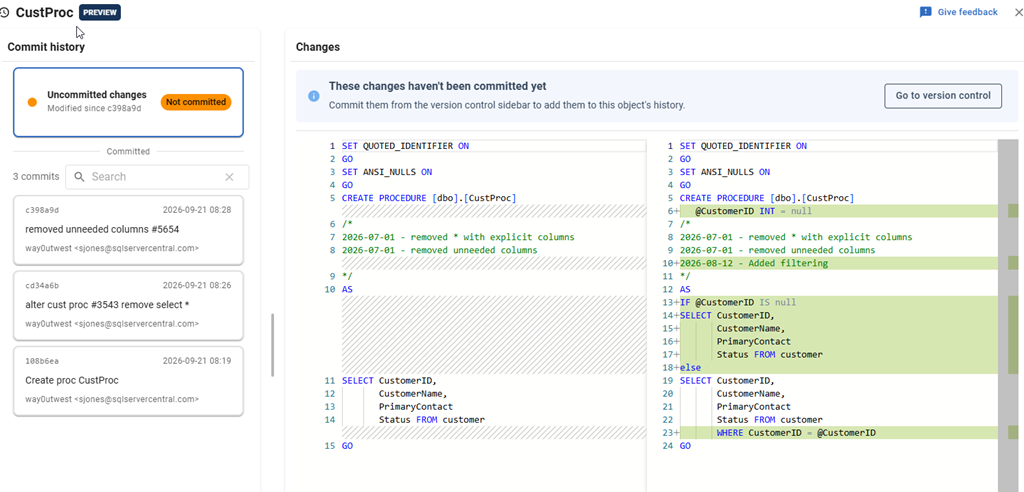
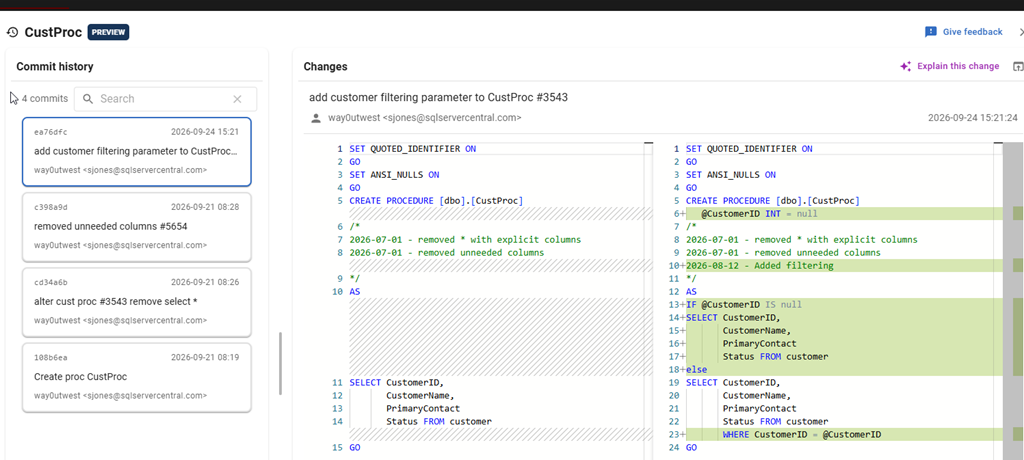
If I click this, I see a blade pop out with history. On the left, I see the various versions. At the top, I have the uncommitted change I just saved. This is shown as the older version on the left, which is committed in Git. My new changes are on the right, with green shading to highlight what I’ve changed in code.
However, maybe I wonder what was the previous change. If I click the top commit (c398a9d), I see this view. Note the red shading on the left, which are the columns I removed. I also have the green shading on the right, where I’ve added a comment and removed a comma. My commit message is at the top with my name and the time (upper right).
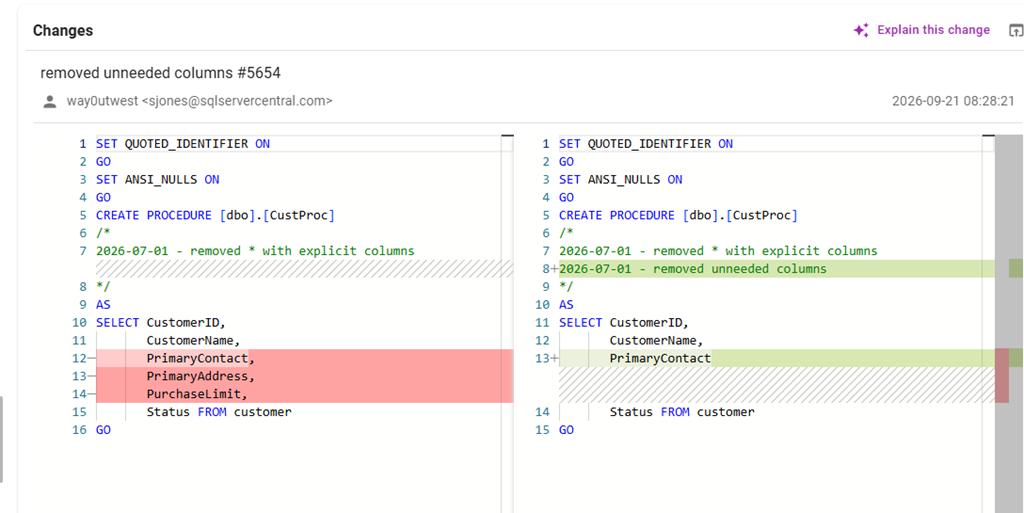
I can flip through the various history iterations of code here, just as I did with Git, but I can do this while I’m doing development work in the same place I’ve capturing changes.
I have a “go to Version Control at the top as well, which opens the VCS tab. Here I can commit the change.
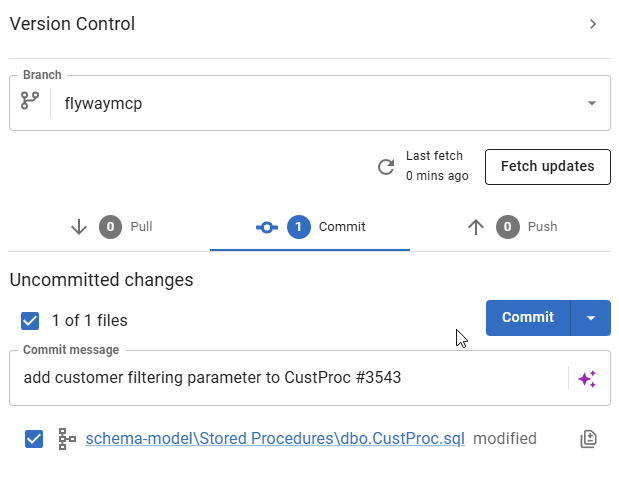
Once I do that, my change appears as a new commit for this object in the history.
AI Sparkle
It can be easy to sometimes see the changes made by a developer and understand them. However, sometimes there are complex changes, or you don’t notice something. Here I’ve got a more complex object history.
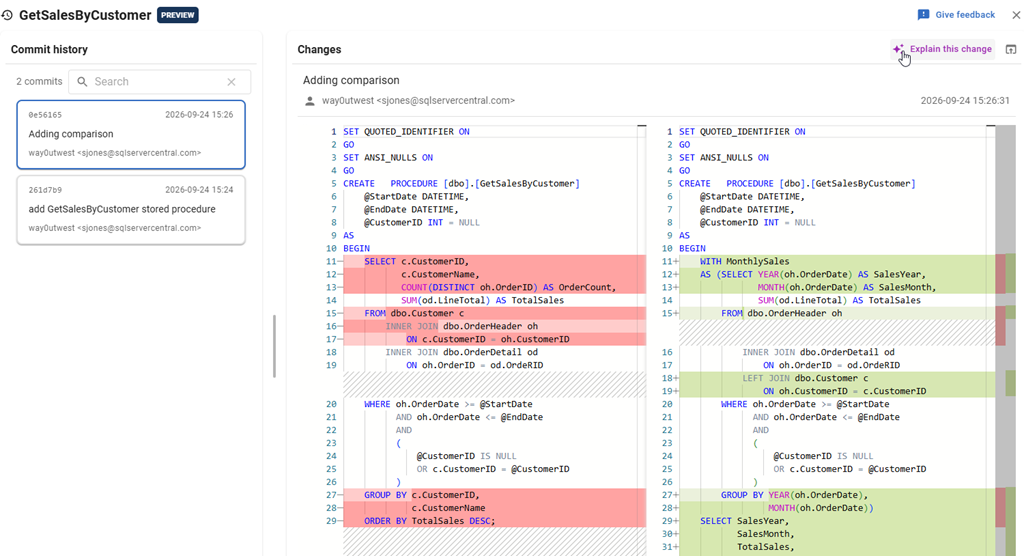
In the upper right, there’s an AI sparkle next to the “Explain this change”. If I click that, and have AI features enabled, I get an explanation. I’ve zoomed in to see this at the top.
This is a summary of the changes, which in the chaos of work, can be helpful. I get a quick summary.

I wouldn’t just trust this, but instead this guides me along the code to look at what’s been removed and added, and this summary helps me double check that the code does this, and that I understand it.
Summary
This a small improvement, but one that keeps you focused on the work: what changed. No hunting down the changes in Git or changing somewhere else. This also is easier to see than a git diff for me. It also gives me a quick summary where there are a lot of changes.
If you work with Flyway, update your desktop and give it a try. We would love to hear your feedback.
Flyway is an incredible way of deploying changes from one database to another, and now includes both migration-based and state-based deployments. You get the flexibility you need to control database changes in your environment. If you’ve never used it, give it a try today. It works for SQL Server, Oracle, PostgreSQL and nearly 50 other platforms.
Video Walkthrough
Watch me do this in video:


Leave a comment