Tag: sql server

  • SQL Server Still Wins

    Is it worth continuing to run SQL Server when PostgreSQL licensing is zero? Rebecca Lewis has a well written post on why that looks at some of the pros and cons of paying for SQL Server instead of moving to PostgreSQL. She starts with some of the things PostgreSQL does well, of which I think the Extensibility is really cool. SQL Server has some of this in CLR and the non-SQL language support, but those seem kludgy and complex to me. They aren’t really integrated into the SQL Server platform.

    They’re good, but I do wish vendors or the community could add some extensions in a way PostgreSQL does. Of course, I also worry about stability, so maybe this is a wish that isn’t really a great idea.

    The pros list for SQL Server is quite a good list, at least for existing users. Tooling isn’t close, both for DBAs and developers, and inside the platform. At Redgate, we support both SQL Server and PostgreSQL with Redgate Monitor, and there is so much more information that we can gather from SQL Server on what’s happening. It’s truly amazing when I compare them. We constantly are looking to add to our PostgreSQL monitoring solution and ensure admins see as close a view in PostgreSQL as SQL Server, but the reality is so much information is available.

    On the dev tool side, while SSMS can be slow, it’s still way better than any other database development tools I’ve seen.

    The innovation argument for SQL Server over PostgreSQL isn’t a great one, as PostgreSQL continues to evolve, but I’m glad Microsoft continues to work on the engine. I wasn’t enamored with SQL Server 2022, but I do like 2025 and look forward to what comes in 2028 (my guess). What I really wish, however, is that Microsoft marketed SQL Server more, with a little less Fabric in the way.

    That being said, I am continually grateful for the SQL Server marketing team’s support of SQL Saturday/Day of Data events.

    It is interesting to think that the Microsoft-stack gravity is Rebecca’s third argument. It certainly makes a lot of work convenient if you use Microsoft tools, and I completely agree that ripping this out is a major reason why people stick with SQL Server. Across the last 5-6 years, I’ve had many customers tell me they’re moving to PostgreSQL and abandoning SQL Server. They constantly ask Redgate for more PostgreSQL tools (and we’ve built some), but the reality is that a year, or two, or three later, they still have those ambitious plans. They haven’t moved.

    It’s really, really hard to change database platforms.

    That might not seem like a pro, but it is a reason why SQL Server still wins in many organizations. It’s comfortable, effective, performs well under a variety of situations, and quite frankly, there are millions of people who are more comfortable with it than many other platforms.

    I like other platforms, but I love SQL Server. It’s been good for my career and I look forward to spending the next 10-15 years continuing to help others get the most out of their installations.

    Steve Jones

    Listen to the podcast at Libsyn, Spotify, or iTunes.

    Note, podcasts are only available for a limited time online.
  • Upgrading SQL Server Containers on the Laptop

    I don’t have SQL Server installed on my laptop. In an effort to keep things clean and smooth in case I need to rebuild things, I’ve gone with containers. I can easily copy a folder with all my docker compose files and data to another machine and be up and running.

    One other benefit is upgrades. This post looks at the process of upgrading/patching SQL Server on my laptop.

    Getting the Latest Version

    A normal process for me in the past (and on my desktop) is to download a patch, run the installer, and then have SQL Server upgraded. Sometimes there’s a reboot involved as well. With a container, things are a little different. Here is the process:

    • Edit the docker-compose.yml
    • Restart the container

    That’s it.

    Once the image downloads and the container restarts, I have a new version. If I want to go back and test the previous CU/patch, I change my docker-compose file back. Most of the time, the database version hasn’t changed with a CU or GDR, so I can upgrade and downgrade easily.

    Here’s how this works in practice.

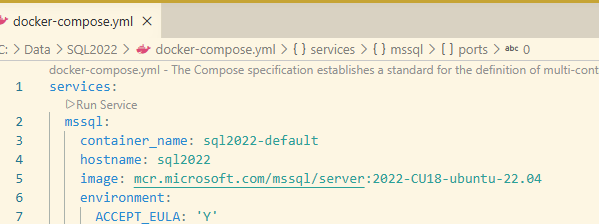
    There were a number of SQL Server patches released recently, including a few for SQL Server 2022. When I looked at my docker-compose file, I saw this:

    image

    The latest version of SQL 2022 is CU24+the Apr 2026 GDR (I’ve been remiss here in patching this machine). If I want to patch this, I update line 5. I know that there is a page on the MS Artifact Repository that lists the tags for each CU. It’s an easy Google search away.

    I change from this:

    image: mcr.microsoft.com/mssql/server:2022-CU18-ubuntu-22.04

    to this:

    image: mcr.microsoft.com/mssql/server:2022-CU24-GDR1-ubuntu-22.04

    Now, when I restart my container, I’ll see the new image downloading. Since images are built in layers, this isn’t the complete SQL Server image, but rather the changes from other images, so the download size and time are shorter.

    2026-04_line0001

    As soon as this finishes, the container starts and SQL Server is patched.

    2026-04_line0002

    Now I need to check the other SQL compose files I have for 2019 and 2025 and update those version.

    Video Walkthrough

    Below is a video showing me doing this process.


  • Microsoft Security Changes and SQL Server

    For almost as long as I’ve been working as a data professional, NTLM has been the security protocol used in Windows. Microsoft added Kerberos over 20 years ago, but NTLM is still a fallback. Like so many things Microsoft has worked on, they loathe breaking backwards compatibility, so NTLM has been available. However, it has issues, like the double hop problem, and there are numerous security issues with the protocol. I tested a security product over 20 years ago that could break NTLM passwords in under an hour. On old Pentium-based computers.

    This week Rebecca Lewis posted an article about the upcoming changes in Windows where NTLM is being phased out. She audits various clients and finds many are still using NTLM for SQL Server connections. Her observation is many people aren’t aware of this, and I’d concur. There is an informational message that is written to the SQL Server error log, but how many of you are checking the log and acting on this or even understand what it means? How many of you might have developers (or yourself) using named pipes and be unaware? That’s an NTLM only connection.

    Heck, I’ve got a friend fighting through SSL connections with SQL Server, which is something I rarely seen. This person will eventually no longer need to “trust server certificate” in every connection string, but I bet many of you are years away from implementing that. That’s another change Microsoft wanted implemented, and why modern drivers no only set this to true by default.

    Later this year, NTLM v1 will phase out, but that’s not likely what most of you use with SQL Server. However, the next major Windows server release will disable NTLM v2, and you won’t remember this editorial or the announcement then. What will happen is Windows admins will upgrade systems and you won’t be able to connect.

    Rebecca gives you some things to check, but since many of you might work in large estates, you’ll need time to ensure clients and servers get updated and NTLM isn’t the protocol you depend on. Trust me, if Windows or even a client driver upgrade remove this, you are in for a bad day (or week, or weeks) trying to get things working.

    I’d also suggest you learn how SQL Server SSL connections work. I don’t know that many orgs will require this, but some might as security becomes more automate-able and more CSOs start to ask that we ensure no man-in-the-middle attacks reach our servers.

    Steve Jones

  • Keeping MS Docs Up to Date

    One of the things that I like about the SQL Server docs (MS Learn Docs) is that I can fix things I find wrong. For years we had downloaded Books Online from installs, then we have BOL on a site, but those were mostly updated when a new release came.

    Now we have MS Learn, and a regularly changing set of docs. If you haven’t taken advantage of these docs for SQL Server, you should. Bookmark: https://learn.microsoft.com/en-us/sql/sql-server/?view=sql-server-ver17&redirectedfrom=MSDN

    I help change those. It’s part of my contribution as a Microsoft MVP, but it’s also something that I enjoy because it makes my life easier. This post will look at how I do this.

    Note: You need a GitHub account.

    A Recent Change

    Someone posted a note about multi-column primary keys, noting that the docs said we could use up to 16 columns, but they were able to do 17. I went to this page, Primary and Foreign Key Constraints , where in the first bullet list, there was a 16. This was the week of 24 Nov.

    Now, a week later as I write this, it says 32.

    2025-12_0124

    When I saw the 16, I decided to test things. I set up scenarios, I checked against multiple versions, and I verified that 32 was the right number.

    Then I clicked this edit button on the page:

    2025-12_0125

    When I did that, I was sent to the GitHub repo for the docs, which is in the MicrosoftDocs org. You can see what I see below. A lot of this is their markdown template, and can be ignored.

    2025-12_0126

    On the right is a pencil edit button. I clicked that.Note this says I’ll get a fork of this repo. That’s what I want.

    2025-12_0127

    When I click the pencil that, I go to the same page, but without any rendering. Note I’m still in the MS repo, but the blue note at the top says my changes will be written to my repo in a new branch.

    2025-12_0128

    When I knew I had seen an error, I scrolled down in the page and found the list. Here we see my 32 highlighted. This said 16 a few weeks ago.

    2025-12_0129

    I can edit this, so I’ll change this to 64. Don’t worry, I can’t affect the live docs. When I do this, I’ll then click “commit changes” in the upper right.

    2025-12_0130

    After clicking this, I get a commit dialog. Copilot tries to guess what I’ve done and it’s a good start. I typically edit the description a bit.

    2025-12_0131

    Once this is done, and I click Propose changes,  I get a pull request page. In this case, notice in the top image, I see this is going from my repo, from a specific branch, to the MS repo for comparison. I’m asking them to pull my changes.

    2025-12_0132

    Below this, I see the file(s) changed. In this case, one change.

    2025-12_0133

    I typically just click “Create pull request” for my changes and then the MS automation takes over. A form appears that shows the PR created and the status (if it can be merged). Since these are quick, usually there’s not problem with a clean merge.

    I get an email from the automation thanking me for the contriution, letting me know an author has been notified.

    2025-12_0135

    If there are comments, I’ll get emails on those. When this happens, sometimes they let me know there is something else needed or I should amend my PR. Sometimes they tell me they’re closing the PR and incorporating the change into something else. I’ve had my change get someone thinking and they might take my idea and add something else in their own internal PR.

    If someone approves my PR, they’ll add a tag from their side, and the change is merged and a rebuild happens. Here’s the email I get.

    2025-12_0136

    Then my change is live pretty quickly.

    I probably submit 5-10 a year, almost one a month. I don’t find a lot of issues, though I do sometimes take the time to add a new example that might serve me, or others. I should do more of those.

    If you want to submit your own corrections, feel free. If you don’t, and want me to do it, send me a note and I’ll submit the PR.