Tag: blogging

  • Writing as an Art and a Job

    I remember listening to an interview with Rick Reilly in the mid 2000s. He was the back page columnist for Sports Illustrated for years as well as a writer in various pieces. He talked about how he would lay on the couch in his office sometimes, trying to think of what to write. His kids would come in looking for attention, but couldn’t understand that Dad was “working”.

    I had been writing the editorials at SQL Server Central and I could relate. Moving from 2 to 5 (eventually 6) editorials a week was a lot of work. It was stressful in a way I couldn’t imagine when I started writing them. I quickly realized that if I had to produce a new one every day, I was in trouble. There would be days I’d struggle. I needed to have a queue of pieces at least partially ready if I were going to manage this job and find balance with my family.

    Recently I was listening to an interview with Lee Child, who writes the Jack Reacher series. He said that writing is both a creative endeavor and a job. It requires some inspiration and time, but it also requires you to buckle down and get to work. This is an area where delays are inevitable (everyone gets writer’s block) and if you aren’t thinking ahead delays will occur. Delays aren’t great for newspapers or other scheduled events.

    SQL Server Central became a newspaper.

    One of the things I did early on was start to enhance my powers of observation. There’s no magic here; it’s really a habit to look at things in your life in a different way. For me, this meant considering each question posted on the forums, each bug reported in SQL Server, each complaint/criticism/success through the lens of both telling a story and generalizing the wider issue.

    I learned to write about what I experienced by seeing the experience as a source of inspiration.

    I started keeping notes. First in a text file, then OneNote, then Evernote, and today, Joplin. As I would see something interesting in the world, I’d make a note, copy a URL, write a sentence or two. I then regularly go back and flesh out these ideas and add to them. It’s similar to the recommendations I make for blogging: make notes, expand those later.

    The job part of this was making time to write on a regular basis. I used to try and write every day. I had some success, but I also learned some days I struggle to articulate my thoughts. Rather than struggle, I learned to just abandon the effort and go do other work, or sometimes, go to the gym or get away.

    The flip side of that is that when I feel the writing is flowing, I write more. I don’t stop after one editorial (or blog) and I’ll try to tackle another one or two. If I struggle with one topic, I may find another easier, so I flip through notes and keep trying to get another one when I am in the mood to write. I sometimes find I can write 3 or 4 in a day and then not do much writing for another few days.

    Many of you reading this do technical work. You work on systems, or in code, or both. However, the world is changing. I started this piece with the 25th anniversary of SQL Server Central in mind, but really, AI is front of mind. I’ve had 3 conversations today about AI stuff, and the one thing that stands out is communication and clearly expressing yourself if crucial to getting AI to work well for you.

    Learn to write better. It helps in your communications with humans and with AI LLMs.

    Steve Jones

    Listen to the podcast at Libsyn, Spotify, or iTunes.

    Note, podcasts are only available for a limited time online.
  • Capturing Ideas for Blogs

    As we close out the year, I decided to drop this post here and maybe inspire a few of you to write in 2025. This post looks at some examples of how I capture ideas for later and jot notes that turn into these blog posts.

    Everything is an idea

    Let me start with how I look at the world. I was in a meeting with some of our solution engineers and Kathi Kellenberger. Kathi was showing how to get started with the Redgate Monitor PowerShell API, which is something relatively few of our customers use. However, it’s very powerful and as she started, I noticed a few things.

    1. She pointed out how to download and load the module
    2. She showed how to make a basic connection
    3. There was a section on adding tags to a list of servers
    4. There was a section on reading in a CSV with server names and settings
    5. There was a section on changing settings for alerts based on the csv

    In this list, there are 4 blog posts at least. Here is what sketched out. Each of these sections is the draft title of a blog post with the items I captured inside.

    Getting Started

    purpose of PoSH with RGM

    download module

    get an auth token

    make basic connection with your monitor server

    Get data from a query

    Adding Tags to a Server

    check sample scripts

    Pick group of servers, get group list from

    load csv, loop, applying tag to group

    Load CSV

    Basic PoSh

    Load CSV, show how fields are represented

    loop through different rows

    Change Settings from PoSh

    Get list of servers and settings in csv

    load and loop through

    alter alert setting for server based on csv

    Summary

    Those are light sketches, but they capture the idea. I’ve got 4 draft posts now that I can flesh out when I have time. While I was doing this, I grabbed a couple screenshots as well, which help me remember the context of what I saw.

    This is the way I grab lots of ideas when they occur to me, without worrying about finishing these right now. From these descriptions, I can build a larger blog post, in this case, a series that I’ll add to my other Redgate Monitor posts.

    Try grabbing ideas for tools, fixes, patches, changes, etc. during your workday. Drop them in a folder somewhere, use Open Live Writer, Word, whatever. Then when you’re looking to blog or improve you career or fix something, you’ll have a list.

  • Branding Yourself for a Dream Job Slides

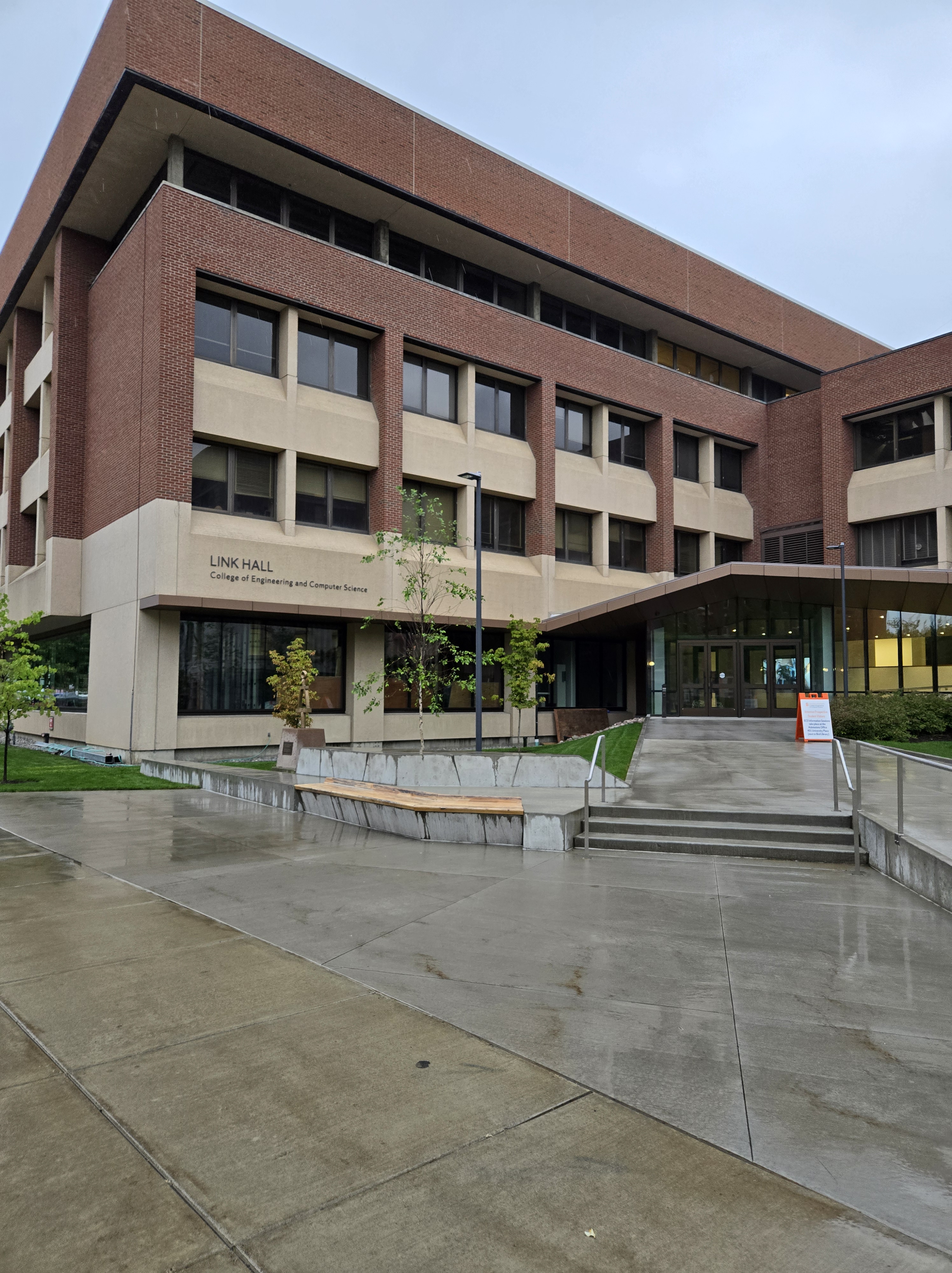
    It was very cool to come back to Syracuse for the first SQL Saturday. It was neat for me, since I used to live here, Shaw Residence Hall at Syracuse University:

    Shaw Hall at Syracuse

    In any case, the slides for my talk are here: Branding Yourself for a Dream Job.pptx

    If you have questions, please reach out to me or leave a comment below.

  • Stop Snagit from Saving .SNAGX Files Automatically

    I recently installed SnagIt and it was annoyingly saving both PNG and SNAGX files. This post shows how to get rid of the SNAGX file. If you just need the solution, scroll to the bottom.

    I installed Snagit recently with a new machine. The old screenshot software I had been using was banned by IT as it had an unpatched vulnerability.

    The main reason I want a screen capture tool is for sharing an image. This might be for a note for me, feedback to a product team, a part of a screen for a blog or article, or even showcasing something for a customer.

    What I have done for a couple of decades:

    • hit a hotkey
    • select a region of the screen
    • move on

    I expect to have the region of the screen saved in a folder on my workstation, where I can then grab it later and send it somewhere.

    The SnagIt Problem

    When I added SnagIt, I set up a automatic capture with these settings.

    • select: region
    • Effects: non
    • Share: File, automatic filename, specific folder
    • No preview, no delay, capture the cursor
    • Preset – One set up
      • hotkey: CTRL+Shift+B
      • Image type set to PNG

    This worked well, with my images being captured.

    Except, with every PNG, I also had a SNAGX file. That was really annoying because if I edit, I’m editing the PNG  and resaving it. I don’t need 2 image files.

    Customer Support

    I had a chat with customer support, who was not helpful. They suggested this article: Save to another format. I eventually got the person to understand I didn’t need that, and they said this wasn’t supported.

    I complained a bit on Twitter, mostly just annoyed. The person who responded gave me the same article, but then they responded later with the solution.

    The Solution

    The place to configure this isn’t the SnagIt app, which is where I’d expect it. It’s in the Snagit Editor. I’m guessing that the capture process calls the editor somehow, which is why this design exists.

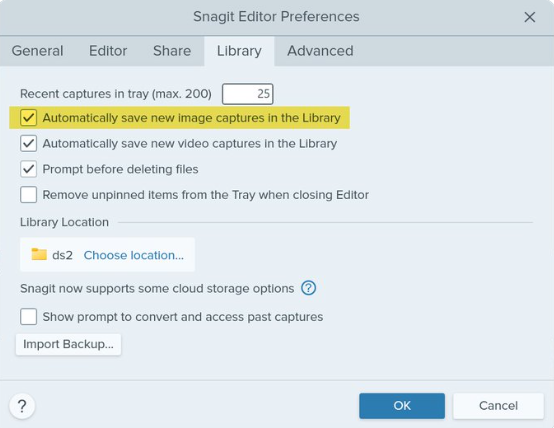
    Go to the Edit menu, then select Editor Preferences. Go to the Library tab. In there, uncheck the “automatically save new image captures to library”. It’s checked below, but remove that and it should stop with the SNAGX versions.

    2024-08_0118

    Summary

    No screenshots because, well, when I try to capture one the SnagIt app and Editor disappear. The one above is from Twitter.

    This is a weird architectural design. The capture widget would be the place I’d expect this, but the “save new image captures” implies to me all image captures, not just the SNAGX format. It’s poorly worded, IMHO, for users to understand.

    However, my problem is solved and I don’t need the job I created that runs every day and deletes *.SNAGX from my folder.: