Tag: containers

  • Upgrading SQL Server Containers on the Laptop

    I don’t have SQL Server installed on my laptop. In an effort to keep things clean and smooth in case I need to rebuild things, I’ve gone with containers. I can easily copy a folder with all my docker compose files and data to another machine and be up and running.

    One other benefit is upgrades. This post looks at the process of upgrading/patching SQL Server on my laptop.

    Getting the Latest Version

    A normal process for me in the past (and on my desktop) is to download a patch, run the installer, and then have SQL Server upgraded. Sometimes there’s a reboot involved as well. With a container, things are a little different. Here is the process:

    • Edit the docker-compose.yml
    • Restart the container

    That’s it.

    Once the image downloads and the container restarts, I have a new version. If I want to go back and test the previous CU/patch, I change my docker-compose file back. Most of the time, the database version hasn’t changed with a CU or GDR, so I can upgrade and downgrade easily.

    Here’s how this works in practice.

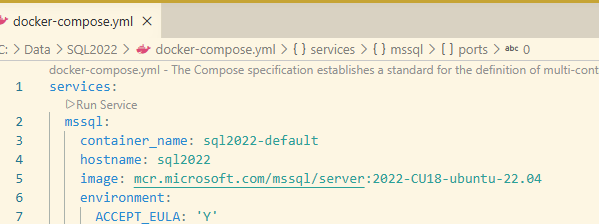
    There were a number of SQL Server patches released recently, including a few for SQL Server 2022. When I looked at my docker-compose file, I saw this:
    image

    The latest version of SQL 2022 is CU24+the Apr 2026 GDR (I’ve been remiss here in patching this machine). If I want to patch this, I update line 5. I know that there is a page on the MS Artifact Repository that lists the tags for each CU. It’s an easy Google search away.

    I change from this:

    image: mcr.microsoft.com/mssql/server:2022-CU18-ubuntu-22.04

    to this:

    image: mcr.microsoft.com/mssql/server:2022-CU24-GDR1-ubuntu-22.04

    Now, when I restart my container, I’ll see the new image downloading. Since images are built in layers, this isn’t the complete SQL Server image, but rather the changes from other images, so the download size and time are shorter.

    2026-04_line0001

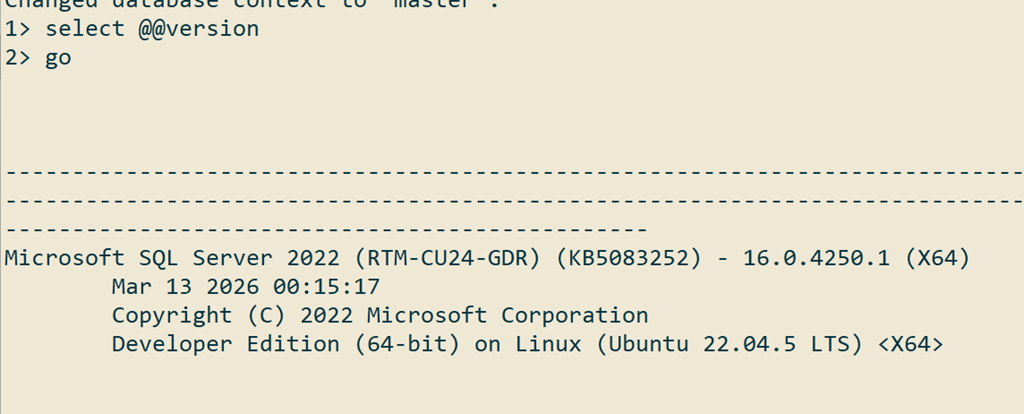
    As soon as this finishes, the container starts and SQL Server is patched.
    2026-04_line0002

    Now I need to check the other SQL compose files I have for 2019 and 2025 and update those version.

    Video Walkthrough

    Below is a video showing me doing this process.


  • Using Customer Docker Compose File Names

    As I use containers more and more to run various things, I decided I not only wanted to set up docker compose files, I wanted to name them something other than docker-compose.yml. While I often have these running in separate folders with separate batch files to start them, I wanted to have the name mean more.

    This post shows how to do this.

    Creating the File

    Obviously the name is the only change. All the other items in your file need to match. For me, I created a new file with YML in it, which looks like the image below. I then saved this as SQL2025.yml, which is the version of SQL Server this container runs.

    2025-08_0184

    There’s nothing magic here, so I ran this:

    docker compose up –d sql2025.yml

    That didn’t work. I got docker errors, so I had to search and got a Google AI summary (which I don’t like) that noted there is a –f parameter. I tried this.

    docker compose up –d –f sql2025.yml

    That didn’t work either. I clicked through on Google to the docs, and I see the –f. However, I noticed that the –f comes before the command.

    I then changed this to

    docker compose –f sql2025.yml up –d

    and things ran. Of course, I needed to alter my “stop” command below, as you can see.

    2025-08_0185

  • Adding SQL Server 2025 to my Laptop

    I wanted to do some testing of SQL Server 2025 on my laptop. I have written before how I avoided installing SQL Server on the laptop and use containers instead. This post looks at adding a new version on the default port.

    This page on MSLearn shows how to run the SQL Server 2025 container. I started here, when searching for “SQL Server 2025 container” on Google.

    2025-06_line0100

    It was nice to see this updated for 2025, and if I scroll down, I can see the docker container to pull. This is the important thing for me to add a new version of SQL Server.

    2025-06_line0101

    I could go to this URL to see all the tags, since I don’t want just latest. I want to know what version to run: https://mcr.microsoft.com/en-us/artifact/mar/mssql/server/tags

    In this case, I want this tag: 2025-CTP2.1-ubuntu-22.04

    Installing the New Version

    If you read my previous article, I put a folder for each version on my system. In my case, I use c:\data. I’ll make a new folder for SQL 2025.

    Note: I tried to copy this folder and subfolder and then delete files, but got permission errors on stratup. I made new folders and things worked.2025-06_line0104

    Once in here, I’ll create sub folders for my mappings.

    2025-06_line0105 

    I will then copy over the docker-compose.yml file. In my case, I have all the 2022 stuff. I need to edit things.

    2025-06_line0106\

    Most things are fine here, but I’ll update the name and image. These need to use the 2025 values. Here are my edits.

    2025-06_line0107

    I save this, and then I copy/paste the two stop/start batch files. I’ve opened these in code and changed 2022 to 2025. I’ll show one file below, but basically I change the CD command in both.

    2025-06_line0108

    That’s it. If my SQL 2022 container that runs on the default port is stopped, I can double click the start2025.cmd file. Once I do that, I see the image coming down.

    2025-06_line0110

    As soon as that completes, the container starts. I can connect with SSMS to the local host. Same as my 2022 instance, whose container is stopped.

    2024-07-16 20_35_33-000012

    Once I connect, I see the new, default, instance of SQL Server 2025.

    2025-06_line0113

    I do have to remember to start/stop containers, but I love having multiple default instances Winking smile

  • Moving to Rancher Desktop

    I’ve been very happy with Docker Desktop for years, running it on both laptop and desktop. However, a corporate decision was made to move to Rancher Desktop, so I now have an unexpected “opportunity” to learn something new.

    Here’s a short post on how things went on the desktop and laptop.

    Getting Rancher Desktop

    I had never heard of Rancher. I’ve met a number of Linux/Oracle people using Podman, but not Rancher. You can download Rancher from rancherdesktop.io. This is a project from SUSE, of the Linux distribution fame, and one of their many projects.

    The install is a next/next/next standard Windows MSI, though once installed, I found I needed WSL2 on my desktop. On my laptop, I ran wsl –v and saw this.

    2025-05_line0035

    On my desktop, I installed this first, and tried to get things going. It installed, downloaded some Kuberbetes things, asked me to use containerd or dockerd (I chose the latter), and then was running. Once the engine was up, my docker commands worked and I could start containers.

    However, there was a problem in that I had a volume (unnamed) that a few containers were using. However, after uninstalling Docker Desktop, I couldn’t find the volumes. I’m lightly concerned I’ve lost some data, which isn’t the end of the world, but it annoying.

    Learning From My Mistakes

    On my laptop, I decided to try and make this smoother. First, I uninstalled Docker.

    2025-05_line0068

    Next I ran the Rancher install.

    2025-05_line0069

    Once this installed, I started the desktop program. It again downloaded some Kubernetes components and then seemed to be up and running.

    2025-05_line0070

    I tried Docker components after starting the Rancher Desktop (RD), but before I realized it was downloading stuff. That was the docker error shown first below. The second one was once the online status was shown in RD.

    First Tests

    I have a few containers set up to run SQL Server with docker compose files. I have a batch file I double click for “docker compose up” (and another for down). I clicked one and saw this: images downloading.

    2025-05_line0072

    I assumed an image store would be an image store, but apparently not. Rancher must use a different place. That’s an interesting thing I need to check. Do I have extra images laying around. I think my Docker Desktop was using containerd, so maybe that’s part of this.

    I could connect from SSMS fine and I could see my container running in the desktop (I had to switch away from the Containers item and back).

    2025-05_line0081

    I also checked some docker commands and they seemed to work. I could get a list of containers, and apparently Rancher runs a bunch itself.

    2025-05_line0082

    I could also see logs from my container, which are handy at times when I need to try and debug an issue.

    2025-05_line0083

    Summary

    I have to admit that after a week, I’m still nervous. Losing a volume, whether it’s really gone or I just can’t find it, is disturbing. I hate losing data.

    Rancher seems to work fine for the basic things I do with containers, though the interface feels incomplete and simple. I can’t set hardware limits, it isn’t an active interface, and I feel like I’ve lost a lot of options. I didn’t really use more, but I still feel some loss.

    I haven’t heard internal complaints from anyone, so I’m assuming that most container based things still work. We’ll see how I like this across the next month.