Tag: Tesla

  • Moving on from Tesla

    We decided to sell our Tesla Model Y. It’s been almost 5 years, and it’s (still) an amazing car. My wife, however, wants something more luxurious. As cool of a car as it is, and how well it performs, it’s not luxurious inside. The ride can be stiff, the seats are good, not great, and we’re ready for something else.

    We’ve been testing a few different SUVs, as we don’t want anything smaller than the Model Y. We ended up choosing a Lucid Gravity, which feels like an advanced version of a Tesla in many ways. It doesn’t self-drive, but it’s a very, very nice car inside and drives like a computer.

    A luxury computer that is very comfortable.

    What’s amazing is I listed the Tesla and had 6 people ping me that day for the car. I showed it to one and he liked it, so we’re in the process of getting paperwork done. I haven’t sold a car in a long time that had a loan, and I’m surprised at the weird challenges that this entails.

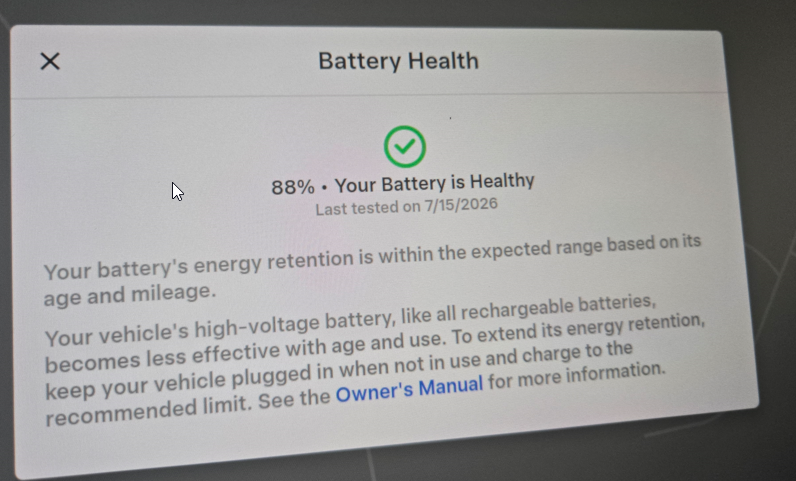
    It’s been 4.8 years with the Model Y and it’s still an amazing car. No real problems with it, it’s performed well, and the battery health is still at 88%. What’s even more amazing is that moving to 18” wheels netted me better performance than I ever had, with my last, around town 200 miles showing 205Wh/mi. Kind of amazing.

    2026-07_0364

  • Choosing to not drive the Tesla

    I started a short thread on Twitter/X and Bluesky recently after leaving the Tesla at home recently. A few people asked me about it, so I decided to do a short update, as this is my computer on wheels.

    This is part of a series that covers my experience with a Tesla Model Y.

    A Busy Weekend

    A few weeks ago, we traveled to Greeley, CO to coach in a tournament. My wife and I coach two teams this year with our daughter and it’s very busy. This particular weekend, we were coaching the afternoons on Saturday and Sunday and Monday morning in Greeley. The catch was our second team had a Sunday morning tournament in Golden.

    We had booked a hotel in Greeley and decided to take two cars as we knew the Sunday morning event might run long and we needed to be back in Greeley. Our schedule of places, times, and drives was:

    • Saturday 11am – practice (17 miles from home)
    • Saturday 2pm – Greeley (72 miles from the gym)
    • Sunday 7am – Golden (64 mi drive from hotel)
    • Sunday 2pm – Greeley (64 mi from Golden)
    • Monday 3pm – Leave Greeley for home (83 miles)

    Around this, there likely are a few short trips of a few miles. Dinner, etc., so these are estimates.

    The other caveat on this weekend was the weather was predicted to be in single digits (in the F scale) overnight. Either positive or negative, but cold. The highs were 11F Sat, 15F Sun, and 8F Mon.

    Planning the Trip

    We already knew we needed two cars, so the question was: is the Tesla one of the two cars?

    Some snow was expected, and I didn’t worry, but my wife had a bad experience heading to the mountains one weekend in heavy, wet snow and the Tesla defroster didn’t work well. Neither did the wipers.

    That was a minor concern for me, especially as I learned how to get hot air rather than the default cool air for the front defroster.

    The bigger issue was time. In trying to get up to Greeley, we would be tight on time. I’d be asking to go over 200 miles without a charge in very cold weather, across 2 nights.

    Or we’d be looking to stay up late one night to charge at the Loveland supercharger, which is a 20 minute (each way) drive from Greeley. There are some chargers in Greeley on a map, but when we tried them last year we found:

    • 1 didn’t work
    • 1 was very slow (level 1 slow)
    • 2 were busy

    These were separate locations in the town, where businesses had set up fast charging. This isn’t a knock on Greeley, it’s just the reality of EV charging in some places. This is an unfamiliar place and I don’t trust most charge stations owned by various companies.

    At least not when time is a factor.

    The Final Decision

    I didn’t want to be stressed about charging, so we decided to leave the Tesla home. It wasn’t that important, certainly not to worry about charging time or having enough charge in a very cold environment. I took our old Suburban and my wife took her diesel truck.

    There ended up not being much snow, just a few flurries, but it was very cold, and we were racing from place to place. In coming back Sunday to Greeley, we had a 10 minute cushion according to Google Maps and lots all that trying to get a cup of coffee and some lunch from a stop. Even if we’d have aimed for the Supercharger for 10 minutes, they don’t have food service nearby. There is a hotel at the supercharger, but they’re a) slow and b) expensive.

    I’m happy with the decision. I missed driving the Tesla, but it made sense to skip it for this trip.
  • Updating Teslamate to the Latest Version

    I noticed Teslamate wasn’t updated. In fact, I hadn’t had any data captured in nearly a month and I’ve been too busy to notice. I was concerned something had happened, but I wasn’t sure what.

    This is part of a series that covers my experience with a Tesla Model Y.

    Troubleshooting

    I saw a few notes online that said to restart things, which I did. When I went to the home page of my installation, everything looked fine, but not data for the last 20 something days. On the settings page, I saw a message that I needed to include an encryption key as an environment variable, nothing else.

    One post said that I should delete the entry in the tokens table in the database to force a new login. So, I did that. I connected to the container with:

    docker compose exec database psql teslamate teslamate

    Then I ran a delete statement.

    2023-12-19 15_39_30-cmd

    When I went back to the home page, I did see a login page. Fortunately, I had the Tesla Tokens app on my phone and it generated new API keys for me. If you don’t have this, you need it.

    I still had the encryption key message and I didn’t have any data, so I decided to upgrade.

    Adding an Encryption Key

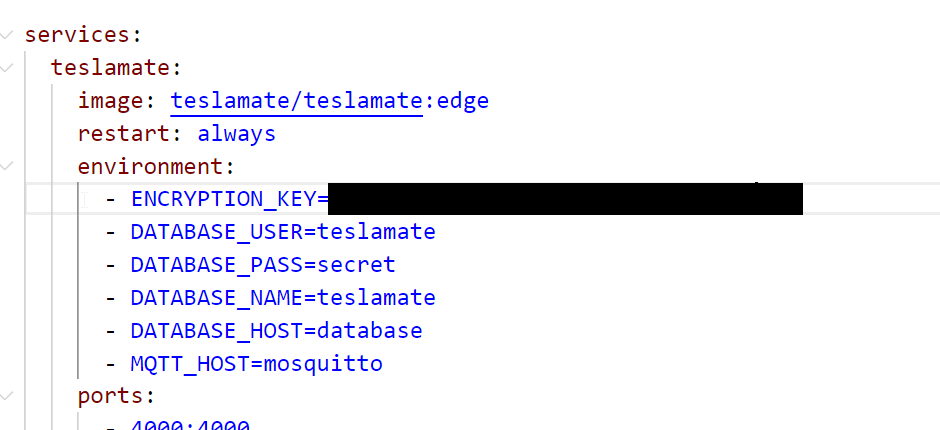
    In my Docker Compose file, I decided to add the encryption key. In the old file, I didn’t have the encryption key, so I copied the environment variable from the docs and added this in my file.

    ENCRYPTION_KEY=somekeyvalueImadeup

    No, that isn’t my password, but you can see the file below.

    2023-12-19 15_41_44-docker-compose.yml - PublicDocuments - Visual Studio Code

    Once this was done, I checked the update page and it said to be sure you were on docker compose v2. I wasn’t sure where I was, but I know I hadn’t updated Docker Desktop in awhile, so I went to that app, downloaded the update and applied it.

    Now I was ready.

    Upgrading Teslamate

    This is really easy. This is on the docs page. First, stop your containers with this:

    docker-compose down

    Next, run this

    docker compose pull

    As you can see, it started the update and had to pull down new images.

    2023-12-19 15_45_41-cmd

    Once this was done, I ran docker compose up and things were running. I got to the teslamate page, where it wanted me to log in again. Fortunately, I’d saved my API tokens. I entered them and I was in:

    2023-12-19 15_46_43-Overview - TeslaMate - Dashboards - Grafana — Mozilla Firefox

    Before this, the “Tina” in the upper left dropdown was nul and none of the temp values were populated.

    Hopefully I’ll have this working for some time, but I’ll set a reminder to upgrade things a couple times a year.

  • Backing up the Teslamate Database

    I was worried about some of my data, so I wanted to be sure I had a backup of my Teslamate system. This post covers the config I’d added and how I backed things up.

    This is part of a series that covers my experience with a Tesla Model Y.

    The Backup Volume

    In my Teslamate docker-compose file, I had added a backup volume some time ago. My config section looks like this:

    2023-12-19 15_02_56-docker-compose.yml - PublicDocuments - Visual Studio Code

    For this database container, I’d added the volumes for data and explicitly set a location that maps from a folder on my e: drive to a folder called backup in the postgresql location inside the container.

    This ensures I can easily find my PostgreSQL backup file if I need it, which I hope I never do, but you never know.

    Once this is set up, you can restart your container and the folder is mapped.

    Running the Backup

    There are instructions on the Teslamate Docs site, but I kept getting errors. I think some of those were because I was on docker compose v1, but I didn’t want to update without a backup.

    So.

    I used this code to connect to the container.

    docker exec -ti teslamate_database_1 /bin/bash

    Next, I ran this to backup the database.

    pg_dump -U teslamate teslamate > backup/teslamate_20231219.bck

    As you can see, it worked.

    2023-12-19 14_55_16-Custom Selection

    And I had a backup file in my folder.

    2023-12-19 15_14_52-backup

    Now to upgrade things.