

At the Redgate Summits this year, we’ve highlighted a few things in the Flyway solution that help developers improve their ability to get work done safely and quickly. While lots of developers are moving to automated systems and catching issues in pipelines, plenty of you are still working in an IDE.
This post looks at the new code analysis feature in Flyway Desktop that can help warn you of potential issues before you create that PR.
I’ve been working with Flyway and Flyway Desktop and helping customers improve their database development. This series looks at some tips I’ve gotten along the way.
Generating Good Migration Scripts
Flyway gives you determinism and consistent scripting when you generate migration scripts. Plenty of developers still do this manually, often after a lot of work and testing is done on the schema model. Once you’re sure of the changes you want to make, you can select those changes to include in a deployment.
As you can see below, I have a lot of changes, but I want to just pick one to put into a deployment.

If I click on the change, you will see that this is simply adding a new column, something developers do all the time. I’ll select that and click “Generate Migrations”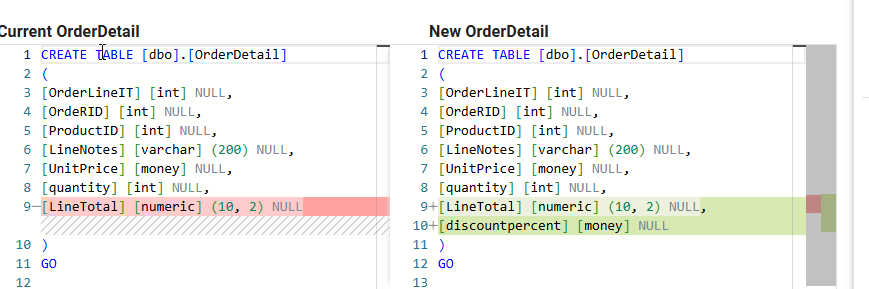
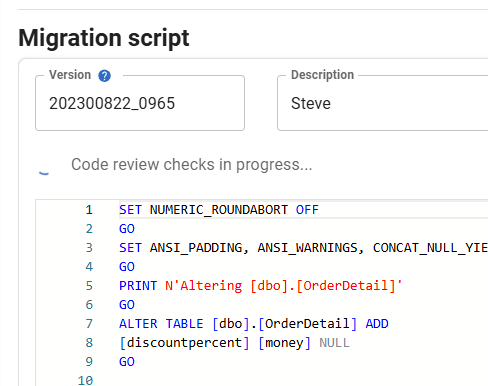
When the tab changes, the default screen shows the next numbered migration script, based on my patterns and a default description of my name. Note that there is also a “Code review checks in progress” item to the left, which is running as the code is generated.
Once this completes, you can see my code rules passed, and the Flyway AI has generated a better description of the changes than I might have typed in.
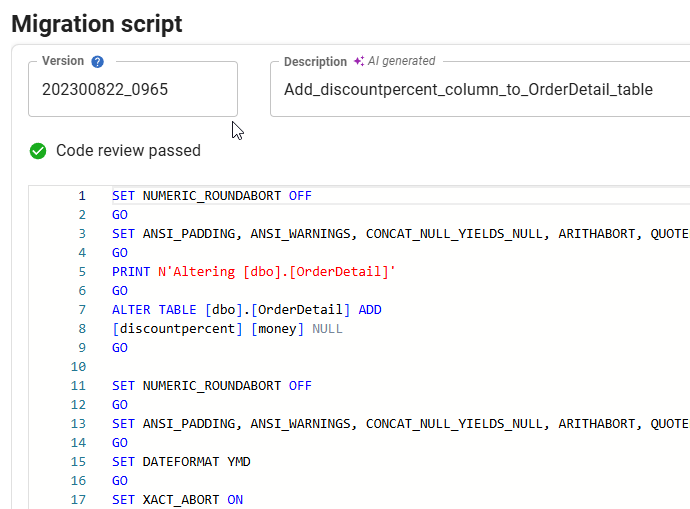
There are a number of rules by default, and these are run when the migration script is generated. You can change, add, disable, customize, etc. for these rules as appropriate for your project.
Let’s go back and select a different change. In this case, I’m selecting the “Grant” table and dropping it. It’s in the current view of the db, but not the next one.
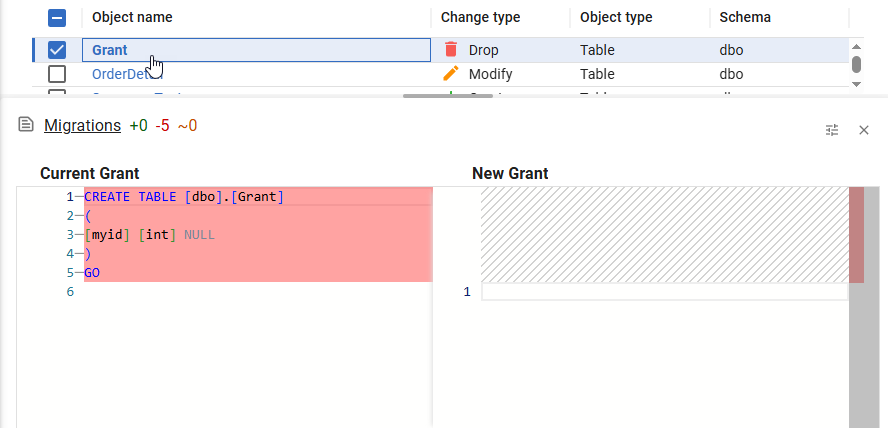
When I click Generate Migrations and go to the next tab, you can see that the code review shows me two things: a high severity error and a warning. These are summarized at the top next to the “2 issues” button (which hides or reveals the details) as dots. If I had a lot of issues, and some of you do, this gives me a quick look.
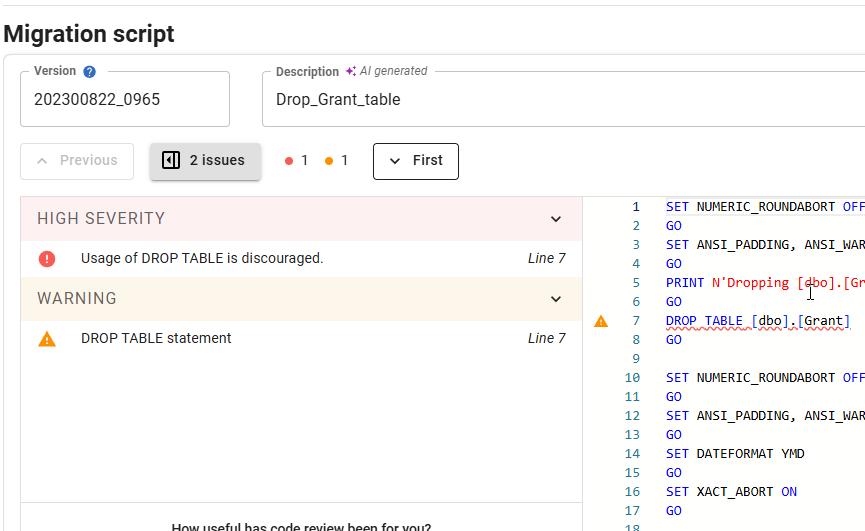
Below that I get the details. Both of these are for the same line, which is highlighted in the middle by a triangle next to that line.
If I click the High Severity item, I have the options to learn more, which links to the actual rule on the Redgate documentation site. Or I can ignore it. This allows me to comment in the code to not run this review again.
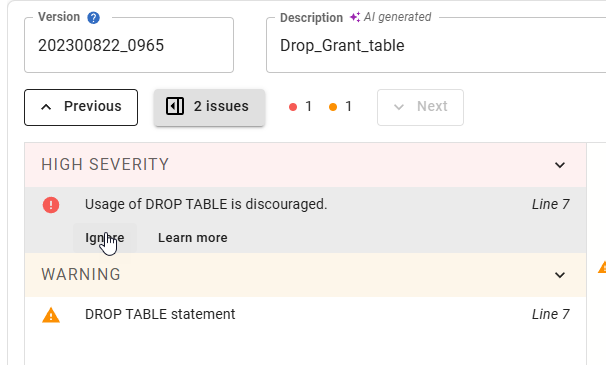
For the warning, since this wouldn’t stop a deployment anyway, I just have a Learn more link.

There are certainly times this might be the desired action, so I like the ignore button. However, much of the time developers might be making changes to objects and not thinking about potential future issues. Code review here catches things early, before others have to get involved, and helps educate developers about the styles and standards we want enforced in our projects.
If you work with Flyway, update your desktop and give it a try. We would love to hear your feedback.
Flyway is an incredible way of deploying changes from one database to another, and now includes both migration-based and state-based deployments. You get the flexibility you need to control database changes in your environment. If you’ve never used it, give it a try today. It works for SQL Server, Oracle, PostgreSQL and nearly 50 other platforms.
Video Walkthrough
Watch me do this in video:


