Category: Blog

  • SQL in the City Christchurch–June 7

    I’m going to New Zealand for SQL in the City Christchurch on June 7. It’s a day before SQL Saturday #831 – South Island. Take two days and get lots of Database DevOps and SQL Server training for a very low cost. I don’t know how many events come to New Zealand, but I’m hoping lots of you can come to our event and we’ll have the chance to do it again.

    Register today for a full day of training and talks about DevOps and Redgate products on Friday, then come back to SQL Saturday 24 hours later.

    I’m excited for the event. We completed our London Summit last week and it went very well. I’m taking over the keynote from Kendra and also doing a Monitoring session as well as covering privacy and the panel.

    It’s going to be an exciting day, so if you want to improve your Database DevOps process, in a Compliant way, sign up and come on June 7.

    2019-05-02 11_33_08-Window

  • Launching ADS from SSMS

    If you haven’t heard, SSMS v18 went GA (Generally Availability) recently. You can download it from Microsoft, though if you have a preview version, you do need to uninstall that. You also have to reboot after install Sad smile

    There is one cool feature that’s easy to miss, and I wanted to point it out.

    Azure Data Studio

    I am warming to Azure Data Studio (ADS) as an editor. I like notebooks, and I’m hopeful SQL Prompt will come soon, but it’s a nice, lightweight editor. It’s based on Visual Studio Code, and I like some things, like version control.

    Others I find annoying, like the connection dialogs, the results display, trying to use the Object Explorer, and more. That means I am often still using SSMS as a primary tool to work with SQL Server.

    Switching between tools is sometimes a pain, but things got easier.

    SSMS Integration

    With SSMS v18, there’s a small item that you may easily miss. If I right click a database, I see this:

    2019-04-25 09_51_17-SQLQuery12.sql - 192.168.1.35.sandbox (sa (58))_ - Microsoft SQL Server Manageme

    I have the option to launch ADS with a new query or notebook. The connection context passes along, which is nice. I hate the connection dialog in ADS.

    If I click “New Query”, I see this:

    2019-04-25 09_54_29-SQLQuery_1 - disconnected - Azure Data Studio

    Hmm, an error? No, this is actually good. The connection was SQL Auth to a Linux instance. I haven’t saved the password, so the current context can’t be passed. This is a new connection, and needs to authenticate. This is what I’d expect. When I click OK, I drop into the password box.

    2019-04-25 09_54_36-SQLQuery_1 - disconnected - Azure Data Studio

    Even if I’ve got a connection, if I go back to SSMS an open either a new query or notebook, I get the same result.

    If I have a Windows Auth connection, and I right click and choose New Query, I get this:

    2019-04-25 09_59_58-SQLQuery_1 - Plato_SQL2017.MLDemo (Integrated) - Azure Data Studio

    In this case, I was connected to Plato\SQL2017 as the instance and right clicked the MLDemo database. I also had ADS closed, with the notebook tab open when it closed. ADS restored my tab and then connected to the new database.

    A little thing, but a handy one that I expect more people will use over time.

  • SQL in the City Summit comes to Brisbane on May 31

    SQL in the City comes to Brisbane on May 31. It’s a day before SQL Saturday #838 – Brisbane. If you’re anywhere close, which likely includes Sydney, take two days and get lots of Database DevOps and SQL Server training for a very low cost. I’m hoping for a good turnout and the chance to come back again next year.

    Register today for a full day of training and talks about DevOps and Redgate products on Friday, then come back to SQL Saturday 24 hours later.

    I’m excited for the event. We completed our London Summit this week and it went very well. I’m taking over the keynote from Kendra and also doing a Monitoring session as well as covering privacy and the panel.

    It’s going to be an exciting day, so if you want to improve your Database DevOps process, in a Compliant way, sign up and come on May 31.

    2019-05-02 11_33_08-Window_thumb[2]

  • Initialize-HgsServiceName Fails in VMWare

    A short one, but one that took some digging and debugging and help from others. Saving here, so I remember, as do others.

    I had a VMWare Workstation v12.x VM of SQL Server 2016 and was working with this tutorial on Always Encrypted with Secure Enclaves. In setting up the HGS server, I got to step 3 which has this code:

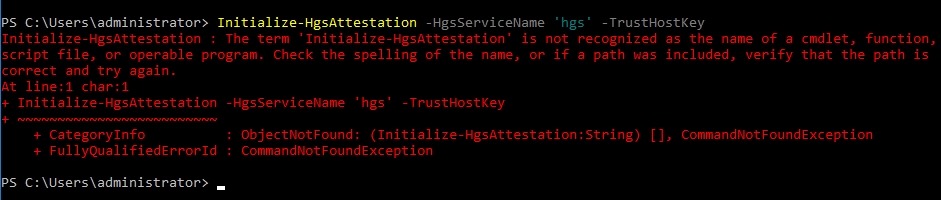
    Initialize-HgsAttestation -HgsServiceName 'hgs' -TrustHostKey

    When I ran this, I got an error:

    2019-04-24 07_52_51-Window

    That’s not good. In trying to find why this won’t run, eventually, I realized that my VMWare system needs the Microsoft Virtualization Based Security. This isn’t an option in my older VM, I believe because this is

    a) v12 and not v14+

    b) BIOS firmware

    You can see my settings here:

    2019-04-24 07_53_42-Window

    Fortunately I had an upgrade for VMWare available and updated to v15, and then build a new VM as a v14+ hardware version. This gave me UEFI and once the VM was shut down, I could check the VBS box.

    2019-04-24 07_53_26-Window

    After doing this, I could move forward with my secure enclave config.