This is part of a series of posts that look at the changes to the SQLServerCentral design, bringing us to v3 of the site. You can see the other posts with the SQLServerCentral tag.
Lots more work to be done, and hopefully some things have been fixed by the time this publishes. I’m writing a bit early, as it’s been a rough day of complaints. I get it, and I’d probably be just as upset. At least we didn’t turn off a lot of content, as MSDN did on some old blogs.
Some History
The forums have been one of the most popular and active sections of the site. When we founded things, there weren’t a lot of forum options on SQL Server, but we went with an old VB.NET version of InstantForums. Over the years, we stuck with these forums, and they proved very robust, despite being limited in feature set and written in VB.NET.
A few year back we upgraded to a C# version, then upgraded again later one to a more recent copy of the same forum. The way that some data was stored and interpreted changed in that time, and various people found ways to embed in some HTML or other codes that we would have preferred not exist, but in any case, the forums worked.
At least, they worked despite a number of complaints at each stage of change. This time it’s not different.
Choosing bbPress
When we decided to use WordPress as the platform for SQLServerCentral v3, we were concerned about the forums. After all, we have a huge set of posts and threads, quite a few of which have over 10,000 posts. We also have a fairly active forum user base, and so load and capacity were issues. Add to this the fact that not all forum software supports SQL Server. In fact, most don’t because of the cost of licensing and most forums are free.
We looked at a few choices, one of which was bbPress. This is the forum that powers WordPress.org and handles a decent amount of load. This seemed like the best choice for us, with lots of plugins and options. It’s also the number one recommended WordPress forum plugin. With lots of choices, all being similar, and knowing that any choice required some customization, we went with BBPress.
Rough Edges During Migration
Data migration from the older, Instant Forum style codes to bbPress was a lot of work. We found lots of inconsistent formatting code, and even broken code that rendered well enough in InstantForum, but made data migration difficult. Line breaks were surprisingly difficult to find and handle.
In addition, we had a much different styling system for code and images, which had to match up with the movement of binary files from one file system to another. All of this led to weeks of migration work that still isn’t perfect, but felt good enough to make the decision to go.
Pasting Code
Handling code in a forum is tricky. There are lots of styles and subtle issues that we want to handle and show. In addition, the way pasting code works on different browsers and platforms is surprisingly complex.
We knew this wouldn’t be perfect, and we kept finding little issues, but they felt little. In addition, it was hard to tell what was an edge case and what needed fixing.
I’ll also add that the code button used in the various editors worked fine for me, but after launch, we realized that it wasn’t visible for many people. I had two test accounts I’d create after migration tests, but I also used these to check on article submissions and other tasks. Somehow the button was enabled for my accounts, but not many others. An oversight, and probably something I should have caught.
One of the big issues in the old forum were issues when pasting from SSMS into the code blocks. In testing, I used multiple accounts to paste all sorts of code from SSMS, ADS, and VS into code blocks, formatted before or after pasting, included multiple lines and comments, and still we had complaints and bugs when we went live. I even tried things on 3 different machines using Chrome, Firefox, and Edge.
I have no idea how many different ways things are formatted, or the different patterns that people use to format code. When looking at the extra stuff included by Windows in a copy/paste from SSMS, I was surprised.
I agree with most of you that this shouldn’t be hard, but it is. Every time I repro a case and developers fix it, someone reports another issue. We still have a number of bugs around code that are open, but they are dwindling.
Quotes
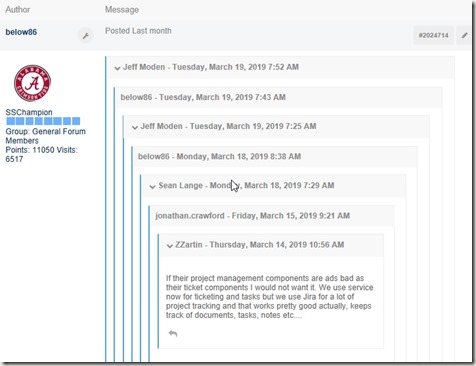
One of the things I like about our forums is that they’re single threaded. You cannot reply to a particular post and start a separate thread for your reply. Multi-threaded forums are what Facebook, Reddit, StackOverflow, etc. use. I’ve never liked this, and many of our forum users feel the same way.
However.
This leads to some strange visuals.
I used to think that quotes were an issue because users were hitting the closest button to reply. I was hoping the move to the new forum would get people to reply without clicking quote.
That’s not the case. Lots of people hit quote, and nested quotes are an issue. I’d like to remove inner quotes so that only the most recent item could be quoted, but that’s a very, very hard search and replace problem.
We have quote bugs, especially where code and images are concerned. We are still fighting these, and it’s nowhere near as easy as it sounds. Lots of forums just avoid allowing you to quote things.
There is probably a longer term solution that maybe adjusts some features and display, but I’m not sure what to do now and I don’t have time to explore alternatives. It’s really up to me, since at this point I don’t really trust developers to make these decisions as they don’t use the site. Even in testing, they don’t really know how to use the site.
There are some other forum items, but I’ll save those for another (shorter) post.