In previous posts I showed how to create a folder in a Filetable and also how to the create (and move) files into the subfolder. However I didn’t repeat that and wanted to test the ability to actually nest things further. With that in mind, I’m going to take this to the next step.
The Scenario
What I’ve got is a subfolder in my Filetable called Books. This is the first level below the root of my Filetable share. This folder has three files in it.
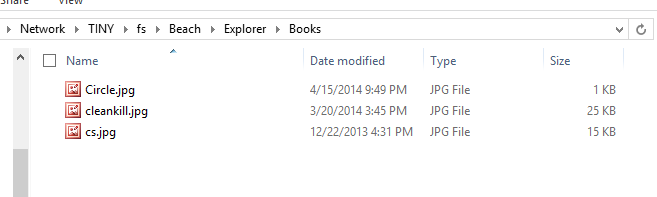
One of these is the image of a circle, and the other two are images of book covers. I’d like to create a folder called “Covers” and then move the two jpgs into that folder together. Let’s see how this goes.
The Solution
The first set of code I want to run will create a folder, but it will have to be nested under the Books folder. As we can see from the table, the Books folder already exists and needs to be the parent_path_locator for my new folder.

The highlight shows that “Books” is in the root of my Filetable.
Here’s the code, which calculates the new path_locator using the path_locator of “Books” as a base and then inserts a new folder.
DECLARE @path HIERARCHYID
DECLARE @new_path VARCHAR(675)

SELECT  @path = path_locator
FROM    dbo.Explorer
WHERE   name = 'Books'

SELECT  @new_path = @path.ToString()
        + CONVERT(VARCHAR(20), CONVERT(BIGINT, SUBSTRING(CONVERT(BINARY(16), NEWID()),
                                                         1, 6))) + '.'
        + CONVERT(VARCHAR(20), CONVERT(BIGINT, SUBSTRING(CONVERT(BINARY(16), NEWID()),
                                                         7, 6))) + '.'
        + CONVERT(VARCHAR(20), CONVERT(BIGINT, SUBSTRING(CONVERT(BINARY(16), NEWID()),
                                                         13, 4))) + '/'
;


INSERT  INTO dbo.Explorer
        ( name, path_locator ,is_directory )
VALUES  ( 'Covers', @new_path, 1 );
.csharpcode, .csharpcode pre
{
font-size: small;
color: black;
font-family: consolas, “Courier New”, courier, monospace;
background-color: #ffffff;
/*white-space: pre;*/
}
.csharpcode pre { margin: 0em; }
.csharpcode .rem { color: #008000; }
.csharpcode .kwrd { color: #0000ff; }
.csharpcode .str { color: #006080; }
.csharpcode .op { color: #0000c0; }
.csharpcode .preproc { color: #cc6633; }
.csharpcode .asp { background-color: #ffff00; }
.csharpcode .html { color: #800000; }
.csharpcode .attr { color: #ff0000; }
.csharpcode .alt
{
background-color: #f4f4f4;
width: 100%;
margin: 0em;
}
.csharpcode .lnum { color: #606060; }Once that’s run, I see this in the table:

The two highlights are the same values, with the parent of the Covers folder matching the path of the Books folder. In the Books folder we see:

Things look good so far. I can programmatically nest folders. Now I need to move the two jpgs into the proper folder. Let’s do that in one (hopefully) statement.
We use the same code as we did to move a file, but this time instead of a variable for the new path, we embed this in the update statement. In this case I actually moved all three files.
DECLARE @path HIERARCHYID

SELECT  @path = path_locator
FROM    dbo.Explorer
WHERE   name = 'Covers'

Update dbo.Explorer
      SET path_locator = @path.ToString()
        + CONVERT(VARCHAR(20), CONVERT(BIGINT, SUBSTRING(CONVERT(BINARY(16), NEWID()),
                                                         1, 6))) + '.'
        + CONVERT(VARCHAR(20), CONVERT(BIGINT, SUBSTRING(CONVERT(BINARY(16), NEWID()),
                                                         7, 6))) + '.'
        + CONVERT(VARCHAR(20), CONVERT(BIGINT, SUBSTRING(CONVERT(BINARY(16), NEWID()),
                                                         13, 4))) + '/'

      WHERE RIGHT(name, 3) = 'jpg'
.csharpcode, .csharpcode pre
{
font-size: small;
color: black;
font-family: consolas, “Courier New”, courier, monospace;
background-color: #ffffff;
/*white-space: pre;*/
}
.csharpcode pre { margin: 0em; }
.csharpcode .rem { color: #008000; }
.csharpcode .kwrd { color: #0000ff; }
.csharpcode .str { color: #006080; }
.csharpcode .op { color: #0000c0; }
.csharpcode .preproc { color: #cc6633; }
.csharpcode .asp { background-color: #ffff00; }
.csharpcode .html { color: #800000; }
.csharpcode .attr { color: #ff0000; }
.csharpcode .alt
{
background-color: #f4f4f4;
width: 100%;
margin: 0em;
}
.csharpcode .lnum { color: #606060; }The table now shows:
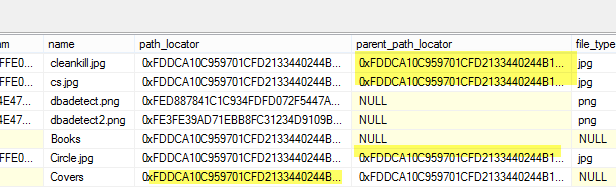
The shaded values, while very long now and truncated in the image, are in fact the same.
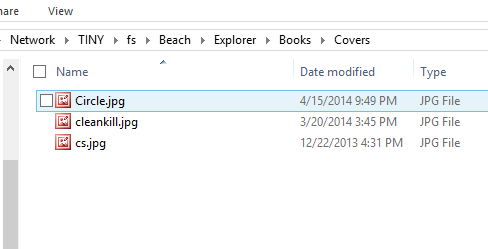
The share shows:

and
I could certainly have accomplished this in other ways, but being able to do this in T-SQL is a nice way of managing your files in a simple way that might be easier than changing an application. It’s certainly a good way to fix incorrect data if the application can’t do it and this can be much faster than having a user move lots of files manually.