Category: Blog

  • Creating a Service Master Key in SQL Server

    The basis for all the encryption in SQL Server is the Service Master Key, which is the top of the encryption hierarchy. You can see the image below from Books Online of how this is setup.

    The service master key is automatically created when you create a key that needs it, usually a database master key. So there is no CREATE SERVICE MASTER KEY command.

    This key is encrypted and protected by the Windows DPAPI and the linked to the SQL Server service account. Since it secures all other keys in the encryption hierarchy, if you regenerate it, or restore it, all other keys it protects must be decrypted and re-encrypted. That can be a resource intensive operation, so don’t do that lightly.

    You can regenerate a service master key, and you do that with the ALTER SERVICE MASTER KEY command like this:

    ALTER SERVICE MASTER KEY REGENERATE

    That’s it. If it works, no errors, no results. If an error occurs, you’d need to deal with it. However this isn’t something you should run often, and if you encounter errors while doing this, I’d suggest you immediately stop, backup all databases and master keys, and then work through the issues.

    In another post, I’ll talk a little about the alterations you can make to the Service Master Key and how to back it up or restore it.

  • How to change the SQL Server service account

    It’s easy. First you click here:

    serviceaccount1

    Then you find the SQL Server 2008 or 2008 R2 program group

    serviceaccount2

    Open those and then pick the SQL Server Configuration Manager.

    serviceaccount3

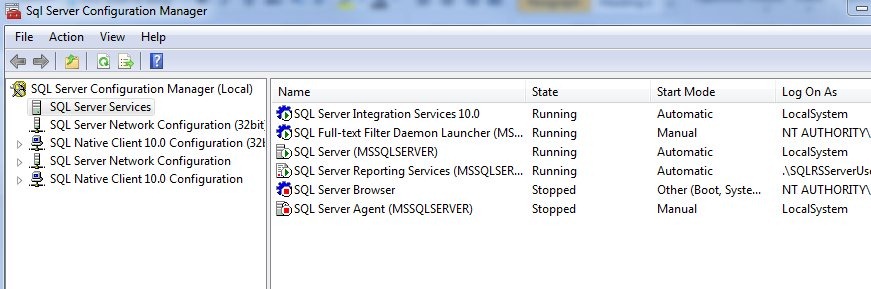
    You might get a UAC message asking if you want to make changes to the system, and say yes. This application can change service accounts, which is a sysadmin function. The screen basically looks like this:

    serviceaccount4

    If you right click the SQL Server entry, the database engine, you can select the properties, and you’ll get this screen:

    serviceaccount6

    On this screen, you can change the service account, and this is where you should change it. There are the three built in accounts in the top drop down (Local System, Local Service, and Network Service). I don’t recommend these. Instead, I recommend you create a new Active Directory Domain account (or local user account), assign it no rights, and then use the lower radio button to select the account.

    serviceaccount7

    Note that you do can search for it, and also you need to enter the user account. The password, while conforming to your domain policy, shouldn’t be one you use elsewhere. Make it a long, impossible to guess combination of stuff. You don’t need to recover this or log on as the user after you’ve assigned it to SQL Server. If you need to recover the password, just change it.

    A couple quick notes, on the Service Tab you can set the startup mode (Manual, automatic) for the database engine.

    serviceaccount8

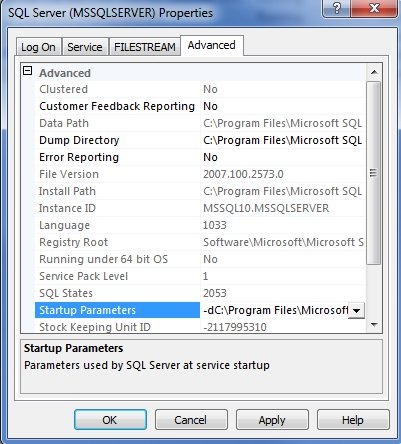
    You can also change startup parameters here, on the Advanced tab.

    serviceaccount9

    That’s it, it’s easy, and it’s how you should change the service account for SQL Server.

  • When in trouble, upgrade

    When in trouble, upgrade.

    That’s what I did the other day, when I found my Corel VideoStudio X2 (v12), wouldn’t play any videos. It was podcast edit day, and I was on a deadline. I know this is the worst advice, and not necessarily what you want to do, but X3 had come out late last year, and I’d even purchased an upgrade this past summer. I didn’t think I’d get any support on the old version, and the new version had proven very stable for many people.

    I hadn’t upgraded until now because the last upgrade I did, from v10 to X2 had taken me a few days to reset some of my clips, reload settings, etc. I was worried about the time involved, but after restarting my machine a couple times and trying different things with the software, I decided to try the upgrade. I searched through email to find my license key, discovered the X3 installation file in my \Downloads folder, and performed the upgrade.

    The installation was slow. Unpacking the installation files to get to the EULA took 10 minutes on my quad core desktop. From there, it was a simple matter to agree, input the serial number, and let the installation run. I have no idea how long it took because I left my desk to run an errand, and came back 20 minutes later to find it complete. Everything went smoothly, and apart from a couple of buttons I use being moved, everything seemed to function as before. It was even a little quicker when rendering video!

    Running an upgrade to fix an issue is not necessarily what I’d recommend for most people. It’s a sledgehammer fix for a potential screwdriver problem. Really you ought to work through issues with your vendor, and if you are really stuck, perform your upgrades on a test system, and actually test the process.

    In my case, I had a backup of the video files, and I also had a fallback to use my laptop to edit the video. It would have entailed a little setup and probably burned an hour, which is something I need to do, but I had a backup plan ready in case this didn’t work.


  • T-SQL Tuesday #25 – T-SQL Tricks

    TSQL2sDay150x150It’s time for T-SQL Tuesday again, and this time Allen White (@SQLRunr | blog) is asking for your tricks. If you want to participate, read Allen’s post and learn how.

    The question this month is: What T-SQL tricks do you use today to make your job easier?

    My Tricks

    I don’t have any great whiz bang tricks in T-SQL, and I’m sure there are more than a few people that can out-code me with their. However I do like to make my job easier, and so I have a couple of administrative tricks for use with your T-SQL environments. These are the ways that I save time, and work more efficiently.

    The thing that has helped me most often in my career is to keep little snippets of code handy to that I make few mistakes and save time. These days I do that quite often with SQL Prompt, a third party tool from my employer. It basically implements intellisense for SSMS, but more importantly, it gives me shortcuts.

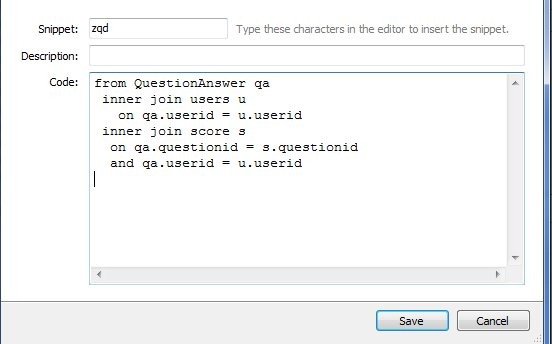
    However the biggest advantage to me is the Snippets in Prompt. There’s a feature that allows you to type a shortcut and then press “Tab” and have that shortcut replaced with a longer section of text. For example. I have this shortcut:
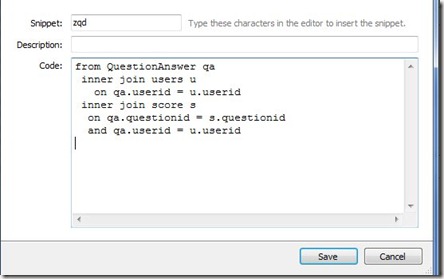
    prompt1

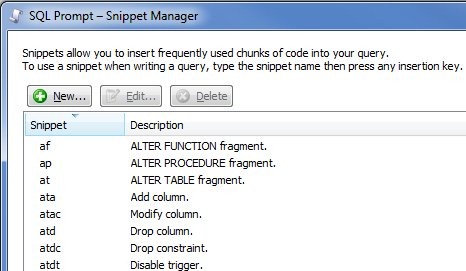
    If I type “zqd” in SSMS, and then hit tab, the T-SQL in the “code” box above appears. There are a few very frequently used slices of code that I can insert like this, without taking my hands off the keyboard, which is very handy. There’s even a whole snippet manager in Prompt that has pre-defined, and custom, snippets.
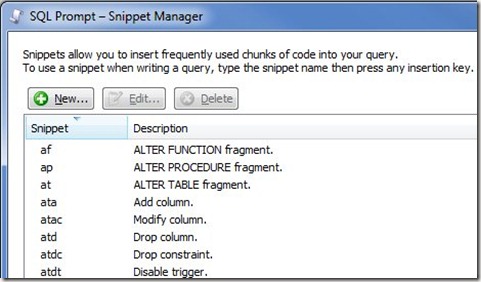
    prompt2

    The most often one I use is “ssf”, which inserts this:

    SELECT TOP 10 * FROM 

    So do you need to buy SQL Prompt? No, but if you do, tell them I recommended it so my boss with be happy and maybe send me a nice bonus next Christmas.

    A very similar functionality is in SSMS. I actually used to heavily use templates in the old Query Analyzer days of SQL Server 7/2000 and this has continued in Management Studio with the Template Explorer

    template1

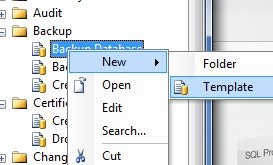
    I can drag a template from the explorer on the right into the code window and the code appears. I’ve pulled in the backup template. You can even add your own:
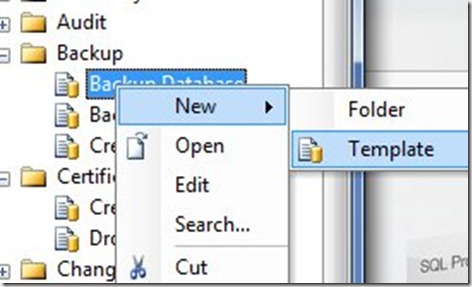
    template2

    It’s easy to do, and you can read more about Template Explorer in BOL.

    However if you’re like me, you move around, you use VMs for coding, and you want to be sure that your tools are on all these machines. There are a few ways to do this:

    • portable drives
    • cloud sevices

    I guess these are both the same thing, just implemented differently. I’ve used both ways, and while I do carry some flash drives, and hard drives, with various items on there, I find that I can never quite keep these up to date, and they’re really emergency drives for me in the event I don’t have connectivity.

    The primary way that I manage mode snippets, templates, etc. is by putting all my code in centralized places. For Prompt and SSMS, these locations are known, and while configurable, I stick with the defaults. For me this means I have three folders to track:

    • SQL Prompt default snippet folder
    • SSMS Templates folder
    • \SQL in my Documents folder in Windows

    All three of these folders are the same on all my machines, and I use a cloud service to keep them in sync. For me, I have two difference services in play, mostly for testing, and I see little difference between them. I have Live Mesh, a Microsoft service, for some folders, and DropBox for others. From what I’ve seen, they both work essentially the same, though DropBox is a little smoother for me with the Apple integration of some apps. That probably doesn’t matter for most of you, but it’s a difference. Live Mesh works on my Macbook, but not on the iPhone.

    There are other cloud services, and you can choose the one that works well for you, but I highly recommend you have a script library, as well as a snippet/template library, and you use a cloud service to be sure you can access those files if you are away from your primary machine. You might be surprised how handy this is when working on a server or remote machine.

    That’s my T-SQL Tuesday trick for T-SQL, better script management to make your work easier.