Tag: FWTips

  • Friday Flyway Tips: Searching a Migration

    This was actually a cool tip I saw internally from one of the product managers, when trying to find specific text in a migration.

    I’ve been working with Flyway Desktop for work more and more as we transition from older SSMS plugins to the standalone tool. This series looks at some tips I’ve gotten along the way.

    A Large Project

    I’ve got a project in Flyway Desktop that I add to regularly. It doesn’t do anything amazing, but I keep slowly adding objects, with the idea that I want to build up a large project for showcasing different things to customers. You can look at the project here if you are interested.

    In my list of migrations, I’ve got a number of migrations, 21 to this point. It is a little hard to read names here, but I’ve named each script to make searching easier. I’ve included a create or alter, a type, and an object name. This helps me use the search box at the top of FWD, which searches migration names.

    2024-10_0002

    Most of these are relatively small scripts, one or two objects. A few are a little larger. If I select a particular one (21 as shown below), the code scrolls off the screen. Even if I expand the code listing to take up the entire screen, I can’t see all the code.

    More importantly, it can be hard to visually find something in the code. If you’ve ever edited a stored procedure of 100 or more lines, you know what I mean.

    2024-10_0003

    One of our PMs pointed out recently that you can use the standard browser CTRL+F if you’ve clicked into the script. I’ve done this below and the search widget pops up at the top of the code. I’ve entered part of an object name here, prod, and you can see this shows 6 matches.

    The first one is highlighted in a pale yellow color in the code.

    2024-10_0004

    If I click the down (or up) arrows in the search widget, the code jumps around, as it would in a browser. You can see below I’ve jumped down to the 4th occurrence, with the 2nd and 3rd highlighted in an orange(ish) color, while the 4th also has the yellow background bar.

    2024-10_0005

    Many of us would perform work on this code in an IDE (SSMS, ADS, etc.), but while managing a project or perhaps evaluating something else, we might want to quickly find something in code in FWD. Perhaps reviewing a change I’m about to commit. USing CTRL+F might be a handy feature.

    I do wish the search was more comprehensive at the top, and could dig through all the files in the project, but at least I can search within a file here. Having a good naming convention for migrations also helps me to find the high level purpose for a migration in the list.

    Flyway Enterprise

    Try Flyway Enterprise out today. If you haven’t worked with Flyway Desktop, download it today. There is a free version that organizes migrations and paid versions with many more features.

    If you use Flyway Community, download Flyway Desktop and get a GUI for your migration scripts.

    Video Walkthrough

    I made a quick video showing this as well. You can watch it below, or check out all the Flyway videos I’ve added:

  • Friday Flyway Tips: Git Integration in Community Edition

    Redgate added Git integration to the free, Community edition of Flyway Desktop. I saw the announcement and decided to make this post to show how this can work for a new project.

    We do need git installed, so head over to the free git download if you don’t have it. From there, install Git and you’re ready to go.

    I’ve been working with Flyway Desktop for work more and more as we transition from older SSMS plugins to the standalone tool. This series looks at some tips I’ve gotten along the way.

    Source Controlling Your Project

    When you start Flyway Desktop Community, you should see the edition in the upper left, as shown here.

    2024-08_0054

    I’ll click Open project, and choose one of my existing projects. When I do that, I see all the migrations in the project. I can also select or add a target and run flyway commands from here.

    2024-08_0055

    What’s new is the right hand sidebar, which now has the VCS controls. If I click the left arrow in the upper right, I get the sidebar to expand. I can see I don’t have any changes. This bar wasn’t available previously, but now it is.

    2024-08_0057

    Let’s make a change. I’ll close this (click the arrow at the top) and return to the migrations screen. I’ll click the “add migration” button (the arrow points to this in the image below).

    2024-08_0058

    When the editor opens, I’ll add some code. I’ll also change the name. Notice there are no changes in the right sidebar.

    2024-08_0059

    When I save this, all of a sudden, there is a single change in the middle of the bar.

    2024-08_0060

    Expanding the sidebar and clicking on the middle icon, I see my one change has been added as a migration script.

    2024-08_0061

    I can add a comment and commit this or continue working. When I’m done committing, I can easily push my changes from here to the remote.

    I’m manually managing scripts in Community Edition, but I can do it all from Flyway Desktop, including all the version control work.

    Flyway Enterprise

    If you want to get more from Flyway, try Flyway Enterprise out today. If you haven’t worked with Flyway Desktop, download it today.

    If you use the CLI Flyway Community, download Flyway Desktop and get a GUI for your migration scripts as well as version control.

    Video Walkthrough

    No video walkthrough this week as I’m on the road.

    You can check out all the Flyway videos I’ve recorded.

  • Friday Flyway Tips–Comparison Defaults

    One of the little details that I find matter more and more in enterprises is understanding why a tool behaves a certain way. OSS/home-grown ones often have limited docs, but vendor tools should have great docs. Today I learned about how to easily find Flyway comparison defaults, which is the topic of this post.

    I’ve been working with Flyway Desktop for work more and more as we transition from older SSMS plugins to the standalone tool. This series looks at some tips I’ve gotten along the way.

    The Defaults

    Do you know all the SQL Compare defaults? Would you realize it if someone changed them? Do you think they’re the same in Flyway? I actually don’t know about the latter question, and I’m not digging through and comparing the options.

    In any case, I saw an internal discussion recently about documentation and someone pointed out that we have this page that discusses where you change options. It’s good for that purpose, but it doesn’t list the defaults.

    However, at the bottom, there are links:

    If you click through, then you get a list of default options. There is first a link to the full list of options (SQL Server, Oracle) as well as a link to SQL Compare options (SQL Server, Oracle).

    The SQL Server page looks like this:

    2024-07-15 14_44_38-SQL Server comparison options - Flyway - Product Documentation

    Note the sentence just below the image, which links to all the options. The second link is for the SQL Compare option explanations. Below this, you see the default options. This is a table of options, which looks like this image. Note this says certain options are set to true and all others false.

    2024-07-15 15_00_11-SQL Server comparison options - Flyway - Product Documentation

    If I click through to the full list, I see this:

    2024-07-15 14_44_58-SQL Server comparison settings - Flyway - Product Documentation

    I can see all the settings and if they are required. I also see an example of the TOML file below this, where I can set these and store them in version control.

    2024-07-15 14_45_06-SQL Server comparison settings - Flyway - Product Documentation

    If you want to change behavior of the comparison engine in Flyway, or double check if someone else has changed something, this is the place to check.

    Note, if you are looking to induce certain behavior, changes should be made in a TOML file for the project and flow through a PR process for approval and into a pipeline. Don’t edit these options directly, or change them in a pipeline.

    Flyway Enterprise

    Try Flyway Enterprise out today. If you haven’t worked with Flyway Desktop, download it today. There is a free version that organizes migrations and paid versions with many more features.

    If you use Flyway Community, download Flyway Desktop and get a GUI for your migration scripts.

    Video Walkthrough

    I made a quick video showing this as well. You can watch it below, or check out all the Flyway videos I’ve added:

  • Friday Flyway Tips: State-based Deployments

    Recently the Flyway Desktop (FWD) team release support for state-based deployments. These are similar to SQL Compare deployments, but with your code source control, which is where you want it. This post looks at how this works.

    I’ve been working with Flyway Desktop for work more and more as we transition from older SSMS plugins to the standalone tool. This series looks at some tips I’ve gotten along the way.

    State-based Projects

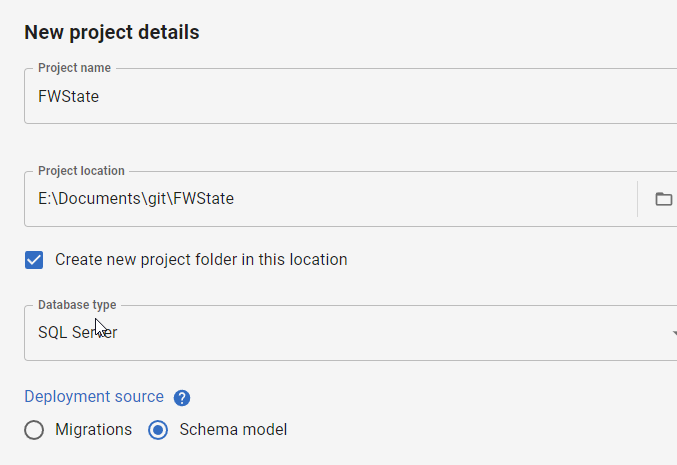
    When I create a new project, I now have a choice: migrations or schema model (state-based). You can see the choice below.

    2024-05-21 18_52_42-Flyway Desktop

    I’ll demonstrate this now by creating a new project. I give it a name, folder, type, and then I pick the Schema model deployment source.

    2024-05-21 18_52_38-Flyway Desktop

    Once that is complete, the project is set up and I need to link a development database. I’ll do that first, picking a database with a few objects. In this case, I’ve picked my FWState_1_Dev database.

    2024-05-21 18_56_06-Flyway Desktop

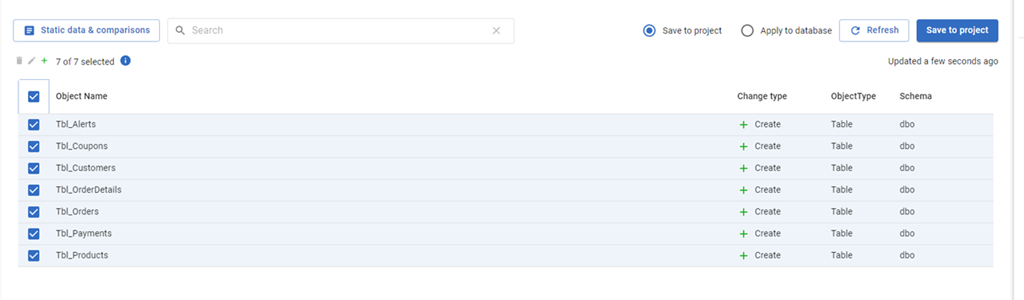
    Once this is linked, the FWD tool will read the database, compare to my filesystem and tell me which objects have changed. Since this is a new project, all the objects are new and show up. I’ll select them all and click “Save to project”.

    2024-05-21 18_56_42-Flyway Desktop

    This gets all the code for my objects into the file system (and a VCS). I won’t commit these now in this demo, but normally I would save this code.

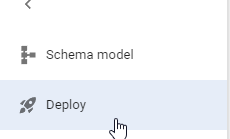
    The main change in FWD is the change on the left side menu. Where we have “Generate migration scripts” and “Migration scripts” as options for a migration based project, for a state-based project, we have just a “Deploy” option. I’ll select that.

    2024-05-21 18_57_15-Flyway Desktop

    Once this happens, I have to pick a target. I haven’t configured anything (this is a new project), so I’ll select the “Manage environments” in the upper right section of FWD.

    2024-05-21 18_57_25-Flyway Desktop

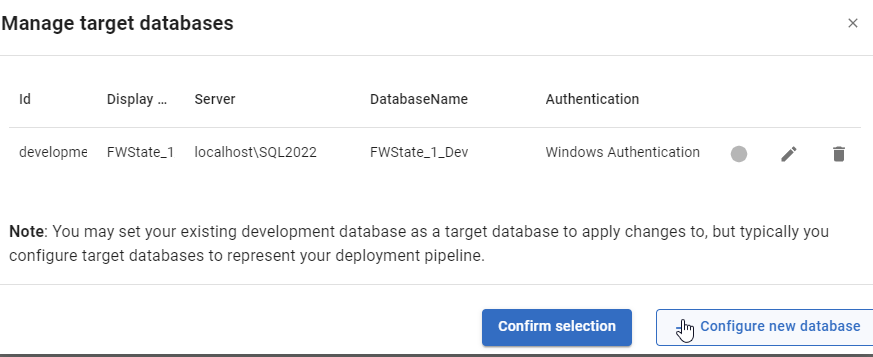
    When I do this, I see the environments I’ve configured. So far, I’ve only configured a development environment, but I can click “Configure new database” to add a downstream target.

    2024-05-21 18_57_30-Flyway Desktop

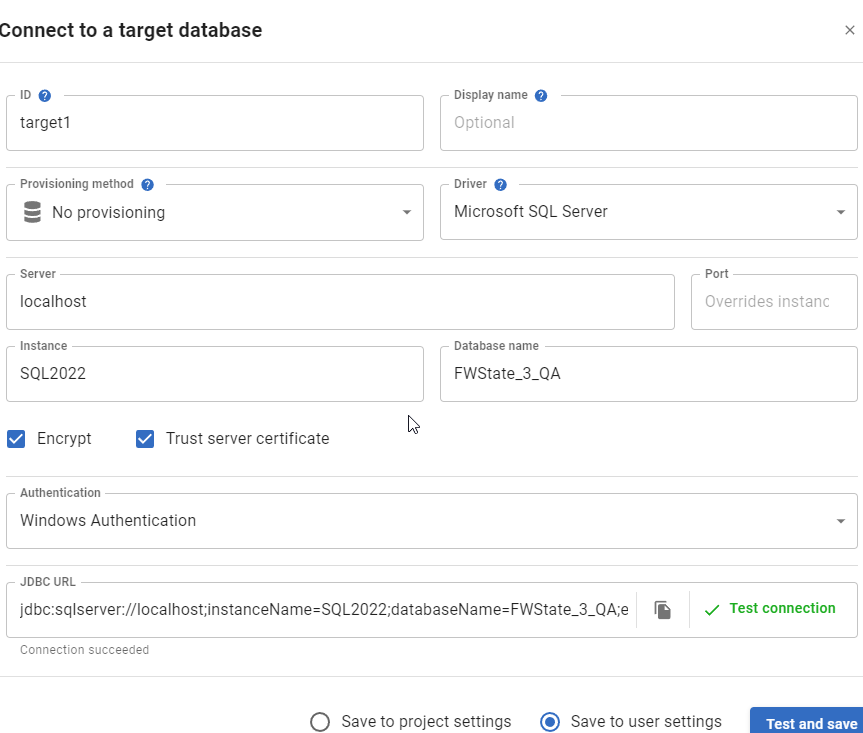
    I get the standard FWD connection dialog, and I’ll enter details for my QA database. I usually also click “Test” to ensure I haven’t typo’d something. You can see I didn’t make a mistake below.

    2024-05-21 18_57_52-Flyway Desktop

    Once this is added, it is selected by default. However, I can always click the radio button in the Manage environments dialog and click “Confirm”.

    This brings me back to the FWD screen where I see the changes that exist in the project, but haven’t been deployed to the target. In this case, it’s everything (QA is empty). I’ll just click the tbl_Customers table.

    2024-05-21 18_58_17-Flyway Desktop

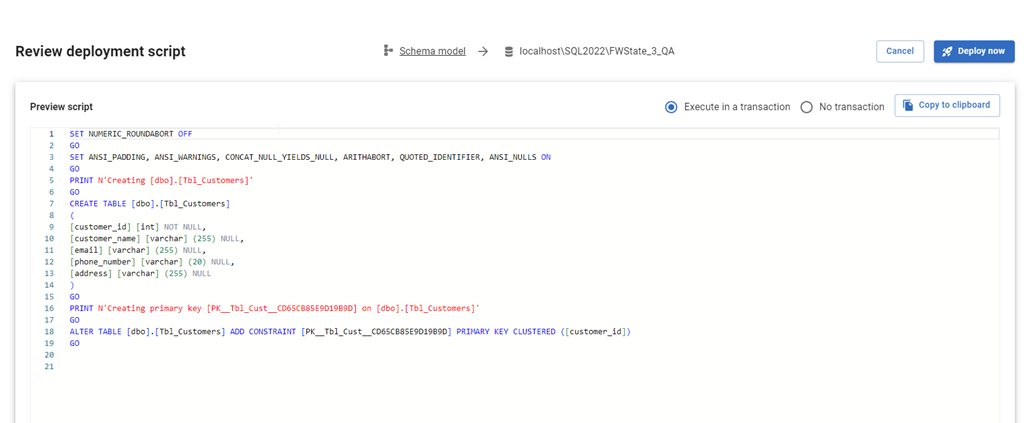
    When I click Deploy, the script is generated just as it would be in SQL Compare to update the target with the code from the source. I can review the script, as well as change options. I can add an explicit transaction around all changes, or let them run with the default implicit transaction for each statement. I can also copy the script to the clipboard if I want.

    2024-05-21 18_58_32-Flyway Desktop

    If I check QA, I see no tables.

    2024-05-21 18_58_45-SQLQuery3.sql - ARISTOTLE_SQL2022.FWState_1_Dev (ARISTOTLE_Steve (70))_ - Micros

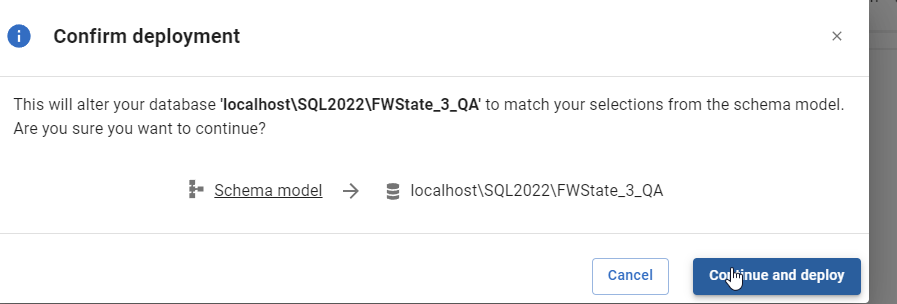
    I’ll click “Deploy now” in FWD and the deployment starts. I confirm this is what I want to do.

    2024-05-21 18_58_52-Flyway Desktop

    Once this is done, FWD returns to the screen of objects. Note that tbl_Customers is no longer listed. The project and the target are in sync for this object.

    2024-05-21 18_59_08-Flyway Desktop

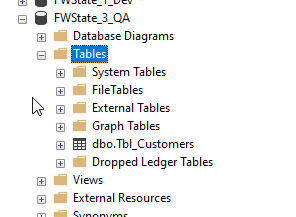
    If I go back and refresh QA in SSMS, I see the table exists.

    2024-05-21 18_59_29-SQLQuery3.sql - ARISTOTLE_SQL2022.FWState_1_Dev (ARISTOTLE_Steve (70))_ - Micros

    Summary

    This short post shows how FWD and the Flyway system can be used to perform state based deployments, similar to SQL Compare or SQL Source Control. If you are used to working in SQL Source Control, this is an easy transition for you to a more modern tech, which will also support Oracle, PostgreSQL, and MySQL.

    Try Flyway Enterprise out today. If you haven’t worked with Flyway Desktop, download it today. There is a free version that organizes migrations and paid versions with many more features.

    If you use Flyway Community, download Flyway Desktop and get a GUI for your migration scripts.

    Video Walkthrough

    I made a quick video showing this as well. You can watch it below, or check out all the Flyway videos I’ve added: