One of the really interesting things over the last decade is both the rise of Git as the main VCS system for most projects, and the number of people who know nothing about it. Many of the latter seem intimidated, which is both interesting and strange to me. I usually think of technologies as ready to experiment, but I find more and more they only experiment in narrow boundaries.
This post outlines a quick way to get started with Git.
This is part of my series on git that is designed to help people get started using version control in their daily work. You can see all my other posts on Git as well.
Installation
Got to git.scm.org and download git for your platform. This is an easy install, and you should be able to follow the instructions. For Windows, this is a standard install. You might need to restart any CMD windows to get git in the path.
If you’re on a corporate managed laptop, make sure you verify with your IT group this is allowed. That’s a good practice to get into for any software as anything you add increases your attack surface area. It’s another thing to patch and manage. I’d also document that process for yourself (and your blog). Do so in a way that doesn’t expose corporate info, please.
Tracking Code
Once you’ve installed Git, what do you do with it? Well, the easy thing to do is start tracking and versioning SQL scripts for most of us. If you’re a DBA/sysadmin/Ops person, you likely are often writing and editing scripts for your job. Let’s track those.
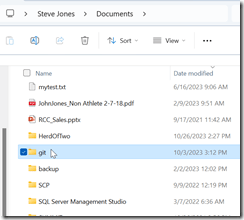
First, if you use SSMS, you often end up storing lots of code in C:\Users\%user_name%\Documents\SQL Server Management Studio. Let’s change that. In your Documents folder (C:\Users\way0u\Documents\ for me), create a “Git” folder. That gives me an organized places for repos.
Now, let’s create a folder under here for storing my random scripts. Don’t worry about being perfect here, just get started. So, I’ll make an “SSMS” folder. The easy way to do this is open a CMD window and navigate to Git. Then run “mkdir ssms” here. You can see me doing this below.
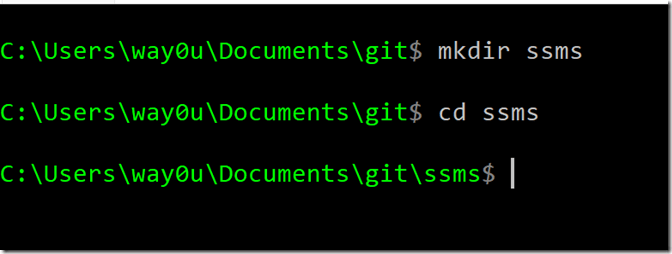
You can do this from Explorer (right click, new folder), but practicing the CLI is a good skill. Plus, we will need the CLI below.
Once in this folder, run “git init” to make this a Git repository. This starts tracking files. You can see this below, as well as my copy of the files in the SQL Server Management Studio folder. That might be easier to do with the Explorer GUI, but knowing how to navigate is a skill as well. See my ..\.. as a way to move around folders.
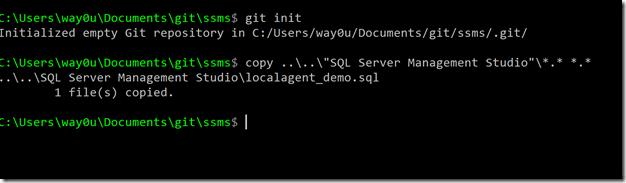
I only have one file there because, well, most of my work is tracked in Git. I’m actually sad I have even one file here. In any case, I now have files in this folder (I made up a few more).
What I want to do is start tracking these. If I run a “git status”, I see this:
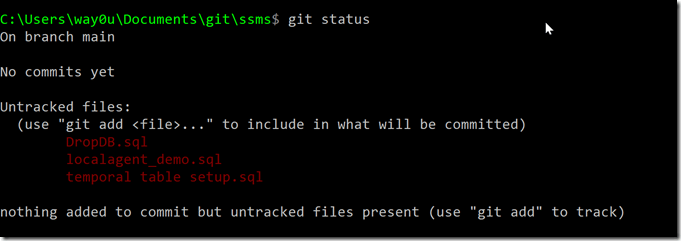
I see my three .sql files as untracked. This just means Git won’t manage these for now. I need to “add” them. I can do this with “git add <filename” for each one (learn how to use the tab key here), or I can just use “git add –all”. I usually do that since often I want to grab all changes.
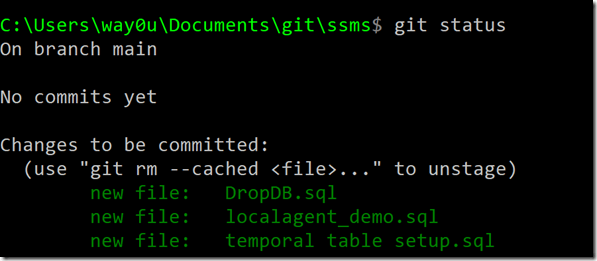
Once I do that, I’ll run status, and you can see them as tracked, but not committed. For non-color blind people the filenames changed from red above to green below.
Now I can commit this and stamp a version. It’s a good idea when you think the file is changed to commit them. Not on every save, but once I think the file is changed the way I want it. For admin scripts, I usually commit once whatever I’m working on is changed appropriately, which might mean I close a ticket or a client says what I did was correct.
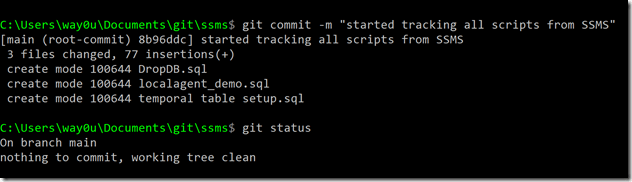
You can run git commit, which will open a default editor. For me, I often use the CLI and do a git commit -m “message” for the commit. The “message” is why you changed something. Here, I’ll just note this is the first commit.
When I run status, it says nothing to commit, meaning no changed files.
Now as I save scripts, I’ll run through the “git add –all”/”git commit -m message” flow each time I make changes.
One last thing to do.
Fixing SSMS
The last thing is to configure SSMS to save random scripts here. To do this, go into the options and then pick Projects and Solutions and then Locations. You can see this below with the top location set to the original folder where my script was located.
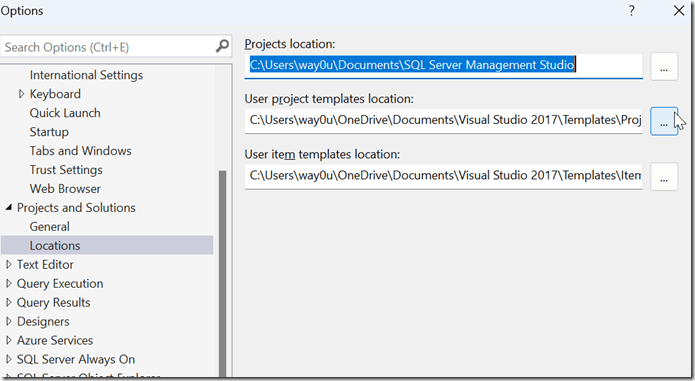
I want to change that to my repo. Browse or edit the path.

Now when I create and save random scripts, they’ll go into my repo.
That’s it.
Summary
This showed how to get started saving your random scripts into a git repo. Over time, you might want to organize things better, especially for project or app work, but for now, this will track your scripts over time.
In future posts, I’ll go over these topics to help you get better with working on these scripts.
- Using VSCode to manage your repo
- Seeing history and recovering previous versions of scripts
- Sharing scripts with others
If there are other things you don’t understand or want to learn, please leave a comment below and I’ll answer (and write a post).


