Tag: extended events

  • Template Configuration

    One of my goals this year is to really spend some time learning more about Extended Events (XE). I’m somewhat embarassed that almost a decade after their introduction in SQL Server 2008, I have a fairly rudimentary grasp of the system. I’ve watched talks from Jonathan Kehayias and Erin Stellato and others. I recognize the value in a lightweight system, but for some reason I haven’t done much with XE.

    As part of my learning, I’m going back to the basics with videos, articles, and documentation. In one section, I ran across the templates and how they can be used to greatly simplify the creation of new sessions. I’m a bit fan of templates, and I love the ones I use for T-SQL in SQL Prompt. I know templates are incredibly useful in plenty of other areas.

    XE is more complex system. The verbiage, the complexity of filtering, and the variety of targets make this a very flexible system, but also one that can overwhelm people. When do you use the histogram target v the ring buffer? What events make the most sense to solve or diagnose your system?

    Today I wonder if some of you out there can share some knowledge. Are there built in templates that you find useful for certain situations? Have you created your own that speed up your analysis of an issue? If so, it would be great if you could share some code and explain why you find certain session settings useful. If you find some templates to be problematic, perhaps share that.

    As I’m learning, I think that it’s likely I’ll have my own set of events and settings that I lean on heavily. Since I can save these on an instance, and not just a workstation, that’s a huge improvement over trace. These sessions can be shared with other DBAs in my organization, which is helpful and handy. Maybe one of you will give me a new template that I can add to my toolbox.

    Steve Jones

    The Voice of the DBA Podcast

    Listen to the MP3 Audio ( 2.7MB) podcast or subscribe to the feed at iTunes and Libsyn.

  • T-SQL Tuesday #81–Sharpening Skills

    This is an interesting month for T-SQL Tuesday. The challenge is from Jason Brimhall to Sharpen Something, and learn something new. However, his challenge isn’t just a simple “learn something.” Instead, he writes:

    “This month I am asking you to not only write a post but to do a little homework – first. In other words, plan to do something, carry out that plan, and then write about the experience.”

    I didn’t see the original invite, but I saw the reminder, and so had less than a week to actually try something. Fortunately I was starting something new, so I decided to incorporate that into my post.

    The Plan

    I have been doing a little work with auditing, as part of trying to better understand security around SQL Server. With that in mind, I’ve been meaning to do more Extended Events work. I’ve done a little, inspired by Erin Stellato, and as I read the invitation, I thought this would be a good time to tackle something. My plan:

    I know there are potential issues with the matching of events here, but this is an experiment, and the chance to learn.

    The Actions

    Last week my daughter had a volleyball tournament during the week. As a result, I was working remotely, in coffee shops and gym bleachers, trying to get work done. The day after starting this plan, my laptop started to die, with no good outlets nearby. At least not where I could see my daughter.

    So I started Erin’s course. While I saw pieces of a few sets, I also watched the first 3 modules in the course, and even made a few notes in Evernote of things to try. The next day I finished the course late in the afternoon.

    Part 1 done.

    Now on to actually practicing.  I downloaded the exercise files from the course and started to work through some of them. The first XE sessions are simple, but worth setting up to get a feel for the code. I could do things in the GUI, but I wanted to play with code a bit.

    I ran a few items, trying to remember how they worked, and I realize that I needed to review a few things.

    Testing Myself

    The challenge for myself is to create a new session that does event matching, but looking for those transactions started, but not ended. I decided to use the GUI to do this, mainly because I was pressed for time. It’s been a busy week, and weekend, so I didn’t have as much time to experiment as I’d like.

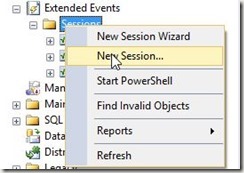
    I started with a new session:
     2016-08-08 16_46_23-SQLQuery8.sql - (local)_SQL2014.Sandbox (PLATO_Steve (66))_ - Microsoft SQL Serv

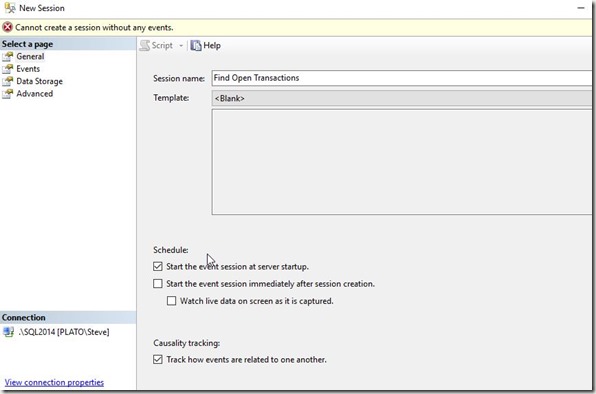
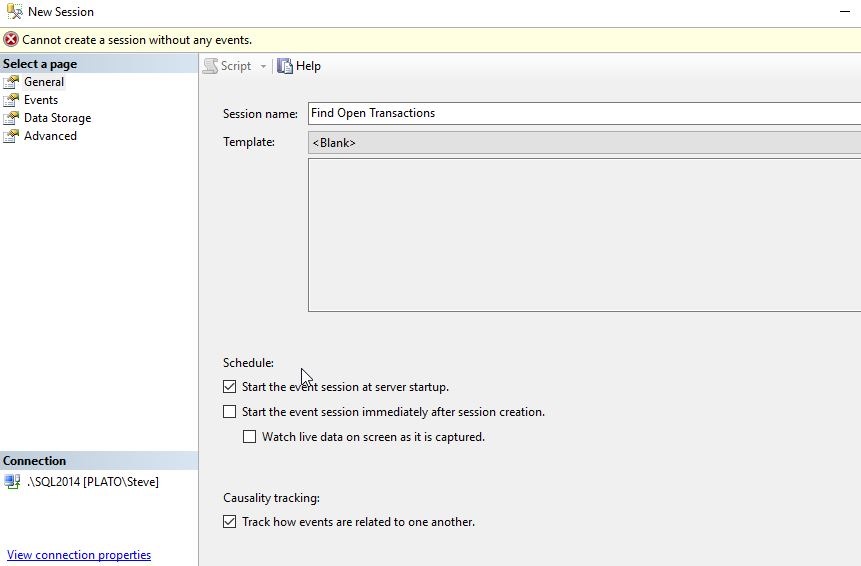
    I gave this a simple, descriptive name, and selected to start on server startup, and also to track causality. My understanding is that since I want to pair up events, I’ll need this. I might be wrong, as I’m certainly not an XE person, but let’s see.
    2016-08-08 16_46_55-New Session

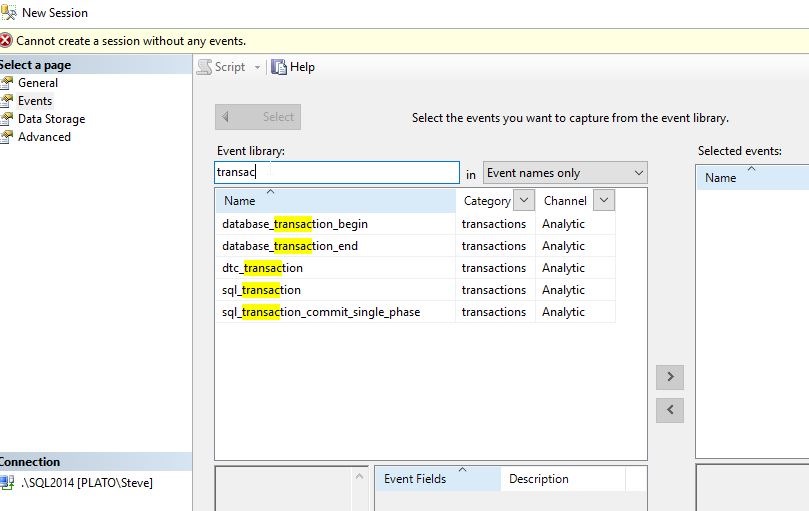
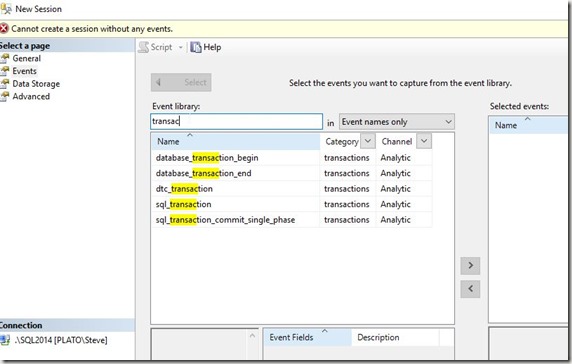
    Now we need events. Let’s use the Search, as Erin mentioned, to find those events with “transac” in them. This screen alone is worth leaving Profiler and Trace.
    2016-08-08 16_48_36-New Session

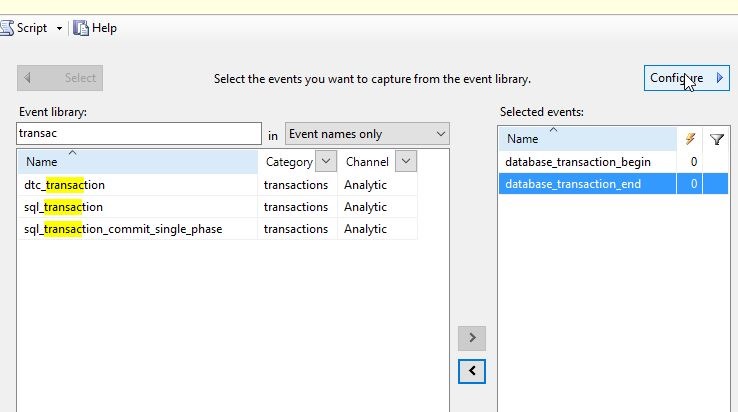
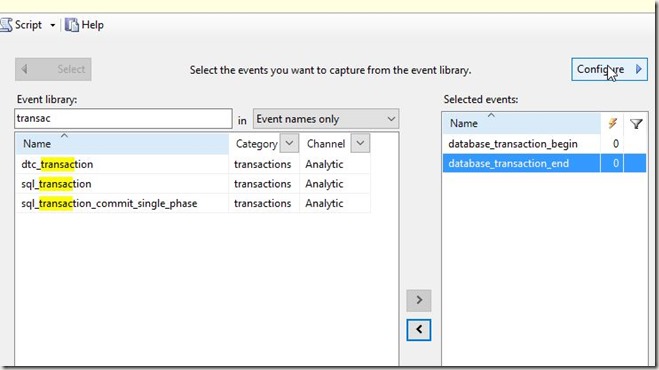
    As you can see below, I’ll add these events and then click “Configure” in the upper right.
    2016-08-08 16_49_44-New Session

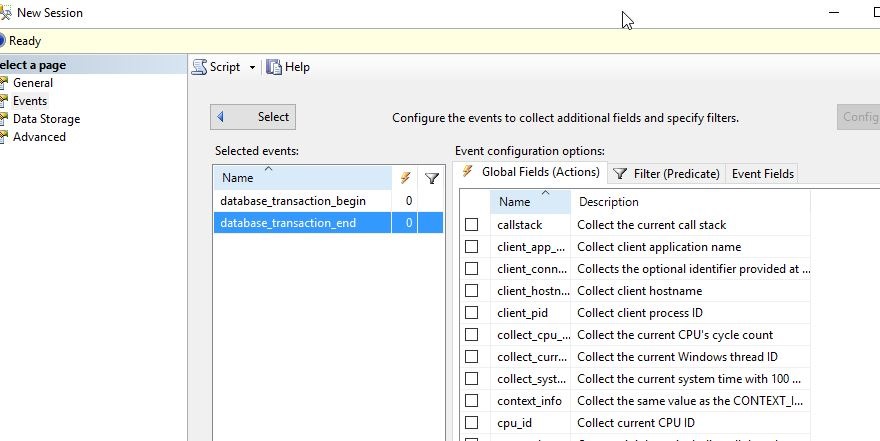
    This slides the pane over and I can see my Actions, Predicates, and Fields.
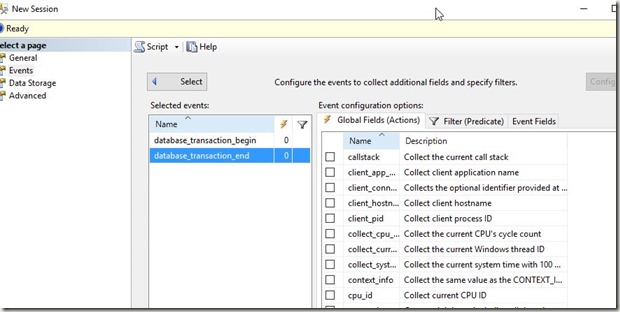
    2016-08-08 16_50_41-New Session

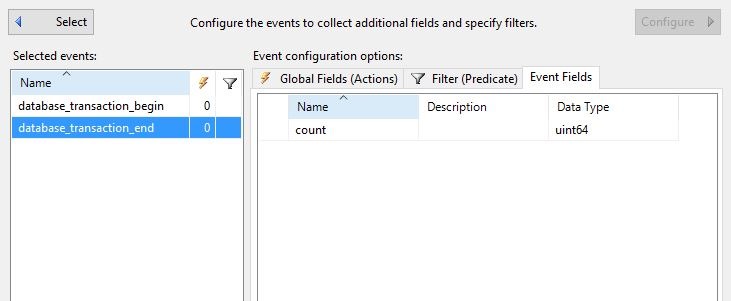
    As Erin did, I want to start with the Event Fields. Let’s see what’s available.
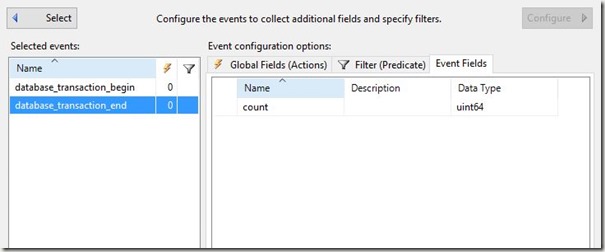
    2016-08-08 16_51_08-New Session

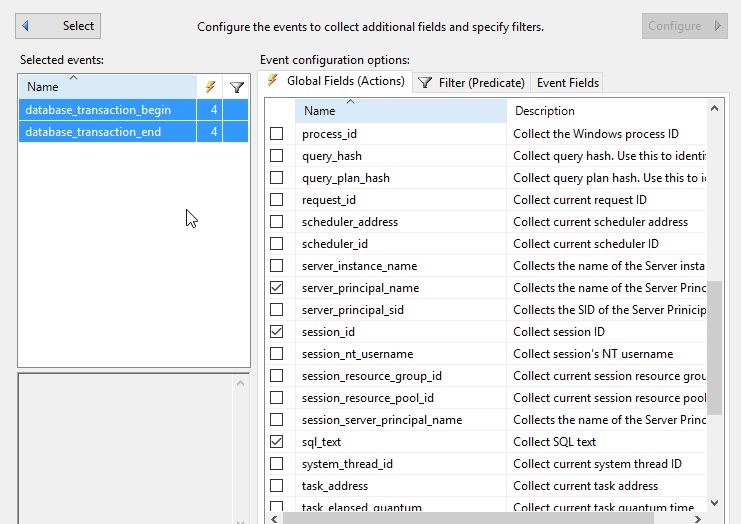
    Essentially nada. This won’t help. So let’s go to the Actions, which I know is something I want to avoid, and get a few fields. I’ll select both events and click a few items that seem useful.
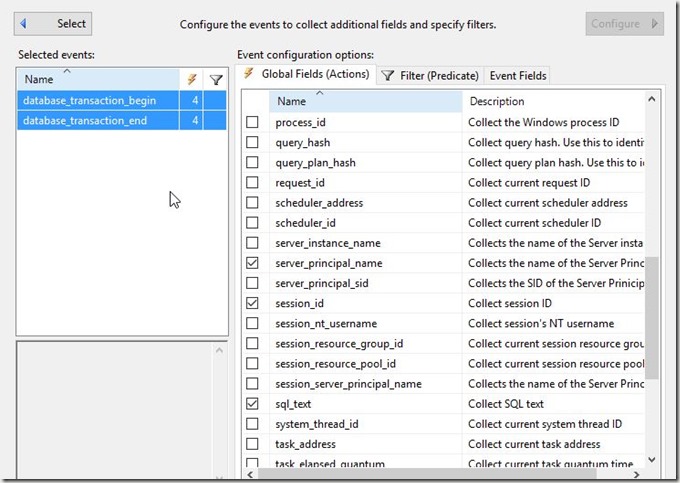
    2016-08-08 16_51_46-New Session

    I’ll want to compare the events based on the session and database, to find those items that have a begin, but no end.

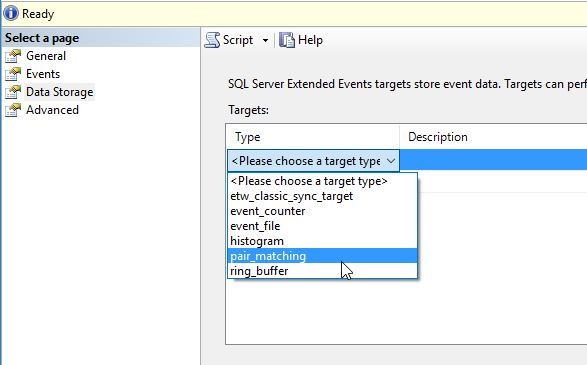
    Let’s now match. In the Data Storage pane, I’ll pick the pair matching target.
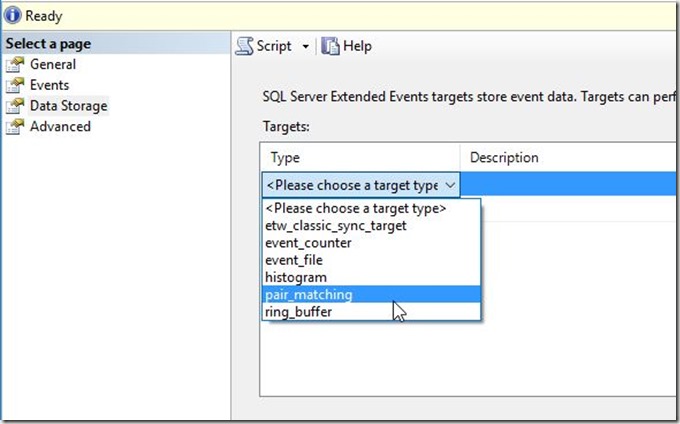
    2016-08-08 16_53_32-New Session

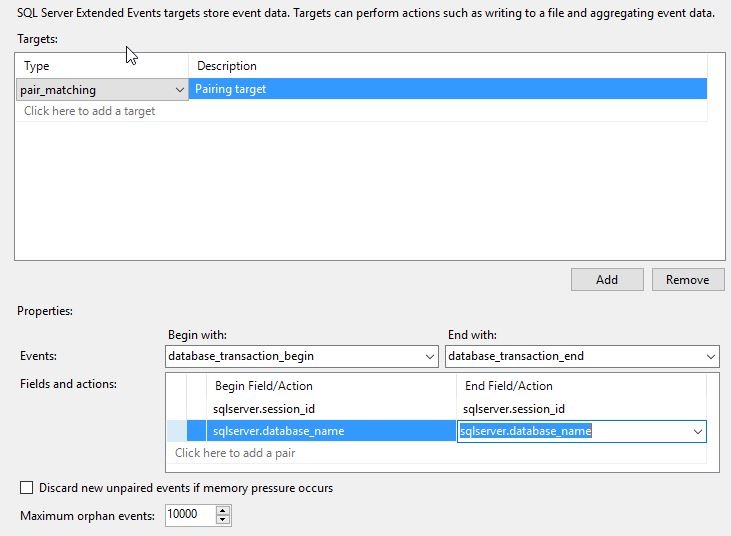
    Once I pick this target, I need to pick the events I use in my matching, along with the fields. I’ll do that here. I’m going to match the begin with the end on session and database. Session might be enough, but let’s go ahead and try to separate out those sessions that might do something silly in two databases.
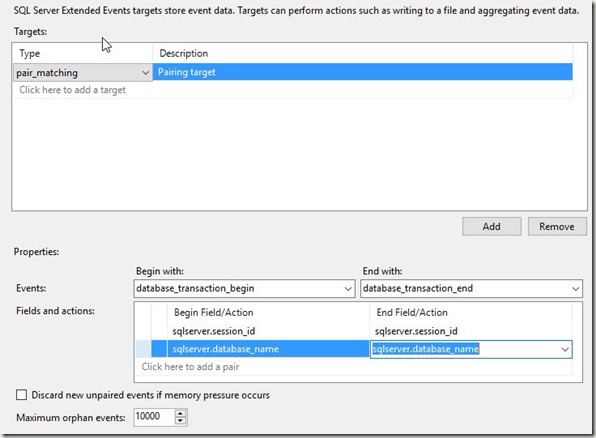
    2016-08-08 16_54_25-New Session

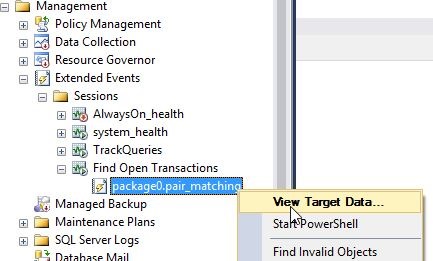
    That’s it for me. I’ll click OK and then start the session. Once I do that, I see the session and the target, which I can view data for.
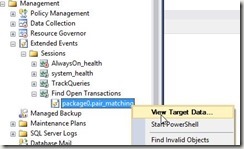
    2016-08-08 16_55_53-SQLQuery8.sql - (local)_SQL2014.Sandbox (PLATO_Steve (66))_ - Microsoft SQL Serv

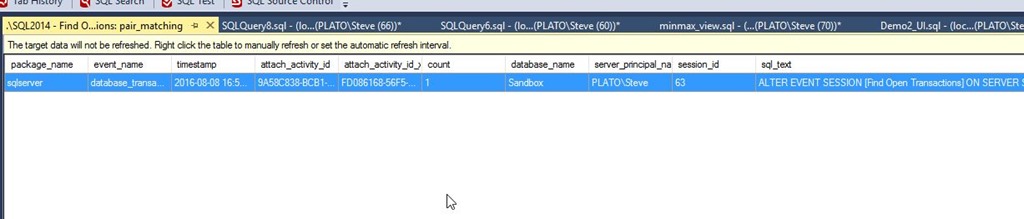
    I see the ALTER EVENT item, which I’m guessing is the start of a transaction inside SQL Server. Note this data isn’t refreshed by default, so I’ll need to right click and do that.
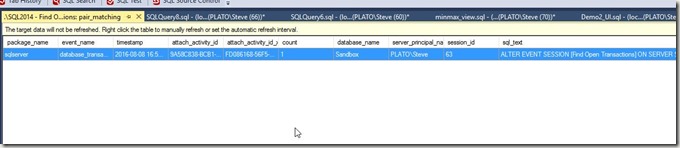
    2016-08-08 16_56_37-._SQL2014 - Find Open Transactions_ pair_matching - Microsoft SQL Server Managem

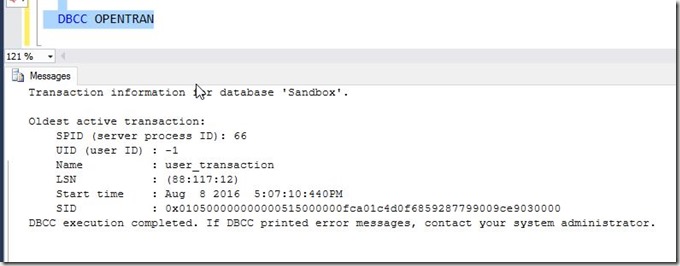
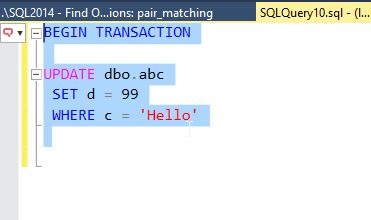
    Now let’s make a transaction. I’ll run this:
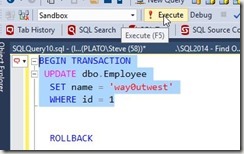
    2016-08-08 17_07_21-SQLQuery8.sql - (local)_SQL2014.Sandbox (PLATO_Steve (66))_ - Microsoft SQL Serv

    Once I do this, I have an open transaction. My session id is 60 for this transaction. If I refresh my data, I see the item.

    2016-08-08 17_09_31-._SQL2014 - Find Open Transactions_ pair_matching - Microsoft SQL Server Managem

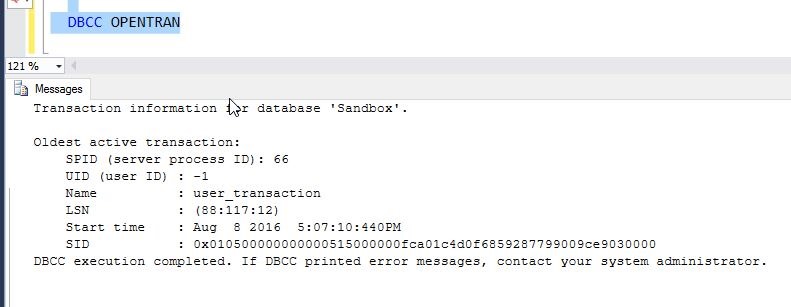
    I can also see the open transaction.

    2016-08-08 17_07_32-SQLQuery8.sql - (local)_SQL2014.Sandbox (PLATO_Steve (66))_ - Microsoft SQL Serv

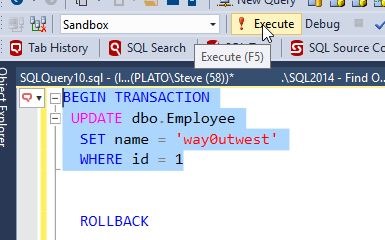
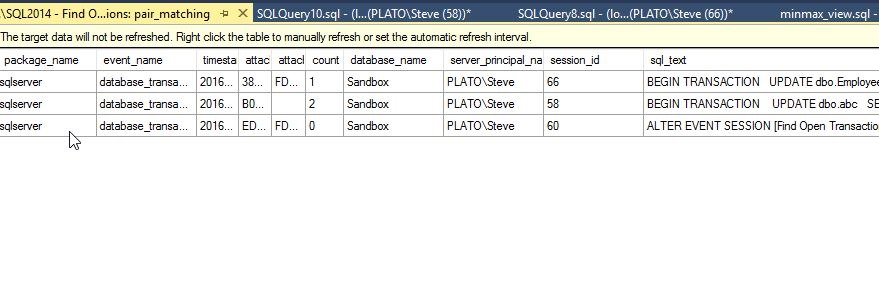
    Let’s try another one. I’ll start another new transaction, this time for session id = 58.
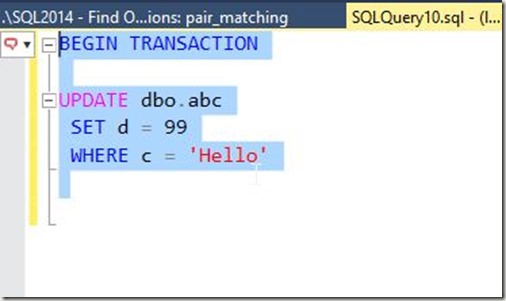
    2016-08-08 17_10_45-SQLQuery10.sql - (local)_SQL2014.Sandbox (PLATO_Steve (58))_ - Microsoft SQL Ser

    Sure enough, I see another open transaction. 
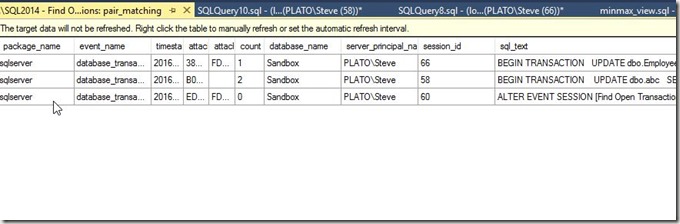
    2016-08-08 17_11_13-._SQL2014 - Find Open Transactions_ pair_matching - Microsoft SQL Server Managem

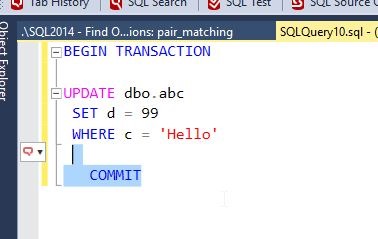
    Now let’s commit the second transaction, the UPDATE dbo.abc.
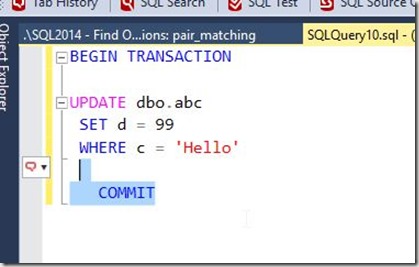
    2016-08-08 17_11_48-SQLQuery10.sql - (local)_SQL2014.Sandbox (PLATO_Steve (58))_ - Microsoft SQL Ser

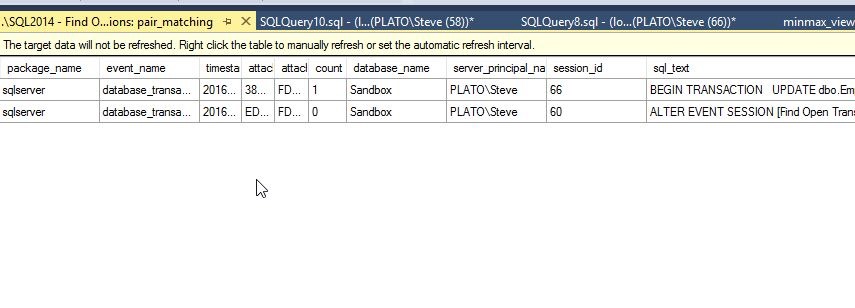
    My transaction goes away from the pair match.
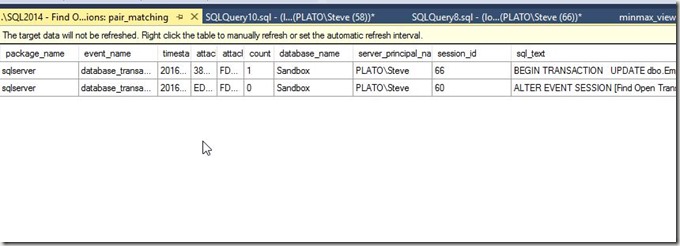
    2016-08-08 17_12_00-._SQL2014 - Find Open Transactions_ pair_matching - Microsoft SQL Server Managem

    The Results

    The third part of the invitation was to write this. I covered what I did, and some of what I learned. I’ll add a bit more here.

    I certainly was clumsy working with XE, and despite working my way through the course, I realize I have a lot of learning to do in order to become more familiar with how to use XE. While I got a basic session going, depending on when I started it and what I was experimenting with, I sometimes found myself with events that never went away, such as a commit or rollback with no corresponding opening transaction.

    This was a good challenge, and it forced me to work through a bit more than I might have done this past week, given a busy schedule. However, I’m glad it did, and I might challenge any of you writing about this in the future for your own T-SQL Tuesday #81 post to limit yourself to a week and force yourself to learn and try something.
  • Tracking Logins with Extended Events

    Another post for me that is simple and hopefully serves as an example for people trying to get blogging as#SQLNewBloggers.

    I was building a question the other day on Extended Events and needed to build a new session. One of the easier sessions to build is with the logins, so I decided to use that, and then wrote this post on how to build the session.

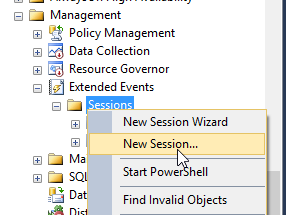
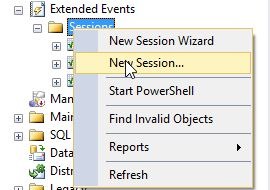
    The first thing is to to to the Management tab in SSMS and then the Extended Events folder. I right click the Sessions folder and select New Session.

    2015-11-18 10_40_06-Cortana

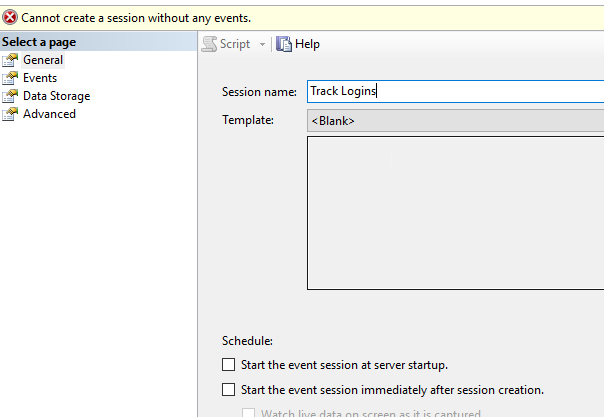
    This gives you a dialog. Like many in SSMS, we start with a name. You could select run at server startup, which I’d do in the case of this being a production system.

    2015-11-18 10_40_55-Photos

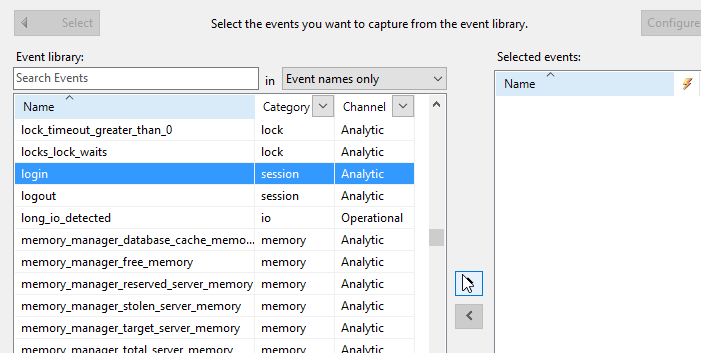
    When I click next, I get to the "Events" tab, which lists all events. I’ll scroll down to login and select that. I need to click the arrow to the right.

    2015-11-18 10_41_12-Photos

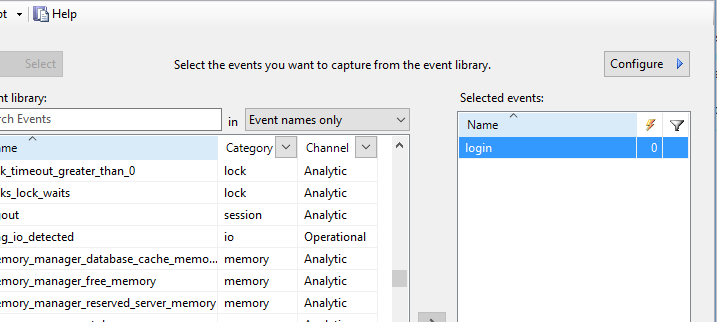
    Once I do that, my event is in the session.

    2015-11-18 10_41_19-Photos

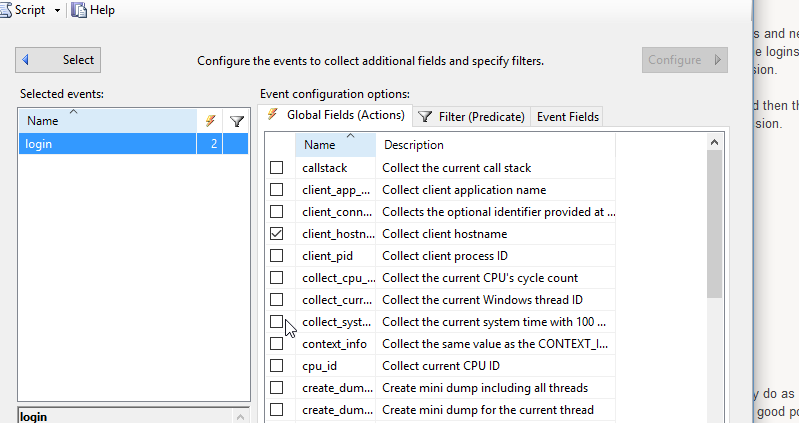
    After I pick the events, I choose the fields I’m going to capture. There is a "Configure" button in the upper right that you click. This scrolls the dialog over.

    2015-11-18 10_41_38-Photos

    I can select any number of fields for capture. You can see I’ve picked the client_hostname. I would also add the NT_Username and Username from the list. You could add more, but in this case, I’m more concerned with seeing who’s logged in.

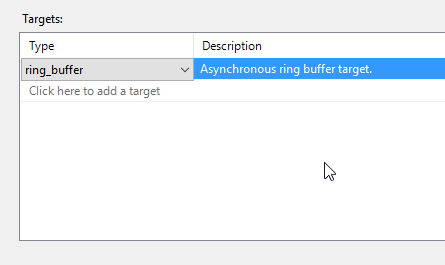
    I could add filters, but I choose not to. I click on Data Storage to determine where to store this data.

    2015-11-18 10_45_59-Photos

    For auditing, I might want a file. In this case, for testing, I’ll use the ring buffer, in memory storage.

    2015-11-18 10_46_15-Photos

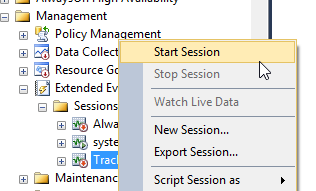
    That’s it for getting the session set up. However it’s not started. To do that, I need to right click the session and select Start.

    2015-11-18 10_47_34-Start

    This will allow the server to start collecting data. Is it working? Let’s see. We’ll watch the data. Right click the session again and select Watch Live Data

    2015-11-18 10_47_43-Cortana

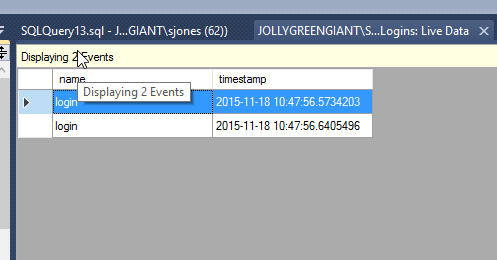
    This pops open a window. I usually make this a separate vertical tab group. Once that’s open, I’ll click "New Query" in SSMS, which will log me in again

    2015-11-18 10_48_05-Photos

    As you can see, a few events popped up here. I am capturing data. Don’t forget to stop the session after this if you don’t need it.

    SQLNewBlogger

    This post came out of work I was doing, and which I’d likely do as a DBA. However as soon as I got things working and tested, I knew this was a good post. In fact, I got a couple posts from the process. The setup and testing took about 20 minutes, including a little research. However the writing for this was about 10 minutes.

    References

    A few things I used.