Tag: FlywayPoC

  • Flyway Desktop PoC–Adding a Shadow and Baseline Script

    In the last post, I created a baseline marker for Flyway in each database. This set the version in the dev and QA databases to v1. However, I also need a baseline script, at least the tool asks for one, so this is the process if you have objects in your production or other downstream databases.

    I’ll do this for SQL Server and then PostgreSQL.

    Why do this?

    The main reason to create a baseline script is to note which objects already exist in production. For these objects, I don’t want to track these are changes in their current form.

    For example, if I already have a CountryCodes table in production, when I create a project, I want to tell Flyway Desktop that this table exists in production, so if the dev version matches, don’t add this to scripts. If it doesn’t, then I’ve done something in development and need an ALTER script deployed to prod.

    What was the Other Baseline?

    The first baseline in this post, is a version marker. I hate that this is the case, but both Flyway (pre-Redgate) and Flyway Desktop (evolved from SQL Change Automation), had the concept of a baseline, but these were somewhat different things.

    Flyway Baseline – The initial version of the database. Don’t deploy any scripts that are <= to this version.

    Flyway Desktop Baseline – A script that has the structure and code of all objects that exist in the target database(s).

    We can create a baseline script for Flyway, which looks for a B script, but the baseline command expects that you create this script manually. This is used to populate a new database with the baseline migration script prior to running all other scripts.

    Setting up the Baseline Script

    Flyway Desktop makes it easy to create a baseline script, and in fact, prompts you to do so.

    In my project, if I go to the Schema Model (first) tab, I see there is an object in Development. This was the table I created when I set up the database. The goal is to get this table to other environments.
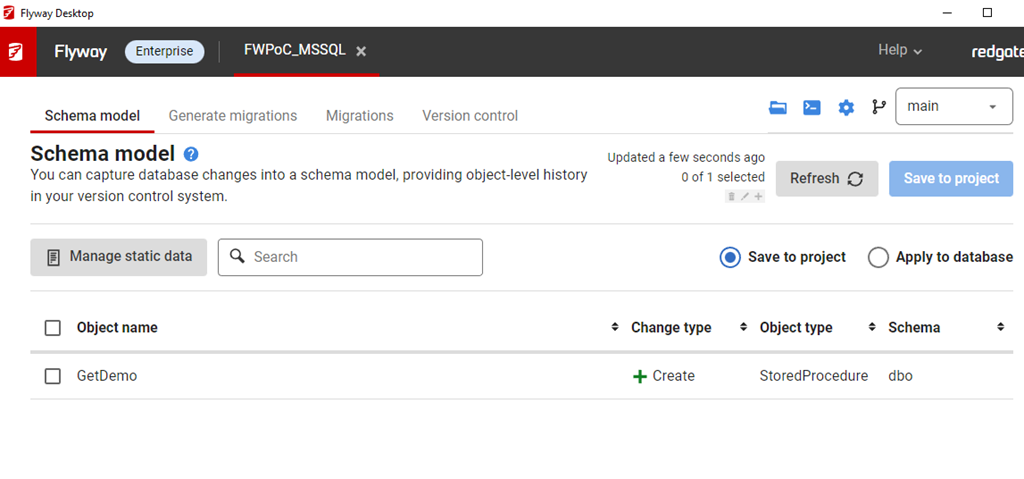
    2023-04-04 16_10_58-Flyway Desktop

    This table doesn’t exist in QA. I do have the flyway_schema_history table, which was the result of the baseline command.

    2023-04-04 16_15_58-SQLQuery4.sql - ARISTOTLE_SQL2022.FWPoc_1_Dev (ARISTOTLE_Steve (77))_ - Microsof

    If I go to the Generate Migrations (second) tab, I see this. The first thing that the tool wants is a Shadow database.
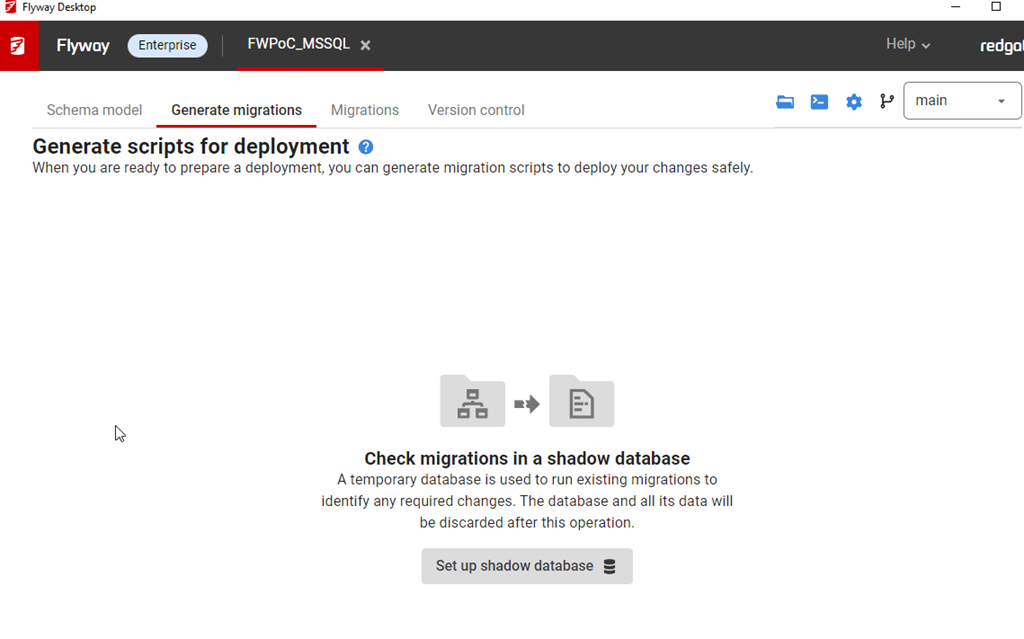
    2023-04-04 16_12_55-Flyway Desktop

    The shadow is essentially a development V-1 (v minus one) version. This is where I test all migrations, compare the state with development, and then determine what’s changed. This is just a regular database, but I create this outside of Flyway Desktop. For me, I created a database (FWPoc_1_Dev_Shadow) and then clicked Set up shadow database to get this dialog. You can name this anything.

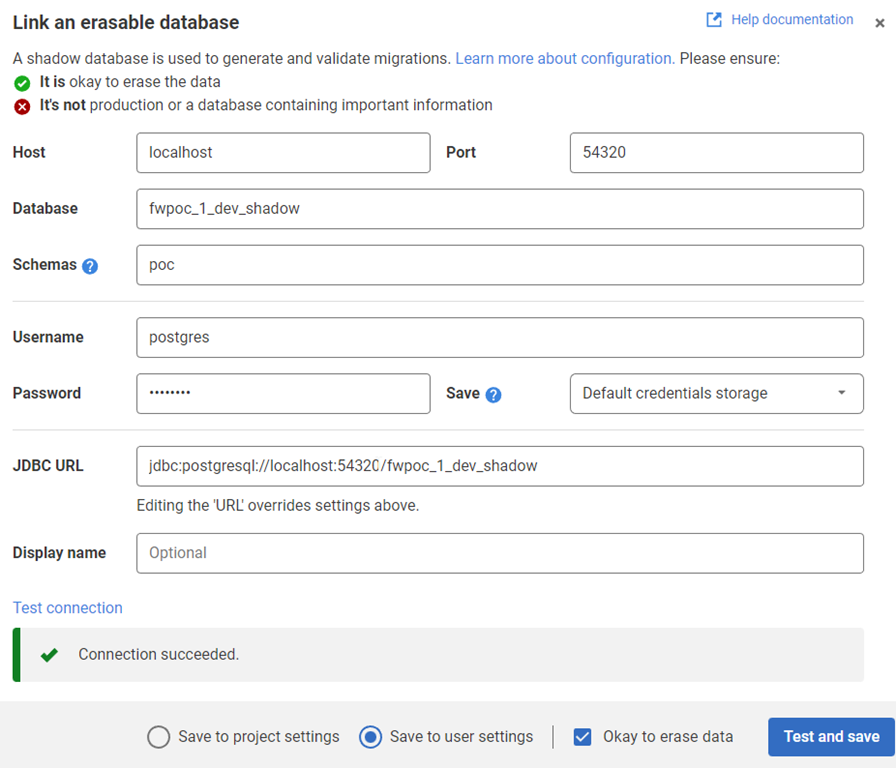
    I enter details, and test the connection before saving this. In general, this ought to be saved to my user settings as I’ll have my own shadow different from other developers. I DO NEED to click the “ok to erase data” box.
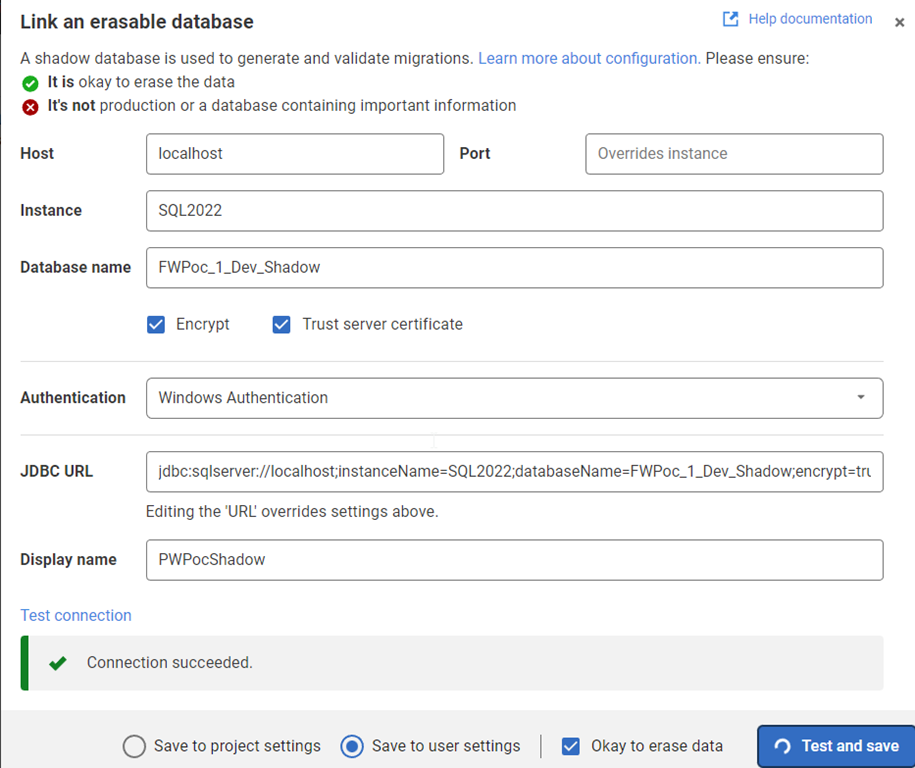
    2023-04-04 16_14_09-Flyway Desktop

    Once this is done, I now see another prompt on the Generate Migrations tab. Now I need a baseline script. I don’t have anything, but I will click the button.
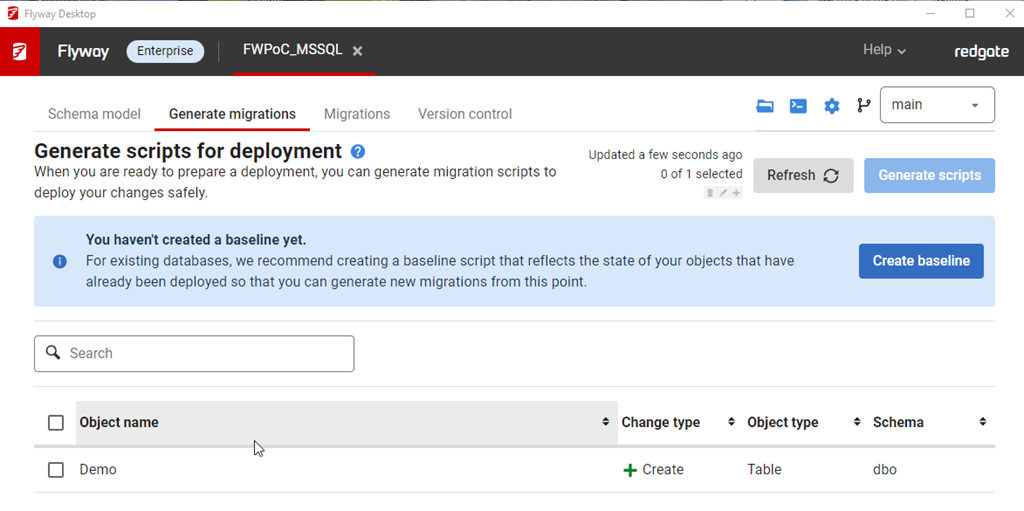
    2023-04-04 16_14_28-Flyway Desktop

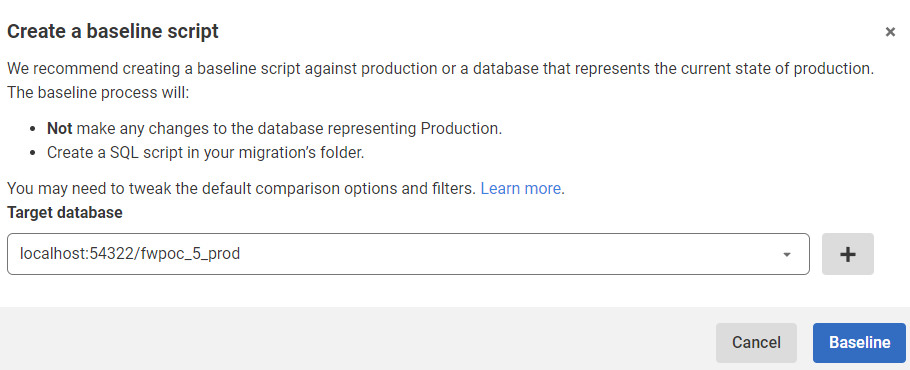
    This gives me a dialog to pick a target database. This target is used to get the initial set of objects to populate in the baseline script. You can use production or a copy (recommended) as the target database.
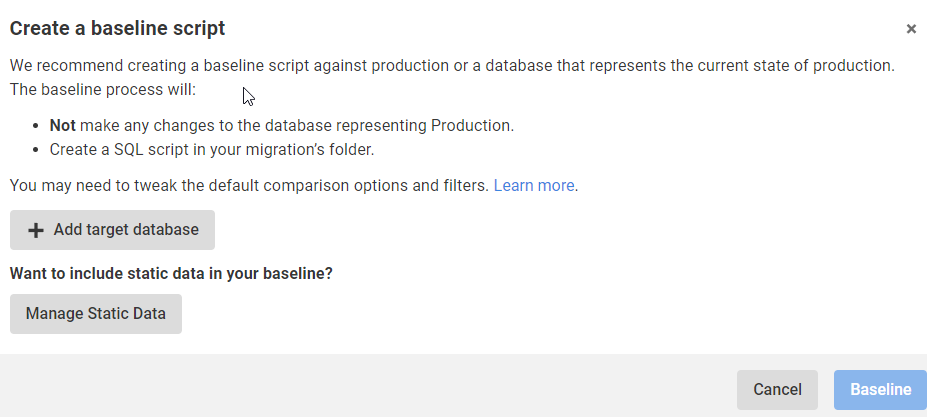
    2023-04-04 16_14_41-Flyway Desktop

    My QA is the same as prod, so I add that with the proper connection string and then I see the target here for the Baseline. I am ignoring static (or lookup/reference data for now). I’ll click the Baseline button.

    2023-04-04 16_15_25-Flyway Desktop

    This runs and … nothing.

    Which makes sense, as there is nothing in my target database. I actually get an error after this, which tells me that it doesn’t make sense to baseline an empty database.
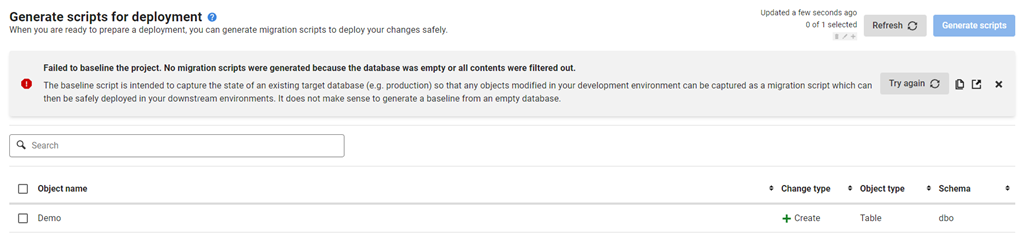
    2023-04-10 12_38_51-Flyway Desktop

    I wish that were surfaced earlier. In any case, if I close this, I get the same image above, saying I don’t have a baseline. For now, I’ll ignore that.

    Summary

    Not much happened in this post. I added a shadow database, which I’ll use to generate scripts. I tried to baseline, but that errored, as it should. I really don’t need a baseline, so I’ll come back to this later in another format.

    For now, I’ve advanced the SQL Server project. I’ll actually repeat these steps for the PostgreSQL one, but it’s really creating a new database for the shadow and setting a connections string. Everything else looks the same.

    The next post will actually generate a script and deploy this to QA.

  • The Baseline for Flyway

    In my previous post, I set up the Flyway Desktop projects for SQL Server and PostgreSQL. I also added a table to each platform for development. In this post, I’ll look at how I let Flyway know what already exists in my system with a baseline.

    This is part of a series of working through Flyway and Flyway desktop to demo database changes. Disclosure: I work for Redgate Software

    Baseline v Flyway Baseline

    I find these terms to be slightly confusing, especially when I look at Flyway vs. Flyway Desktop. In Flyway, there is a “baseline” verb, which you can run at the CLI. This will mark the state of your database at a level and adds the flyway_schema_history table to the schema in which you are working. This baseline causes Flyway to ignore all migrations up to the baseline level.

    In my testing, when I run this on my database, it defaults to V1 for the first migration script. That’s usually fine, but as I wrote, this can cause issues.

    There is also the concept of a baseline migration, which is a Bxx script, and this contains the definitions of all the objects that already exist in your target databases. This ensures that as FW and FWD track and deploy changes, they don’t try to redeploy those migrations that are at a level lower than the baseline numbering (the xx).

    Creating a Baseline

    My development database for SQL Server looks like this:

    2023-01-25 14_27_21-Window

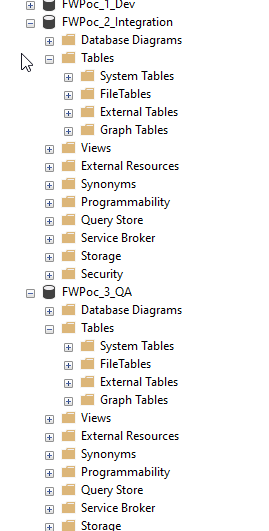
    There is an object in here, but it’s not in any other environment. Both Integration and QA (and the others) have no objects.

    2023-01-25 14_27_43-Window

    In this case, I don’t need a baseline script, because I want this table to deploy to the downstream databases.

    I do, however, need a baseline. I need the baseline marker in my databases to note that we have a base version. This will give me a starting point, but also ensure that FWD creates migrations that are numbered higher than my baseline.

    I’ll add this in two ways. One with Flyway Desktop and one with the Flyway CLI.

    The Flyway Baseline

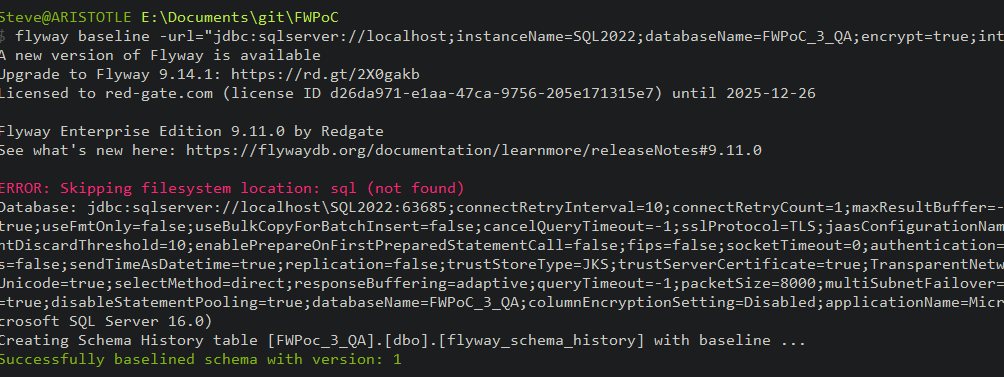
    For SQL Server, I don’t need to worry about any objects in downstream databases, so I’m just going to run the Flyway CLI. From a command line, I’ll run this code:

    flyway baseline -url="jdbc:sqlserver://localhost;instanceName=SQL2022;databaseName=FWPoC_1_Dev;encrypt=true;integratedSecurity=true;trustServerCertificate=true"

    This is run from my project location, though I’m passing in the connection string from Flyway Desktop as I don’t have a flyway.conf file configured for this project. Things work from the FWD gui, but not the CLI.

    This works, and I see these results. Note the flyway schema history table is created at the bottom, and the version of the database is set to 1.

    2023-02-08 08_55_37-cmd

    Now when I run Flyway info with that URL, I get this. There is an entry in the version tracking for this table:

    2023-02-08 08_56_03-cmd

    I can also see this table in my Object Explorer:

    2023-02-08 08_54_54-SQLQuery9.sql - ARISTOTLE_SQL2022.FWPoc_3_QA (ARISTOTLE_Steve (88)) - Microsoft

    Flyway Desktop and PostgreSQL

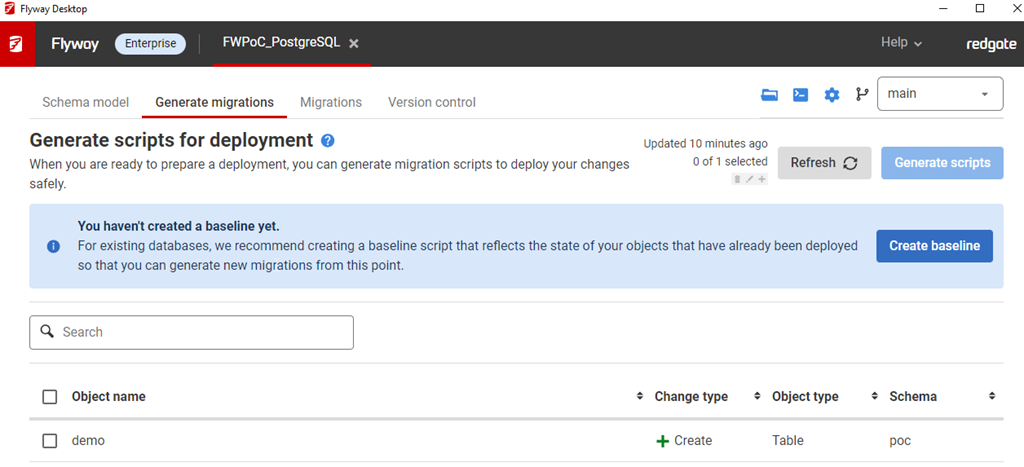
    I’m going to use FWD for my PostgreSQL project. This will do some of the work for me and give me the option for a baseline script.

    Note: I set up a shadow database first.

    2023-01-25 14_45_24-Window

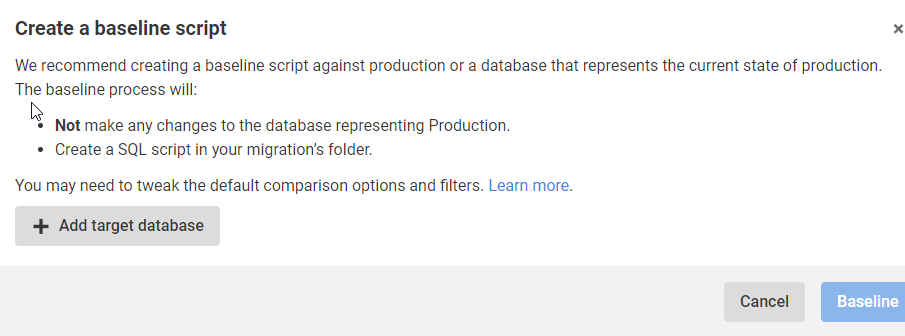
    I click “Create baseline” and this asks me for a target. After all, I’m trying to ensure I don’t deploy anything to prod that’s already there.

    2023-01-25 14_45_34-Window

    When I click Add target database, I get a connection dialog. I fill this in with the credentials for prod. This returns me to this screen below, where I see my prod database, which is at this port with this name.

    2023-01-25 14_48_12-Window

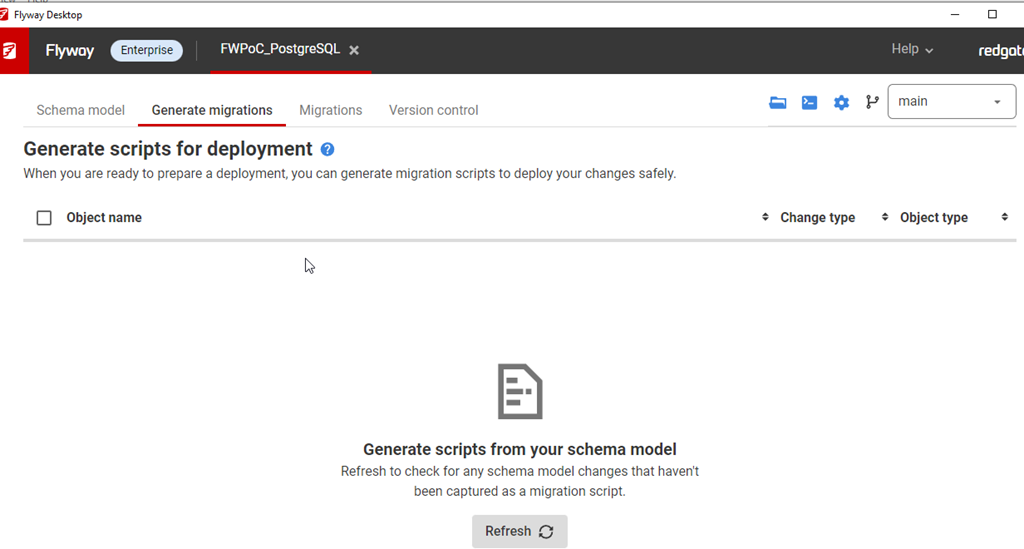
    I click Baseline and it goes to work. There’s nothing there, so this returns back to the blank, Generate Migrations tab.

    2023-01-25 14_49_02-Window

    However, there is no baseline or schema tracking table. I didn’t have a poc schema, so perhaps that’s an issue, but that’s OK. We can fix this.

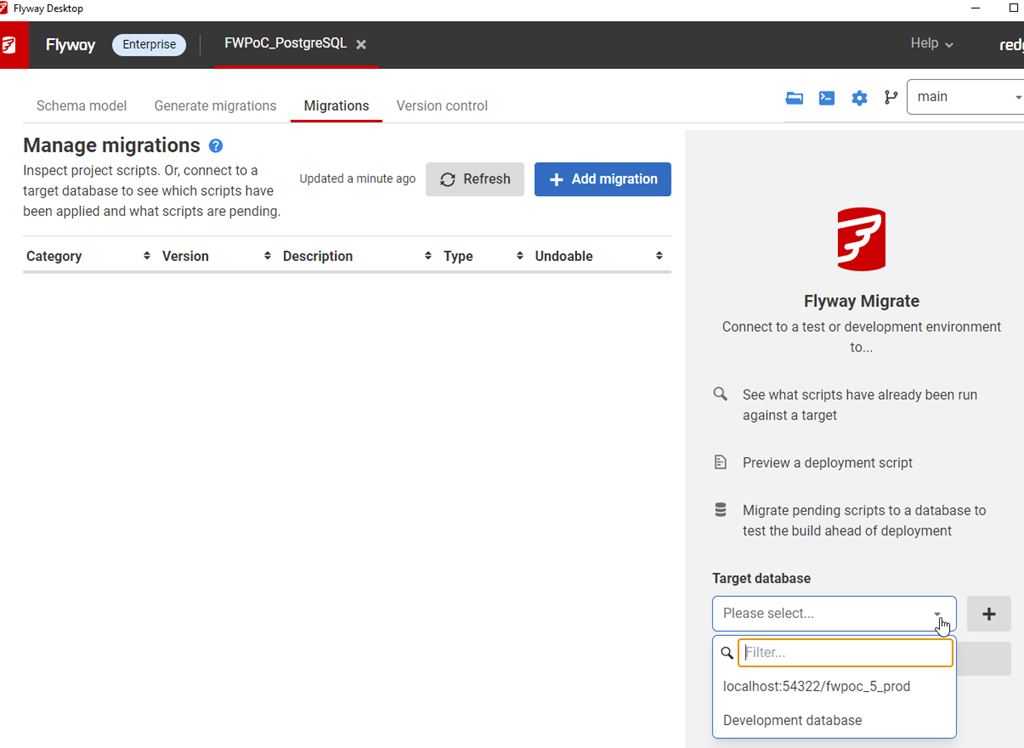
    In the Migrations tab, I see this:

    2023-01-25 15_10_52-Window

    That configures this tab to look at (and work with) this database.

    2023-01-25 15_10_44-Window

    In general, I know we won’t be able to see production, but this is a PoC. However, this is something that I, in general, don’t want to do. I want to work with dev/test environments, so let’s do that.

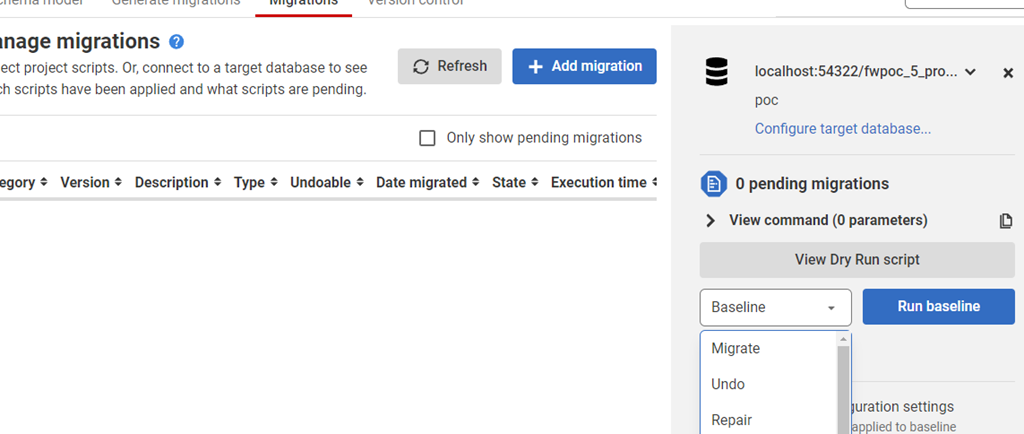
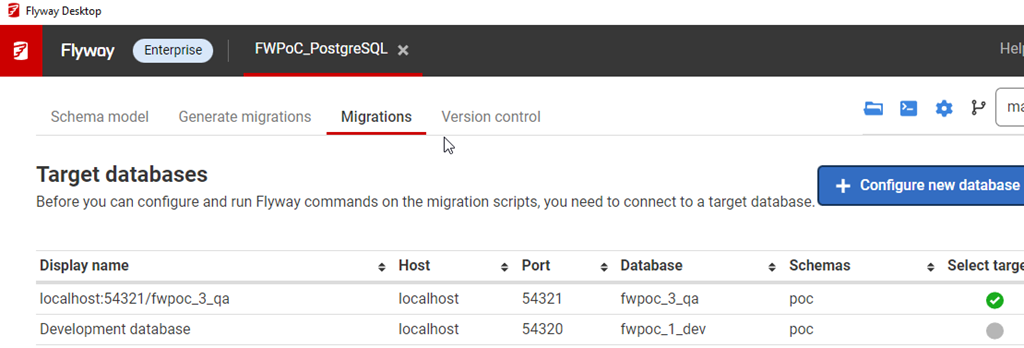
    I’ll configure my QA environment. I click “configure target database” and I get this screen. These are all the databases for my project. Here I’m going to click “delete” for production and then I’m going to click the Add and configure my QA database. Once I do that, I’ll see this:

    2023-01-25 15_14_52-Window

    Baseline added for PostgreSQL.

    2023-02-08 08_54_02-● SQLQuery_2 - localhost.postgres (postgres) - DBAScripts - Azure Data Studio

    Success.

  • Creating a Flyway Desktop Shadow Database in PostgreSQL

    In order to generate migrations, we need to configure Flyway to use a shadow database. This post looks at that process.

    This is part of a series of working through Flyway and Flyway desktop to demo database changes. Disclosure: I work for Redgate Software.

    Configuring the Shadow

    This is an empty database where we run the migration scripts to verify them. Since a user might edit or create their scripts, we want to ensure there are no problems with the syntax or execution with other scripts. This is also a place where we keep the “previous state” of your development database and use this to detect the changes you’ve made.

    This database gets cleaned, meaning objects get dropped, regularly, so you configure a space for this. It can be a separate database, or just a schema (more Oracle focused).

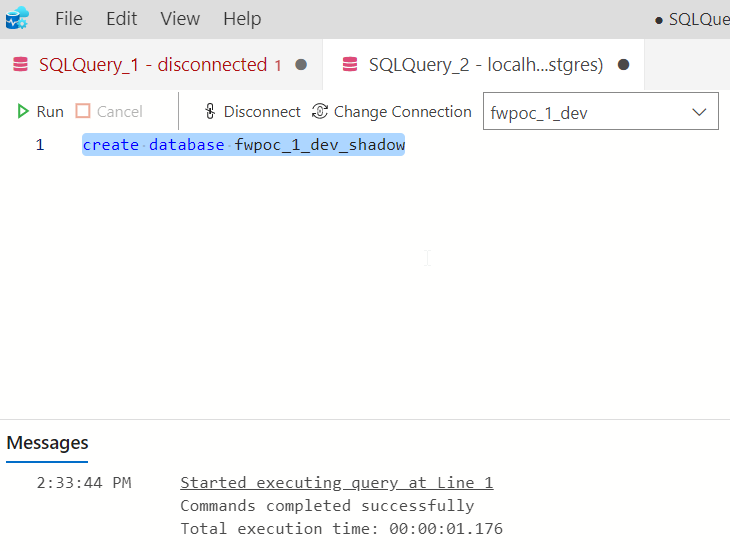
    For me. I’m going to create a new database in postgreSQL to support this. As you can see below, I use the simple CREATE DATABASE syntax.

    2023-01-25 14_33_46-Window

    Once I do this, I go back to FWD and click the “Generate Migrations” tab. The first time I do this (and only the first time), it asks me to configure a Shadow database.

    2023-01-25 14_33_27-Window

    I click this and get a connection dialog, similar to what I have for my development database. In here I enter the credentials for my shadow database, which are similar to my development ones. I test the connection and verify I can connect.

    2023-01-25 14_35_03-Window

    That’s it. Now I’m configured for a Shadow.

    The process is similar for other platforms, just with different credentials. If you need to learn more, you can read about this in the documentation.

  • Flyway Desktop Projects for My PoC

    In a previous post, I set up the basic databases for the PoC project I’m working on. In this next post, we’ll get the Flyway Desktop projects set up for the PoC.

    This is part of a series of working through Flyway and Flyway desktop to demo database changes. Disclosure: I work for Redgate Software.

    Flyway Desktop

    Flyway Desktop (FWD) is the GUI that Redgate built on top of Flyway for managing your database project. This replaces the SQL Source Control and SQL Change Automation products that we used to try and integrate into IDEs.

    I like Flyway Desktop, which is standalone app for capturing code and committing it to Git. It is a project based app, so you set up a project in a folder for a particular database (and possibly schema). In my case, I’m going to set up two projects to start for my PoC.

    Version Control

    We work with Git, which has become the de facto VCS for most people.

    On GitHub, I set up a public project where I’m putting this repository. It is located at: https://github.com/way0utwest/FWPoC

    This is on my local machine as a copy at e:\Documents\Git\FWPoC

    MSSQL

    The first project I’m setting up is my SQL Server project, in a folder called MSSQL under the root of the git repo. This is a project folder just for Flyway Desktop. Once I create the folder, I’m going to create a new project in FWD.

    2022-12-28 17_05_51-Flyway Desktop

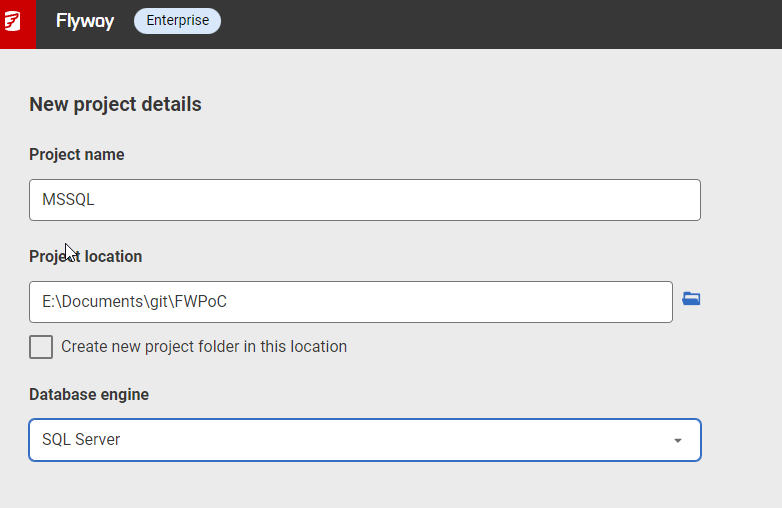
    I get a form after clicking New project. I’ll set the name as MSSQL, choose the root folder, and since I created the folder, I uncheck the checkbox. While I appreciate it’s good to put things in a subfolder, at times I’ve had FWD make a subfolder under the folder I choose, so I’m wary of this box. Mostly because I make mistakes.

    2022-12-28 17_05_33-Flyway Desktop

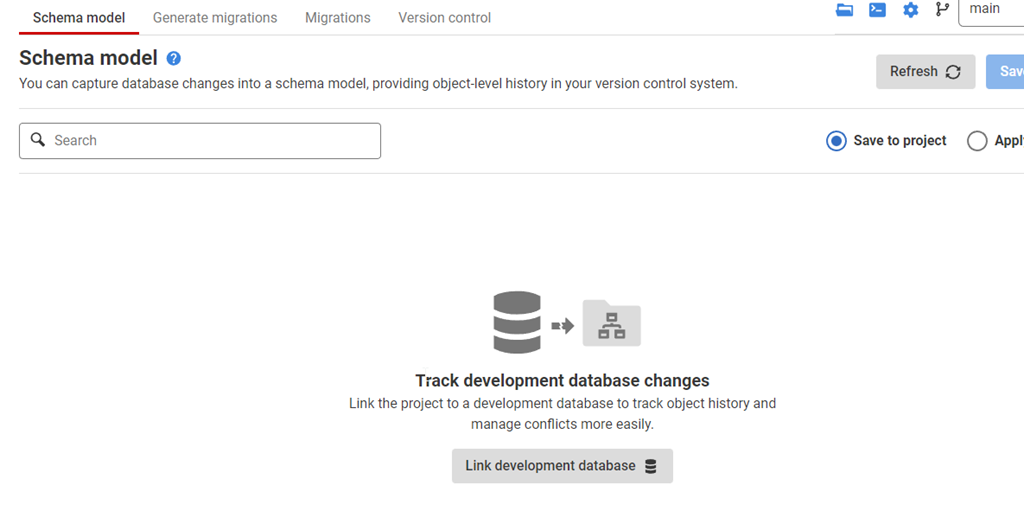
    Once this is created, I start in the Schema Model tab. I hate this nomenclature, as it’s weird. This is the list of objects whose code I’m capturing. There’s nothing here, because I need to link this to my development database.

    2022-12-28 17_07_44-Flyway Desktop

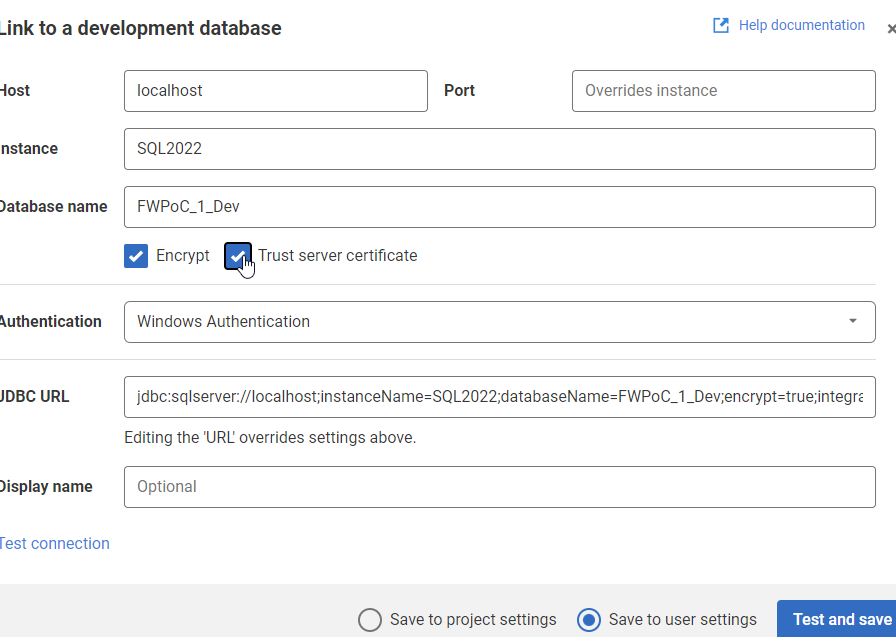
    If I click the “Link” button at the bottom, I get a dialog for the JDBC connection string. Don’t worry, you don’t need to know Java. Just fill in the boxes.

    2022-12-28 17_09_47-Flyway Desktop

    Two things in the dialog above.

    One: Click Trust Server Certificate. Most new installations of SQL and driver upgrades require this. I don’t know why we don’t have this checked by default.

    Two: Click “test connection” in the lower left, so if you have issues, this gets found quickly.

    Once this is done, I go back to the Schema model and I see this:

    2022-12-28 17_11_44-Flyway Desktop

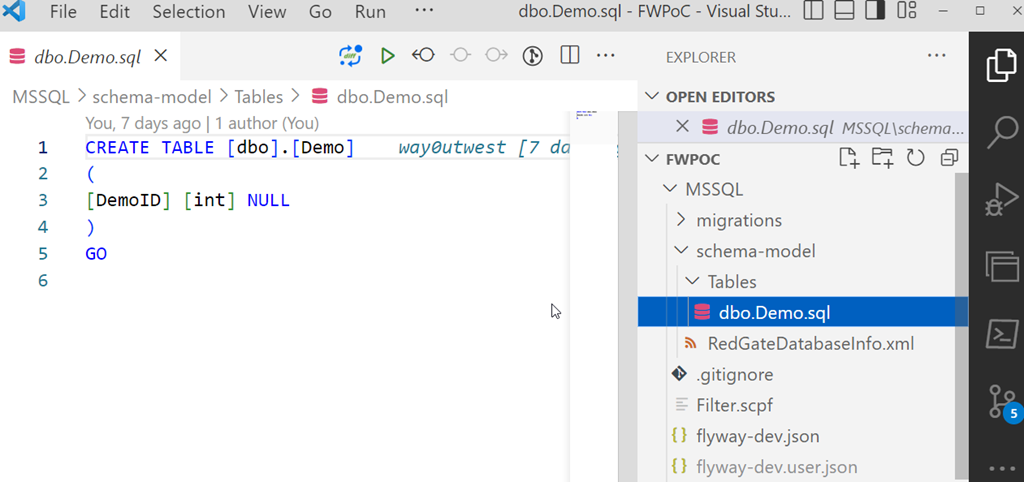
    I’ll select this object and save this to the project. This puts the file in the file system for this object, but doesn’t commit this to version control. We can see this in Visual Studio Code below. This is just a git repo, so if I open it in VSCode, I can see the file, the contents, and a note there are changes to be committed in the left icon.

    2023-01-03 12_31_22-dbo.Demo.sql - FWPoC - Visual Studio Code

    One project complete.

    PostgreSQL

    My second project is for PostgreSQL. Same git repo, similar process. I’ll create a new project, but say this is a PostgreSQL project.

    2023-01-03 12_33_16-Flyway Desktop

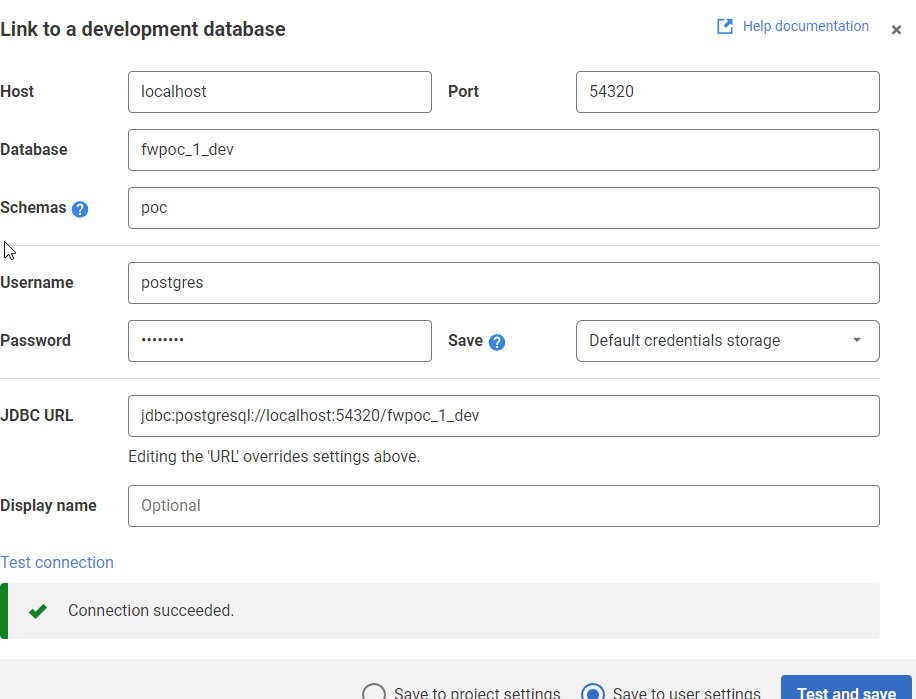
    The process is the same. I’ll link this to a dev database. I need to specify the port and database I’m using. I also specify the schema here, as it’s not the default.

    2022-12-27 17_36_50-Flyway Desktop

    Once I get the project connected, I see the same as I did above for SQL Server. I save it, and I get a slightly different structure in the project. I see a schema below the schema-model folder. In here, I see my table, but it’s not the code, but a description.

    2023-01-03 12_37_14-demo.rgm - FWPoC - Visual Studio Code

    From here, I just commit and push this stuff up to the repo. Note that commits and pushes, can push everything from both projects as they are in one repo. I did this on purpose to keep everything organized for me. However, if this were a team, I’d likely separate SQL Server and PostgreSQL into separate repos so individual developers don’t get confused.

    The next step here is to get a second database to where I can deploy changes for each project. I’ve got these set up, and in the next post, we’ll work on an initial deployment.