One of the little details that I find matter more and more in enterprises is understanding why a tool behaves a certain way. OSS/home-grown ones often have limited docs, but vendor tools should have great docs. Today I learned about how to easily find Flyway comparison defaults, which is the topic of this post.
I’ve been working with Flyway Desktop for work more and more as we transition from older SSMS plugins to the standalone tool. This series looks at some tips I’ve gotten along the way.
The Defaults
Do you know all the SQL Compare defaults? Would you realize it if someone changed them? Do you think they’re the same in Flyway? I actually don’t know about the latter question, and I’m not digging through and comparing the options.
In any case, I saw an internal discussion recently about documentation and someone pointed out that we have this page that discusses where you change options. It’s good for that purpose, but it doesn’t list the defaults.
If you click through, then you get a list of default options. There is first a link to the full list of options (SQL Server, Oracle) as well as a link to SQL Compare options (SQL Server, Oracle).
The SQL Server page looks like this:
Note the sentence just below the image, which links to all the options. The second link is for the SQL Compare option explanations. Below this, you see the default options. This is a table of options, which looks like this image. Note this says certain options are set to true and all others false.
I can see all the settings and if they are required. I also see an example of the TOML file below this, where I can set these and store them in version control.
If you want to change behavior of the comparison engine in Flyway, or double check if someone else has changed something, this is the place to check.
Note, if you are looking to induce certain behavior, changes should be made in a TOML file for the project and flow through a PR process for approval and into a pipeline. Don’t edit these options directly, or change them in a pipeline.
Flyway Enterprise
Try Flyway Enterprise out today. If you haven’t worked with Flyway Desktop, download it today. There is a free version that organizes migrations and paid versions with many more features.
If you use Flyway Community, download Flyway Desktop and get a GUI for your migration scripts.
Recently the Flyway Desktop (FWD) team release support for state-based deployments. These are similar to SQL Compare deployments, but with your code source control, which is where you want it. This post looks at how this works.
I’ve been working with Flyway Desktop for work more and more as we transition from older SSMS plugins to the standalone tool. This series looks at some tips I’ve gotten along the way.
State-based Projects
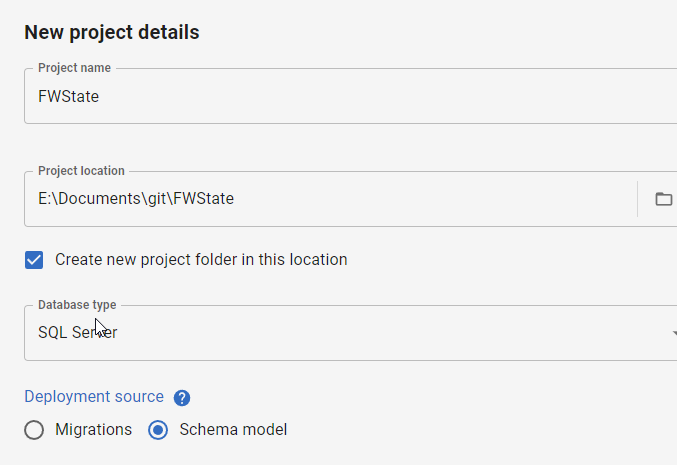
When I create a new project, I now have a choice: migrations or schema model (state-based). You can see the choice below.
I’ll demonstrate this now by creating a new project. I give it a name, folder, type, and then I pick the Schema model deployment source.
Once that is complete, the project is set up and I need to link a development database. I’ll do that first, picking a database with a few objects. In this case, I’ve picked my FWState_1_Dev database.
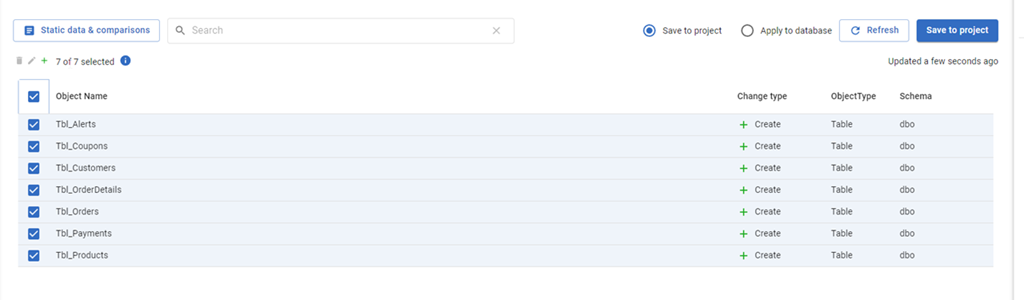
Once this is linked, the FWD tool will read the database, compare to my filesystem and tell me which objects have changed. Since this is a new project, all the objects are new and show up. I’ll select them all and click “Save to project”.
This gets all the code for my objects into the file system (and a VCS). I won’t commit these now in this demo, but normally I would save this code.
The main change in FWD is the change on the left side menu. Where we have “Generate migration scripts” and “Migration scripts” as options for a migration based project, for a state-based project, we have just a “Deploy” option. I’ll select that.
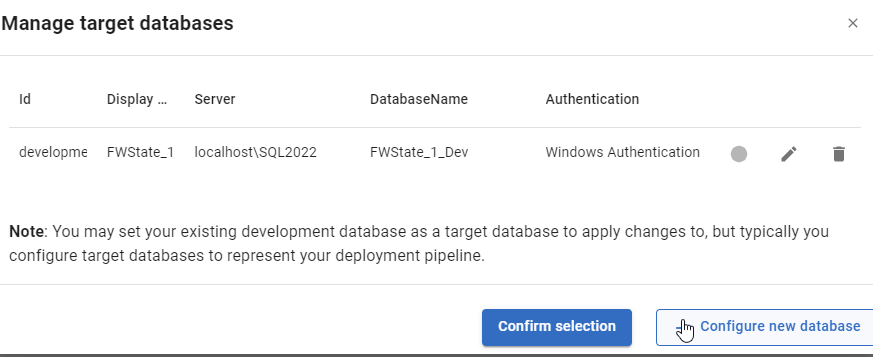
Once this happens, I have to pick a target. I haven’t configured anything (this is a new project), so I’ll select the “Manage environments” in the upper right section of FWD.
When I do this, I see the environments I’ve configured. So far, I’ve only configured a development environment, but I can click “Configure new database” to add a downstream target.
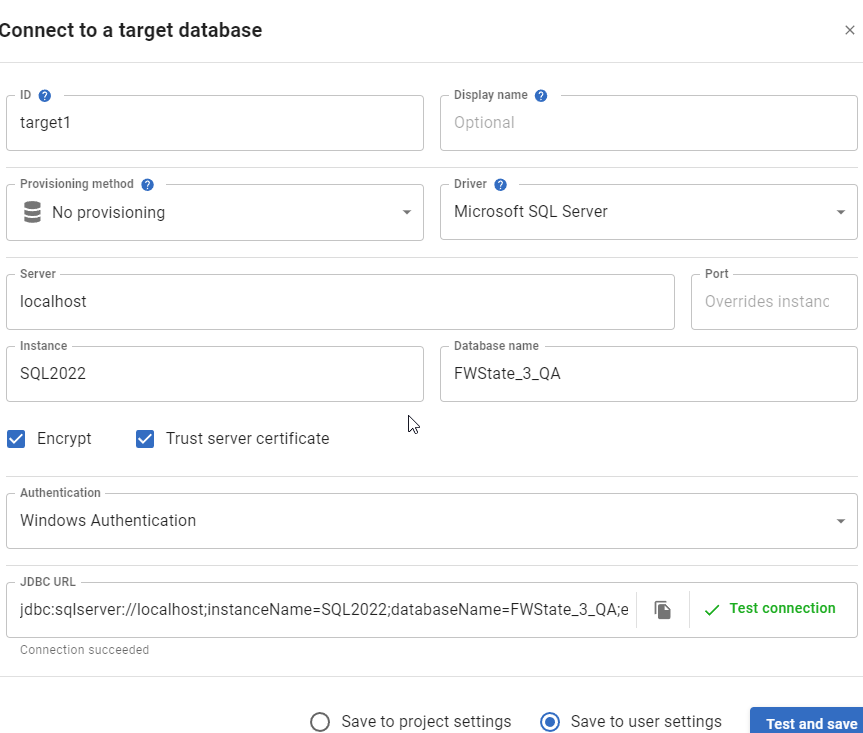
I get the standard FWD connection dialog, and I’ll enter details for my QA database. I usually also click “Test” to ensure I haven’t typo’d something. You can see I didn’t make a mistake below.
Once this is added, it is selected by default. However, I can always click the radio button in the Manage environments dialog and click “Confirm”.
This brings me back to the FWD screen where I see the changes that exist in the project, but haven’t been deployed to the target. In this case, it’s everything (QA is empty). I’ll just click the tbl_Customers table.
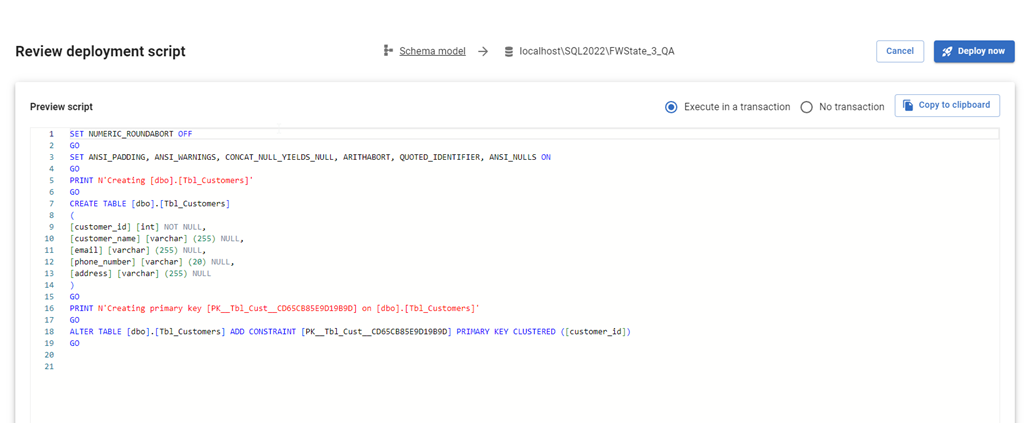
When I click Deploy, the script is generated just as it would be in SQL Compare to update the target with the code from the source. I can review the script, as well as change options. I can add an explicit transaction around all changes, or let them run with the default implicit transaction for each statement. I can also copy the script to the clipboard if I want.
If I check QA, I see no tables.
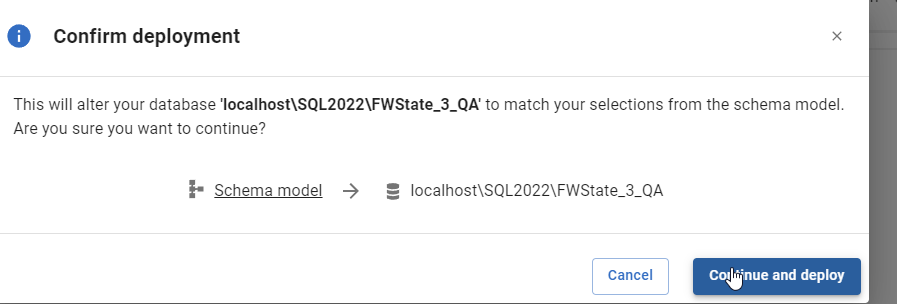
I’ll click “Deploy now” in FWD and the deployment starts. I confirm this is what I want to do.
Once this is done, FWD returns to the screen of objects. Note that tbl_Customers is no longer listed. The project and the target are in sync for this object.
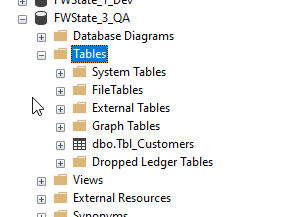
If I go back and refresh QA in SSMS, I see the table exists.
Summary
This short post shows how FWD and the Flyway system can be used to perform state based deployments, similar to SQL Compare or SQL Source Control. If you are used to working in SQL Source Control, this is an easy transition for you to a more modern tech, which will also support Oracle, PostgreSQL, and MySQL.
Try Flyway Enterprise out today. If you haven’t worked with Flyway Desktop, download it today. There is a free version that organizes migrations and paid versions with many more features.
If you use Flyway Community, download Flyway Desktop and get a GUI for your migration scripts.
I had a customer question whether Flyway Desktop (FWD) would cause problems if developers were adding columns into the middle of tables. It’s a valid concern, and this post shows that FWD doesn’t cause you issues, even if your developers do silly things.
Unless they want to do silly things.
I’ve been working with Flyway Desktop for work more and more as we transition from older SSMS plugins to the standalone tool. This series looks at some tips I’ve gotten along the way.
The Scenario
Imagine that you have a table with a few columns, like this one.
CREATE TABLE Product
( ProductID INT NOT NULL CONSTRAINT ProductPK PRIMARY KEY
, ProductName VARCHAR(50)
, ProductDesc VARCHAR(1000)
, ProductSize CHAR(1)
, ProductWeight INT
, ProductColor VARCHAR(20)
, StatusID int
)
GO
This table has the same structure in dev and prod, and I need to add a new column. We need a quantity per package as we have new products where there are multiple items in a box, so there is a need to add ProductQtyPerUnit to the table.
I decide that this needs to be before StatusID since it’s related to the other product description items, and I want them to be together. This is a good concept when designing entities, but it’s not worth doing when we have millions of rows in this table in production.
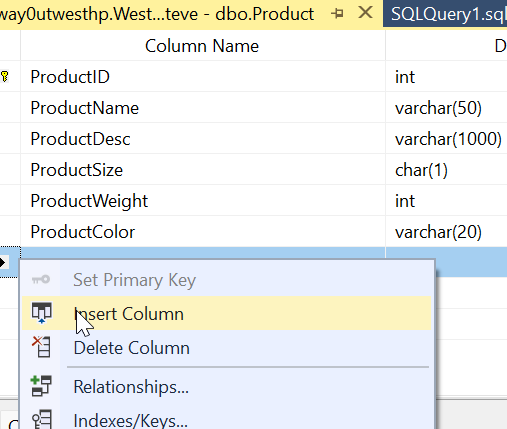
In the SSMS designer, I do this. I right click my table, click Design, the right click before StatusID and select Insert Column:
I then design my new column. Things look good.
Most developers would just save this change. However, if I were to click the Generate Change Script button, I’d see this (I leave out the SET stuff at the top).
BEGIN TRANSACTION
GO
CREATE TABLE dbo.Tmp_Product
     (
     ProductID int NOT NULL,
     ProductName varchar(50) NULL,
     ProductDesc varchar(1000) NULL,
     ProductSize char(1) NULL,
     ProductWeight int NULL,
     ProductColor varchar(20) NULL,
     ProductQtyPerUnit smallint NULL,
     StatusID int NULL
     )  ON [PRIMARY]
GO
ALTER TABLE dbo.Tmp_Product SET (LOCK_ESCALATION = TABLE)
GO
IF EXISTS(SELECT * FROM dbo.Product)
      EXEC('INSERT INTO dbo.Tmp_Product (ProductID, ProductName, ProductDesc, ProductSize, ProductWeight, ProductColor, StatusID)
         SELECT ProductID, ProductName, ProductDesc, ProductSize, ProductWeight, ProductColor, StatusID FROM dbo.Product WITH (HOLDLOCK TABLOCKX)')
GO
DROP TABLE dbo.Product
GO
EXECUTE sp_rename N'dbo.Tmp_Product', N'Product', 'OBJECT'
GO
ALTER TABLE dbo.Product ADD CONSTRAINT
     ProductPK PRIMARY KEY CLUSTERED
     (
     ProductID
     ) WITH( STATISTICS_NORECOMPUTE = OFF, IGNORE_DUP_KEY = OFF, ALLOW_ROW_LOCKS = ON, ALLOW_PAGE_LOCKS = ON) ON [PRIMARY]
GO
COMMIT
This script essentially creates a new table, copies over data, then drops the old table before a rename. On a large table, this could acquire a number of locks and potentially cause errors or disruptions for clients. If I want deployments at any time, without causing downtime, this isn’t the script I want to run.
Flyway and Column Changes
If I do this in dev, assuming I don’t have millions of rows of data, I might not notice this. What about detecting this change in Flyway? Let’s see.
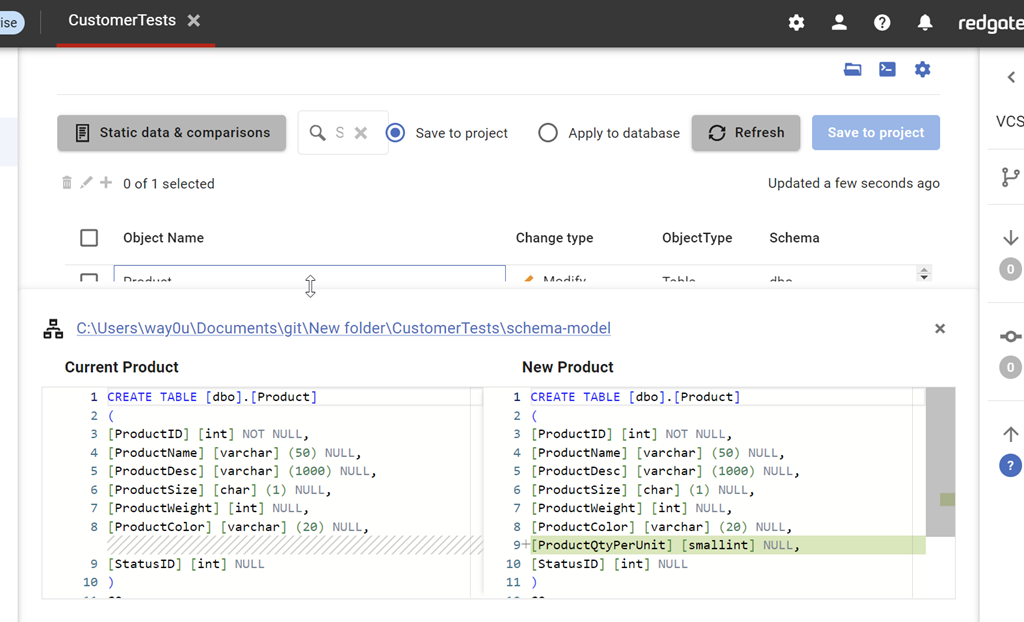
I have a Flyway project open in Flyway desktop and I’ll refresh the changes. As you can see, we detect this new column. As you can see, we detect the change, showing the insertion of the column into the middle of the table.
I can save this and then generate a migration script for this change. When I do this, I see this script. Notice that this script is unlike the SSMS script and just adds a column to the table.
This is the same behavior in SQL Compare. By default, we don’t want to rebuild tables and move data. We want to just add the new change to the system.
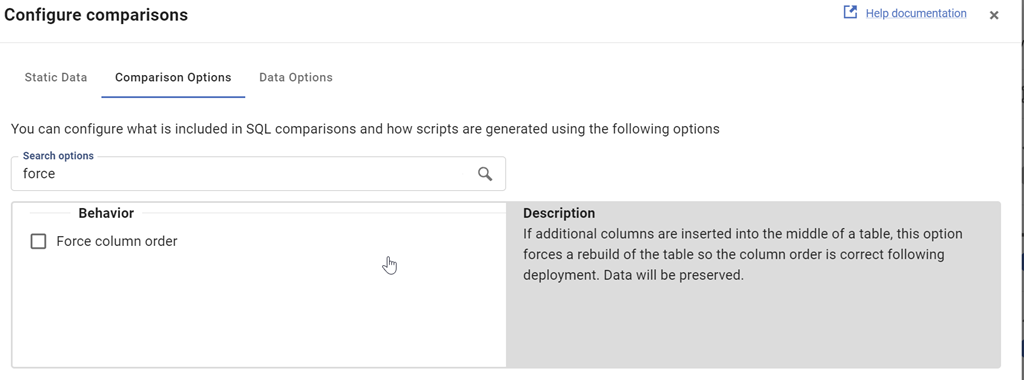
This is controlled by the Force Column Order option, which is off by default. We can see this when I look at the comparison options for the project.
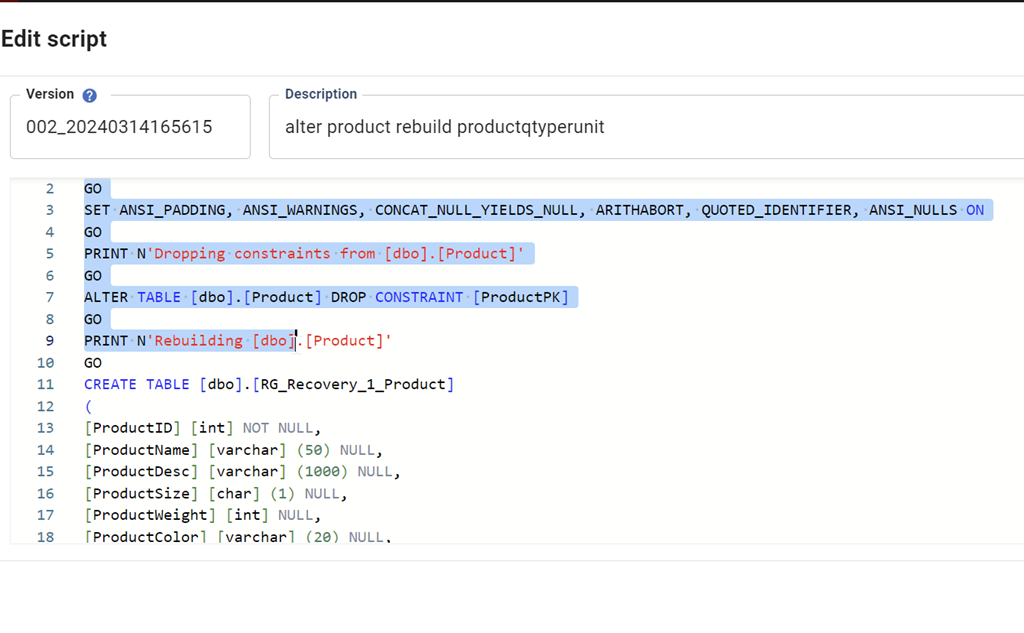
I can check this and then re-generate the migration script. When I do that, we see this script. This one
The entire script is here:
PRINT N'Dropping constraints from [dbo].[Product]'
GO

ALTER TABLE [dbo].[Product] DROP CONSTRAINT [ProductPK]

GO

PRINT N'Rebuilding [dbo].[Product]'

GO

CREATE TABLE [dbo].[RG_Recovery_1_Product]

(

[ProductID] [int] NOT NULL,

[ProductName] [varchar] (50) NULL,

[ProductDesc] [varchar] (1000) NULL,

[ProductSize] [char] (1) NULL,

[ProductWeight] [int] NULL,

[ProductColor] [varchar] (20) NULL,

[ProductQtyPerUnit] [smallint] NULL,

[StatusID] [int] NULL

)

GO

INSERT INTO [dbo].[RG_Recovery_1_Product]([ProductID], [ProductName], [ProductDesc], [ProductSize], [ProductWeight], [ProductColor], [StatusID]) SELECT [ProductID], [ProductName], [ProductDesc], [ProductSize], [ProductWeight], [ProductColor], [StatusID] FROM [dbo].[Product]

GO

DROP TABLE [dbo].[Product]

GO

EXEC sp_rename N'[dbo].[RG_Recovery_1_Product]', N'Product', N'OBJECT'

GO

PRINT N'Creating primary key [ProductPK] on [dbo].[Product]'

GO

ALTER TABLE [dbo].[Product] ADD CONSTRAINT [ProductPK] PRIMARY KEY CLUSTERED ([ProductID])

GO
By default, Flyway isn’t going to try and rebuild your tables if developers add columns into the middle of a table. This is the recommended and preferred way of dealing with these changes. If your developers complain, then discuss the fact that we don’t need to worry about the physical order of columns in a table. If you want columns returned in a different order, do that in a query (and don’t use SELECT *).
If you really need tables rebuilt, you can check the option, but you shouldn’t do that.
Try Flyway Enterprise out today. If you haven’t worked with Flyway Desktop, download it today. There is a free version that organizes migrations and paid versions with many more features.
If you use Flyway Community, download Flyway Desktop and get a GUI for your migration scripts.
I had a customer ask about undoing changes made by developers, similar to what SQL Source Control does. I had to do a little research to show how to do this, which is the tip this week.
I’ve been working with Flyway Desktop for work more and more as we transition from older SSMS plugins to the standalone tool. This series looks at some tips I’ve gotten along the way.
Making Changes in Development
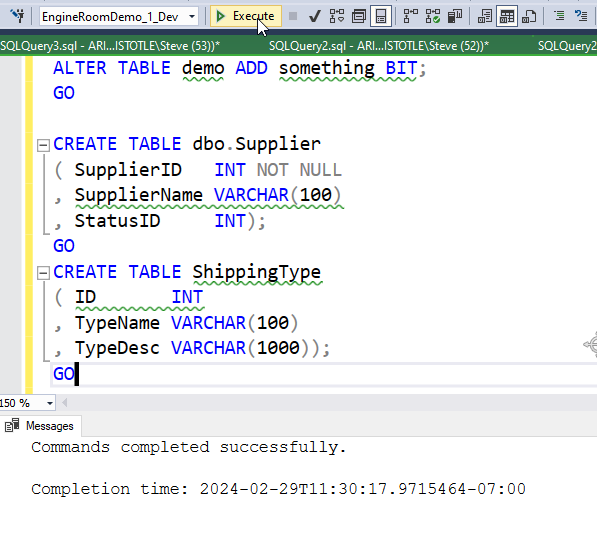
I’ve got a few changes I want to make. You can see these in the image below, where I’ve added a column and then a couple of tables.
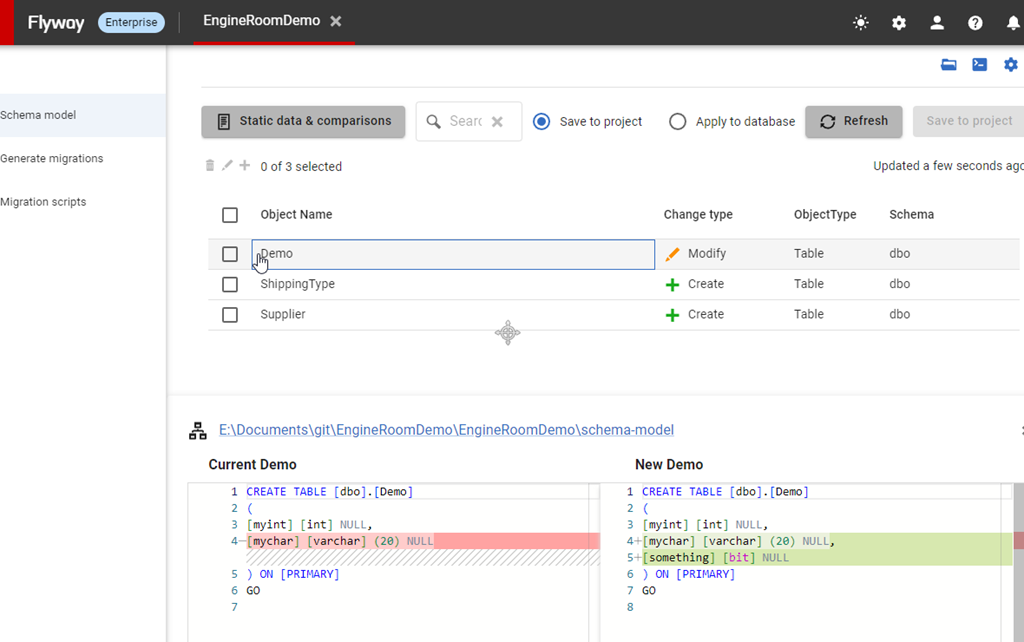
I test this (hopefully) and I come to Flyway Desktop, where I can see all my changes listed in the Schema Model tab.
At this point, I realize that I’ve done something I don’t want. I don’t want the column to be named something. Maybe I misspelled it, or maybe I modeled it wrong. I can easily fix this in Flyway Desktop.
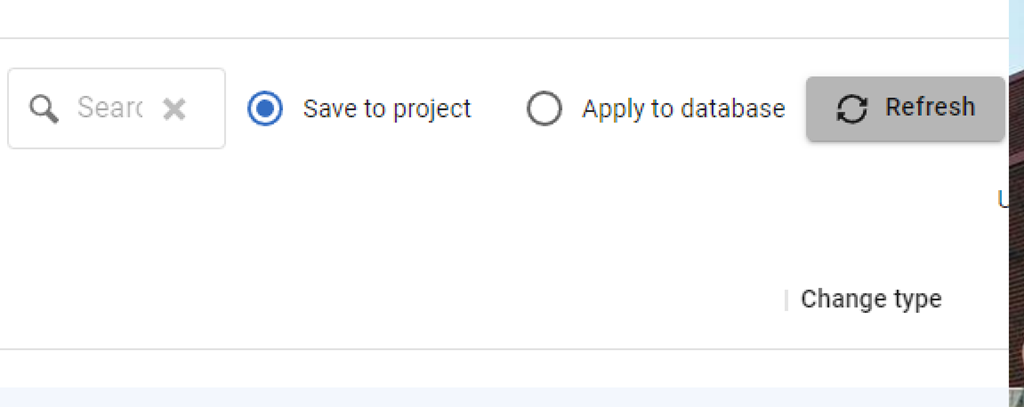
At the top, you see there is a Save to Project and Apply to Database set of radio buttons.
This is a two way comparison, with the options reversing each other. The Save item will write database changes to the file system in the repo. The Apply will read the repo and make the changes in the database.
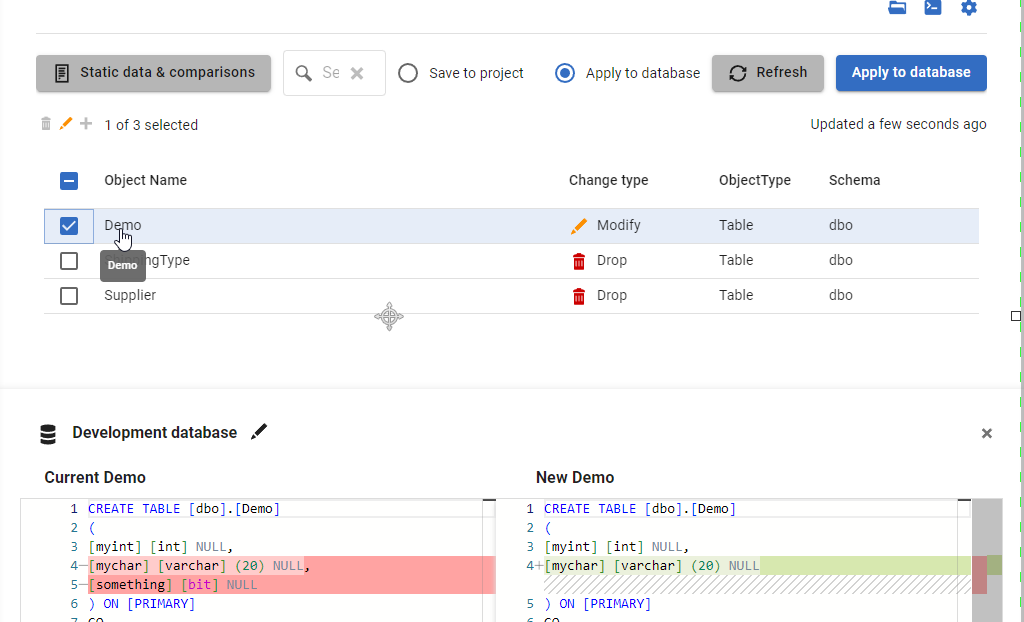
In this case, you can see below that when I select the Apply radio button, I get the notification that my column will be deleted.
Once I click “Apply to Database” (the big blue button), these changes are made.
If I check the database, I can see my column is removed, but my tables still exist, since I didn’t check their boxes on the left.
I’ve undone a change. Now I can commit these two tables, if that’s what I need, or I can also add back a better named column and refresh this if needed.
Try Flyway Enterprise out today. If you haven’t worked with Flyway Desktop, download it today. There is a free version that organizes migrations and paid versions with many more features.