Tag: GitHub

  • Creating a GitHub Actions Self-Hosted Runner

    I had to demo the Flyway Autopilot system recently and created a GitHub Actions runner as a part of that. This post documents how this went.

    First, if you go to the settings in a repo and click the Actions area, you see a Runners item. Click that. Notice I have no runners.

    2025-01_0235

    In the upper right corner, I can click a button to create one.

    2025-01_0236

    This gives me the instructions to get a new one. Note, these are PowerShell commands, and the first command doesn’t quite work right. Still, this is what I need.

    2025-01_0237

    I opened a CMD window and stared running these. Note, I need to repeat the change directory.

    2025-01_0238

    Now start PowerShell as the next commands are PoSh ones. When I copy the next command, it starts downloading a zip file. As of this writing, this is a 600-ish MB file.

    2025-01_0239

    Once this is done, you can run the next commands, which unzip and configure this. For the config, I just hit enter as I don’t have multiple groups or tags, and I leave it named as my machine. I also don’t bother to run this as a service.

    The last command runs the runner agent.

    2025-01_0240

    If I go back to the Runner screen in Settings, I see I have an idle agent set up.

    2025-01_0241

    And that’s it. If I pick one of my workflows in the Actions tab, I can run it and I’ll see the job started in my runner folder. Here are my actions with the Run workflow button on the right.

    2025-02_0284

    If I click this, I see the job start in the CLI.

    2025-02_0285

    If I get back to the Actions, I’ll see things in progress. As you can see, I was slow here.

    2025-02_0283

    That’s about it. Now I can run local automations in my repo that connect to things like local databases, which can be handy.

    Video Walkthrough

    I’ve got a video of this process if you want to watch it.
  • Friday Flyway Tips–Linking a GitHub Issue to a Code Commit

    Recently I was doing a demo and a customer asked how I had linked my commit in Azure DevOps to the work item that existed. It’s easy, and tldr; it’s with the commit comment. This post shows how that works.

    I’ve been working with Flyway Desktop for work more and more as we transition from older SSMS plugins to the standalone tool. This series looks at some tips I’ve gotten along the way.

    Creating an Issue

    Many people use GitHub and adding issues is easy. You go to the Issues tab, click “New” and enter details. What is required might vary by project. I have a public demo project here: https://github.com/way0utwest/FlywayNorthwind

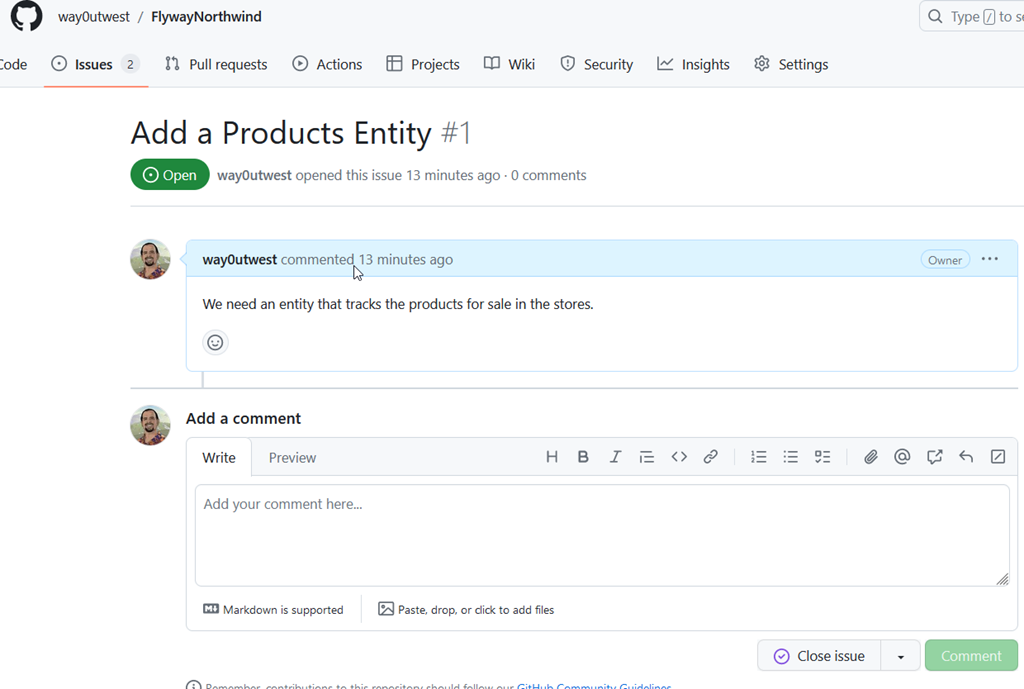
    My issues tab has a few items, but you can see one of the issues below. Note, I’m not proud of this, as I just added this for a demo. I didn’t really add enough detail for anyone to work off this. I’ll do better with other issues.

    2024-01-05 17_01_26-Add a Products Entity · Issue #1 · way0utwest_FlywayNorthwind — Mozilla Firefox

    In any case, the thing to note is I have a #1 at the top, meaning this is issue #1. If I type a comment or note anywhere in this project and include #1, a link is created to this issue.

    Linking A Commit in FWD

    This is very similar to the technique I showed in Azure DevOps. Actually, it’s the same. I’ll make some changes for a products table and generate a migration script. When I go to the Version Control blade, I see the changes and I commit them with a message that includes #1.

    2024-01-05 17_05_11-

    In the GitHub code tab, I see my commit message, and the #1 is hyperlinked. If I hover over it, I see the issue.

    2024-01-05 17_06_13-way0utwest_FlywayNorthwind_ Test project using Northwind and Flyway — Mozilla Fi

    In the Issue itself, I see a flow with the commit listed.

    2024-01-05 17_06_51-Add a Products Entity · Issue #1 · way0utwest_FlywayNorthwind — Mozilla Firefox

    Now I’m not only tracking discussion and comments of the issue, I’m linking commits as well.

    This is less a Flyway Desktop feature than a GitHub one, but you can access this from Flyway Desktop by writing good commit messages with Issue numbers.

    Try Flyway Desktop out today. If you haven’t worked with Flyway Desktop, download it today. There is a free version that organizes migrations and paid versions with many more features.

    Video Walkthrough

    I made a quick video showing this as well. You can watch it below, or check out all the Flyway videos I’ve added: