Tag: presentations

  • Create a Login – Basic Skill #3

    This post is part of a series based on my presentation The Top Ten Skills You Need for SQL Server. This post is part of Skill #3 – Setup Security.

    I wrote about the basic security model for SQL Server, recently and wanted to now expand on the practical aspects of how you setup security. Let’s start with logins and creating them.

    In the current versions of SQL Server, which includes SQL Server 2008 R2 and below, a login is the way in which you connect to an instance of SQL Server. Things may change in SQL Server 11 with contained databases, but I think this will still apply in many situations.

    Logins are defined at the instance level, and in Management Studio, you can right click the Logins folder and select New Login to create one.
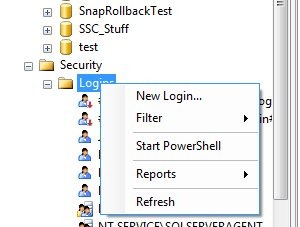
    newlogin

    This will create a dialog like this one:

    newlogin2

    There are lots of choices here, but really there are only a few decisions that we make for most logins. You might use the other options, but these are the basics for 80% of the cases, following the 80/20 rule of this series.

    The first thing is the login name. This can be a user or group in Active Directory, and as you can see in the next image, if you don’t know the exact name, there is a search button. This is the standard AD search dialog.

    newlogin3

    There is a radio button below the name, which defaults to Windows Authentication. That’s for AD accounts, and is the recommended default. You can also choose SQL authentication, which means that a password is required and the administrator must set it.
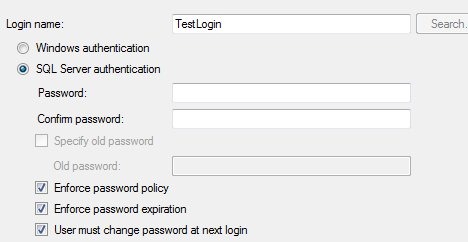
    newlogin4

    If you choose SQL authentication, and are on Windows 2003 or later (Vista/XP as well) that allow you to set password policy. As a note, leave these checked unless you have a great reason not to. For most logins you should not know the user’s password and it ought to conform to the policies.

    The rest of this page is advanced stuff that isn’t often needed. The only thing that you should look over is the default database. For normal users, make sure this is a database the person will have access to. For administrators, leave it at master.
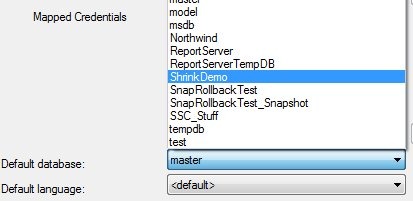
    newlogin5

    Next we look at the server roles page:

    newlogin6

    These are roles, or groups, with permissions for the instance. They don’t necessarily give a person access to a database, but many of them could allow someone to gain access, so for most users, leave this blank. For administrators, give them just what they need.

    The user mapping is next, and this is where you can have the dialog create a user in the database and grant access.
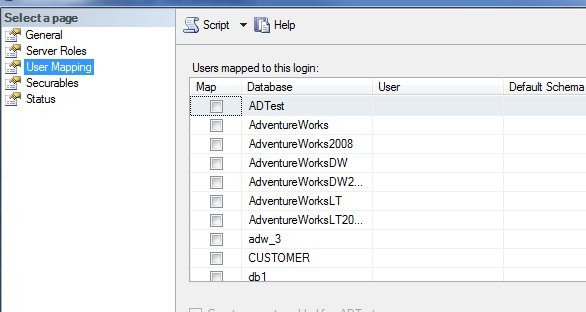
    newlogin7

    Most users will need access to a specific database, usually the one you chose as their default database. If you select a database checkbox, the user will be created with the same name as the login by default. Leave this alone, it’s a good policy.
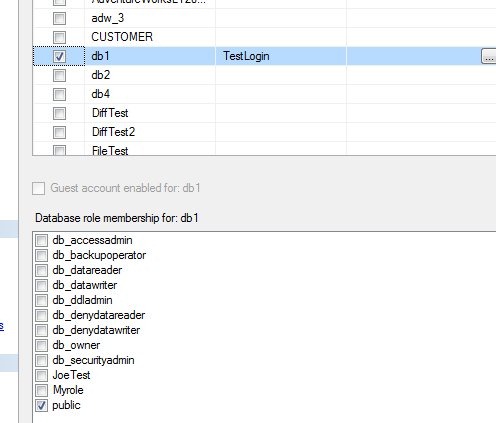
    newlogin8

    Once you select the user, you also can add a database role at the bottom. Everyone is a member of public, and you should have a database role you’ve created for permissions that you can assign to them. I dislike giving regular users any of the fixed database roles like db_datareader. They are too global in permissions and have caused me confusion later on.

    Create your own role and assign permissions.

    Next is the explicit securables tab. Don’t use this unless you know what it means. I never use it, and most of the time you shouldn’t. Leave it along until you learn why, and more importantly, why not to use it.
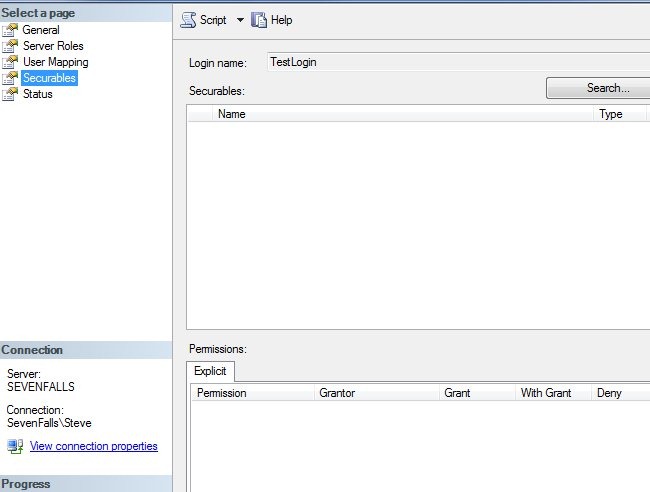
    newlogin9

    That last tab isn’t one you normally need, but you might come here if a user has locked themselves out.
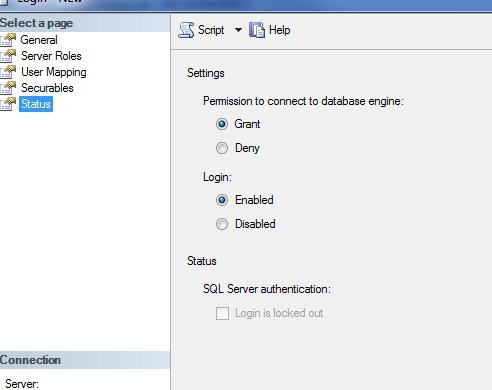
    newlogin10

    Leave these defaults alone unless you need to disable the user or prevent them from accessing this database for some reason. You can switch the radio buttons. If the user is locked out, the bottom checkbox will be selected and you can uncheck it.

    That’s the basics of creating a user in SSMS. For the most part, stick with defaults and keep your security simple, and restrictive. Don’t grant more rights than you need to.

  • The 80/20 Rule – Top Ten SQL Server Skills

    Over the years that I’ve worked in technology, I’ve found that the 80/20 rule seems to apply pretty well to all the different areas that one can specialize in. It doesn’t matter whether you build PCs, work on the help desk, administer systems or develop software, the rule has pretty well been true for my career.

    The 80/20 rule essentially says this: 80% of your job takes 20% of your time (or skills) and the remaining 20% of your job takes 80% of your time (or skills). It doesn’t matter if this is your daily work or a project that you are assigned. Most of your effort is in finishing the last details, or handling the most complex parts.

    I’ve heard this joked about in software development as the rule of 90s as well, saying that the first 90% of a piece of software takes 90% of your time and the last 10% takes the other 90% of your time.

    I built my presentation, The Top Ten Skills You Need for SQL Server, based on this rule. It includes the most skills that often solve questions I see asked at events or on forums. It seems that these ten skills along with the basics of performing them will solve most of your problems.

  • Create a Log Backup Schedule – #1 Skill You Need

    This series of blog posts are related to my presentation, The Top Ten Skills You Need, which is scheduled for a few deliveries in 2011.

    You Need Log Backups

    By default databases in SQL Server are created with the Full Recovery Model. That means that without log backups, the log will continue to grow and grow until it hits the growth limit you’ve set, or it fills the disk. I see questions on this constantly at SQLServerCentral from people who have a 10MB database and a 653GB log file.

    A log backup will mark the transactions in the log as backed up, and that space can be re-used. The log backup aids in space management and also provides recovery to points in time in between full backups. With that in mind, you need to do a few things.

    Schedule Log Backups

    As soon as you create a database, and you create a full backup schedule, schedule log backups as well. It’s easy to schedule a single daily log backup along with your full backup. They don’t block each other, and for most non-production systems, this works fine.

    Note that the total space used for the log backups is the same whether you schedule 1 a day or 86,400 a day. There is a slight overhead to each file, but essentially the space used is the same. However backups scheduled more often result in a smaller log files size for the LDF.

  • When Do You Take a Full Backup?

    This series of blog posts are related to my presentation, The Top Ten Skills You Need, which is scheduled for a few deliveries in 2011.

    When is a Full Backup Taken?

    Most people might answer this with “every day”, or “as often as needed”, but those are a little nebulous, and not necessarily correct.

    I do recommend that you backup as often as you can, which is every day for most people. Those with large databases might go once a week, or even once a month, but you want to get a full backup periodically. If you have a really large database, say 50TB or greater (in 2011), you might opt for a yearly SAN snapshot of some kind, but you need some full backup as a base.

    So when do you backup your database? Here’s a list of some times you might think about:

    • As often as you can on a regular schedule (daily, weekly, monthly, etc)
    • Before applying a Service Pack or CU*
    • Before applying a Windows patch*
    • Before upgrading your application*
    • Before a large data load*
    • After restoring your instance in a DR situation

    That last one might throw people, but I’ve seen more than a couple situations where someone recovered a database in a DR situation and never setup backups. And there was another failure.

    Whenever you create a database, either from scratch or after a restore, make a backup.

    * Note that if you have Enterprise Edition or above, you can use Database Snapshots to substitute for a full backup in some of these situations.