Tag: QuickTips

  • Quick Tips–SQL Prompt Custom Aliases

    I love SQL Prompt, and think it’s a great productivity tool. Even before I worked at Red Gate, I love the tool and had a copy before Red Gate bought the technology from the original developer. Recently I’ve run into a few people that weren’t aware of some of the ways in which it can help you. This is a quick look at one of the ways I use SQL Prompt.

    Custom Aliases

    SQL Prompt can automatically create aliases for tables. However, as I’ve worked on different systems, I’ve often found that development teams like to use specific aliases consistently to ensure that everyone can easily read the code and understand which tables are being queried.

    Suppose I decide that I have these tables:

    • Product
    • Product Details
    • Orders
    • OrderDetails

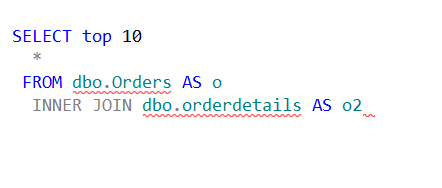
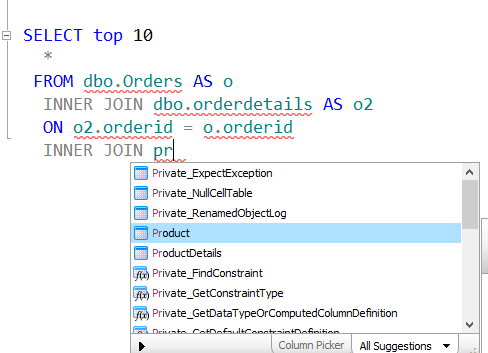
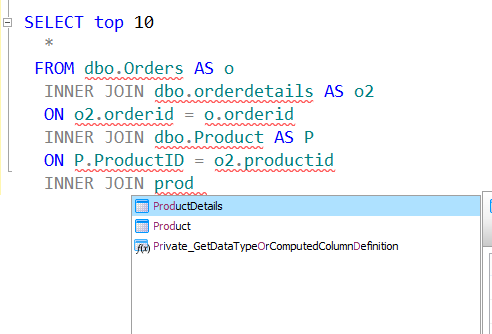
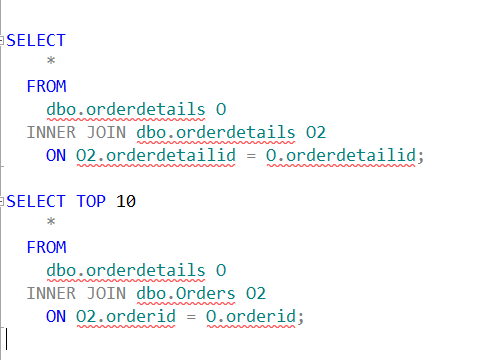
    I often use these tables in queries in my system, and I want to have consistent aliases. Right now, I could have these two queries with the default SQL Prompt alias settings:
    aliases20

    Note that the Orders table has “O” as an alias in the first query, but “O2” as an alias in the second query. This isn’t an issue when I’m writing a query, but when I revisit this code in a month or two and add an enhancement, it can be tricky.

    What I’d like to do is ensure I had consistent aliases for my tables, so that every developer always knows that “o” is Orders and “od” is OrderDetails. I want these aliases

    • Product – P
    • Product Details – PD
    • Orders – O
    • OrderDetails – OD

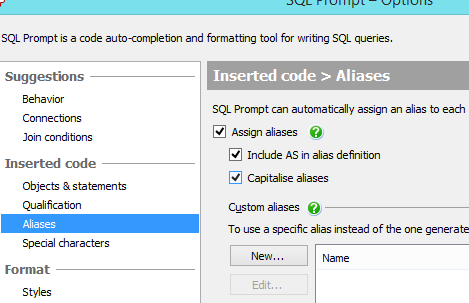
    I can do that in SQL Prompt with custom aliases. Let me go back to the Options dialog and select Aliases.

    aliases_21

    I’ve already added an item in the Custom aliases section for the product table. However I can click New (highlighted above) and I’ll get a little dialog.

    aliases22

    I repeat this process for each table, and soon I have all four entered.

    aliases_23

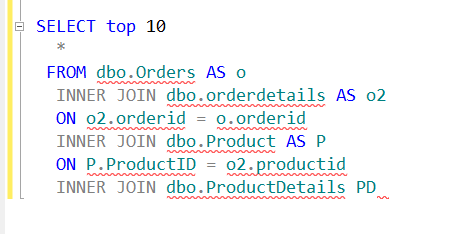
    Now I can rewrite my query. I start typing each table, and once it’s highlighted, click “tab”. When I get done, I have:

    aliases_24

    A quick way to ensure that all of your tables are consistently aliased, no matter in which order you type things.

    aliases_25

    You can see a complete list of SQL Prompt tips at Redgate.

  • Quick Tips–SQL Prompt Aliases for Every Table

    I love SQL Prompt, and think it’s a great productivity tool. Even before I worked at Red Gate, I love the tool and had a copy before Red Gate bought the technology from the original developer. Recently I’ve run into a few people that weren’t aware of some of the ways in which it can help you. This is a quick look at one of the ways I use SQL Prompt.

    Aliases

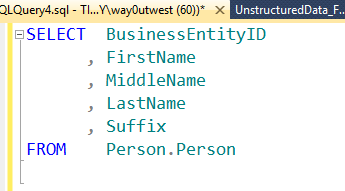
    Aliases are used to make code more readable, and shorten the amount of code that one needs to write. Typically we use these to give a short name to a table. Instead of:

    aliases_12

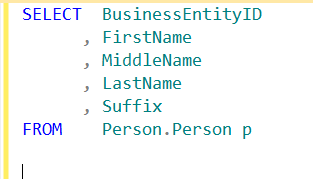
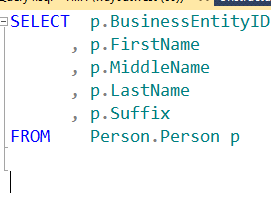
    We could use an alias. Note the “p” after the table below and the change in the column list.

    aliases_13

    Automated Aliases

    SQL Prompt can automate aliases for me. Under the Options dialog, there is an Aliases selection (shown below).

    aliases_1

    Note that I’ve checked the “Assign Aliases” box. This is not checked by default, but once I check it, I get aliases. Let me write a query.

    aliases_3

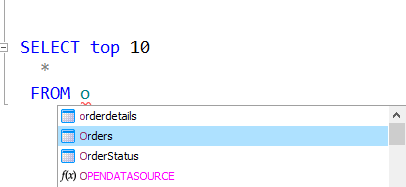
    I’m about to select my Orders table from the Prompt drop down. Once I click Tab, I’ll get this:

    aliases_34png

    SQL Prompt has added the alias for me. It’s a lower case “o”. If I add another table:

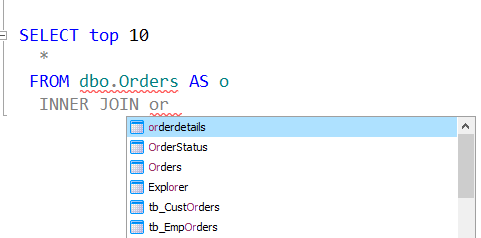
    aliases_5

    I hit tab at this point and I get:

    aliases_6

    I have a new alias of “o2”. Not terribly creative, but it works.

    I have some options for changing these around. Suppose I want to make these upper case to stand out. I can change this in options:

    aliases_2

    Now I add a third table:

    aliases_7

    I hit tab:

    aliases_8

    My new alias is an upper case “P” for the Product table. That gives me a bit of differentiation for my tables.

    I, however, do not like the “AS” keyword. I typically just space my alias after the table. I can change that in options:

    aliases_9

    I’ve unchecked the box and now I add a new table.

    aliases_10

    When I hit Tab, I’ll get a new alias, upper case, but no AS.

    aliases_11

    These are not terribly intuitive aliases, but this does at least clean up your code a bit, so when you see all the column names they aren’t spread way to the right with table names like “ProductDescriptions”.

    aliases_14

    You can see a complete list of SQL Prompt tips at Redgate.


  • Quick Tips–SSMS Select a vertical block

    I saw this years ago in a presentation from Aaron Bertrand. At the time I thought it was super cool and I’d use it all the time, but I haven’t found many uses. However since I needed to do this recently, this helped.

    Imagine that you have this:

    blockselect_a

    A normal select statement. Perhaps you’ve qualified columns with SQL Prompt, or you’ve used some tool to enter this (or you’re a typing masochist). Now you add an alias for the column because you don’t want to type the full name everywhere. That causes SSMS to complain.

    blockselect_b

    You can’t run this because once you use an alias, you need to use it elsewhere. The full table name isn’t valid anymore.

    Now you could do a search and replace (CTRL+H), but that presents other problems, not the least of which is replacing the table in the FROM name. Unless you want to go through and approve or deny every replacement. You could also edit Person to “p” on each line manually.

    Hey, this is programming, we don’t do things over and over when we can avoid them.

    Enter Block Select

    If you place your cursor here, shown with the arrow as my capture tool missed it.

    blockselect_c

    Now I can click ALT+Shift and hold them down while I move my cursor to the lower right of the block I want to select. In this case, it’s between the “n” and period on the last line of the column list, above the FROM clause. Look at the image below.

    blockselect_d

    I’ve now selected a block, and I can hit delete. This gives me:

    blockselect_e

    Notice that my selection is a thin cursor still visible. I can actually type here. Imagine I typed “sn” now. This is what I’d get.

    blockselect_f

    I fixed the alias before I shot this, and once I moved the cursor, I lost my selection, but a simple ALT+Shift, lets me highlight, select, and type in a vertical block.

    Handy when trying to correct a number of items on separate lines.

  • Quick Tips–SQL Prompt Qualifying Columns

    I love SQL Prompt, and think it’s a great productivity tool. Even before I worked at Red Gate, I love the tool and had a copy before Red Gate bought the technology from the original developer. Recently I’ve run into a few people that weren’t aware of some of the ways in which it can help you. This is a quick look at one of the ways I use SQL Prompt.

    Qualifying Columns

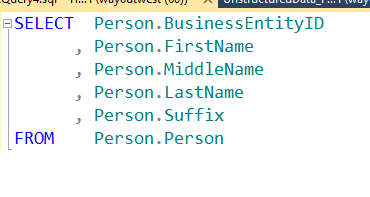
    One of the things that’s a good programming practice for T-SQL is to qualify your columns. Imagine that I have this query:

    qualify_a

    Note that my column names are listed with just the column name and don’t include the table from which they come. Not a big deal here, but as I enhance this code over time, I may add another table to a join, perhaps one that includes BusinessEntityID in it. In that case, I’ll get an ambiguous column error, and a squiggly in SSMS (shown below).

    qualify_e

    SQL Prompt tries to make writing code quicker and easier, and if I look back to my first query, Prompt can qualify those columns for me.

    If I press CTRL+B, CTRL+Q, I’ll get this (from the first query).

    qualify_b

    Note that every column now includes the table names.

    It also works for aliases. If I have this (note I’ve added an alias)

    qualify_c

    CTRL+B, CTRL+Q gives me this:

    qualify_d

    As I add tables and modify this code, anytime I find columns unqualified, I can use this quick shortcut to fix my code.

    Note: If you have ambiguous columns, Prompt can’t fix them (yet).