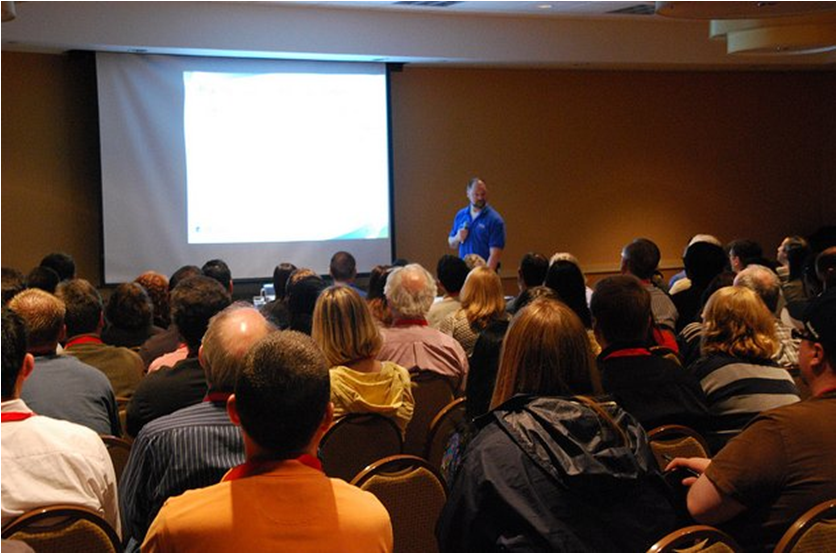
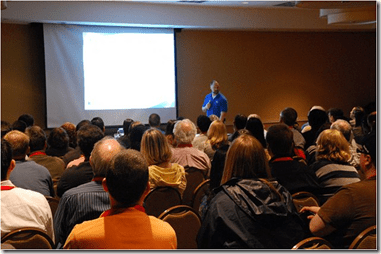
I had the main room keynote at the recent Rocky Mountain Tech Trifecta v3.0 in Denver. Jeff Certain & Ben Hoelting had the beginner track keynote, and I was sorry I missed that. I would have liked to see them talk.
However I had enough stress with my own keynote, especially with this being the first time my wife has seen me speak. Despite all my talks over the years, she’s never managed to get to one, usually because of some scheduling issue. My kids have all seen me, and even been on stage, but not her. So she came down, sat in the front row, and had me stressed.
I forgot to record it, which I regret, but here’s the text of the talk. I’ve included the slides in the places where I showed them on screen.

Welcome to the Rocky Mountain Tech Trifecta v3.0. This is my third year attending and I am very happy to see this event doing well and even growing. This year there are some new technologies and tracks, like the beginner track where you can get a goo grounding in some technology that you may never have experienced, or don’t get the chance ton use at work.
My name is Steve Jones and I started my career, like many of you, by working in a technical field, learning new types of software, and moving from company to company across about ten years. In that time I have watched technology grow and expand in my life, especially this "Internet thing".
One of the most amazing things is how the Internet has now grown from a useful tool in colleges to an essential part of our lives. When I was in college, the Internet was this private network between colleges and the government. We had limited email, only able to contact a few people I knew. There were discussions in newsgroups on Usenet, with only about 500 groups, and there was the barest beginning of the world wide web. I still remember the http protocol being introduced and using Lynx, a text browser, to navigate from page to page on the World Wide Web. I started communicating with 300 baud modems, and I used to watch characters paint across the screen on my computer, getting a page of data in a minute.
Today email is the primary way I contact millions of people and there are tens of thousands of newsgroups and probably just as many forums. One thing that really stands out for me in technology is how I’ve gone from phones with dials and cords

to this shiny new iPhone that I love, at least now that it’s on the Verizon network.

Now my phone downloads a hundred times that much data almost anywhere in the country in a fraction of the time and I use my phone much more often for data transfer than I use it for voice.
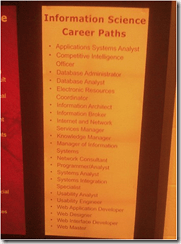
As my career advanced I learned one very interesting thing. I could advance in my field, find better jobs, and grow my salary, just by working on my skills. This is probably true in many other fields, but it seems that the pace of change in technology and the constant influx of new products to work with means we can do this faster than in other fields. We truly have the ability to dramatically affect our careers for the better with a little effort on our part.
This is no different than the advancement that

doctors,

lawyers,

or any other professional can achieve by learning more about their craft and improving their skills. Unlike those other fields, I think we are a little closer to a meritocracy in technology. In those jobs your "connections" and network seem to matter a bit more than your skills. Those connections are still important in technology, but not nearly as much. If you demonstrate some skill and talent, it can make up for the lack of connections in many cases. At least up to a point.
Today I want to talk to you about your career, and professional development. Ely Lucas organized this event and when he asked me to do this keynote, he told me two things. One was that I needed to fill 60 minutes, and the other was that I should talk about professional development. Don’t worry, I won’t keep you here for 60 whole minutes. I’ll leave you a few more minutes to go get a cup of coffee or find a restroom before the first session, but I do hope I leave you with some good reasons to continue to work on your own professional development after today. Or maybe even inspire you to motivate others back at your job to do the same.

During my career, I have learned that taking control of my career, and taking responsibility for my career, has allowed me to find better jobs, advance to more senior positions, and make more money at my jobs than I would ever have thought possible. It took me many years to realize that, but now it seems that each month more and more technical professionals are realizing that there is value in making professional development a regular habit. They are also asking for help in doing so. That’s one of the reasons that so many of us are here today at the Tech Trifecta. We are here to work on our careers.

Four years ago, my business partner and I started a free event called SQL Saturday. Its a one day free training event format for SQL Server professionals and there have been over 60 events in the last four years, with more scheduled all across the country this year. As these events have matured, its been interesting to see that more and more of these events include some Professional Development talks, sometimes having 2 or 3 sessions during the day. I suspect before long we will even see a professional development track.

A few weeks ago, SQL Saturday #66 took place in Colorado Springs. One of the great things that Chris Shaw organized at that event were dedicated networking exercises. There was time scheduled in between the various technical sessions and it was used to help people meet and network with other data professionals in an organized fashion. Not only were they learning technical information that day, but they were also building their network and working on their soft skills. It was fun for everyone, and inspiring to me to see people not only taking a Saturday away from their families to learn something technical, but also willing to work on those other skills that could help them improve their career.
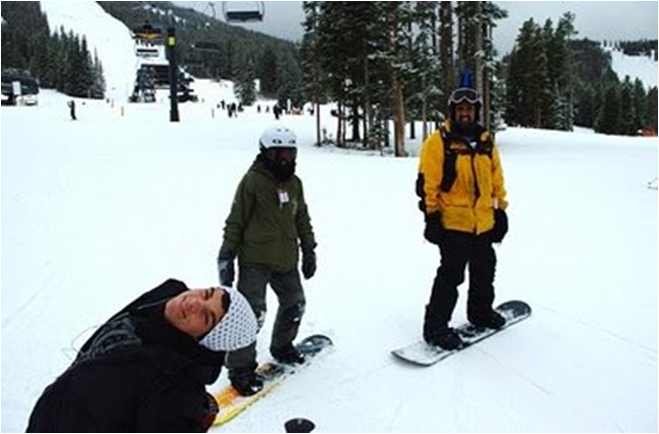
It’s great that so many of you are doing the same thing here today, taking a Saturday out of your life to come down here and learn something. You could be skiing,

relaxing with your family,

working around the house,

or doing any number of other things

that would be a break from your job. But you’re here, and you ought to be proud of the fact that you are here, making an effort to improve yourself.
Why spend time on professional development? After all you are already here today, on a Saturday, trying to learn something. That’s great, but in a time when so many employers are not making any contribution to your career, I think you ought to be making a dedicated and organized plan for working on your career. I’ve got three reasons for you that I’m going to talk about and hopefully convince you that it’s worth the effort. These reasons are employment, freedom, and purpose, and I’m going to talk about what I mean with each one of them.
Employment.
 My son bought a science fiction book recently called The Unincorporated Man. It’s a science fiction book about the future, and the story follows a cryogenically frozen billionaire who wakes up to find that the world has changed. He was frozen in a world like ours and awakens 300 years in the future to a world where everyone in the future is incorporated. At birth each person is incorporated, and just like in business today, the corporation of each person is divided up into shares. These "shares" are owned partially by you, partially by your parents, partially by the government and, here is the kicker, often by investors. You usually sell shares to pay for education or to borrow money, and then those investors that own your shares have a say in how you live. Your salary pays your dividends and your value is based on how the world perceives your performance. Those investors might force you to take jobs you don’t like, limit your vacation, or something else in an effort to increase your value, and hence, their return. People end up spending much of their lives working to try and "buy back" enough of their shares to become free. Once you can own 51% of yourself, you are essentially free and in control of your own life. It’s a great read, and a fascinating potential future. It’s also a little scary.
When I talk about employment, I want you to think of your employment as you working for your own corporation. Unlike in the book, however, you own all your own shares. This means that you are the person that your corporation ultimately has to answer to. If that’s the case, then do you, as a shareholder, think your corporation is being run the way you want it? Is it performing as well as it can? Is it making the decisions that will allow it to be more successful in the future?
Right now all of you should really be considering yourself as running your own corporation that employs you. In today’s world, you really are working for yourself, and selling your services to your employer. Your skills are your products, and your salary is your revenue.
Some of you might get lucky enough to contract with one employer for your career, but the majority of us won’t. The majority of us will end up working for a variety of companies during the course of our lives. Our "corporation" will subcontract to many other companies over its life.
We might be loyal to the company that is paying us, just as we might be loyal to Safeway or King Soopers for our groceries or to any other business for their products. As long as we feel we are getting a fair business transaction, we will be loyal. But when it is not a good deal for both sides, then we ought to be able to take our business elsewhere. If you have the same attitude with your job, then you can more objectively view the business deal with your employer, and look to take your business elsewhere when the value for your services isn’t there.

And if we consider ourselves self employed, then shouldn’t we be working to make sure that we make the "deals" that are best for our own corporation? Shouldn’t we be trying to grow our corporation and increase the revenue we get for our products? Or make our products better? Shouldn’t we be doing business with the companies that we want to do business with?

When you interview, you are making a pitch for the company to buy your services, and your skills. Just like a salesman visiting your company selling any other product. You ought to view it that way, and also take the attitude that you need to interview the company to be sure it’s the place you want to work. Make sure it’s the company that you want to do business with. You want your decision to take a job to be a win-win situation.
You might need a job, and need to take one quickly, but you should try not to put yourself in this position. When one side is desperate in a transaction, they get taken advantage of. that’s how bad business deals get done between corporations, and it’s also how people end up in crappy jobs.
If you spend time working on your career, improving your skills, and taking the responsibility to ensure that you are building a better product, and a better career, you will have more choices in where you work, and what you do. Hopefully you also minimize, or even eliminate, the time you spend without a job. And hopefully you have the chance to pick and choose the work that interests you most.

You will have more opportunities, and that’s all we can really ask for in a free market. The opportunity for us to do business with who we want.
Finding better employment, by your definition of what that means, is the first reason you should spend time on professional development.
Freedom.
We live in a free country, with certain inalienable rights listed in our Declaration of Independence

and guaranteed by the US Constitution.

Free speech, freedom of religion and more. In a capitalist society, as we have in the US, we also have the freedom to choose to study what interests us, pick a trade, and then pursue it. We can also careers change at any time, or even move to live in another part of the world. We can choose to start our own business if we like, or even stop working if we can afford it. We have a lot of freedom with regards to how we choose to earn a living, and while there are some rules and regulations about how you go about practicing some crafts, those are mostly built around ensuring that someone cannot misrepresent themselves about their qualifications.

Medical doctors are licensed to that know they have had some amount of training in their specialty and passed some basic competency tests. No guarantees they will make you feel better, but at least you know they have some training.
As I mentioned earlier, technology is very close to a meritocracy. Your skills in many ways will define what work you get to do, what projects you are assigned, and who is willing to hire you. The better your skills, the better the job, the more complex the work, and the higher the pay. I know we always seem to find people that don’t seem to be qualified working in technology, but that’s OK. To me that’s an opportunity that person to learn and grow, or for someone that is more skilled to get that job.

Professional development time is mostly your own time. Your employer might fund some efforts that he or she finds valuable for your position. You might get SAN training, or a class on the next version of Exchange from your employer, and that’s fine. However your PD time is your own, and you should spend it learning about one of two things.
Learn what will advance you in your career field, or
Learn about the field you would like to move into
You have the freedom to choose how you spend your Professional Development time, and the time you spend on Professional Development gives you the freedom to move further into your field, or move into a different field. The freedom you have in choosing how to spend your Professional Development time lets you follow your heart. You have the opportunity to learn about anything that interests you, inside of your field or outside of it. You have the freedom to look for work for another company.
The older I get, the more valuable freedom is to me. I realize that Life is short, and I don’t want to spend my life working on a career, or in a job, that I don’t enjoy.
Note: At this point, I deviated from the script. I told people that it’s rare that you get the chance to be on stage, giving a talk with loved ones in the audience and so I took a moment to recognize my wife in the audience and thank her for all the support that she’s given me in my career. She got a nice round of applause.

My wife works in the mobility/cellular phone industry right now, but she really wants to train horses for a living. In the short term, which might be the next few years, she’s a little "stuck" in her current job. However we spend time and money every year improving her skills, and I support her in doing the "professional development" she needs to do in order to be a horse trainer some day. I know she’ll get there at some point, and I am sure she’ll be ready for her next career with all the work and training she is doing now.

Ten years ago, I started a publishing business. I was a database guy and technical writer, but I wanted to grow my career, get better jobs, raises, become better known in my field and earn some extra money. That grew into a full time job, and has allowed me the freedom to work from home, and set my own schedule. I ski over 20 days a year, often during the work week. I spend a lot of time with my kids, taking them to and picking them up from school. I had the freedom to direct my business as I saw fit, and also, more importantly, turn down deals that I didn’t like.
I spent a lot of my PD time over the years at night, on weekends, like my wife does now, building skills for a side business. Along the way that work helped me get better jobs and eventually gave me more freedom in my life than I ever imagined.
You can earn your own freedom as well. Just make the effort.
Purpose

Purpose is an interesting notion. I read about this in the book Drive and at first didn’t seem to think this had a place in business, or in managing’s one career. After all, purpose typically seems to be reserved for those people serving a higher power,

or working at a non-profit organization or towards some "greater good" in the world.

This used to conjure up images of idealists to me, people working for Greenpeace

or the Sierra Club.

Not to denigrate those organizations, which the work they find to be important, but I used to think that purpose mattered to those people for whom the profit motive is not a big consideration.
People like monks copying books in ancient times,

the police or firemen working for low pay,

or even the people working at the local food bank for little or no salary.
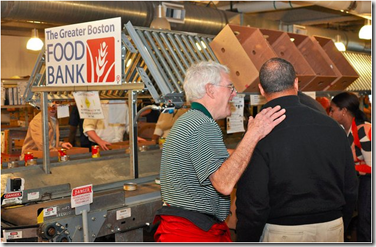
These were the people that were working towards a purpose in life.
However now I’m not sure that’s true. As I have thought about this more and more, I was convinced that most people need to feel that their work has some purpose in order for them to really enjoy the work.

Why do you look for a new job? Sometimes it’s money, but studies have shown that when people look for a new job it’s often because there is usually something missing in their current job. They don’t like the people, or don’t feel challenged. There is some root cause other than money that causes people to look for a change. However there’s another cause that often comes up. People don’t think that their work matters, or doesn’t have a "purpose". They don’t feel that their efforts are appreciated by some wider group of people. They feel their work is the digital equivalent of someone carrying a clipboard around all day without actually accomplishing anything.

There are definitely times I have felt that way, and wondered if I was just pushing bits around the wires without making any kind of difference at my company. I’m sure many of you feel that way as well, and to me, that’s a sign that I am either not working on something that matters to me, and the company doesn’t value my work. It doesn’t really matter which one it is missing, because this is a sign to me that I need to think about making a change in my life.
I would argue it’s the same for most of you. You need to feel useful with a purpose or you won’t enjoy your job. Purpose can be as simple as ensuring your servers run with a high uptime, or you have built a useful process at work. It can be building software that millions of people use, or maybe just a web page you created for your Mom. Purpose is something you define in your career in the way that gives your work some meaning.
That purpose will also change over time as You will grow and change, even evolve as you grow up and go through your career. The things that are important at 16 will not be important to you are 22. And those things Will not be important at 28, 40, or 65.

At 16, where you need any job just to earn money for gas or to pay for dinner on a date, you take any job. You don’t really consider this a career, but you never know what will happen.

At 22, after you’ve made some investment you starting a career, after college, a stint in the military, or just having worked for a few years, you want to get a job that earns more money, but also starts to develop a career.

At 28, you’ll have some experience, maybe starting a family, and you might look at a different kind of job than you 22. Maybe you want more money, but maybe you also want better hours. Perhaps you have a child, or three, and your priorities change.

At 40, you might be reconsidering your choice of career.

A midlife crisis isn’t always about your choice of spouse. There are many people that start to rethink the work they have chosen to do in their life. I’d like to think that no one is so invested or trapped by their career at 40 that they can’t change, especially in technology. If you make an effort to work on the career you want, whether that’s in your field or not, you can look to move into a new area. Hopefully at this age you have learned enough about yourself to make a better decision about what might provide you not only with a paycheck, but also a purpose that is important to you.

At 60, you might find purpose is becoming even more important as the knowledge of your mortality sinks in.

It might be the birth of grand kids that remind you that your own children are adults.

It might be the loss of friends, or even idols,

at an earlier than expected age. Purpose often becomes even more important as you get older, with less of a need for a high paycheck, a lot of life ahead, and less responsibilities to your immediate family. This is the time when many people find they have a desire to give back to their world,
their community, which has helped them get through life to this point.

At any age, at any time in your life when you find your priorities changing, you will often find that you are looking for something else in your life. It’s a new chapter in your life when a new purpose becomes important to you. That doesn’t have to be some higher purpose that serves mankind. It could be that higher purpose, but it could also be satisfaction from helping your company build better products and earning more revenue. It can be the effort you make to help someone else you work with, making their job better, easier, or more enjoyable. It could be the change that makes your life better for you. Whatever it is, having purpose makes your work more enjoyable, and often more meaningful and it’s up to you to find what gives you that purpose.

The opportunities and chances for you to pursue your purpose are sometimes the result of luck, but often they are the result of hard work. That hard work is the professional development that you do inside, and outside, of the job that pays you.
Professional Development
There is no formula for professional development that I can give you to spell out exactly what steps to take, in what order, and how often. No book can give you a recipe, or a process, or a checklist that tells you how to grow your career. It’s different for everyone and just like parenting, it’s a skill you learn as you go along.
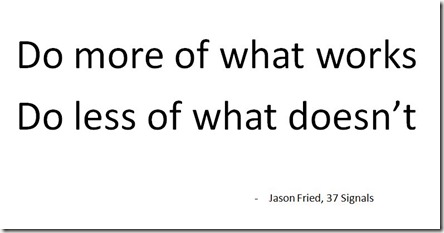
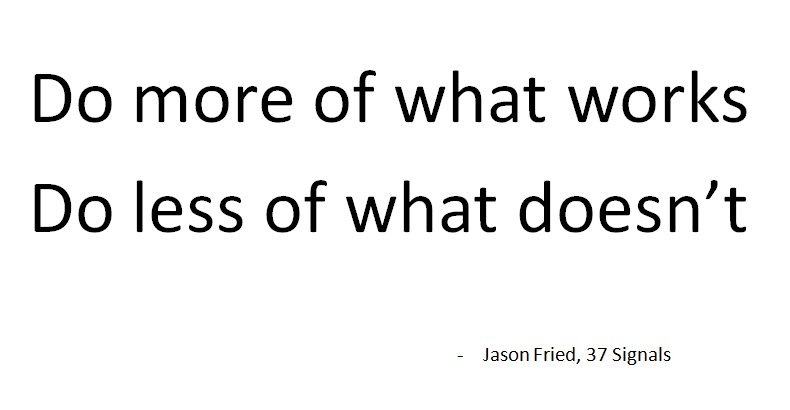
The advice I can give you to help you build your own plan is simple: do more of what works, and less of what doesn’t.
Try to develop the skills in the areas that interest you, or will help you advance your career in some way. Pick the challenges that you find interesting, work on the problems that you think make a difference. Choose the things that have a positive impact on finding the job, gaining the freedom, or fulfilling the purpose that is important to you.
Make sure you tackle your professional development at a pace that suits your life at that time. That pace will change throughout your life, growing and shrinking as the other parts of your life become more or less important. Remember, we work to live, we don’t live to work.
If you can do more Professional Development this year, do it. If you need to do less, then do less. If you want to stay in your field, learn how to get better at your craft. If you want to move to another field, spend time building your skills in that area. You get to set the schedule that works for you.
Make a plan and work on it, but don’t be afraid to change that plan, and don’t be afraid to question your decisions periodically. Don’t change every week or month, but a few times a year question yourself. Enlist the advice and opinions of your trusted friends and family. Consider their opinions and then make, or modify, your plans.
Life is short, too short to do the things you don’t enjoy. However life should also be long and enjoyable. You ought to be investing in yourself for the future, finding the time to build the career that allows you to enjoy your time on this planet.
Thank you for listening, and thanks for coming to the Rocky Mountain Tech Trifecta, v3. Enjoy your day, and I hope you learn something to move you forward in your career.
Steve Jones

 We’ll do it again on Oct 28, 2011 in Los Angeles, just before DevConnections. Brad, Grant, and I will be in the City of Angels for a Friday event and probably heading out to enjoy a few drinks that evening.