Tag: syndicated

  • Speaking About Unstructured Data at SQL Saturday #287 – Madison

    I haven’t been to Wisconsin in a long time. Not since I was a little kid, going to visit family. However I’m heading up there next week for SQL Saturday #287 in Madison, WI. I’ll be speaking about unstructured data, basically Filestream and Filetable, giving a preview of the talk I’ll be doing at SQL Intersection in a few weeks.

    If unstructured data isn’t your thing, the schedule has a number of well known speakers coming for the event. Brent Ozar, Jes Borland, Bill Fellows, Joe Sack, Michelle Ufford, and many more covering all sorts of topics from SSIS to AlwaysOn to Powershell. You’ll have a chance to make some hard decisions during each time slow, trying to determine which sessions you’re willing to miss to see some other great presentations.

    There are also some great pre-cons available on Friday from David Klee (virtualization), Jes Borland and Ted Krueger (Tuning), and Dan English (BI). These are some of the most affordable all day training you’ll ever find, so take advantage if you can.

    If you’re anywhere in the area, which might mean almost anywhere from Minneapolis to Des Moines to Chicago, consider making the trek for a fun, informative day with the #sqlfamily. I hope to see you there.

  • Virtual Lab – The Domain

    This is part of my series on building a virtual lab for use with SQL Server and Windows. You can see the entire series here: Building a Virtual Lab with Hyper-V.

    The big thing in setting up a domain is to enable you to connect multiple machines together, experiment with things like Powershell Remoting, AlwaysOn, etc.

    There are a couple things you need to do here. The first is to install a domain controller on one of the VMs, and then you need to join the remaining computers to the domain. This isn’t that hard, and I’ll show you two ways to do this: the GUI and PoSh.

    Create a Domain Controller

    I followed instructions to build a domain from TheSQLPro, since that was the first, and simplest instruction I had. I connected to my ServerCore installation named DenverDC and ran this:

    Install-windowsfeature -name AD-Domain-Services

    Then

    Install-ADDSForest –DomainName “SSCLAB.LOCAL” -DomainMode Win2012 -DomainNetbiosName “SSCLAB” -ForestMode Win2012

    I entered both of these from Powershell and restarted the VM.  I then ran a

    Get-ADDomain

    and as you can see, I have a domain set up on this machine.

    ad

    Joining the Domain from the GUI

    The first step is to be sure that you have connectivity between your machine and the DC. I had to ensure I could ping back and forth, both by IP and computer name. I also made sure to set my DNS to the domain controller. In my case, this was the DenverDC at 192.168.1.200.

    Once I was fairly sure I had networking down, I went to the control panel on one of the machines. I went to the computer properties and clicked the "Change Settings" link.

    virtlab_af

    From there, I had the basic properties. As you can see below, I was in a workgroup. The first thing to do is click the "change" button.

    virtlab_ag

    Once that’s done, you have the workgroup/domain set of radio buttons. I clicked the domain item and entered the name of my domain.

    virtlab_ah

    You get a credential box where you need to enter credentials. I believe these are the DC level credentials. For this lab, I have the domain and local administrators all using the same user/password (Administrator/mypassword) and entered that.

    virtlab_ai

    If networking is working, it should take a minute and then you’ll get this:

    virtlab_aj

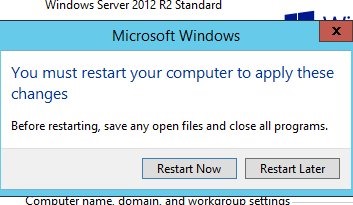
    As soon as you click OK, you’ll get told this requires a reboot. It does, so restart.

    virtlab_ak

    Once you restart, if you go back, you should see that you are in the domain in the computer properties.

    virtlab_al

    Joining from Powershell

    I found this cmdlet that worked for me.

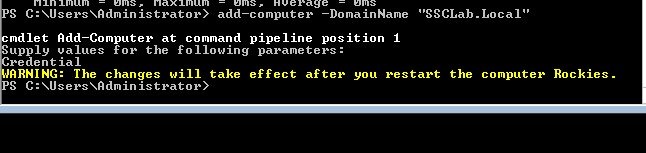
    Add-Computer -DomainName "SSCLab.Local"

    Once I typed this in, I got a dialog box asking me to enter the administrator credentials. I did that and it worked. I had to reboot with a restart-computer.

    virtlab_an

    And we’re working

    virtlab_ao

    Errors

    I did get an error on one of my VMs. It was error 0x21C4 on a Server Core installation. When I looked that up, I got a duplicate SID error. I had sysprep’d the machines, but perhaps I broke something. In any case, I re-ran sysprep, reset the network config, renamed the computer, and then joined the domain as noted above.

  • T-SQL Tuesday #52 – Arguments

    tsqltuesdayIt’s time for T-SQL Tuesday, this month hosted by Michael J Swart, our artistic DBA in the community. I love Michael’s pictures, and enjoy the time I get to chat with him at events.

    His invitation this month for #52 is to argue against a popular opinion. He asking us to find a "never ever" issue and argue for it. Or perhaps an "always do this" advice and argue against that. It’s a great topic.

    T-SQL Tuesday is the monthly blog party, invented by Adam Machanic. The second Tuesday of the month is the time to publish a post on your own blog about the topic and join the other people that write about the same topic.

    Never Turn on Auto Shrink

    I think that if you turn on the auto-shrink setting, Paul Randal rips an LED off his interactive panels. Even if he doesn’t, why would you ever enable auto shrink? It causes fragmentation, it’s somewhat insane as your files will just regrow if the space is needed for a workload such as a maintenance operation.

    The recommendation is to never turn on Auto Shrink on your databases. There are numerous references, though I’ll point to Brent Ozar’s nice summary. I’m going to pick a fight with this advice, though only in a narrow, limited sense.

    Auto shrink is, in general, a very bad idea. However I think there are a few places where I’d use the setting, understanding the implications.

    The Road Warrior

    There was a salesperson that had a laptop, traveling around and working his a piece of SQL Server (Express) based software. Let’s call him Joe, since that’s a nice generic name for this story.

    When Joe arrived at a client site, he’d get data from the clients in an Excel spreadsheet. He’d use the import wizard, load a bunch of data into a new table, point his software at it, and do some analysis of the data. He’d then make recommendations to the client and sell something based on his recommendations. When he was done, he’d click a button in the software and drop the table. The amount of data from clients varied, and it sometimes caused his database (and log files) to grow. He’d also forget to the drop the table sometimes and would wind up with 4-5 clients’ worth of data before he removed the tables.

    Over time, this also caused his laptop to run low on space. This wasn’t a big deal, and the help desk could respond to his concerns by remotely running a shrink of the files for him. However the time spent dealing with questions, and the concern that Joe experienced weren’t worth the effort. Auto-shrink worked fine for Joe and some of his colleagues.

    Performance wasn’t a big concern, as a single user accessed the database. The data didn’t live long enough to worry about fragmentation or maintenance and the reduction in irritation from Joe and the help desk was worth it.

    The Dusty Archives

    I once worked in a company that had an archive database. We had a process that copied data from previous years to a new database that was taken offline and a copy burned to a few optical discs for long term archival. We actually build this process to use a separate instance for the copy as the source SQL Servers were located in various parts of the US, and the data was remotely transferred to a central location for archival, and because we didn’t want to ship optical drives to multiple locations and explain to warehouse personnel how to use them.

    I, and my cohorts in IT, also didn’t really want to travel to small, inconvenient warehouses located in small cities without direct flights.

    One of the requirements was that we make these databases as small as possible to save space. We typically built a few archive databases before we shrank them and took them offline. In hindsight, the process of copying the data should have minimized the size of data and log files with its own shrink, but that wasn’t the case. An administrator needed to perform the shrink and sometimes they’d forget. Actually, most of the time they’d forget.

    The simplest solution was to enable auto shrink on this instance. That way once database files were sitting on the instance for any length of time, the databases would shrink themselves. No need for anyone to worry.

    Performance wasn’t an issue in these cases as recovery of the data would have meant a transfer back to a source system, where fragmentation and indexing would have been a concern.

    Narrow Cases

    In both cases, the reason auto shrink worked was performance wasn’t an issue, and administration was. Performance didn’t matter, and it wasn’t a heavily used system. I think these, and perhaps a few other narrowly defined cases are acceptable uses of Auto Shrink.

    However I also think there are many more abuses of the setting and I’d prefer it removed from SQL Server. Scheduling this process with Powershell would be trivial if you really needed it.

    And if you don’t know how to use Powershell (or SQLCMD), perhaps you shouldn’t be shrinking database files.

  • Virtual Lab – Adapter Setup

    This is part of a series where I set up a virtual lab for testing and misc. work. The other parts in the series are here: Building a Virtual Lab with Hyper-V.

    Once I had the machine up and running, I knew I needed to get the networking setup. One of the things I’ll do is do some clustering tests, and for that, I need to have static IP addresses. I’m an older, IPv4 guy, so that’s what I’ll use here.

    I decided to put all my machines in the 192.168.1.x space. I’ll use these addresses:

    • DenverDC – 192.168.1.200
    • Broncos – 192.168.1.201
    • Nuggets – 192.168.1.202
    • Rockies – 192.168.1.203
    • Avalanche – 192.168.1.204

    I’ll deal with the client machine when I get there. For now this is what I need to worry about.

    The machines are set up and passwords changed. I now need to start them and get networking configured. I googled and found this TechNet article on using PowerShell to configure a NIC. There’s also the Configure a Core Server. I know you can use sconfig to do this easily, but I wanted to see how hard it is in PoSh. In the Standard edition, it’s easy to use the GUI as well.

    First I needed to know what adapters I have. I ran

    Get-NetAdapter

    This told me my main adapter was “Ethernet 2”. So I ran this:

    $netadapter = Get-NetAdapter -Name “Ethernet 2”

    The first step is to remove DHCP. You’d do this by changing a radio button on the adapter settings. In this case, we do it with PowerShell.

    $netadapter | Set-NetIPInterface -DHCP Disabled

    Next we want to set up our IP address. In my case, I’m going to use the 10.10.10 address space.

    $netadapter | New-NetIPAddress -AddressFamily IPv4 -IPAddress 192.168.1.200 -PrefixLength 24 -Type Unicast -DefaultGateway 192.168.1.1

    Once that is done, we can then look at DNS. In this case, I’m going to point it to my gateway, which doesn’t really resolve to anything (yet).

    Set-DnsClientServerAddress -InterfaceAlias “Ethernet 2” -ServerAddresses 192.168.1.200

    I repeat this for all my servers, getting them all set up with their proper IP addresses. Once I’m done, I have 5 servers running with the IPs above.

    However none of them can ping each other. That’s strange, but not unexpected. The mindset to increase security by default is likely to blame. I don’t know what the exploits that can come through ping (DOS I guess), but I know more and more companies avoid allowing ping responses.

    Turn off the firewall

    I decide that I need to turn off the firewall to check. Since I have 2 Standard installations and 4 Core installations, I go to the Standard ones first and use the GUI to kill the firewall for my networks. It was at this point that I realized that by default my connections saw the network as public connections, not private.

    I turn off the public connection firewall and pings work from one of the Core servers. Then I turn that on and disable the private firewall. Pings fail.

    Now I know what to do. First, I use a security change in the GUI to set my Server with the Local Security Policy app in Windows. Once this is done, I set things to private, disable that firewall and verify pings work. I know this works, and now I’m ready to change the other servers.

    I find a script on MSDN Blogs that shows me how to do this in PoSh. It’s a strange script, and it doesn’t give any results, but it seemed to work.

    $networkListManager = [Activator]::CreateInstance([Type]::GetTypeFromCLSID([Guid]”{DCB00C01-570F-4A9B-8D69-199FDBA5723B}”))
    $connections = $networkListManager.GetNetworkConnections()
    # Set network location to Private for all networks
    $connections | % {$_.GetNetwork().SetCategory(1)}

    Once I ran this, I then needed to turn off the firewall. I found this link and then ran this command.

    netsh advfirewall set private state off
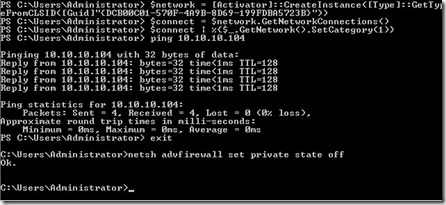
    virtlab_ab

    That worked, and then you can see my ping worked.
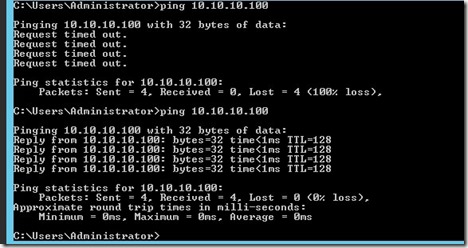
    virtlab_ac

    The top image above is from the machine I was working on. The bottom one shows the ping failing from my SQL machine to the DC, and then working once I’d disabled the firewall for the private network.

    Update: I originally wanted to work in the 10.x.x.x space, but I kept confusing myself, so I moved all the machines to the 192.168.1.x network.

    Rinse, repeat for all machines. Eventually I have every machine pinging every other machine and able to connect.

    Networking working.