Category: Blog

  • Adding a License to GitHub

    I’ve rarely thought about licensing my code, but it’s something to be aware of for your work. Most of us freely share code, though I have started to add a minor copyright and as is notation to some of my presentation scripts.

    Recently a user opened an issue on the SQL Cop repository, noting that without a license, there is some ambiguity for how your code might be used. There’s a short read over at https://choosealicense.com/no-permission/ on this.

    I pinged a few people at Redgate to decide what might be best and got pointed to the MIT license, which you can read here: https://choosealicense.com/licenses/mit/#suggest-this-license.  After a brief discussion, we decided this would be fine. Actually, people gave me a couple options and said I should pick, so I did.

    MIT License it is.

    Adding a License

    The easy way to do this is to add a file to the repo. If you have this downloaded, just create a new file and commit it. The name should be license.txt (or license). However, you can easily do this online as well.

    There is a “Create a new File” in your GitHub repo. Click that.

    2019-10-02 09_59_19-red-gate_SQLCop_ tSQLt tests to highlight potential problems in your database

    This gives you an editor, with a name. Enter the filename.

    2019-10-02 09_59_54-New File

    I then pasted in the Mit license into this file. I edited the year and name for Redgate in here as well.

    2019-10-02 10_01_01-SQLCop_license.txt at master · red-gate_SQLCop

    I then committed, this, adding a comment. However there is another way. Once you enter the name license.txt, a button appears on the right side of the page.

    2019-10-02 10_01_50-New File

    This says “Choose a license template”. If you click this, you get a page with other choices.

    2019-10-02 10_03_15-Add a license to way0utwest_ASimpleTalkDB

    If you click the “which license” link on the right, you get taken to https://opensource.guide/legal/#which-open-source-license-is-appropriate-for-my-project, where you can read a bit about the differences. If you’re not sure, read this and try to decide what works for you.

    2019-10-02 10_03_31-The Legal Side of Open Source _ Open Source Guides

    In our case, we’re really hosting and sponsoring the project, so the MIT license makes sense. If I go back to the previous page and pick that, I see the license overview and the edits on the right.  I changed this from my name to the company, but this defaults to you.

    2019-10-02 10_05_15-HTA_10_FinalThoughts.pptx - PowerPoint

    If I click this, I go back to the file page, with the edits filled in. Note the name changes to LICENSE.

    2019-10-02 10_06_41-New File

    I still need to add a commit message and commit this (or create a PR), but this is the meat of the process.

    Add a license to your repo to be clear, but make sure it’s the right one for you.

  • SQL in the City Comes Back to Seattle

    This year at the PASS Summit, Redgate is holding our SQL in the City Summit as one of the pre-con events at the conference. You can add this in as a part of your conference registration and come learn about DevOps and how to build the best software development process for your database. We’ll focus on the Redgate solutions, but our speakers will talk about the general practices and ideas as well.

    sitc-summit-social 1200x630- Seattle

    We’ll just give specific examples with the amazing Redgate Toolbelt tools.

    I’ll be there on Monday, Nov 4, for our SQL in the City and hopefully I’ll see a few of you there as well. Kendra and I also have a pre-con talk on Tuesday on development patterns, so you can add in both and spend two days with me.

  • Setting Permissions for a SQL Server backup folder–#SQLNewBlogger

    Another post for me that is simple and hopefully serves as an example for people trying to get blogging as #SQLNewBloggers.

    While testing a script recently, I needed to set a few backup folders for my instance. This was a striped backup, and using one folder wouldn’t make sense. In modern OSes, we can’t just create a folder and expect that our processes can read it. We need to explicitly set permissions.

    It’s fairly easy for SQL Server, but since it wasn’t obvious, I decided to take a minute and document this.

    If I create a folder, say c:\sqlbackup, I see this kind of thing in properties on my Window 10 machine.

    2019-10-08 14_53_19-SQLBackup Properties

    If I click “Edit”, I get a similar view.

    2019-10-08 14_53_27-Permissions for SQLBackup

    Now, my SQL Server process can’t access this. If I try to restore a backup from here, I’ll get a permissions error.

    That’s fine. In the Permissions, I can click Add and I’ll get this dialog.

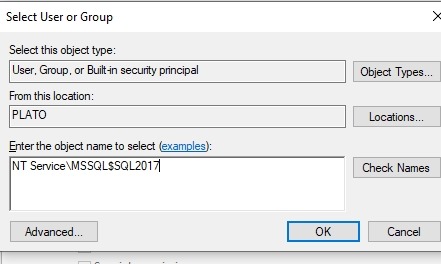
    2019-10-08 14_53_35-Select Users or Groups

    From here, I can enter “NT Service\MSSQLServer” or “NT ServiceMSSQL$SQL2017” for a named instance. My named instance is SQL2017.  Note the space in “NT Service”

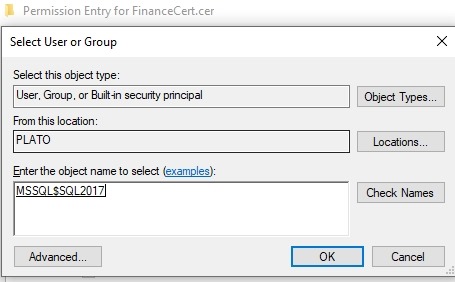
    2019-10-08 15_00_49-Select Users or Groups

    If I click the “Check Names”, this will resolve for the built in service account.

    2019-10-08 15_00_53-Select Users or Groups

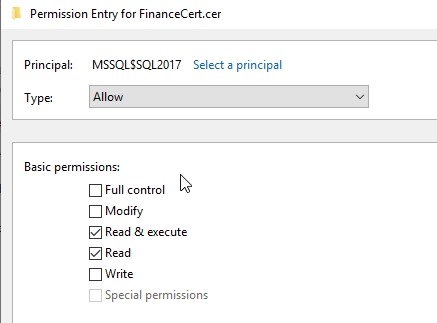
    Then I can click OK and set the appropriate permissions.

    If your service account is something not built in, it’s usually easy to find and add, but for build in accounts, you need the “NT Service”.

    SQLNewBlogger

    You can take a simple thing here that you needed to solve and write about it. This took my about 5 minutes to solve, playing with different names, and then about 5 minutes to write.

    Showcase your knowledge today.

  • Launching SQL Compare with Context

    Years ago Redgate Software started some work to link our tools together. I remember early efforts, about which I had dubious thoughts as to the value. I hadn’t looked at how the work had progressed until a little earlier this year, when I started examining in more detail some features I had missed.

    One of these is in SQL Source Control, as it relates to SQL Compare. I often don’t have SQL Compare running, but I will find places where I want to look at the quick differences between one database and another, or between the database I’m working on and source control. While I can easily launch SQL Compare, or find a project with that is set up, it’s slightly annoying to have to find a file or create a new project and load a context.

    Much easier to use SQL Source Control.

    The Product Menu

    In SQL Source Control, there is a Redgate icon in the upper left corner. When I’m working in SSMS, I can quickly switch over to the SQL Source Control (SOC) tab and click the icon.

    2019-09-04 17_50_14-SQL Source Control - Microsoft SQL Server Management Studio

    This will open a long menu, with a list of my Redgate tools. SQL Compare is at the top, and all other tools listed below.

    2019-09-04 17_50_21-

    If I click the ellipsis in the SQL Compare pane, I’ll get a couple of options.

    2019-09-04 17_50_32-SQL Source Control - Microsoft SQL Server Management Studio

    If you don’t see these options, then the database you’re working on isn’t linked to a VCS. That’s a separate problem.

    This feature, however, is designed to fit into our DevOps solution, bringing the tools together for those people that are working inside of the Redgate process. In this process, I can quickly launch many of the tools with context. When I click the “Launch with ‘ToolbeltDemo’, I see this when Compare opens.

    2019-09-04 17_54_03-New project_

    My current database is listed on the left. I can then pick a database on the right, or a backup, project, etc., and run the comparison.

    A minor time saver, but a nice touch that eases my mental focus. If I continue to work, or check something while I wait for SQL Compare to launch, I know when I come back that half the work is done.

    You can launch other products as well, in a similar manner, making your workflow move along a little smoother.