It seems that I’m often searching for laptops. I used to get more time out of them, but as technology changes, and my job changes, I find myself refreshing hardware more often. This usually comes about because of some issue. I’ve had numerous issues, though usually around 2 years of use:
- a machine that would not boot up, going into BIOS and requiring 2-10 hard resets to get going.
- a machine that stopped charging, with a $600 motherboard repair bill
- a machine that dropped and the hinges became flaky
- the current machine that crashed and bluescreened a couple days before a presentation.
Fortunately my company is good about supporting this when it makes sense. In this case, I’m looking at a second travel machine. Between my losing some confidence in the reliability of my current machine, and needing to be sure I can demo software, and even a potential travel ban on planes, I think I need another laptop.
Since this will be a second machine I carry, I want it small. I don’t need more weight or size, and I’m also hoping to stay around the cost of a loaded Surface Book. A colleague, who shall rename nameless in his house in the NE US, boasting a new jeep and puppy, spent quite a bit on that machine. I got a cheap Z Canvas early last year, and I’m hoping my two come out less than his one.
The Choices
I’ve been considering and looking around. I really narrowed the choice down to these (in no order):
- Lenovo Yoga 910
- Dell XPS 13
- Surface Pro 4
- HP Spectre 360
There may be other choices, but I like all of these and they’ve gotten good reviews. I want something mainstream, with a good chance of borrowing a power adapter if I need one. The Surface line is tempting for that reason since I see so many people with them.
Comparisons
This is my view, which might vary across regions
| Dell XPS 13 |
HP Spectre x360 |
Surface Pro |
Lenovo Yoga 910 |
| US$1999 |
US $1500 |
US$2199 |
US$1300 |
| 16GB |
16GB |
16GB |
16GB |
| 512SSD |
512SSD |
512SSD |
512 PCIe SSD |
| UHD3200x1800 |
UHD 3840×2160 |
2736×1824 |
UHD 3840×2160 |
USB3 charge
USB C
HDMI |
USB C
USB C
USB 3.1
Displayport |
USB 3
micro SDXC reader
Displayport |
USB C – Video
USB C – Charge
USB3.0 |
| Active Pen |
Active Pen |
Active Pen |
Passive Pen |
| 2.93lbs |
2.89lbs |
1.73lbs (no keyboard) |
3.09lbs |
If I glance at this, I can see that the Dell and Surface are more expensive, and I’m not sure I’m getting more. For sure, I’d then be above the cost I want to pay. I could drop to a 256SSD, which would save $$. I could use external drives for storage, which would work fine. However, for some of those, I need to drop the RAM, and while I can probably get by with 8GB, I don’t want to get in a situation where that doesn’t work. I do know that the one VM I run at times really needs 8-9GB on its own.
That means I’m looking at HP or Lenovo, both of which are nice looking machines. I’ve got a few days to think about it with Memorial Day sales in the US. Fortunately both models are at local stores, so I can compare them, and look at them with my current machine as well.
I was hoping, but not expecting, the new Surface refresh to be more competitive with other devices, but it’s not, IMHO. The value isn’t there when compared to the HP and Lenovo, though to be fair, they are different devices.
In Person
After writing the above post, I went to a local Best Buy, which carries some of these models. I spent about 10 minutes each with the Spectre, the Yoga, and the XPS. Unfortunately the XPS and Yoga weren’t the UHD ones, so I couldn’t compare screens. However, the UHD screen on the Yoga looked nice in Windows. Unfortunately I couldn’t see SMSS and VS, which are what I’m more concerned about.
However, I did spend some time typing on each of these machines and that was interesting. The Dell is more expensive, and probably out for me, but both the Spectre and Yoga have nice keyboards. The layout is slightly different, and for the most part I adapted well.
Except for the right shift key.
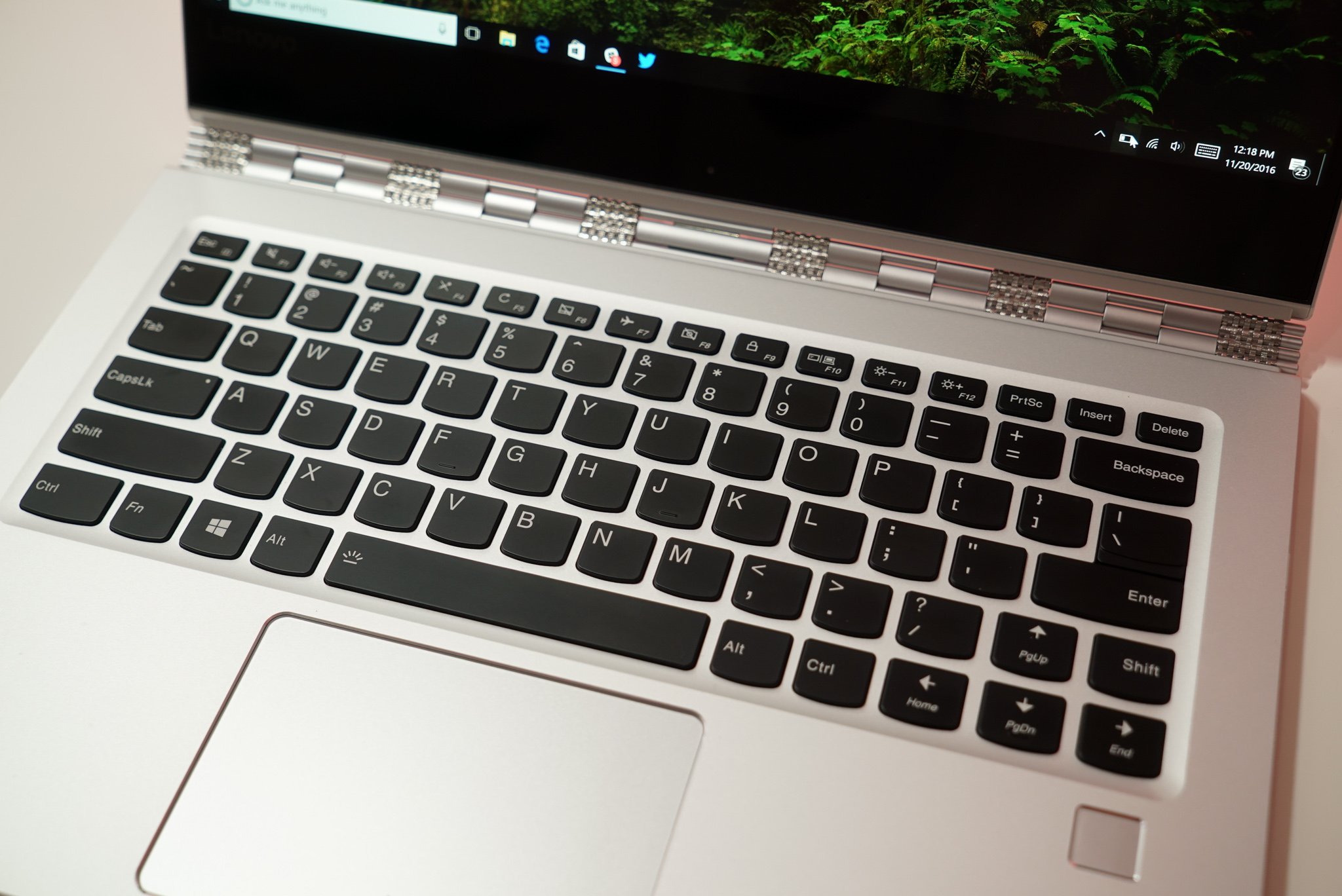
On the Yoga, the right shift key is half the size of the left one, and to the left of the shift key is the Page Up key. You can see it in this image. That was a problem for me as I often use the right key and I kept not getting capitals because I’d hit page up and not Shift. I’m a self-taught typist, not a traditional one, and I use a lot of muscle memory.
I tried to adpat, and consciously I could reach my right pinky further, but it defaults to the left side of all shift keys, and I think that might be a deciding factor for me. Perhaps it’s the Spectre after all.
We’ll see. A few more days of thinking.