Category: Blog

  • Using OPENROWSET in SQL Server on Linux

    I wanted to import the million song dataset in SQL Server on Linux. There’s a github repo that has the SQL to allow you to use this with the graph database features. However, it’s built for Windows.

    Linux is a slightly different beast. Once I started down this path, I had memories of working on SunOS in college, messing with permissions and moving files.

    I run Ubuntu in VMWare, so I first downloaded the files to my Documents folder. That’s pretty easy. However, once there, the mssql user can’t read them. Rather than mess with permissions for my home, I decided to move these to a location where the mssql user could read them.

    First, I need to use mv to move the files. However, the default location for SQL Server (/var/opt/mssql) doesn’t let me drop files in there. Instead, I need to sudo the mv.

    sudo mv unique_tracks.txt /var/opt/mssql/unique_tracks.txt

    I repeated this for each file.

    However, I still had permissions errors. Files have their own permissions in Linux, so I needed to alter those. I decided to use chown since these are temp files the SQL Server will use and once imported, I’ll delete them.

    chown mssql unique_tracks.txt

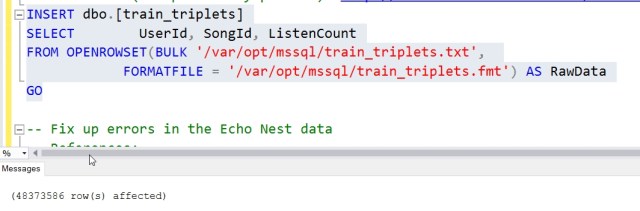
    From here, I could easily run the OPENROWSET commands and get the data loaded. Now to play around with a graph.

  • Speaking at the Data Platform Summit 2017

    I am honored to be speaking at the Data Platform Summit 2017. The event takes place August 17-19, 2017 in Bangalore, India. This will be my first trip to India, and I’m excited to be traveling halfway around the world (literally 12:30 hours difference) to speak at this event.

    I’ve got a pre-con on Aug 16, and then a few sessions during the main conference.  If you have the chance, register and come. I’ve heard good things about the event and I look forward to seeing some of you there.

    See if you can pick me out of the Teaser Video:

  • DevOps – Downloading a File from the Internet with PoSh

    One of the things we need to do as data professionals is move data files around. Often we’ll get a local path, but in looking for public data sets, I wanted to get a file from the Internet. In this case, a rather large file.

    I could have put the URL in a browser, but the file was slow to load, and while waiting ten minutes or so for the download to complete and doing a “Save As” is quick, it isn’t easily repeatable. Plus, since I needed to get a few files, and might need to do it again, I thought a PoSh download would be better.

    A quick search turned up a few options. I could use System.Net.WebClient, or I could use Invoke-WebRequest. I decided to use the latter because it could use credentials or even parse the file prior to doing some save.

    I just had a simple item, so I used:

    Invoke-WebRequest -Uri “http://labrosa.ee.columbia.edu/millionsong/sites/default/files/AdditionalFiles/unique_tracks.txt” -OutFile “e:\Downloads\unique_tracks.txt”

    I could easily have wrapped this in a function to simulate a copy command, and I may do that at some point. For now, I can drop this in a file, copy/paste, and change a few filenames.

    If this were part of a regular process, such as getting files from a remote web server, I could easily automate this in a task on some server. For now, this is a quick, easy way to get a file from the Internet without a browser.

  • Renaming MDF/LDF Files–SQLNewBlogger

    Another post for me that is simple and hopefully serves as an example for people trying to get blogging as #SQLNewBloggers.

    I would guess many people would run into this situation at some point. A developer or DBA creates a database, then decides to rename it, but the logical and physical names aren’t correct. This post will look at how to do this. A couple of notes and then the process below.

    This might not matter to many of you, but in development, I sometimes find I’ll rename a database and then attempt to recreate (or deploy) a new database with the old name. The mdf/ldf files don’t match, and I realize it’s because I’m using defaults.

    However, I’d also say this is an issue in a DR situation. If the filenames don’t seem to match, someone might restore the wrong database or the wrong files. Or worse, think the can delete a file on the file system because there’s no database with that name.

    Renaming the Database

    This is easy. Right click, select Rename.

    2017-06-07 09_38_49-

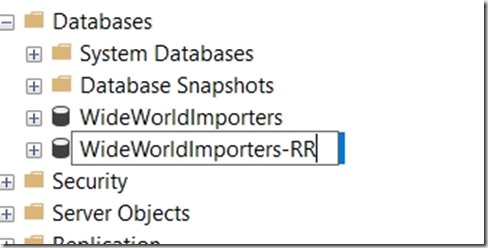
    Then type the name name. In this case, I’m going from WideWorldImporters-SSDT to WideWorldImporters-RR.
    2017-06-07 09_38_59-SQLQuery1.sql - (local)_SQL2016.msdb (PLATO_Steve (52)) - Microsoft SQL Server M

    That renames the database, but what about the files? If I run this:

    sp_helpdb ‘WideWorldImporters-RR’

    I get this:

    2017-06-07 09_42_00-SQLQuery1.sql - (local)_SQL2016.msdb (PLATO_Steve (53)) - Microsoft SQL Server M

    Not really what I want. I need these mdf/ldf files to be changed. How do I do this?

    I can get to the properties for the database and select the “Files” pane to get a list of files. Here I can change the logical name by clicking that field and typing a new name. I’ve done that here.

    2017-06-07 09_43_29-Database Properties - WideWorldImporters-RR

    However, if I scroll to the right to the File Name column, I can’t change anything.

    2017-06-07 09_43_44-SQLQuery1.sql - (local)_SQL2016.msdb (PLATO_Steve (53))_ - Microsoft SQL Server

    What I need to do is use the ALTER DATABASE command with the MODIFY FILE command. I need to do this twice.

    1. Change the physical file name
    2. Change the logical file name

    Let’s do that. Here’s the code to change the physical name.

    ALTER DATABASE [WideWorldImporters-RR]
     MODIFY FILE
     (   NAME = 'WideWorldImporters-SSDT_Data',
         FILENAME = 'C:\Program Files\Microsoft SQL Server\MSSQL13.SQL2016\MSSQL\DATA\WideWorldImporters-RR.mdf'
     );

    I need to repeat this for the log file and the MOT file. Once I change the names, I get this message.

    2017-06-07 09_48_38-SQLQuery1.sql - (local)_SQL2016.WideWorldImporters-RR (PLATO_Steve (53))_ - Micr

    This is key. If I were to restart my system now, when the database attempted to start and go through recovery, the files would not have been found. Now, I need to change the physical file names.

    To do that, I first need to take the database offline.

    USE master
    go
    ALTER DATABASE [WideWorldImporters-RR] SET OFFLINE

    Then I go to the location of the physical files and rename them in Windows Explorer.

    2017-06-07 09_53_35-DATA

    Now I bring the database online.

    ALTER DATABASE [WideWorldImporters-RR] SET ONLINE

    Once that’s done, I can then use ALTER DATABASE again to change the logical file names.

    ALTER DATABASE [WideWorldImporters-RR]
      MODIFY FILE (NAME='USERDATA_612671E2',
                   NEWNAME = 'WWI_UserData'
                   );


    And run a final sp_helpdb.

    2017-06-07 09_54_13-SQLQuery1.sql - (local)_SQL2016.master (PLATO_Steve (53))_ - Microsoft SQL Serve

    SQLNewBlogger

    An easy task, with a touch of research in Books Online, but not too difficult. This took me about 10 minutes to do, and since I realized this was a good skill, I took screenshots and saved code as I went.

    Then about 10 minutes to write this up.