Category: Blog

  • The History of the World, I Guess

    The lighter side. From my kids, and since there’s some science and it reminded me of the Big Bang Theory.

    Have fun.

  • A Busy Few Years

    Last week on Twitter, a friend mentioned they were submitting to the PASS Summit and went through their previous speaking engagements. This person noted they had done over 40 talks in the last few years, which is a lot. I do more, but it’s part of my job. Ten talks a year in your spare time is quite a bit, and kudos to anyone that does that.

    I have a Speaking CV page, but I decided to load a bit of data into a database, where it should be but isn’t. With time constraints, I only loaded 2015-2017 into the db, but I’ll get the rest loaded at some point.

    In any case, I decided to run a few metrics and see where I stand.

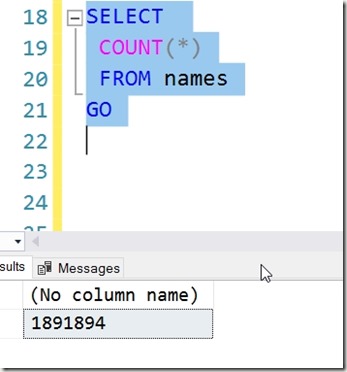
    2017-05-19 15_41_39-SQLQuery2.sql - (local)_SQL2016.sandbox (PLATO_Steve (63))_ - Microsoft SQL Serv

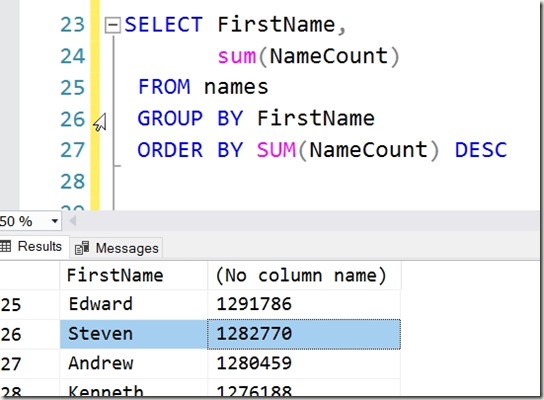
    2017-05-19 15_44_16-SQLQuery2.sql - (local)_SQL2016.sandbox (PLATO_Steve (63))_ - Microsoft SQL Serv

    2017-05-19 15_44_59-SQLQuery2.sql - (local)_SQL2016.sandbox (PLATO_Steve (63))_ - Microsoft SQL Serv

    2017-05-19 15_45_38-SQLQuery2.sql - (local)_SQL2016.sandbox (PLATO_Steve (63))_ - Microsoft SQL Serv

    It’s been a busy few years.

  • La La Land Speaking at SQL Saturday #640

    I love LA. In many ways, it’s a fun city to visit, and I love taking a few minutes, even just a 10-20 minute walk along the boardwalk on some beach. I’ve looked forward to quite a few trips to LA in my life, and I often take advantage of offers to go back when I can. This was my last trip in 2015 to Huntington Beach.

    Photo Apr 09, 1 35 53 PM

    There are a few SQL Saturday events in LA, and the latest is #640 at the Microsoft Center in LA proper. I’m honored to have been accepted and am looking forward to the trip in June.

    I’ll be presenting my Continuous Integration for Databases talk, looking at how we can build a CI pipeline for our database code in an hour. We’ll go into detail with what CI means and the general process. I’ll use a few tools, but there are many ways to setup CI, so I don’t recommend one over the other.

    I’m redoing this talk for another event, and I’ll end up with a subset of that work for this event, but hopefully I’ll show you a few things that will help you in your daily work and improve your database code.

    There are lots of other great sessions, and this is a free day of training in LA, so pass the word and I’ll see you June 10.

  • DevOps Basics – Connecting to a Git Remote

    Another post for me that is simple and hopefully serves as an example for people trying to get blogging as #SQLNewBloggers. This is also a part of a basic series on git and how to use it.

    As I work more and more with Git, I find myself learning little tips and tricks that are helpful. One of those tricks is adding a remote to my local repo so that I can sync with it, and start collaborating with others. In many cases, I find myself pulling from a remote repo and pushing back, and much of the work is done for me. However, if I create a local repo, how do I get this to a remote service?

    Certainly some tools like VS or GitHub for Windows/OSX/etc help, but I like to understand the process myself, so I spent a few minutes practicing.

    First, I create a new repo with some documents. This is basic git stuff that you should understand, but if not, I’ve written a few posts on git basics. Here’s the first steps I took in another post.

    2017-04-26 14_01_08-cmd

    Create a Remote

    The next step is to have a remote git repo, which is really a remote git init spot. For this post, I’ll make on at Github, but the process is similar anywhere. In my repositories list, there is a new button.

    2017-04-26 14_32_08-Your Repositories

    I click that and get a form. In my case, I’ll name this to match the repo on my local machine. Life is easier if you match names, but you don’t have to.

    2017-04-26 14_33_51-Create a New Repository

    Once I do that, Github guides me along. I get a page with quick setup.

    2017-04-26 14_34_24-way0utwest_GitTests

    In my case, I want to push things from an existing repo on my machine. Again, tooling may do this for me, but from the command line, I need to add a “git remote”. I’ll use the “add” option, and I specify a name and URL. These are shown near the bottom of the image. I’ll run these locally.

    2017-04-26 14_35_38-cmd

    Once I do this, my local git repo has a remote repo (called origin) that it can send code to (push) and get code from (pull). Git manages conflicts and versions and all that.

    If I try to just push, what I’ll find is I don’t have enough config.

    2017-04-26 14_38_55-cmd

    My push needs to specify the remote and then the branch. Let’s do that.

    2017-04-26 14_39_29-cmd

    Once I do this, 7 objects got pushed, which includes some of the .git stuff. If I go to Github and look at the repo, I see this under Code.

    2017-04-26 14_40_15-way0utwest_GitTests_ Git testing

    I’ve connected my local repo to a remote, and copied my code up. Now I can push/pull as I make changes (or others do) to keep my local copy in sync with the remote.

    I’ll look at other flows in a future post.

    SQLNewBlogger

    This was a fairly quick post, about 10 minutes, as I connected up the local stuff to the remote. I’ve done this before and learned some of this the hard way, but this post allows me to organize my thoughts and be sure I understand what’s going on.

    I did end up spending a few minutes looking at the git docs to be sure I was describing things correctly.