Category: Blog

  • What Port Should I Use?–#SQLNewBlogger

    Another post for me that is simple and hopefully serves as an example for people trying to get blogging as #SQLNewBloggers.

    This is a quick post on checking the port for your SQL Server instance. It’s in line with Tim Ford’s request for simple, beginning blog posts this year.

    How do you know what port your instance is listening on? Many of you might not know, depending on the SQLBrowser to be running. That’s not necessarily a good idea, as some security protocols insist this be disabled.

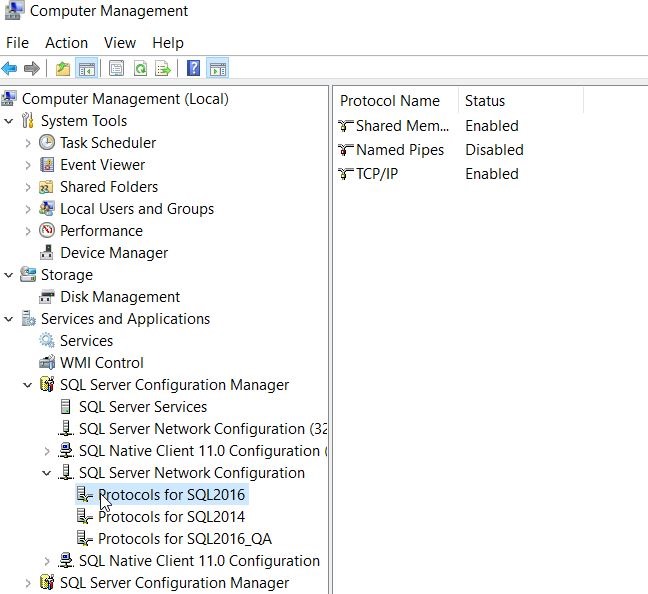
    There are ways to check. First, you could use a the Configuration Manager. On my desktop, this is in the Manage tool for the computer. Once inside, I can select the Server Network Utility.
    2016-11-15 15_06_51-Computer Management

    Notice that I have multiple instances here, so I need to choose one. Once I do, I see the protocols on the right. In this case, I want to look at the properties of TCP/IP, which is where I’ll get the port.

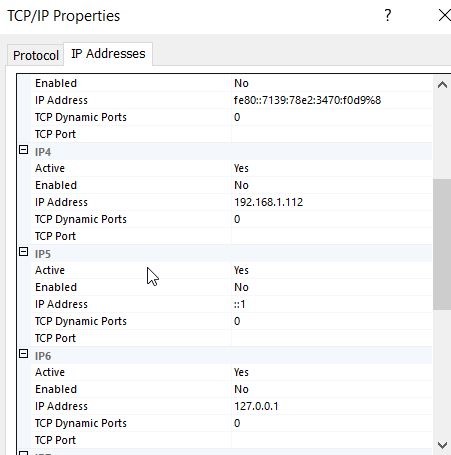
    If I look at properties, I’ll start with the Protocol tab, but I want to switch to the IP Addresses tab. In here, you can see I’ll see an entry for each of the IPs my instance is listening on. I can see which ones are Active as well as the port. In my case, I have these set to dynamic ports.
    2016-11-15 15_07_38-TCP_IP Properties

    This doesn’t help. If I had specific ports, I’d see them listed for each IP.

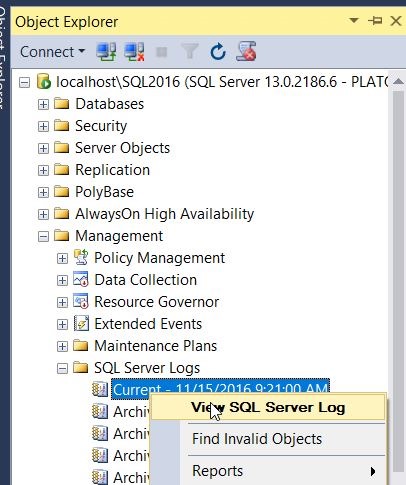
    The way I tend to check the specific port is that I will go to the SQL Server Error log.
    2016-11-15 15_12_28-SQLQuery1.sql - localhost_SQL2016.sandbox (PLATO_Steve (65)) - Microsoft SQL Ser

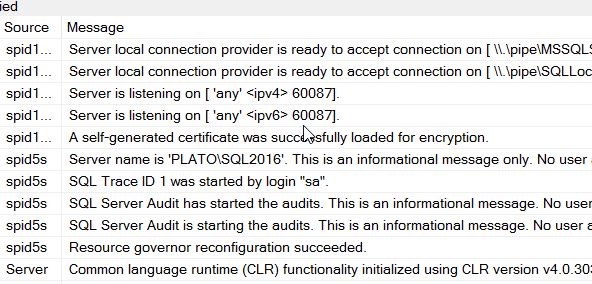
    When I open this up, I see my error log entries. I want to look at the startup of my current session and scroll up slightly. At some point you will see an entry like “Server is listening on…”
    2016-11-15 15_16_37-Log File Viewer - localhost_SQL2016

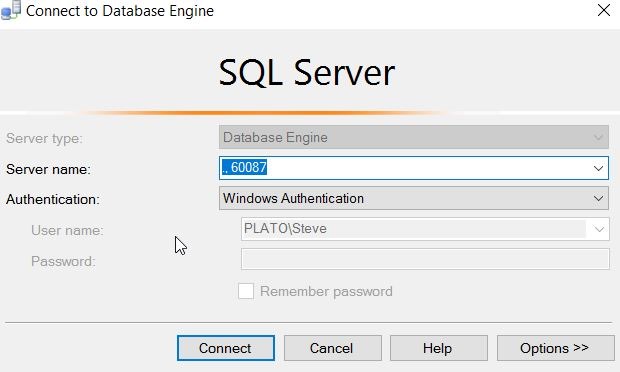
    In my case, you can see above that I am listening for this instance on 60087. I can verify this with a connection in SSMS.
    2016-11-15 15_17_49-Connect to Database Engine

    Note that this is a named instance, and I normally connect to “.\SQL2016”. The SQLBrowser determines the port, since I send the name in, and then get a port back to where I will then connect. However, here the name doesn’t matter. I just send in the port and I can connect.

    #SQLNewBlogger

    Everyone working with SQL Server should know this. It’s a simple item, like checking the printer is plugged in. Know how to check this.

    And blog about it.

  • SQL in the City is coming next week

    Next week is the 2016 version of SQL in the City and you can register now to attend. It’s free and doesn’t require any travel. You can watch the event live from the comfort of your office chair.

    In the many years that we’ve run SQL in the City, we’ve had events in London and various cities around the US. It’s been a lot of fun and we want to continue the tradition, but with an experiment.

    This year we’re broadcasting SQL in the City from the Redgate Software offices in Cambridge, UK. We have seven hours of sessions mixed in with tips and tricks that will help you become better SQL Server developers and DBAs while showing you some new ways you might use the SQL Toolbelt to work more efficiently. Even if you’re not a Redgate Software customer, I’m sure you’ll learn some things about SQL Server.

    In order to make things more convenient for everyone around the globe, we are broadcasting on two days, December 14 and 15. The content is the same both days, but the times vary. Wednesday will be an early day for my in Cambridge as we broadcast for Asia and Eastern Europe. Thursday will be a late night as the conference is scheduled to fit the Western Europe and US time zones.

    I hope you’ll join us and get excited about our new SQL Clone and Data Platform Studio as well as learn a few things about DLM Automation, SQL Monitor, ReadyRoll and more.

  • A Python SQL Server App

    I got a link recently from Microsoft on building apps easily for SQL Server. At the top of the page, they ask you to pick a language and OS. Since I’ve done a little Python and I used Windows, I chose that option.

    The page looks to walk you through a simple app. I decided to try this out and see if it works, following the instructions. Since I already had SQL 2016 installed (and newly upgraded to SP1), I just connected and verified it was there.

    2016-11-22 11_50_06-powershell

    I didn’t want to go back to Python 2.7, and I’d rebuilt this machine for testing, so I used Chocolatey to quickly get Python 3.5. I’ll have to adjust code to match this version.

    2016-11-22 11_52_38-cmd - choco  install python (Admin)

    One python was installed, I needed to get virtualenv and then create a folder. I used my regular git folder since it’s really, really simple to get a project with version control running. Unfortunately, when I went to get pyodbc, I had an error.

    2016-11-22 12_18_53-cmd (Admin)

    This is going to use C++ tools to build the pyodbc files, so I need to get those installed. I can do that from Visual Studio.

    Once I run those and install them, I can now get pyodbc. There is a build error, but I seem to have the module. My next step is to create my db. I also create a login that is db_owner for this.

    2016-11-22 12_41_22-powershell

    Now it’s time for the code. That’s easy enough, so I copy the code into VSCode and change the instance and user information.

    2016-11-22 12_42_11-crud.py - Visual Studio Code

    I also had to replace the print statements with parenthesis around the quoted items, which is required in Python 3.x. Once that’s done, I start the program and it appears to work.

    2016-11-22 12_39_25-cmd (Admin)

    If I check from SSMS, sure enough the program has worked.

    2016-11-22 12_39_54-SQLQuery1.sql - localhost_SQL2016.SampleDB (PLATO_Steve (62))_ - Microsoft SQL S

    The second part of the tutorial uses the Django Web Framework to setup a simple site. Once again, I get a pyodbc error and there’s nothing that works. Fortunately I found the issue is with Python 3.5 and not having the proper binaries in the default PyPI directory. I resolved it with this link.

    2016-11-22 13_26_45-crud.py - Visual Studio Code

    However, there were other errors, which I suspect are related to Python 2.7 v Pyhton 3.5. Rather than solve those, I went on to the columnstore demo. In this, you create a table with 5mm rows and then run a query against it from Python. I did that, then created the columnstore index, then ran it again. The results are below.

    2016-11-22 13_46_23-columnstore.py - Visual Studio Code

    Note: I had to create the variable, tsql, and used this line of code:

    tsql = “SELECT SUM(Price) FROM Table_with_5M_rows”

    Python Works

    Despite some issues, which are probably my fault, this is a good introduction to how you might use Python with SQL Server. Since we now have SQL Server on Linux coming, and there are lots of Python developers, this might be a good place for some of you to learn a bit about connectivity with Python if you ever need troubleshoot that kind of setup.

  • Find my git remote

    I work on a few projects and have a bunch of demos setup, but I don’t work on them all every week. Being only semi-creative like many of you, I end up with some similar projects with similar names. When I wanted to determine which project was linked to which remote repository, I didn’t see an easy way.

    I perused help from the command line, but didn’t see anything, so I did a quick Google search. From Stack Overflow, I found this quick command.

    git remote –v

    When I ran this, I easily could get the address of my remote:

    2016-12-03 20_12_43-cmd

    Running this in each of the repos showed me the one I needed.

    I’m sure plenty of experienced people might know this, or you might always use something like SourceTree or GitKraken, but if you’re working in the command line more (as I often am), you might find this handy.

    Hopefully I’ll also remember this now.