Category: Blog

  • KDiff3

    As I write more code, especially database code, and I collaborate with others (or myself), I find that I have the need to merge code more and more. It’s inevitable, and since I work across a couple machines, I even find that I need to merge my own code at times.

    One way to do this well is use a merge tool of some sort. KDiff3 is a popular one, that’s free, and it’s one that integrates nicely with SQL Source Control, which I also use for various tasks.

    If you install KDiff3 (use “choco instal kdiff3”) then you get a basic tool that allows you to compare files. If you start it, you’ll get a simple interface that lets you select multiple files and view them together in one interface. If you don’t use version control, apart from making a mistake, you also probably manage code like this.

    2016-04-07 14_20_47-Settings

    Or you might have this:

    2016-04-07 14_23_22-Settings

    Either way creates problems. If you have multiple people doing this, then you have other issues.

    KDiff gives you a nice interface to see the differences between files. As you can see below, I have the changes marked in each file.

    2016-04-07 14_26_43-Settings

    I can edit the files directly, or choose to merge them together. If I do the merge, I’ll get a third window that has the merged code.

    2016-04-07 14_28_41-Settings

    As you can see, if I click the merge area, I can choose the code from either of the original files.

    On the right is a scroll bar that lets me know where in the file the differences are.

    2016-04-07 14_26_49-Settings

    Software developers think nothing of these types of tools, but DBAs aren’t as easily used to using tools like this. I’d suggest that you download kdiff3 and give it a chance in trying to reconcile any code between team members or servers.

    And start using Version Control. It’s easy and incredibly useful.

  • End to End Always Encrypted in SQL Server 2016

    Abstract: Protecting our data from unauthorized access becomes more and more important all the time, however it has been difficult to ensure sensitive data is encrypted in SQL Server. The new Always Encrypted feature in SQL Server 2016 makes this much simpler for developers and DBAs with a framework for protecting data from the client, across networks, and inside of the database. This new feature allows for limiting access to the data, even from the DBAs and sysadmins that may control the database instance itself. Learn how to implement and use Always Encrypted in your applications.

    Length: 60-75 Minutes

    • Demos:
    • Always Encryption Setup
    • Working with Data in a client application
    • Certification creation and transfer
    • Certificate Rotation

    Powerpoint Deck: End to End Always Encrypted.pptx

    Code: Github

  • Basic SQLCMD–#SQLNewBlogger

    Another post for me that is simple and hopefully serves as an example for people trying to get blogging as #SQLNewBloggers.

    I had the need to connect from the command line recently, and decided to make a quick post on using SQLCMD, as I had an issue.

    SQLCMD is a command line utility that comes with SQL Server. I know many people don’t use command lines, but they are handy at times. I recently opened a command prompt.

    2016-04-06 12_47_33-Photos

    I then typed SQLCMD. After a delay, I got this:

    2016-04-06 12_51_23-Photos

    The issue here is that I don’t have a default instance on this machine. All of mine are named. I need to provide a –S parameter, with a server name (and possibly instance name).

    2016-04-06 13_01_33-Photos

    I do that and I’m connected. By default, SQLCMD (and osql) try to use Windows Auth. The 1> indicates that the utility is ready for T-SQL queries. You need to know your language here as there’s no help.

    I can enter code, and check my user name. I do this, and get a 2>. The end of a batch is indicated with “GO” and this will execute the batch. You can see how this works below:

    2016-04-06 13_01_47-Photos

    I can use this to make my code easier to read. I can format code as I would in an editor, though be aware you can’t go back and edit previous lines.

    2016-04-06 13_07_03-Photos

    If I enter go, I’ll get this:

    2016-04-06 13_07_15-Photos

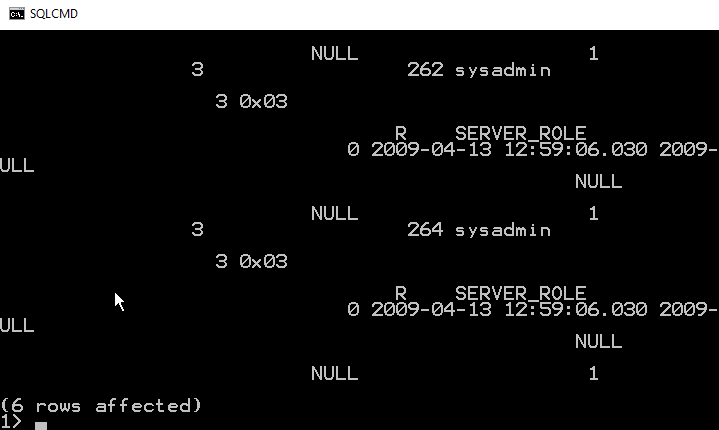
    Not so easy to read. I have to scroll up to even figure out what the display is:

    2016-04-06 13_07_26-Photos

    As you can see, using SELECT *, or retrieving too many columns make results hard to read. You would to wise to pick only those columns you need to return.

    To leave SQLCMD, you can type exit, which will return you to the command prompt.

    2016-04-06 14_00_07-Start

    This is a short look at SQLCMD. The older, osql, utility functions the same way, and both are good, lightweight ways to connect to your SQL Server instance.

  • SQL Saturday #492–Phoenix

    It’s almost time for SQL Saturday #492 this weekend in Phoenix. I haven’t been there in a few years, but I’m heading back for a quick trip to the desert.

    I’ve got two sessions scheduled this weekend, and if you’re attending, I’ve love to see you at one of my sessions:

    The event has grown quite a bit, with 13 tracks. I’m hoping a lot of people in the Phoenix area are coming out for a free, exciting SQL Server conference.