I got an email recently where someone asked me how they can refresh a dev environment with Powershell. I guess I’d written something about this in 2009, though that would have been for testing as Red Gate had already banned me from development on SQLServerCentral by that time.
I dug around and came up with a few partial scripts and cleaned them up for these posts. This post will look at getting the backup and a later one will examine the restore.
Finding the Latest Backup
I’ll assume that you make backups on a known path somewhere. My philosophy is that I want the machines to stand alone as much as possible. That means that I don’t want the source machine (the one making the backup) to be working on refreshing the backup elsewhere. I want a pull system.
For a high level overview, this process looks like this:
- Search the backup path for files matching a pattern.
- Find the most recent one, based on date.
- Copy that most recent file to another location.
For the sake of consistency and easy, I want to copy the file with the same destination name every time. That will simplify my restore process, which I could easily then do in T-SQL.
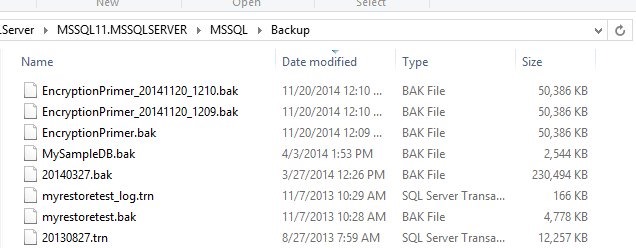
Let’s examine how to do this. I’ve got a folder with a few backups in it.

For my PoSh, I’ll start by setting a variable to the path.
$backuppath = "D:\SQLServer\MSSQL11.MSSQLSERVER\MSSQL\Backup"
Once I have this, I can now look for the files in this path. To do that, I’ll use Get-Children.
get-childitem -path $backuppath
This will return to me a list of the files. That’s what I want, but I want to limit the files to a pattern. In this case, I’m looking for .bak files, from the EncryptionPrimer database. All of these
There’s nothing special about what I do that’s not contained in plenty of places. I don’t have this running on an environment currently as someone else manages that process, but here’s the process I’ve followed in the past:
- Find the latest backup (whatever the date) in the source folder.
- Copy this with a set name to the destination folder, overwriting previous backups with the same name.
- Restore the known name to the development database, moving files as needed.
I’ll go through each of these steps in my PoSh script.
Find the Latest Backup
This is fairly easy. I’ll use the Get-ChildItem method, which I found in a StackOverflow post. I’ll use a variable for the path I need, and then check the path.
$backuppath = "D:\SQLServer\MSSQL11.MSSQLSERVER\MSSQL\Backup"
get-childitem -path $backuppath
That works well, but since I’m building a process for a specific backup type, I’ll add a filter.
$backuppath = "D:\SQLServer\MSSQL11.MSSQLSERVER\MSSQL\Backup"
get-childitem -path $backuppath -Filter "EncryptionPrimer*.bak"
To find the latest backup, we’ll pipe the output through the Where-object filter, removing folders. Then we use sort-object to order things by creation date and select-object to get just the one file.
$backuppath = "D:\SQLServer\MSSQL11.MSSQLSERVER\MSSQL\Backup"
get-childitem -path $backuppath -Filter "EncryptionPrimer*.bak" |
where-object { -not $_.PSIsContainer } |
sort-object -Property $_.CreationTime |
select-object -last 1
The last part of the script is the copy-item command, which is again the recipient of piped output. We give a standard name, and path (another variable).
$backuppath = "D:\SQLServer\MSSQL11.MSSQLSERVER\MSSQL\Backup"
$destpath = "d:\SQLServer\Backup"
get-childitem -path $backuppath -Filter "EncryptionPrimer*.bak" |
where-object { -not $_.PSIsContainer } |
sort-object -Property $_.CreationTime |
select-object -last 1 | copy-item -Destination (join-path $destpath "EncryptionPrimer.BAK")
Once this is done we can restore things. I learned how to do this from PoSh using this post: http://stuart-moore.com/day-11-31-days-sql-server-backup-restore-using-powershell-basic-restore/
However, since I have a standard backup file name, I’d probably do this in T-SQL and set a job that I can just run anytime. It’s simpler and easier, and since most of the time I’d want to do this from SSMS, a job works well.
Here’s the PoSh script.
Import-Module "SQLPS" -DisableNameChecking
$sqlsvr = New-Object -TypeName Microsoft.SQLServer.Management.Smo.Server("JollyGreenGiant\SQL2012")
$BackupFile = "D:\SQLServer\Backup\EncryptionPrimer.BAK"
#
#echo ""
#echo "Databases"
#echo "———"
#foreach ( $db in $sqlsvr.Databases) { write-host $db.name }
echo " "
echo "Begin Restore"
echo "============="
$Restore = New-Object "Microsoft.SqlServer.Management.Smo.Restore"
$Restore.NoRecovery = $false
$Restore.ReplaceDatabase = $true
$Restore.Action = "Database"
$Restore.PercentCompleteNotification = 10
$BackupDevice = New-Object ("Microsoft.SqlServer.Management.Smo.BackupDeviceItem") ($BackupFile, "File")
$Restore.Devices.Add($BackupDevice)
$RestoreDetails = $Restore.ReadBackupHeader($sqlsvr)
$logicalFileNameList = $Restore.ReadFileList($sqlsvr)
$Restore.Database = $RestoreDetails.Rows[0]["DatabaseName"]
foreach($row in $logicalFileNameList) {
$RestoreDBFile = new-object("Microsoft.SqlServer.Management.Smo.RelocateFile")
$RestoreDBFile.LogicalFileName = $row["LogicalName"]
$RestoreDBFile.PhysicalFileName = $row["PhysicalName"]
$Restore.RelocateFiles.Add($RestoreDBFile)
}
$Restore.SqlRestore($sqlsvr)
write-host ("Completed the Database Restore operation on server for Database " + $RestoreDetails.Rows[0]["DatabaseName"] + " on server $server")
That’s it. I ran this a few times, and it worked well. A handy script to get the last backup and have it ready in a dev/test environment.