Tag: Flyway

  • Friday Flyway Tips–Flyway Parameters

    Flyway is a command line tool with lots of options and parameters. Working with those is a pain, but we’ve made this easier in Flyway Desktop 6.5+. In this tip, see how you can add parameters to your Flyway command.

    I’ve been working with Flyway Desktop for work more and more as we transition from older SSMS plugins to the standalone tool. This series looks at some tips I’ve gotten along the way.

    Flyway Options

    There are a lot of options in Flyway that you can use, and we added a dialog in Flyway Desktop to make it easy to construct a command line call. However, we also made the FWD tool work better recently, removing the need to save your changes.

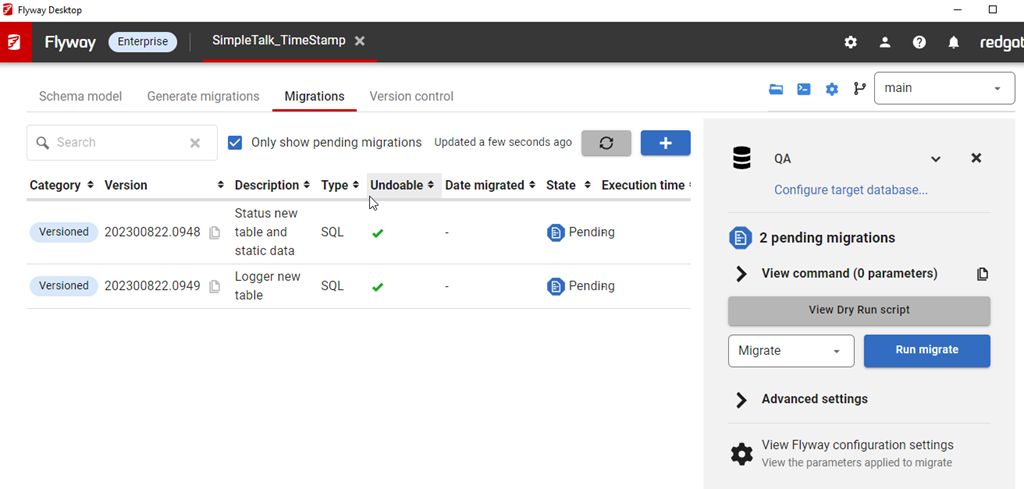
    In the migrations tab, I have all my migrations listed, and on the right side, I can see the command that would be run with the Flyway CLI.

    2023-09-18 14_11_01-Window

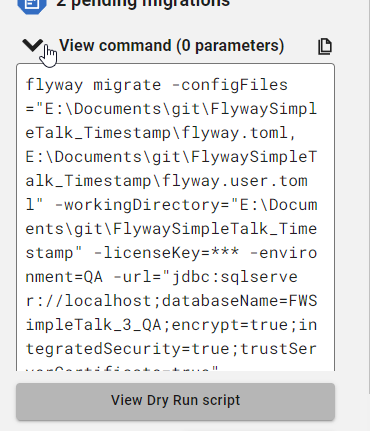
    If I click “View command”, I can see this command, which has a number of parameters by default.

    2023-09-18 14_11_08-Window

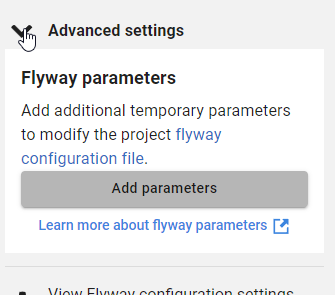
    However, often I want to add other parameters. Below this dialog is the Advanced settings area, which is where we add parameters.

    2023-09-18 14_11_19-Window

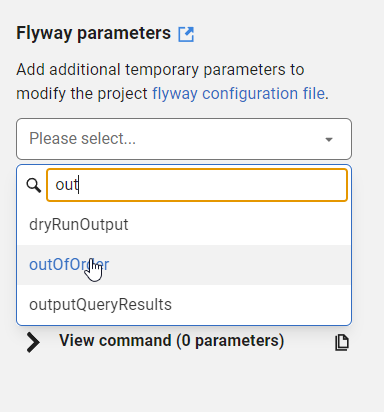
    If I click Add parameters, I get a list of all the parameters, and I can type in the list to filter them down. For example, I often want outOfOrder, so if I type “out” I see this listed.

    2023-09-18 14_11_42-Window

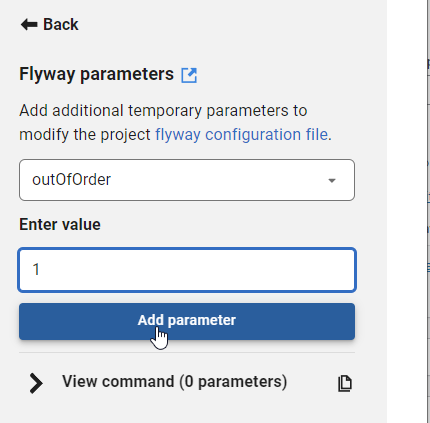
    I can select this and then enter a value for the parameter. I showed in a previous tip how you can easily copy migration numbers, which is handy for using in some of these parameter values.

    2023-09-18 14_11_49-Window

    Once I enter a value, I can click “Add parameter”. Of course, if I’ve done something silly, like enter an integer for a true/false value, the GUI tells me.

    2023-09-18 14_11_57-Window

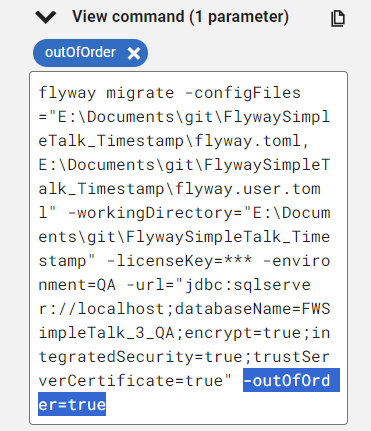
    If I add this, then it’s reflected in the command, which is what I’d copy and paste into some deployment tool like Azure DevOps, GitHub Actions, Octopus Deploy, etc.

    2023-09-18 14_12_05-Window

    Try it out today. If you haven’t worked with Flyway Desktop, download it today. There is a free version that organizes migrations and paid versions with many more features.

    Video Walkthrough

    I made a quick video showing this as well. You can watch it below, or check out all the Flyway videos I’ve added:
     

  • Friday Flyway Tips–Commit and Push

    Flyway Desktop includes version control features with Git. One thing that was added in v6.5+ was the ability to commit and push.

    I’ve been working with Flyway Desktop for work more and more as we transition from older SSMS plugins to the standalone tool. This series looks at some tips I’ve gotten along the way.

    All in One Press

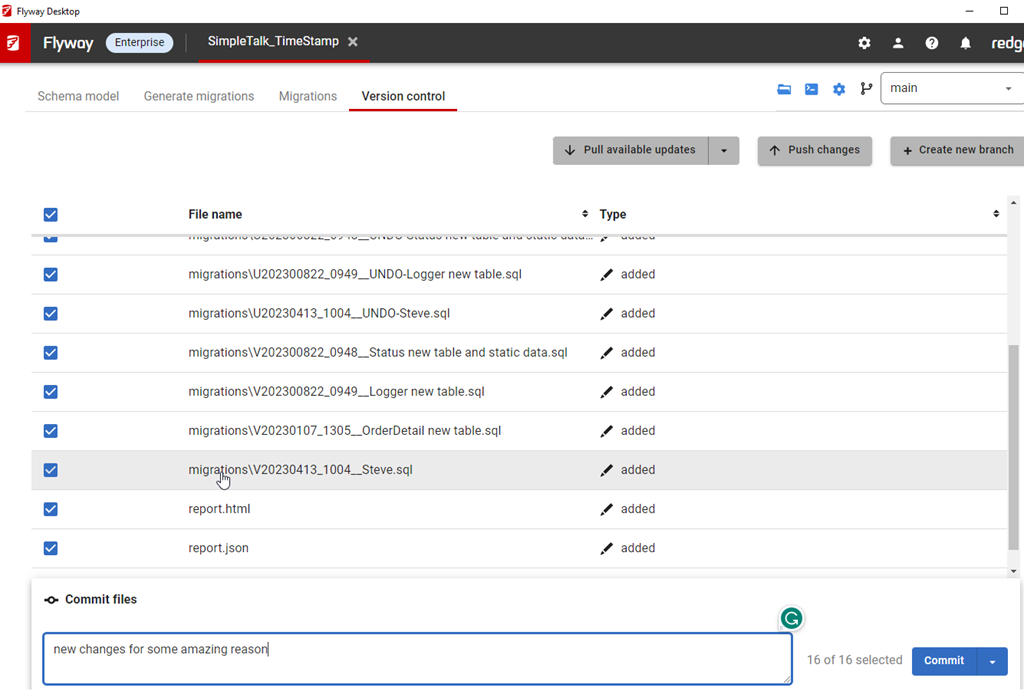
    This isn’t a big change, but it is one that customers have asked for. On the version control tab, when you have changes, they are listed with a commit button in the lower right.

    2023-08-25 16_06_35-Flyway Desktop

    We’ve added a drop down to this.

    2023-08-25 16_07_13-Flyway Desktop

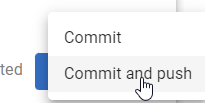
    If you click this, you now have commit or commit and push options.

    2023-08-25 16_07_17-Flyway Desktop

    Pick the lower one, and you’ll get things committed and pushed up.

    2023-08-25 16_17_42-Flyway Desktop

    The choice isn’t saved, which I think isn’t a great design choice, but for now, you do have the option with each commit.

    Try it out today. If you haven’t worked with Flyway Desktop, download it today. There is a free version that organizes migrations and paid versions with many more features.

    Video Walkthrough

    I made a quick video showing this as well. You can watch it below, or check out all the Flyway videos I’ve added:
    https://youtu.be/QsWVcYxFdnM

  • Running Flyway from PowerShell–A Gotcha

    I ran across an interesting gotcha while trying to run a Flyway command from PowerShell. Specifically, the snapshot command and providing a parameter that is the snapshot.filename parameter.

    Someone reported an issue with Snapshot, so I tried it from a command line. It worked fine for me, but a sharp Redgate developer noted that the person was running something like this from PowerShell:

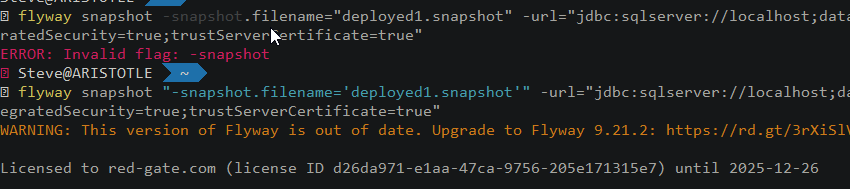
    flyway snapshot -snapshot.filename="deployed1.snapshot" -url="jdbc:sqlserver://localhost;databaseName=FWSimpleTalk_1_Dev;encrypt=true;integratedSecurity=true;trustServerCertificate=true"

    As you can see below, this caused an error.

    2023-08-28 11_52_27-Window

    I checked my version. Surely “flyway snapshot” was valid, and it was.

    However, there is an issue here with PowerShell and the parameter. In this case, the PoSh will try to interpret this as

    The issue is lightly explained in this SO question, though I can’t quite figure out where this is documented. However, using quotes around the parameter name fixes this. Note, I switched the parameter value to single quotes.

    flyway snapshot "-snapshot.filename='deployed1.snapshot'" -url="jdbc:sqlserver://localhost;databaseName=FWSimpleTalk_1_Dev;encrypt=true;integratedSecurity=true;trustServerCertificate=true"

    As you can see, this works.

    2023-08-28 08_25_29-Window

    PowerShell is closed to command shell, but not the same. Keep that in mind as you build automation. Be wary of how your parameter values might be interpreted and test lots of values.

  • Friday Flyway Tips: Visualizing Undo Scripts

    One nice thing with Flyway Enterprise is that it will automatically generate the undo scripts for migration scripts. However, it used to be that finding these and seeing the script was hard. It’s easier after Flyway Desktop 6.5.2

    I’ve been working with Flyway Desktop for work more and more as we transition from older SSMS plugins to the standalone tool. This series looks at some tips I’ve gotten along the way.

    Undo Scripts

    If you have Flyway Enterprise, you can have Flyway Desktop automatically generate scripts: both forward (versioned) and undo scripts.

    The config option for this is in project options, which is in the upper right.

    2023-08-10 15_53_53-Flyway Desktop

    Clicking this

    2023-08-10 15_53_57-Flyway Desktop

    Once have this, if you add a new object, when you generate the migration script, Flyway Desktop will generate the undo script. In the older UI (pre 6.5) this was a script below the generated script, which meant you had to scroll down, or up and down to compare the forward and undo scripts.

    The new UI is better. Now there is just a button. Let me show you how to do this.

    First, I have a few changes in the schema model. I’ll select one.

    2023-08-21 12_27_19-Flyway Desktop

    Now I’ll generate the scripts. When I do that, I see the two scripts. The versioned (forward) script is first, and you can see the “Undo” at the bottom.

    2023-08-21 12_28_05-Flyway Desktop

    Below this, the rest of the undo script is visible if I scroll down.

    2023-08-21 12_28_12-Flyway Desktop

    It’s a bit of a pain to scroll up and down, so there is a small improvement in the migrations tab. If I go there, I can find my script at the bottom of the list and click it.

    2023-08-21 12_30_33-Flyway Desktop

    At the top of the script, in the bar, there is now a set of toggle buttons for version and undo.

    2023-08-21 12_24_35-Flyway Desktop

    I can click back and forth to easily see both scripts. The V script is above, and the undo is below.

    2023-08-21 12_39_44-Flyway Desktop

    Try it out today. If you haven’t worked with Flyway Desktop, download it today. There is a free version that organizes migrations and paid versions with many more features.

    Video Walkthrough

    I made a quick video showing this as well. You can watch it below, or check out all the Flyway videos I’ve added: