Tag: Flyway

  • Friday Flyway Tips: More Config Options

    Working with various Flyway configuration options used to be a pain since they were either CLI parameters or in a text files. We’ve made editing these easier in Flyway 6.5.4.

    I’ve been working with Flyway Desktop for work more and more as we transition from older SSMS plugins to the standalone tool. This series looks at some tips I’ve gotten along the way.

    All the Options

    Maybe not all, but most and certainly more.

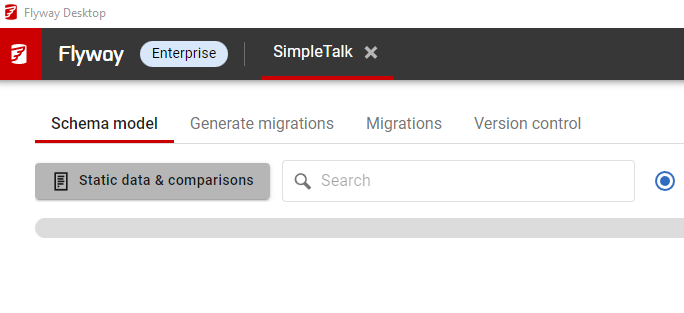
    In the Schema Model tab, there is a button that says “Static data & comparisons”. I don’t love the UX, but there’s a lot of stuff to show here, and this is really relevant here, which is where we start using these options: when we get the object definition.

    2023-08-10 15_41_20-Flyway Desktop

    If you click this, you’ll see a dialog pop up, with any tables where you are tracking static (or reference/lookup) data. There are two other tabs: comparison options and data options.

    2023-08-10 15_41_28-Flyway Desktop

    Clicking comparison options shows you the options for schema comparison. Essentially the options for SQL Compare (for SQL Server), Schema Compare for Oracle (for Oracle), or Redgate Compare (everything else). You can toggle these on or off by clicking checkboxes.

    2023-08-10 15_41_36-Flyway Desktop

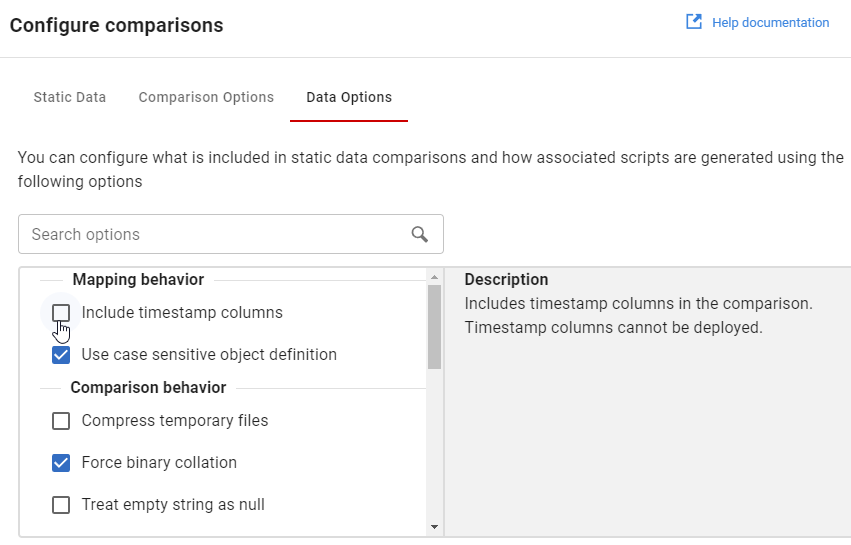
    Likewise, there are the static data comparison options, equivalent to project settings in Data Compare.

    2023-08-10 15_41_48-Flyway Desktop

    There are still a lot of options, and these can be confusing. Knowing what is set and choosing those isn’t simple, but it is easier than trying to edit these in a config file.

    Try it out today. If you haven’t worked with Flyway Desktop, download it today. There is a free version that organizes migrations and paid versions with many more features.

    Video Walkthrough

    I made a quick video showing this as well. You can watch it below, or check out all the Flyway videos I’ve added:
  • Friday Flyway Tips: Copying the Migration Number

    It’s a small thing, but copying the migration number can be a pain. However, we’ve made this easier in Flyway 6.5.4.

    I’ve been working with Flyway Desktop for work more and more as we transition from older SSMS plugins to the standalone tool. This series looks at some tips I’ve gotten along the way.

    Lots of Migration Numbers.

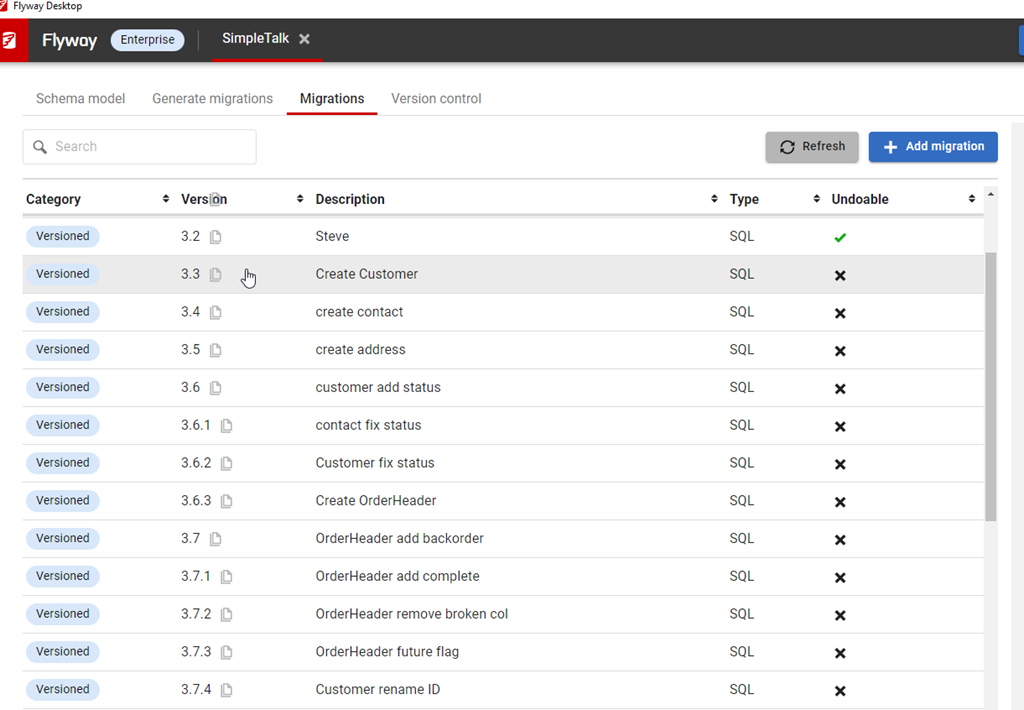
    I’ve got a lot of migrations in this project. You can see below in the image, noting the scroll bar goes up and down here.

    2023-08-10 12_30_54-Flyway Desktop_thumb[1]

    These are easy to read numbers, but some companies use dates and times. Like this:

    2023-08-10 15_06_25-Flyway Desktop

    Those are harder to read, but more importantly, easy to mis-type. If you were using flyway migrate or undo with a specific version, you don’t want to make a mistake.

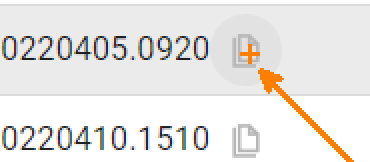
    We’ve made it easy in Flyway. We added a copy button, which you can see below. This is to the right of each migration. I missed this until a dev pointed it out.

    2023-08-10 15_06_38-Zoomit Zoom Window

    If I click this, the version is copied. I can paste it into the search, as shown here.

    2023-08-10 15_06_57-Flyway Desktop

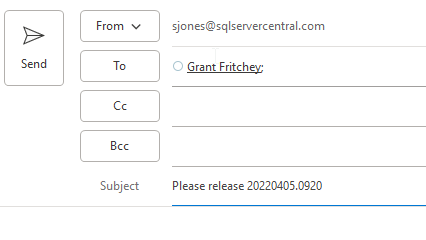
    Or an email.

    2023-08-10 15_07_18-Untitled - Message (HTML)

    A small change, but a handy one. One way to make working with Flyway smoother and reduce mistakes. That’s a big part of DevOps, trying to reduce mistakes.

    Of course, you have to click the right line. Winking smile

    Try it out today. If you haven’t worked with Flyway Desktop, download it today. There is a free version that organizes migrations and paid versions with many more features.

    Video Walkthrough

    I made a quick video showing this as well. You can watch it below, or check out all the Flyway videos I’ve added:

  • Friday Flyway Tips: Searching Migrations

    When a Flyway Desktop (FWD) project (or Flyway project) has been around for a long time, there can be a lot of migration scripts. That can be a pain for users, but there is a way to find your changes or limit what you see. This post looks at how to do this starting with Flyway Desktop 6.5.4.

    I’ve been working with Flyway Desktop for work more and more as we transition from older SSMS plugins to the standalone tool. This series looks at some tips I’ve gotten along the way.

    A Busy Screen

    I’ve got a lot of migrations in this project. You can see below in the image, noting the scroll bar goes up and down here.

    2023-08-10 12_30_54-Flyway Desktop

    Many customers have many more migrations, which could run into the 100s. I’ve worked with large Oracle migrations in the past where there were 100s for an upgrade from v4 to v5. The project would have been 1000s in its lifetime.

    Use Search

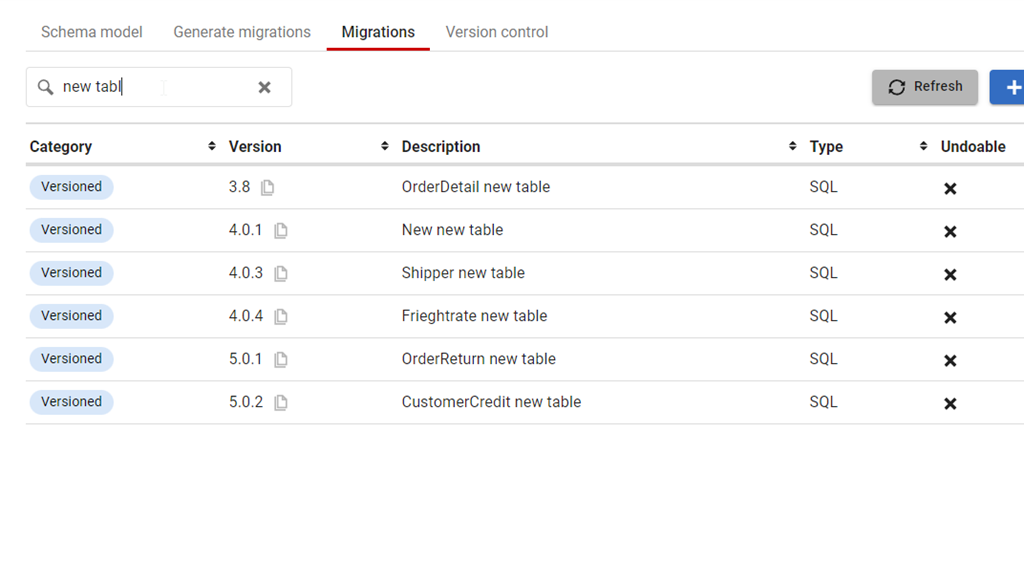
    At the top of the Migrations tab, there is a new search box. This was added somewhere in Flyway Desktop 6, and I just noticed it. However, it’s very, very handy. If I start typing in there, like “New Table”, then I see just those migrations.

    2023-08-10 12_33_47-Flyway Desktop

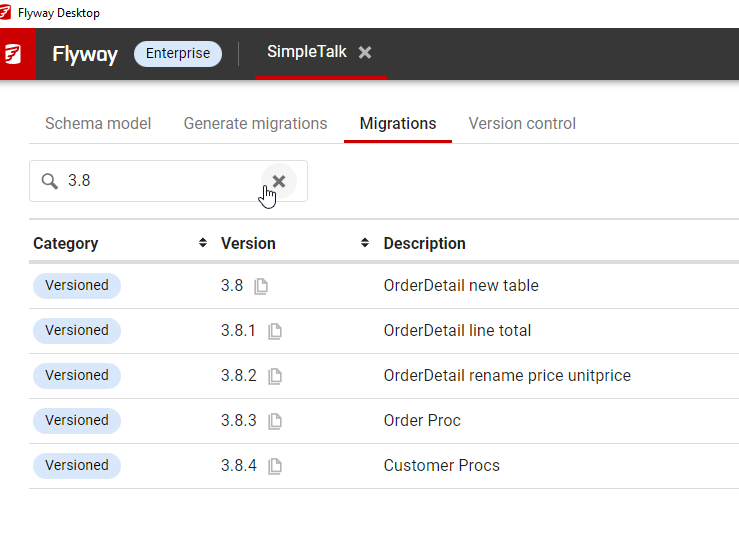
    I can even search versions, like the specific migrations in the 3.8 release that I am wondering about.

    2023-08-10 12_35_55-Flyway Desktop

    This works by checking the version and description fields. The rest aren’t as useful, but it does mean if you come up with some standards for the description in your team, you can easily use this to find changes in your project.

    Try it today. If you haven’t worked with Flyway Desktop, download it today. There is a free version that organizes migrations and paid versions with many more features.

    Video Walkthrough

    I made a quick video showing this as well. You can watch it below, or check out all the Flyway videos I’ve added:
  • The Four Different Types of Flyway Files

    This is documented, somewhat, but I wanted to put this down for myself, as the I don’t love the docs and they are hard to sort through.

    Flyway is open source software owned and maintained by Redgate, my employer. There are also paid versions with additional features.

    The Main Files

    There are essentially 4 different types of files you can use for scripts in Flyway. These are:

    • versioned scripts
    • repeatable scripts
    • baseline scripts
    • undo scripts

    I’ll discuss each of these in light detail below. This isn’t intended to replace the documentation, but give a short explanation of each.

    For each type of file, there is a naming standard, which is the same for all. Essentially, there is are four parts. As an example, I’ll use V8.2__add_new_table.sql to explain this. The four parts are:

    • The prefix for the type of script, in this case, a V script.
    • The version. for my example this is 8.2.
    • The separator, always two underscores
    • The description, add_new_table, in my case.
    • The suffix, which is an extension

    Versioned Scripts

    These are the V scripts, which are named with a V to start. These are scripts which are run once on each target, and intended to be those that change the schema. The “V” is the default, but this can be configured. I wouldn’t change this.

    These are typically the CREATE or ALTER scripts that you run to change objects. You can have as much SQL code in here as you’d like. Think of these as a SQL Compare deploy script. One or my objects changes.

    The run once is nice because once you’ve deployed these, you don’t want to run them again. If you write idempotent scripts, you wouldn’t care but most people don’t do that well.

    Repeatable Migrations

    These are used less in the current Redgate paradigm, but these are repeatable scripts. They are designed to run every time you run “flyway migrate”. Again, the default is an “R” script, but this is configurable. Again, don’t change this.

    These scripts don’t have versions because they execute over and over. This could be used for creating or recreating programmable code objects, like view/procedures/functions/packages. They could also be used for places you need to ensure data is always there or has certain values.

    These scripts run after the migrate scripts, so be aware of that.

    Baseline Scripts

    By default, baseline scripts are “B” scripts. This can be changed. These scripts have a database version that you want to start with for some purpose. Like a new development effort or new deployment project.

    These are run for new environments only, and usually contain all the base objects you might need. If you start a Flyway project on a database that has objects, put all the code to recreate this state (CREATE objects and add data) in a baseline script.

    Undo Scripts

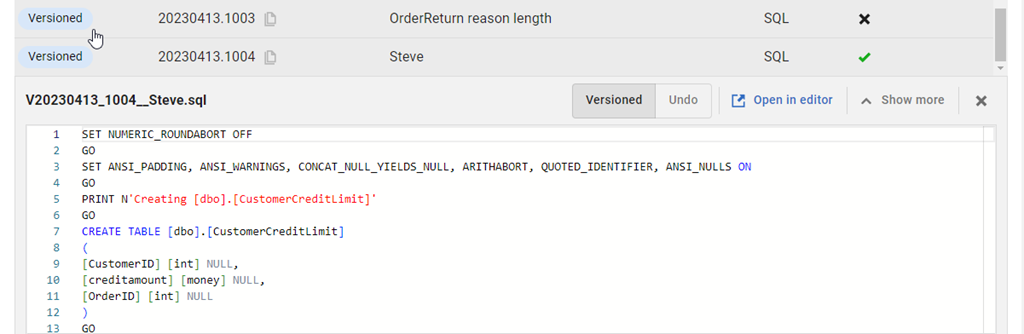
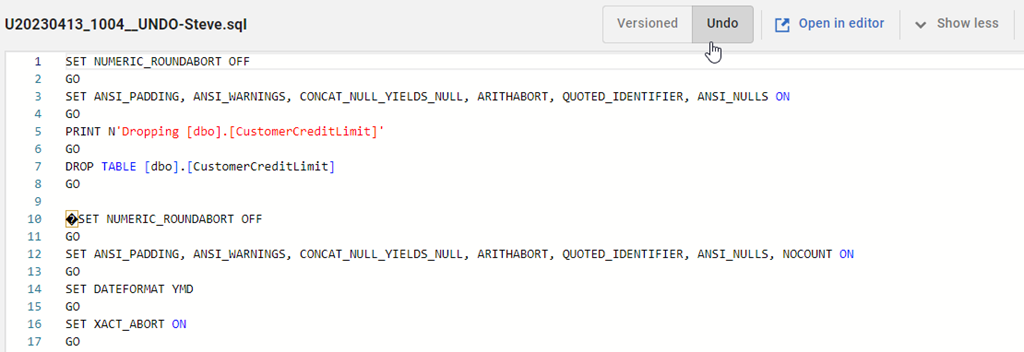
    The undo scripts are the “U” scripts. This can be changed, and these should have a version that matches a versioned script. We can run one of these scripts corresponding to those versions to “undo” changes. Since you can’t really undo anything in the database world, these should include code that reverses the action of the V script.

    Be careful with these, especially if you run these more than a few minutes after the V script. Flyway isn’t checking that you won’t lose data.

    I’d only use these after extensive testing in a pipeline and then only if my deployment broke immediately. These are good for putting in a previous version of a view/proc/function and quickly rolling back.