Tag: Flyway

  • Flyway Desktop Projects for My PoC

    In a previous post, I set up the basic databases for the PoC project I’m working on. In this next post, we’ll get the Flyway Desktop projects set up for the PoC.

    This is part of a series of working through Flyway and Flyway desktop to demo database changes. Disclosure: I work for Redgate Software.

    Flyway Desktop

    Flyway Desktop (FWD) is the GUI that Redgate built on top of Flyway for managing your database project. This replaces the SQL Source Control and SQL Change Automation products that we used to try and integrate into IDEs.

    I like Flyway Desktop, which is standalone app for capturing code and committing it to Git. It is a project based app, so you set up a project in a folder for a particular database (and possibly schema). In my case, I’m going to set up two projects to start for my PoC.

    Version Control

    We work with Git, which has become the de facto VCS for most people.

    On GitHub, I set up a public project where I’m putting this repository. It is located at: https://github.com/way0utwest/FWPoC

    This is on my local machine as a copy at e:\Documents\Git\FWPoC

    MSSQL

    The first project I’m setting up is my SQL Server project, in a folder called MSSQL under the root of the git repo. This is a project folder just for Flyway Desktop. Once I create the folder, I’m going to create a new project in FWD.

    2022-12-28 17_05_51-Flyway Desktop

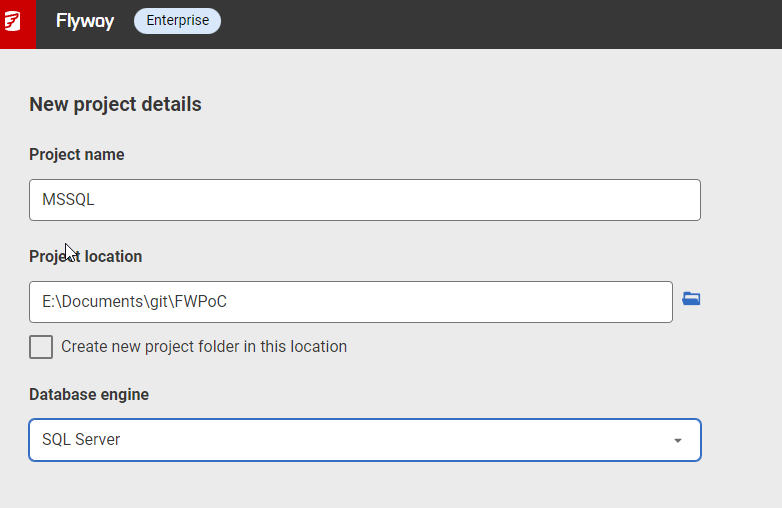
    I get a form after clicking New project. I’ll set the name as MSSQL, choose the root folder, and since I created the folder, I uncheck the checkbox. While I appreciate it’s good to put things in a subfolder, at times I’ve had FWD make a subfolder under the folder I choose, so I’m wary of this box. Mostly because I make mistakes.

    2022-12-28 17_05_33-Flyway Desktop

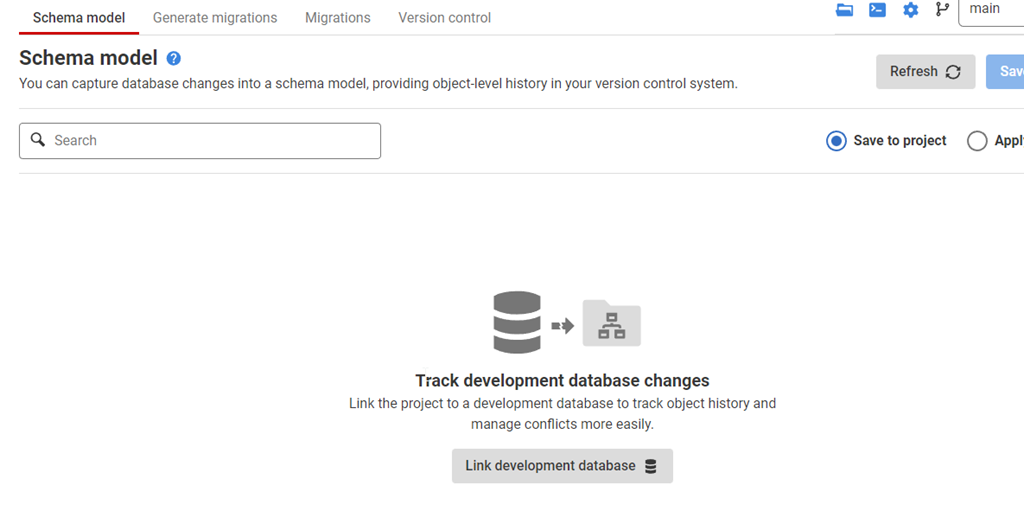
    Once this is created, I start in the Schema Model tab. I hate this nomenclature, as it’s weird. This is the list of objects whose code I’m capturing. There’s nothing here, because I need to link this to my development database.

    2022-12-28 17_07_44-Flyway Desktop

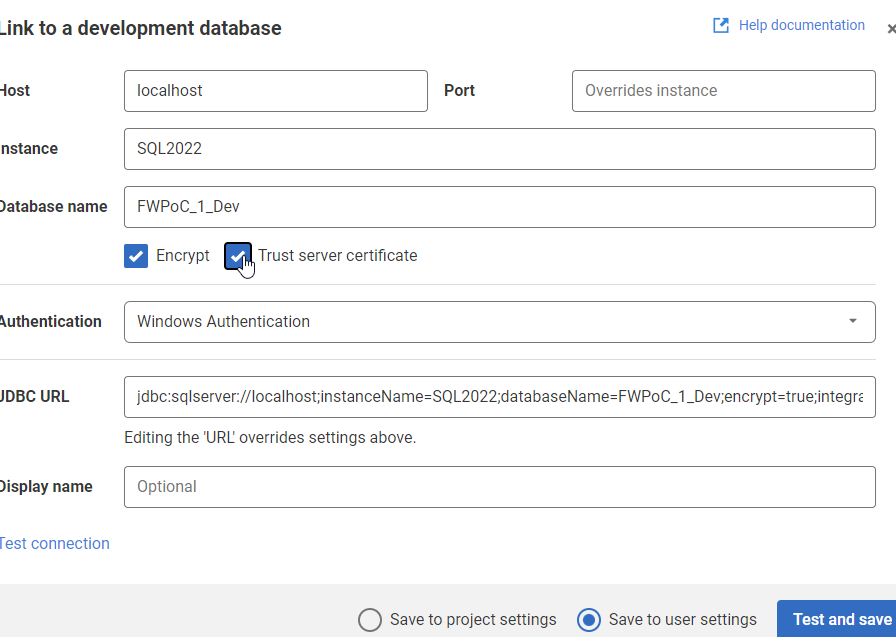
    If I click the “Link” button at the bottom, I get a dialog for the JDBC connection string. Don’t worry, you don’t need to know Java. Just fill in the boxes.

    2022-12-28 17_09_47-Flyway Desktop

    Two things in the dialog above.

    One: Click Trust Server Certificate. Most new installations of SQL and driver upgrades require this. I don’t know why we don’t have this checked by default.

    Two: Click “test connection” in the lower left, so if you have issues, this gets found quickly.

    Once this is done, I go back to the Schema model and I see this:

    2022-12-28 17_11_44-Flyway Desktop

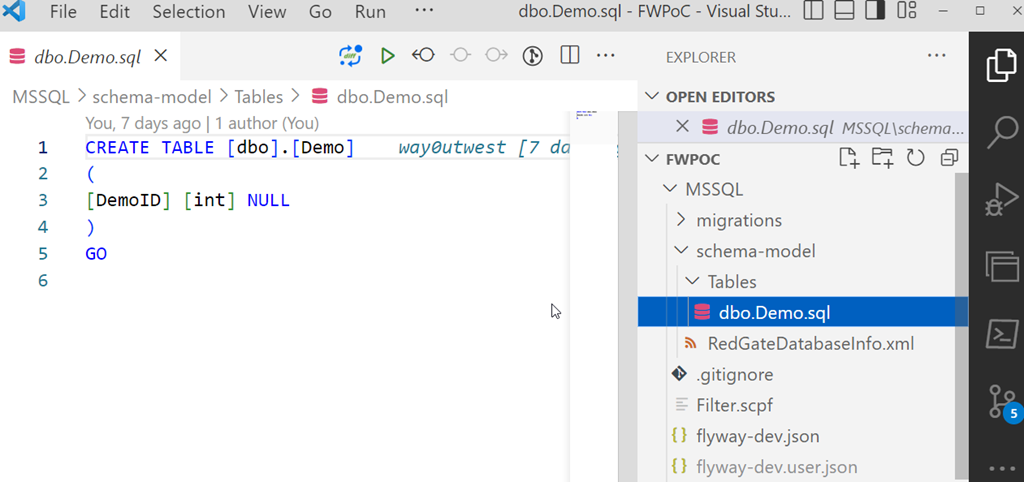
    I’ll select this object and save this to the project. This puts the file in the file system for this object, but doesn’t commit this to version control. We can see this in Visual Studio Code below. This is just a git repo, so if I open it in VSCode, I can see the file, the contents, and a note there are changes to be committed in the left icon.

    2023-01-03 12_31_22-dbo.Demo.sql - FWPoC - Visual Studio Code

    One project complete.

    PostgreSQL

    My second project is for PostgreSQL. Same git repo, similar process. I’ll create a new project, but say this is a PostgreSQL project.

    2023-01-03 12_33_16-Flyway Desktop

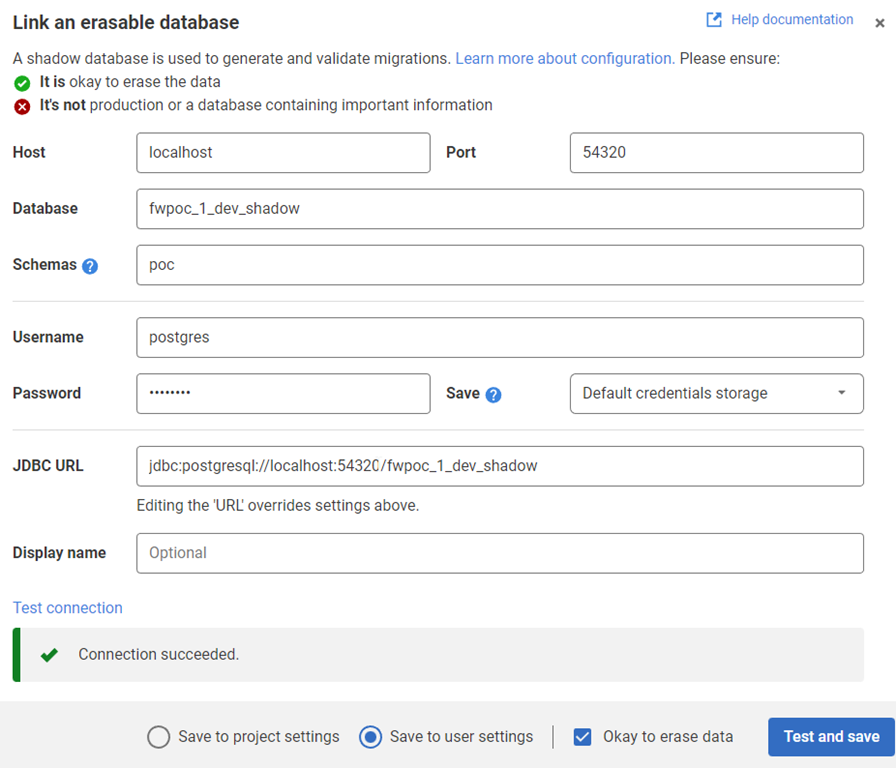
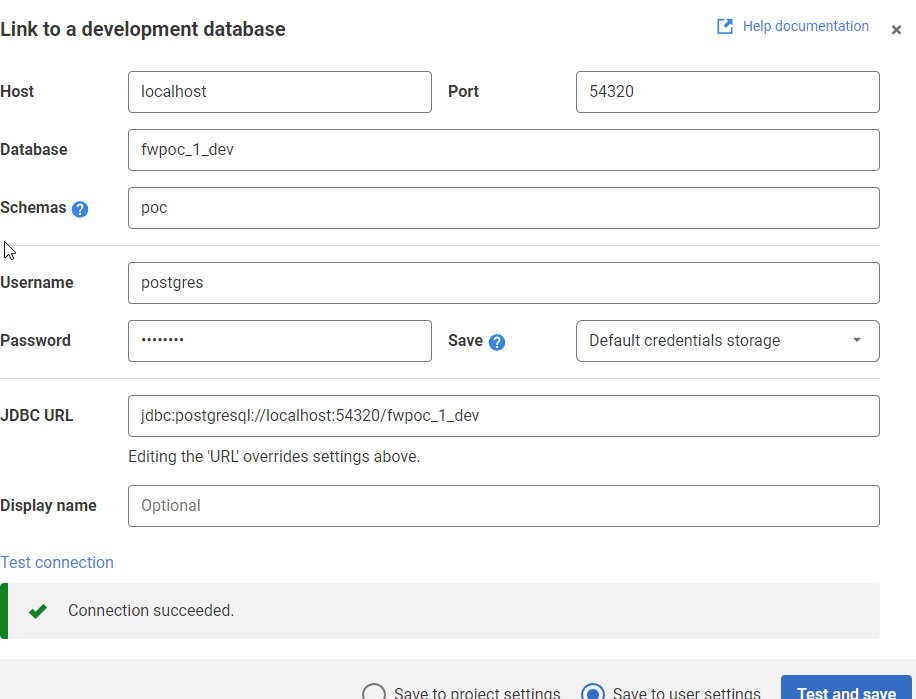
    The process is the same. I’ll link this to a dev database. I need to specify the port and database I’m using. I also specify the schema here, as it’s not the default.

    2022-12-27 17_36_50-Flyway Desktop

    Once I get the project connected, I see the same as I did above for SQL Server. I save it, and I get a slightly different structure in the project. I see a schema below the schema-model folder. In here, I see my table, but it’s not the code, but a description.

    2023-01-03 12_37_14-demo.rgm - FWPoC - Visual Studio Code

    From here, I just commit and push this stuff up to the repo. Note that commits and pushes, can push everything from both projects as they are in one repo. I did this on purpose to keep everything organized for me. However, if this were a team, I’d likely separate SQL Server and PostgreSQL into separate repos so individual developers don’t get confused.

    The next step here is to get a second database to where I can deploy changes for each project. I’ve got these set up, and in the next post, we’ll work on an initial deployment.

  • Starting the Flyway PoC–Environment

    I’ve had a goal to redo my demo environments and get them set up to work for a variety of customers in different places. I decided to do this in a way that uses new Redgate technology, with the integration of Flyway with Flyway Desktop.

    This first article looks at the environment I’ve set up for my system.

    This is part of a series of working through Flyway and Flyway desktop to demo database changes.

    Overview

    I wanted to demonstrate DevOps, as I would recommend most customers set up to get started in their environment. It doesn’t matter if they’re SQL Server or another RDBMS, the approach at a high level is the same. Obviously the setup for each technology would be different in the details.

    I DO NOT recommend starting with a live database or project. This is a Proof of Concept (PoC), so use something that can fail.

    For this start, I’m working with SQL Server and PostgreSQL.

    SQL Server

    I work with SQL Server all the time. That’s the majority of my customers, so we’ll start with a new SQL Server instance. I’ll run this code, but this is to simulate multiple environments:

    CREATE DATABASE FWPoc_1_Dev
    CREATE DATABASE FWPoc_2_Integration
    CREATE DATABASE FWPoc_3_QA
    CREATE DATABASE FWPoc_4_Staging
    CREATE DATABASE FWPoc_5_Prod
    GO

    These environments are set up to be this model:

    • 1_Dev – the place I make code changes. This should be the only place I actually touch code.
    • 2_Integration – this is a place where we mix up code from multiple developers. all code ought to get pulled to each dev db at some point, but for many environments. I recommend getting some deployment here for devs to see all code.
    • 3_QA – standard test environment
    • 4_Staging – This is a DBA test environment, and this ought to get refreshed from production, either schema-only or full refresh, to validate the deployment
    • 5_Prod – live database.

    I’ll then run this code:

    USE FWPoc_1_Dev
    GO
    CREATE TABLE dbo.Demo (DemoID INT )
    GO

    The idea is we get that table to the other 4 DBs without actually connecting to them directly and running this code.

    PostgreSQL

    My setup for PostgreSQL will be similar, but smaller. I’m experimenting here, and one large 5 environment demo is enough. Here I’ll use 3:

    • fwpoc_1_dev – development environment
    • fwpoc_3_qa – test environment
    • fwpoc_5_prod – live environment

    Again, the goal is only write code in 1 and get it to 3 and 5. I’m keeping the numbering to try and keep everything simple and similar.

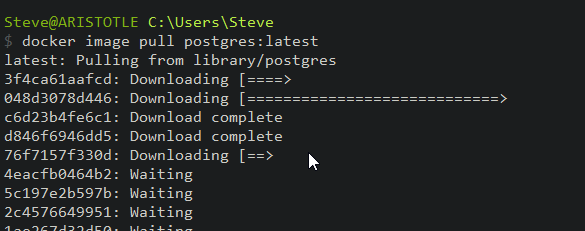
    I want to run PostgreSQL, but I want to use containers. I have enough server services running, so I’m starting with a container. First step, update the container:

    2022-12-26 13_16_43-cmd - docker image pull postgres_latest

    Next, I need to run the container. I’ll do that with this command. This names my container pgdev and gives me a password to connect for the “postgres” user. I also will use a volume on my local drive.

    docker run --name pgdev -e POSTGRES_PASSWORD=demo1234!@# -d -p 54320:5432 -v C:\Docker\postgresql-1-dev:/var/lib/postgresql/data postgres


    Before I run this, I’m create folders on my local C: drive for the docker data to safe. This is the folder I’ll map in my containers.

    2022-12-26 13_38_14-Documents

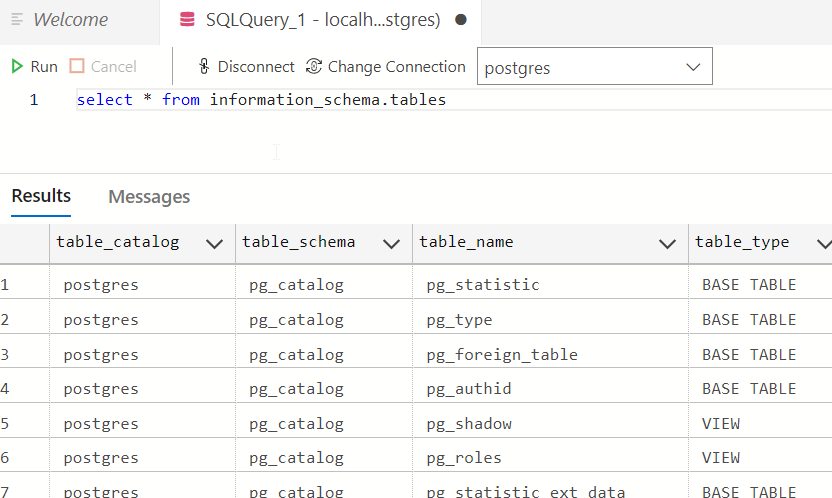
    I’ll connect with Azure Data Studio (ADS) as I have the PostgreSQL extension. Once connected, I’ll query the information schema tables.

    2022-12-26 16_14_55-● SQLQuery_1 - localhost.postgres (postgres) - DBAScripts - Azure Data Studio

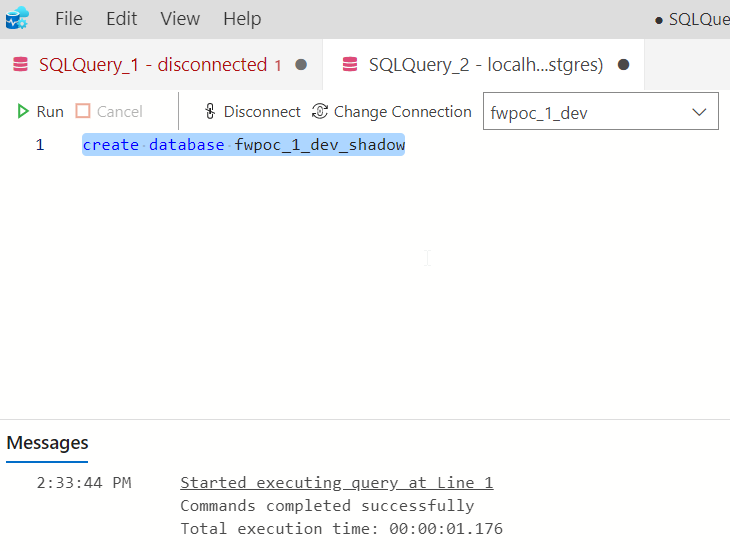
    This works. Now, let’s set up a dev environment similar to SQL Server. First, we create a database with the CREATE DATABASE command.

    create database fwpoc_1_dev

    Once I run that, I’ll select it in the ADS connection drop down. Now I run this to create a schema and table.

    create schema poc;

    create table poc.Demo ( DemoID int);

    insert into poc.Demo (DemoID) values (1), (2)

    select * from poc.demo


    This works and gets me a development environment. I’ll start another container for qa and prod, but I won’t do that now. Instead, I’m just getting the base environments set up.

    Summary

    That’s it. This post was about getting an environment set up and ready for development on a PoC. This is the first step, and it’s already a lot.

    Future posts will look at the Flyway and Flyway Desktop settings, a repository, and a MySQL set of environments.

    Follow the entire series on my blog.

  • No Flyway Baseline No Migration

    In my experiments with the Flyway CLI (fwcli), I’m finding some interesting behavior, some of which is catching my by surprise.

    This post looks at the baseline command and the issues with not having one. I also cover a naming issue. This is a bit long, but I wanted to document what happens as I experiment. I’ll condense down what a baseline does in another post (or two or three).

    The Scenario

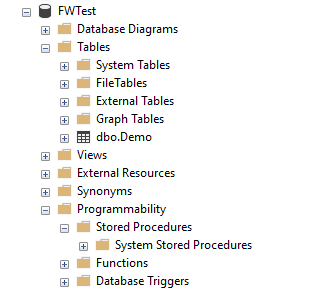
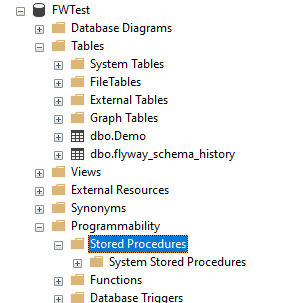
    I created a FWTest database and put a small table in it. I can see in my Object Explorer (OE) that there is just one table. Assume there are no views, functions, etc.
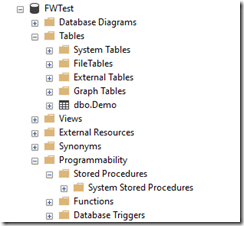
    2022-12-27 16_17_44-SQLQuery2.sql - ARISTOTLE_SQL2022.FWTest (ARISTOTLE_Steve (83))_ - Microsoft SQL

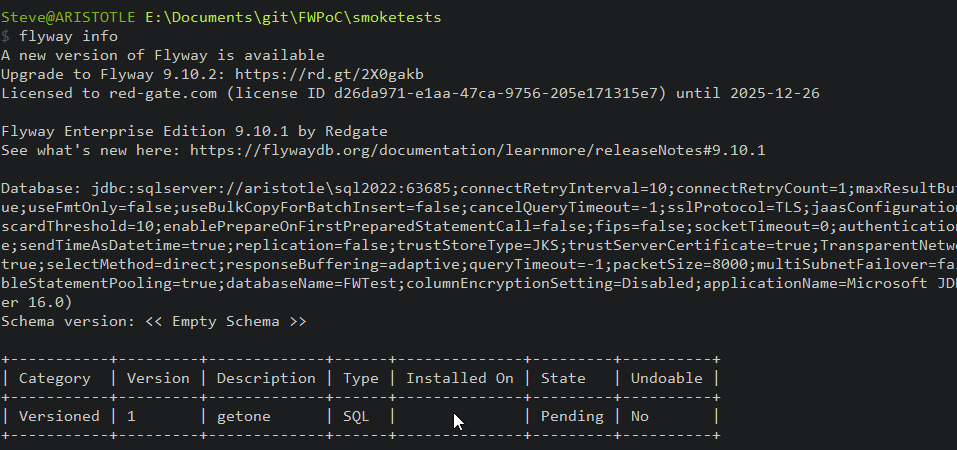
    My flyway.conf file points here, and if I run Flyway Info, I see the results below. The only important part is the “schema version”, which is empty, and the table, which shows one versioned migration called getone.sql.
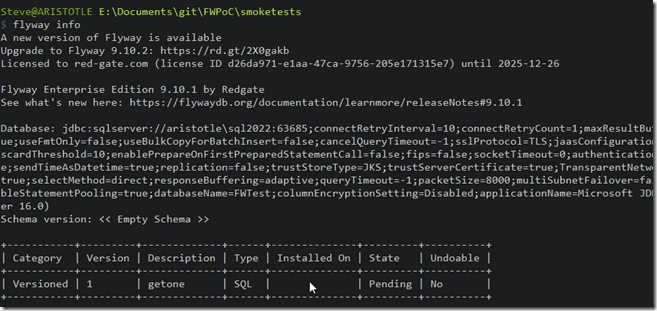
    2022-12-27 16_18_35-cmd

    The migration is in my SQL folder, which is below the location of the flyway.conf file. The configuration file is in the smoketests folder and it has only two lines uncommented: 1 for the SQL Server connection string and one for the location of the migrations, which is the SQL folder. The relevant lines are:

    2022-12-27 16_20_52-● flyway.conf - flywaysimpletalk - Visual Studio Code

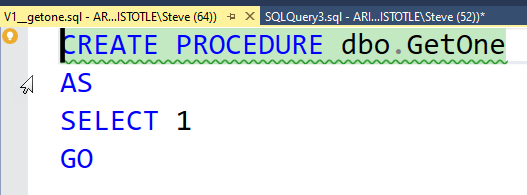
    That’s the basic start. I’ve got a database, and I created a new script. The script in the file is shown here:
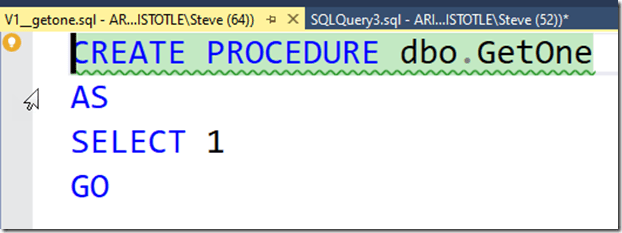
    2022-12-27 16_22_20-V1__getone.sql - ARISTOTLE_SQL2022.master (ARISTOTLE_Steve (64)) - Microsoft SQL

    Running Flyway

    Now, I have a migration script I want to apply to a new database. What happens if I run flyway migrate. Will this create my procedure? Let’s see.

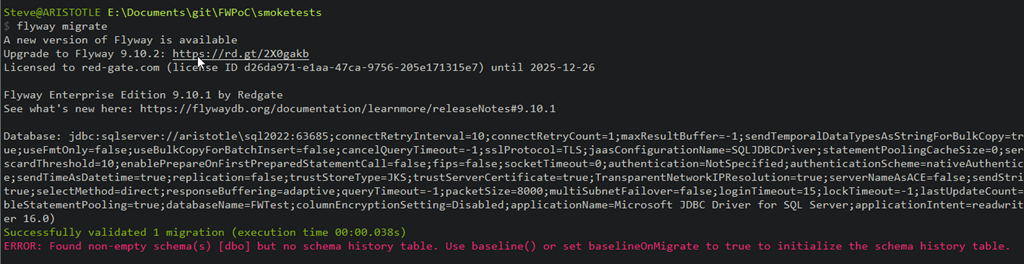
    The output shown below runs and give me a green line and a red like. One success, one error.
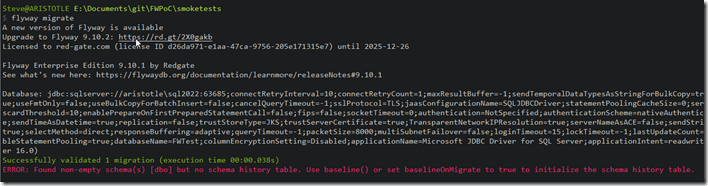
    2022-12-27 16_23_10-cmd

    The success is that the script was named correctly, so it passed validation.

    The error is that there is no flyway_schema_history table. This is where all Flyway activity is tracked inside the database. Without this, there’s nowhere to stick the data on script execution.

    The error does note that we need to run flyway baseline or set the baselineonmigrate option to true. The default for this is false.

    Adding a Baseline

    Let’s do the baseline thing. The documentation for baseline is very poor (as of Dec 2022) in my opinion. I’ve sent a few notes around the company, as I think this needs to be cleaned up.

    In any case, this will do a couple things. First, it creates the flyway_schema_history table (under dbo for SQL Server) as the place to store history for Flyway. Next, it will add a row as the baseline version for this database. I don’t have a baseline script, a “B” script, but that’s OK. I don’t need it for now.

    Let’s try this. I’ll run this on my database and we see the results below. I’ve captured the text, ignoring the licensing and connection string part. The results are really here:

    Creating Schema History table [FWTest].[dbo].[flyway_schema_history] with baseline ...
    Successfully baselined schema with version: 1

    This shows me we have created the table and added a baseline of version 1. If we look in the database, we see this: the new table, but no proc.
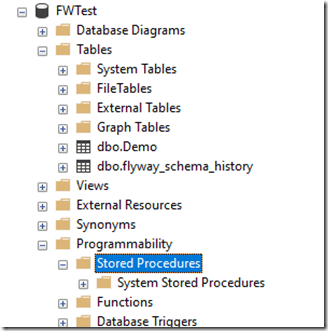
    2022-12-27 17_05_53-SQLQuery2.sql - ARISTOTLE_SQL2022.FWTest (ARISTOTLE_Steve (83))_ - Microsoft SQL

    If I run flyway info, I see these results (again, ignoring the licensing and connection stuff).

    2022-12-27 17_10_54-cmd

    What I see in here is that my database version 1 is baselined with no scripts. However, the getone.sql script is noted as a versioned script but ignored because of the baseline.

    The baseline is supposed to be a level that includes all scripts up to that number. It’s not well explained in the docs, but this means that any scripts up to the baseline are assumed to have been executed in the database.  This is the baseline. The baseline.sql script also is supposed to include the contents of all previous migration scripts, but as my test showed, I don’t need that.

    The Problem with Baselines

    The thing I have to know here is that this baseline version means no scripts at this version or lower will be executed. Since my script was a v1 script, it gets ignored, as you see below:

    2022-12-27 17_10_32-cmd

    Why this says 2 migrations, I don’t know. There’s only one script. I assume this is counting the non-existent baseline script.

    However, nothing migrated, and my procedure isn’t created.

    Be aware, that you want baseline scripts and other scripts to have discrete numbering.

    Summary

    Getting started with Flyway means we need a baseline to get going. We can do this without a script, but we do need to run flyway baseline, or set an option. I’ll look at those two items in a future post.

    I also need to be careful with naming of scripts, as a script that matches the numbering of the baseline will not get executed.
  • Getting Started Connecting to a Database with Flyway

    In a previous post, I got Flyway installed as a CLI utility (command line interface). This post will look at the first connection to a database.

    If you need to install Flyway on Windows, see my previous post.

    Concepts

    Flyway is a command line executable that takes various parameters to control what it does. Essentially, these are command verbs and decide what action is running. The previous post looked at the version command.

    There are also parameters that can be included before the command. There are lots of parameters.

    However, much of the way Flyway works is controlled by the flyway.conf file, which is inside a conf folder where you installed Flyway. If this file is found in the current folder, then Flyway will use configuration parameters from this file.

    Note, the inline parameters should override those in the conf file.

    Configuration

    I find it much easier to use the configuration files. While you can specify this with the configFiles parameter, I often ensure that I run Flyway from within a particular folder that has a flyway.conf file. This has worked well.

    Copy your flyway.conf from your install folder (under conf) to a new folder where you will experiment. For me, I set up a new folder called “smoketests” where I’m doing a little experimenting. As you can see, I only have two files in here:

    2022-12-27 11_06_23-cmd

    The default conf file can get a little confusing. It’s full of many options, which are somewhat documented. My default looks like this when I open it:

    2022-12-27 11_07_28-flyway.conf - flywaysimpletalk - Visual Studio Code

    Most everything is commented out, which makes it harder to figure out what to do.

    The thing to remember is that you uncomment those settings that you want to set. For example, the drivers section is extensive. Some of theses are included, some you need to download. Since this are all Java based JDBC drivers, it can look strange to a SQL Server person.

    2022-12-27 11_15_29-flyway.conf - flywaysimpletalk - Visual Studio Code

    The thing that gets lost in here for me is that I don’t comment out the line that starts with SQL Server. Instead, I need to copy and paste the jdbc part to the flyway.url= line. My valid connection would look like this:

    2022-12-27 11_17_26-● flyway.conf - flywaysimpletalk - Visual Studio Code

    Let’s try connecting with the info command. When I run Flyway info, I get asked for a user and password. Annoying, but not that bad. However, I then get an error:

    2022-12-27 11_19_53-cmd

    This is a secure connection error. I do have TCP/IP enabled, which I know Java needs. This is more about a change the SQL Server team made, which requires secure connections.

    Let’s add this to our connection string: ;trustServerCertificate=true

    This gives me this string:

    flyway.url=jdbc:sqlserver://aristotle\SQL2022;databaseName=FWPOC_1_Dev;trustServerCertificate=true

    Now when I connect, things work. I still have to enter a name and password, but I can connect and I get back something.

    2022-12-27 11_22_56-cmd

    I see some info on flyway versions. There’s a new version available. I’m also licensed for Flyway Enterprise.

    Then I see the filesystem folder, sql, is missing. This is where the migrations are stored, so if I want to add migration scripts, I need to add a folder.

    Next, I get the complete connection string. Lots of options here, of which most are defaults.

    Then I see the schema is empty. Flyway works off schemas, which is what many platforms require. We get lazy in SQL Server and often just use dbo, but most other platforms want schemas set up.

    Finally I see that there are no migrations run in this database, and I see an empty status table.

    That’s a lot, and I connected to the database. Nothing changed in the database, and no flyway_schema_history table was added. This essentially let me know Flyway was working.

    The last thing I’ll do is add this to my connection string: integratedSecurity=true

    This lets get away from the name and password on Windows, but using Windows Auth for SQL Server.

    2022-12-27 11_30_50-cmd

    That’s it. I’ll keep working on different commands in Flyway and getting to know the CLI.