Tag: Flyway

  • Installing Flyway Community on Windows

    One of the things I’ve been trying to do is dig in more deeply to the Flyway command line (CLI) as part of my work with Redgate. While Flyway Desktop is amazing, it’s a wrapper, and my inclination is to ensure I understand the underlying technology.

    When I first downloaded Flyway, it wasn’t obvious what needed to be done to connect in different ways, so I decided on a short tutorial that would help me remember how and teach others a few things. This post goes over downloading Flyway and getting started.

    Setup

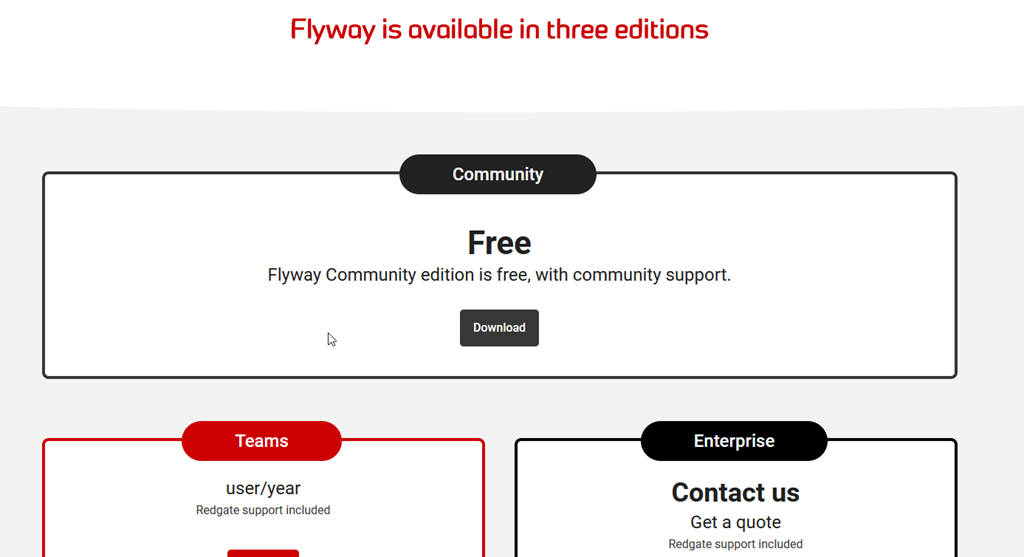
    The setup for Flyway is easy. The Community version is free, though there are also Teams and Enterprise editions.

    2022-12-27 10_42_52-Download   pricing - Flyway — Mozilla Firefox

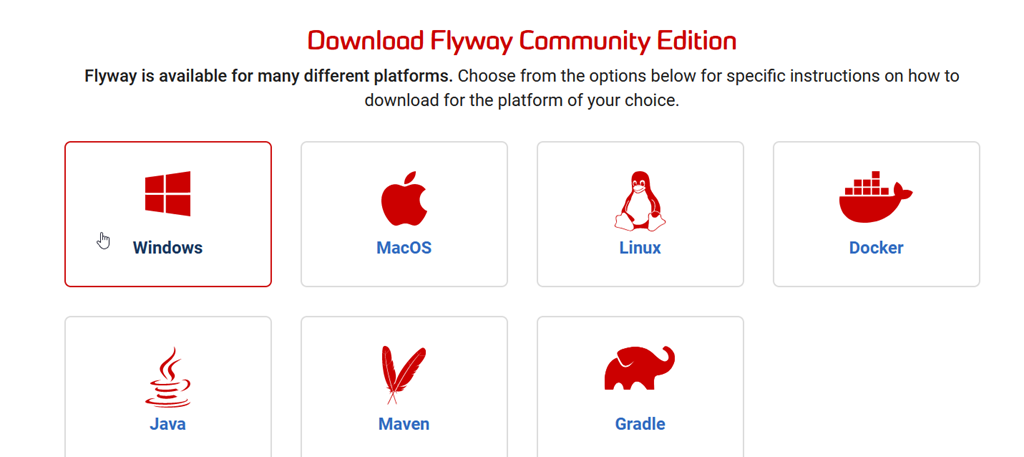
    Flyway Community works on many platforms. I’ll choose Windows below.

    2022-12-27 10_44_47-Community edition - Flyway — Mozilla Firefox

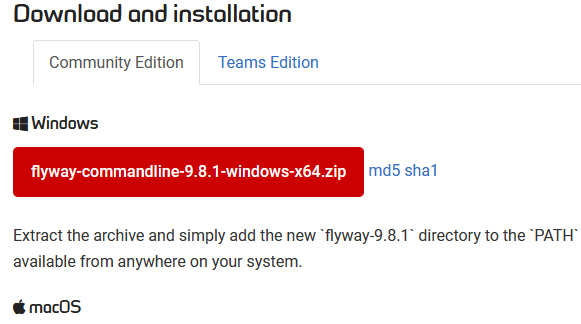
    The Windows version is a zip file. Click this, and it will download.

    2022-12-27 10_45_35-Command-line - Command-line tool - Flyway by Redgate • Database Migrations Made

    Then unzip this. I have a c:\Utilities folder where I keep stuff and I’ve added a flyway folder there. I unzip the latest into this folder.

    2022-12-27 10_46_47-flyway

    If you care about versioning, you might drop Flyway into a version named folder, but I typically don’t on this machine. For production deployments, I would be more careful.

    You then need to add this to your PATH. If you are on Windows 10 or 11, then in the Control Panel (Windows+I), search for environment. Edit the variables for your account.

    2022-12-27 10_47_57-Settings

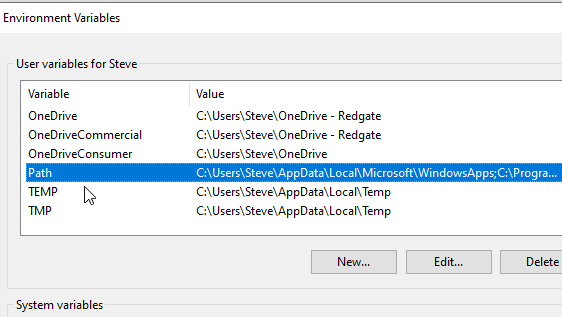
    Once the new dialog appears, find the PATH variable and click Edit.

    2022-12-27 10_48_04-Environment Variables

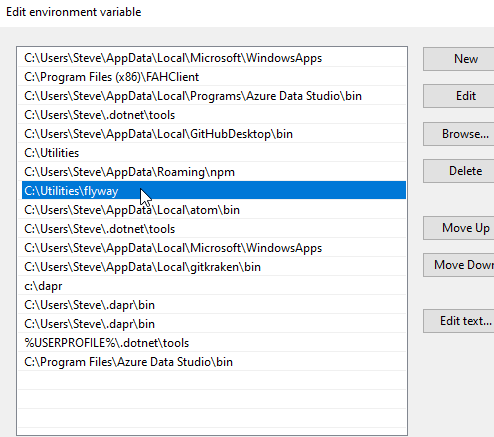
    Now add an entry for the folder where you extracted the Flyway files. For me, this is c:\utilities\flyway.

    2022-12-27 10_48_12-Edit environment variable

    That’s it, Flyway is installed.

    We can check at the command line with “flyway version”.

    2022-12-27 10_51_19-cmd

    If you have entered a license key, then you’ll see that message.

    2022-12-27 10_50_47-cmd

  • Paid Flyway Advantages–Undo and Check

    The Community edition of Flyway has some nice basic features, and it works well for many people. However, it requires you to do a lot of the heavy lifting of building and deploying scripts. There are some advantages of the paid editions, and one of those is the Undo and Baseline script additions in Flyway Desktop, which we’ll look at in this post.

    This is part of a series of posts that looks at Flyway and the feature differences between editions.

    Flyway Desktop

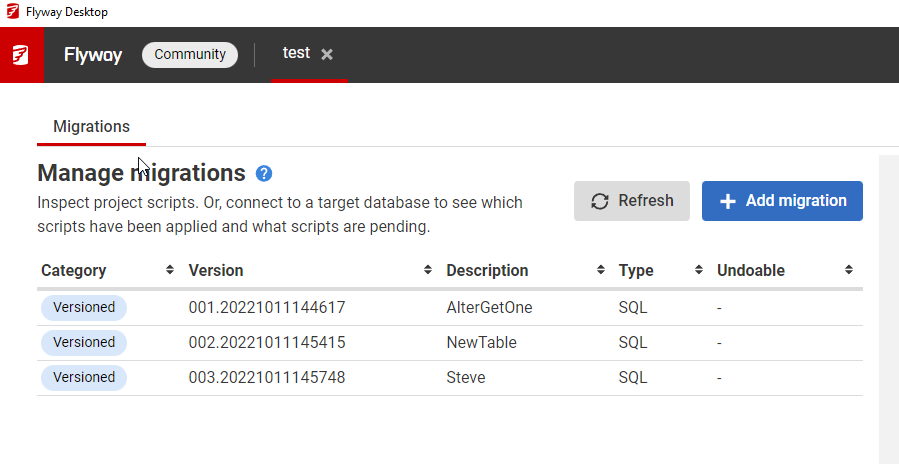
    The GUI for Flyway is Flyway Desktop. This works for all editions, though some features are not visible when you aren’t licensed for them. Here is the GUI we see the Flyway Community. Note there really is only one thing, which is a list of migrations.

    2022-10-27 17_39_14-Flyway Desktop

    This is useful, and it’s certainly nicer than Explorer. Plus, I can see what is run on a particular instance if I add one.

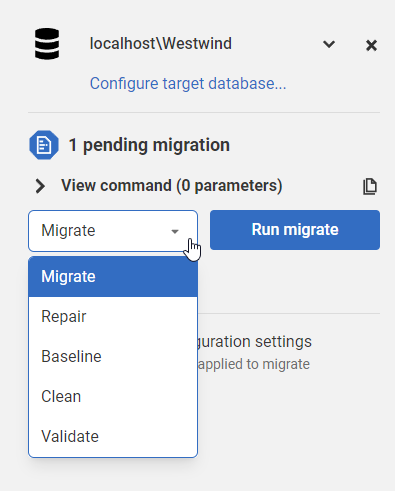
    If I look at my Flyway commands, I see this:

    2022-10-27 17_43_04-Flyway Desktop

    This lets me do the basics of what a script runner does. I can follow a simple, happy path with this functionality.

    Teams

    Flyway Teams is the mid-tier, and this adds a few nice things. In this case, I now see objects changed in the schema, and I get version control. Both valuable tools. 2022-10-27 17_41_08-Flyway Desktop

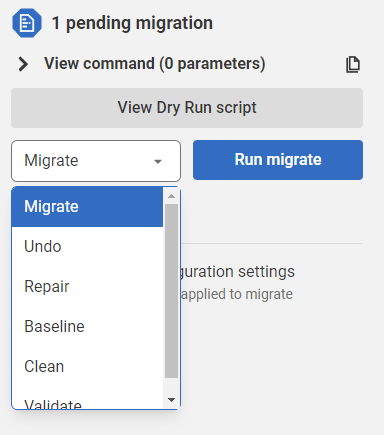
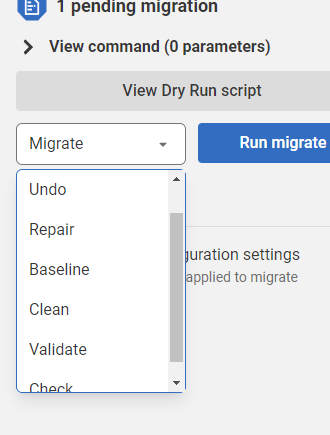
    However, for the Flyway functionality, I also get Undo and Baseline, both things that I do often.

    2022-10-27 17_41_58-Flyway Desktop

    The undo is huge, as there are times I need to get rid of something, or fix a script. Hopefully not in production, but definitely in dev and test.

    I can also dry run and see the script that will get executed here, something I’ve always wanted to do as a DBA.

    Enterprise

    The really useful tier is Enterprise. I know it’s pricey, but it also does the things I really need most in a mixed team of different skill levels.

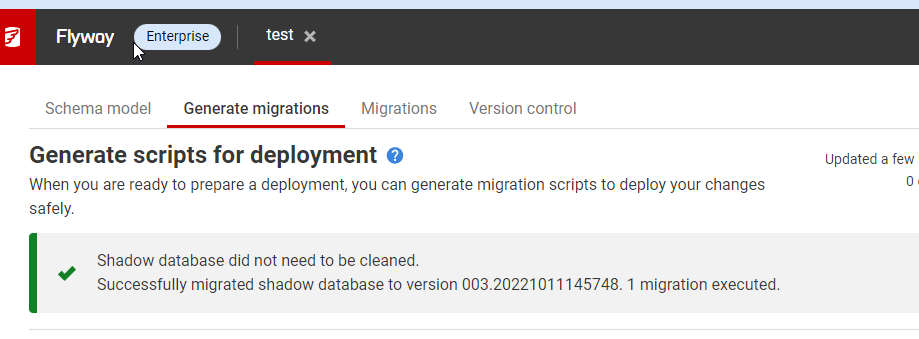
    I get the Generate capability, which really automates the things from SQL Compare that hundreds of thousands of you have found valuable.

    2022-10-27 17_45_53-Flyway Desktop

    I also get the Check command, which lets me look for potential problems.

    2022-10-27 17_46_09-Flyway Desktop

    They All Work

    All tiers work, but the paid versions save you time and handle more of the work for you. If you have a team of gurus, you might like Community, but if your staff could use some help, think about trying the paid editions.

  • Flyway Mistakes

    I have been doing some testing with Redgate’s Flyway Desktop as a new way of managing code for databases. However, just like Git, I appreciate clients, but I want to know how the CLI (command line interface) works. I spent time learning git add, git push, git checkout and more. Now I have more comfort understanding how SourceTree or GitKraken work.

    I wanted to do the same thing with Flyway, just to be sure that I know what the options, switches, and behavior for Flyway operations would be.

    The Scenario

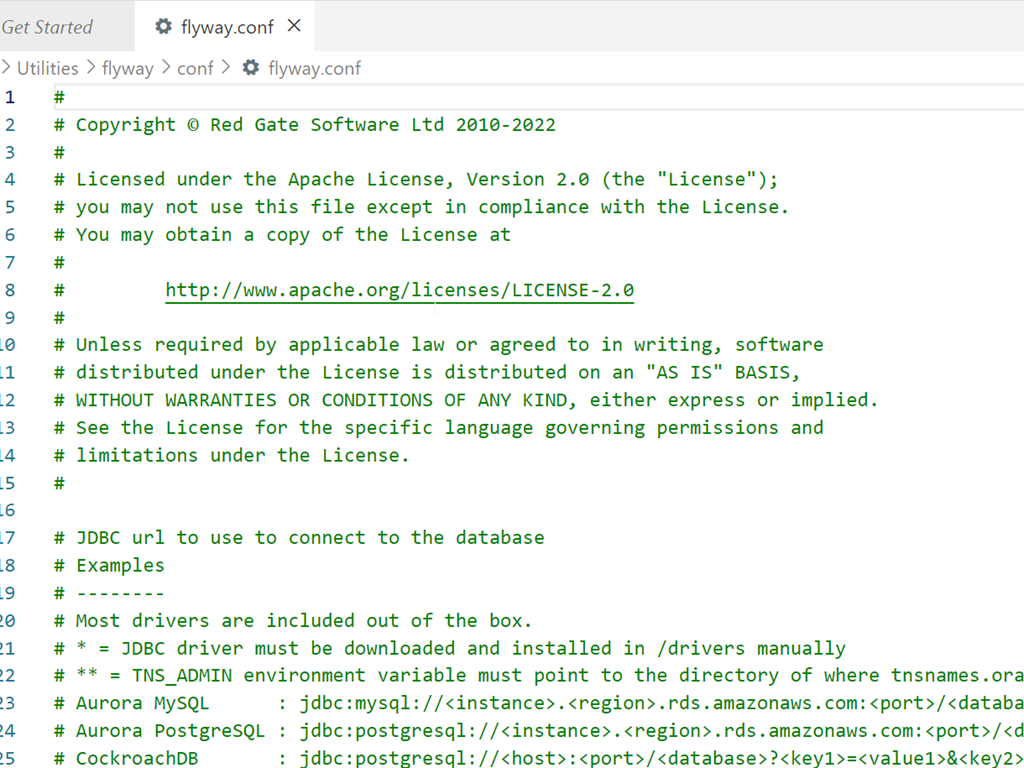
    I had an existing database, and I wanted to play around with adding this to a DevOps flow. I was looking for a basic experiment, and decided to create a new repo. I copied the default flyway.conf file into this folder and changed it.

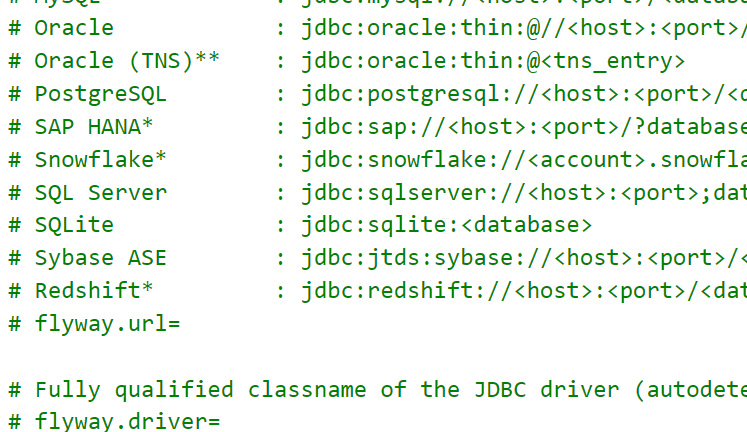
    The only thing I did was alter the Flyway conf file in my folder to work with SQL Server. I copied the connection string into the flyway.url parameter and set it as follows:

    flyway.url=jdbc:sqlserver://aristotle:1433;instanceName=SQL2017;databaseName=AdventureWorks2017;integratedSecurity=true

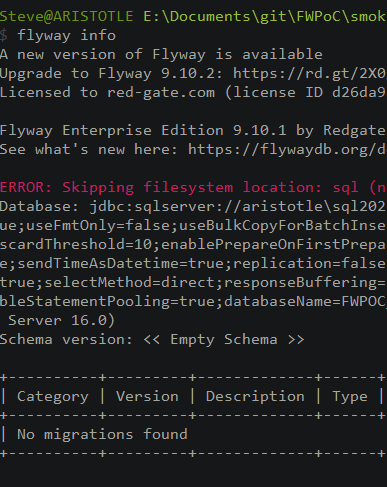
    When I ran the info command, it failed.

    fw_fail

    When I ran the same command with a different database, it worked:fw_succeed

    I was highly confused. I tried a number of different databases, and some of them worked, not I couldn’t see a pattern.

    I checked a number of things, including the database owners, a few of which I changed. I thought it might be some permissions and dropped my sysadmin account and added it back.

    I tried connecting with SSMS and with sqlcmd. Both of those tools seemed to work.

    I was really stumped.

    A Small Conflict

    Finally, after a bit of back and forth with a few developers, someone noted that I shouldn’t need the port included in the string. Sure enough, when I removed it, things started working.

    Apparently, the JDBC documentation notes the issue. I kept looking at Flyway docs, but they just pass things along to the JDBC driver from the various parameters and environment variables.

    There is a note that says provide the port number to stop a round trip to the browser to determine the port number for a named instance. If the port number and name are included, the port takes precedence.

    I have two instances, some of which have the same databases on each. The databases that worked were on a different instance (which responds to 1433). The ones that didn’t, weren’t on that instance. I kept examining the \SQL2017 instance, but that wasn’t the one I was logging into with my string.

    A silly mistake, but a good one to note. The port is a higher priority than the instance in a Java connection string.

    I can’t find a priority in the docs for OLEDB or the native client, but they do all say the address takes precedence over the address parameter.

  • Installing FlywayDB

    I’ve been working on a demo for a customer. Part of the demo uses a new Redgate product, but Flyway is a part of that. In testing a couple things, I realized that I didn’t have FlywayDB installed on  this new machine, so I did a quick walkthrough.

    Installation

    This is actually simple, or fairly simple. First, download the .zip file from Flyway.

    2020-08-06 10_41_58-Command-line - Command-line tool - Flyway by Redgate • Database Migrations Made

    Next, put this somewhere. For me, I wanted to be organized, so I put this in C:\Program Files\Red Gate. This did require some UAC approval to unzip the download into this spot.

    2020-08-07 16_38_20-Red Gate 

    Once I did this, I saw the flyway.cmd file in the subfolder. The instructions note I need to add this to my path.

    2020-08-07 16_38_48-flyway-6.5.3

    There are different ways to add things to the path, but the quickest for me on Windows 10, is to get to the properties of “This PC”. There is an advanced system settings here.

    2020-08-07 16_39_24-System

    This let’s me see properties, including the “Environment Variables” at the bottom.

    2020-08-07 16_39_30-System Properties

    Clicking this shows me the various system variables, including the PATH.

    2020-08-07 16_39_41-Environment Variables

    If I edit this, I get a standard dialog where I can add the Flyway folder.

    Once done, I can test this with “flyway info” at a command prompt.


    One note, if I have a command prompt open, I need to restart it to get the new path.

    Licensing Flyway

    This is an interesting item. I didn’t directly find an answer in the quick start. Most people probably use the Community edition, so they don’t need a key. I, however, wanted to play with the Enterprise version. I got a key from Redgate, and then set the environment variable. As you can see below, this isn’t enough. I got an error that I didn’t have a license.

    2020-08-06 10_37_08-cmd

    I wasn’t sure if flyway.licenseKey is a file or a setting. I looked around a bit, and on the download and install page, I found an item doe the Configuration. This mentions that the first place Flyway looks is the install folder/conf/flyway.conf. Aha!

    I looked in the conf folder under my Flyway install. Under here is the flyway.conf file, which is a key-value configuration file. It reminds me of the old  Windows 3.1 .ini files.

    2020-08-06 10_34_25-conf

    When I open this, I see a lot of values. These are mostly commented out with a #. If you need to enable a value, remove the comment at the start of the line.

    2020-08-06 10_35_55-flyway.conf - Visual Studio Code

    Scrolling to the bottom shows me that the last entry is for the license key. I removed the comment character (# ) and then pasted in my key.

    2020-08-06 10_39_08-flyway.conf - Visual Studio Code

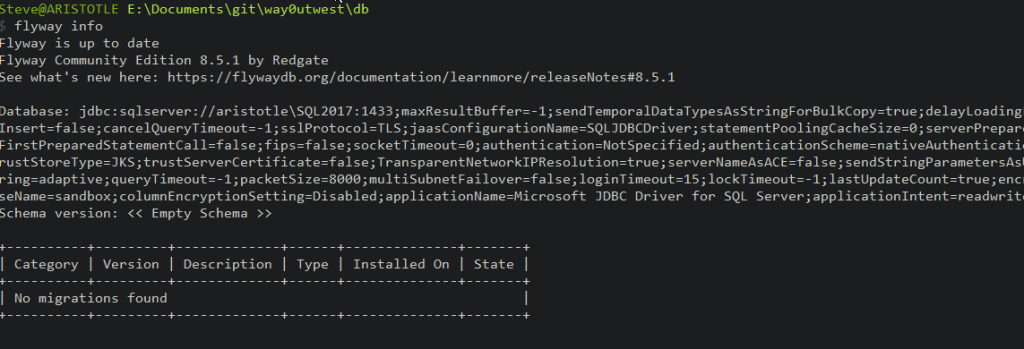
    The next time I ran flyway info I see this:

    2020-08-12 14_06_29-cmd

    No license message, though obviously I haven’t set up the connections yet.

    That gets me started, and I know things are installed. Now I need to start using it, which is something for another post.