Redgate had some Claude training recently, which I went through as my knowledge has been gained in bits and pieces and is fragmented. I wasn’t sure I’d get a lot out of it, but I was surprised by a few things I learned.
One of these was scheduling a task to give me a daily report. This post looks at that process for me. I’ll walk through what happened, and then a summary below of what I think of this.
This is part of a series of experiments with AI systems.
Getting Started with Skills
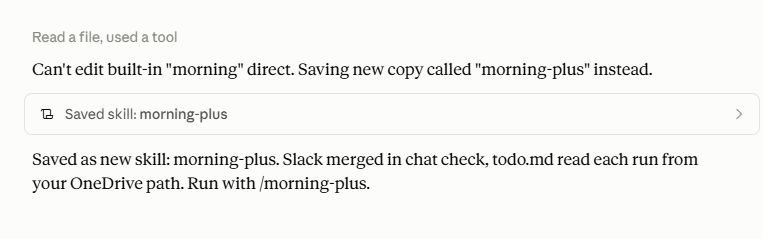
One of the first demos shown was to build a daily snapshot of what things need to be looked at and handled. The default in Claude is the /morning command. I ran this, looking to customize it, and Claude decided to create a new skill for me, based on this, which it named “morning-plus”.
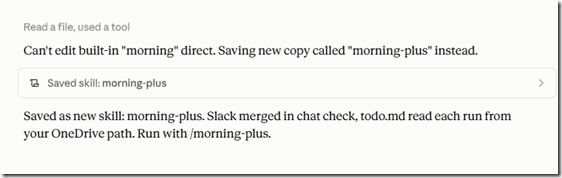
I had previously added the Microsoft 365 Connector, so the skill could read my email. That’s good, as this is a read-only view for me, and it’s local to my machine. I’m sure there is some security risk, but this is managed and limited by Redgate, so I’m assuming this is good enough for my work.
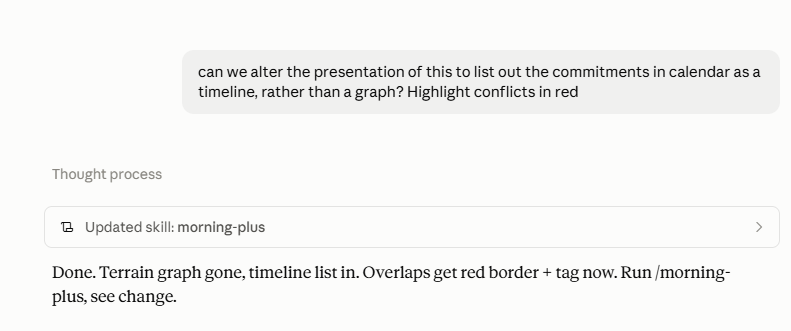
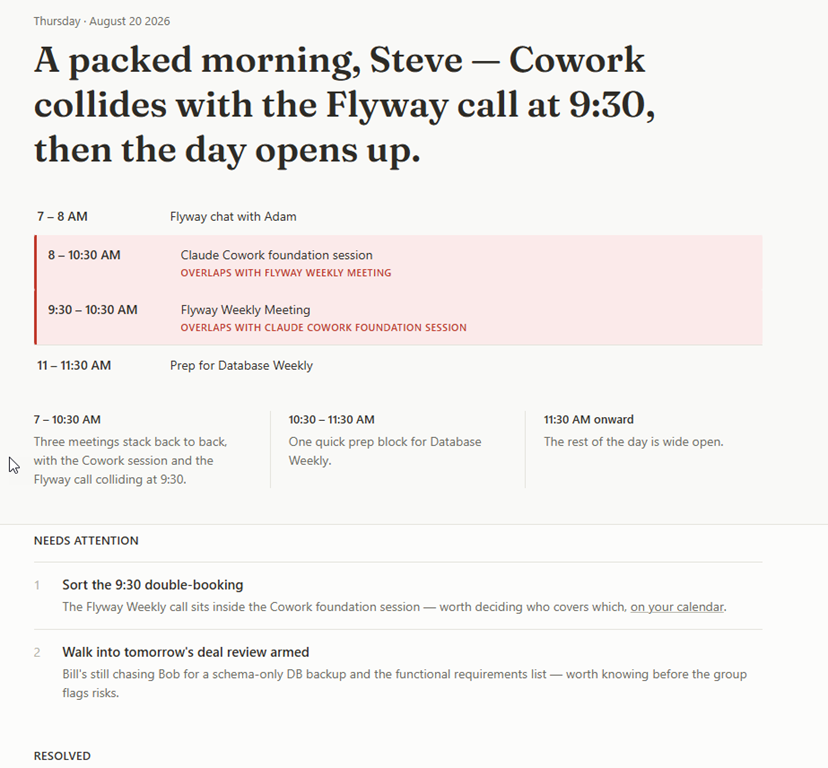
The next thing was to alter the view. I had a weird graph of lines that seemed to try and show the height of a graph implying the length of a meeting or a business of the day, but that’s not helpful. I decided to ask for a calendar list.
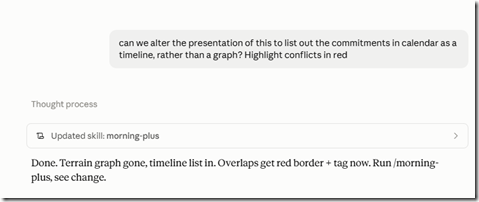
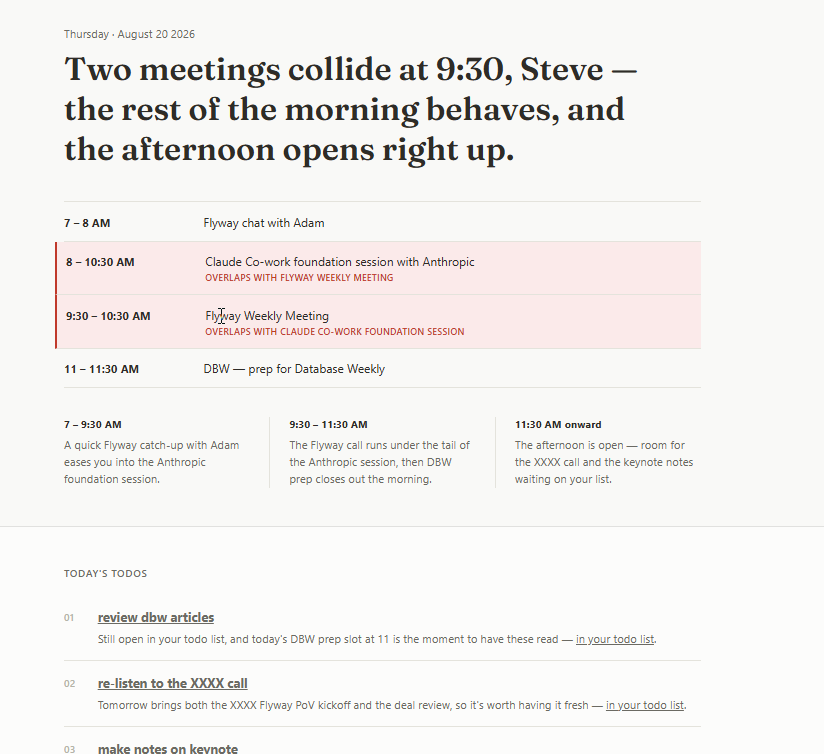
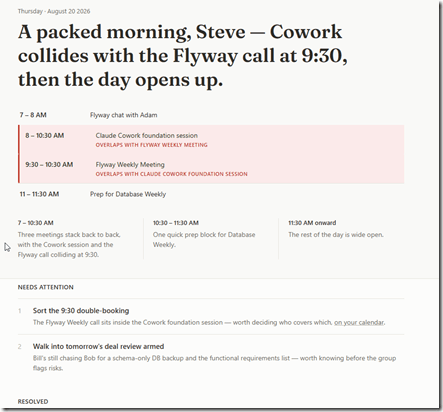
This gave me a nice look at my day, which is shown below:
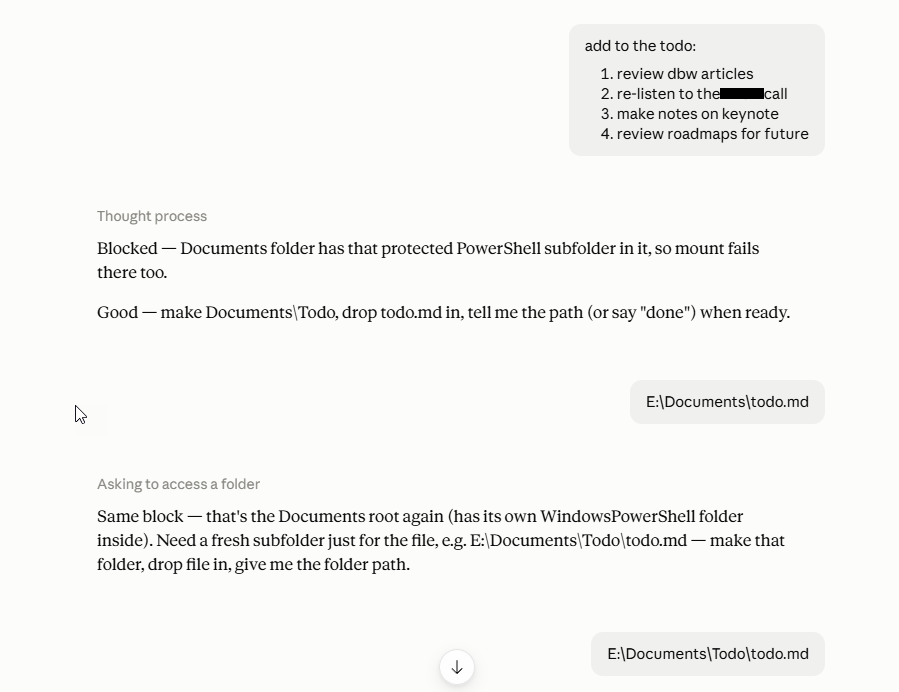
Another thing I wanted to do is keep an ongoing TODO list as I have various things that aren’t in my calendar. A bunch of these things are repeating or ongoing, but having a list helps me stay organized. I might need a way to order them, but for now I asked Claude to add this. It guided me to using a folder to store this, which is what I wanted.
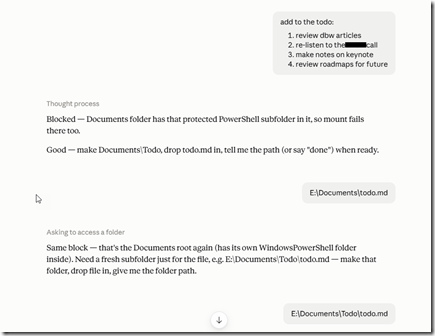
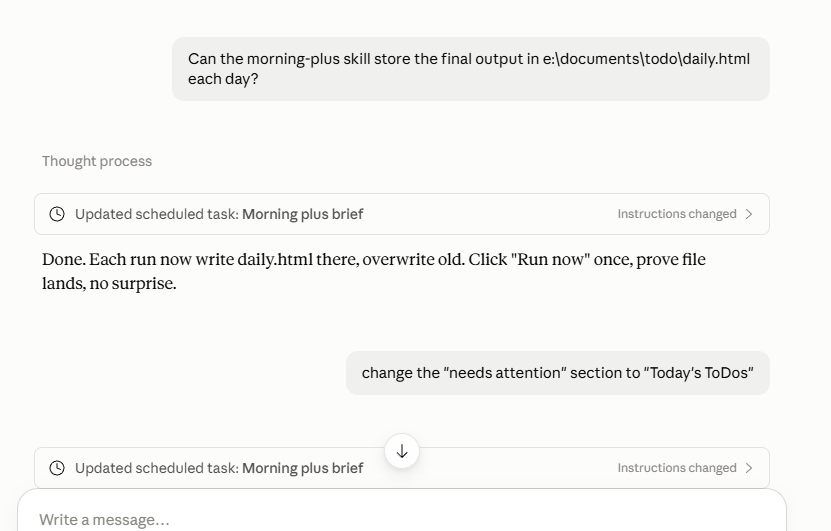
I also decided to keep the report here, as this helps me stay organized. I can keep the todo.md open in VSCode or elsewhere and edit as needed (or ask Claude). I like to do some editing myself, rather than waste tokens. If I have to type in a prompt, but not just edit the doc.
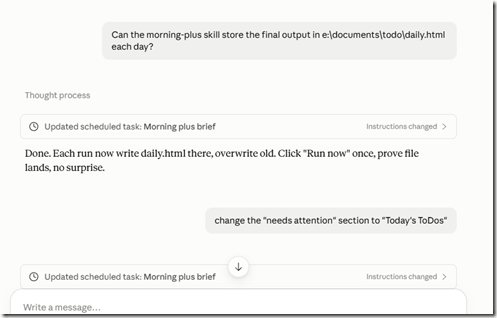
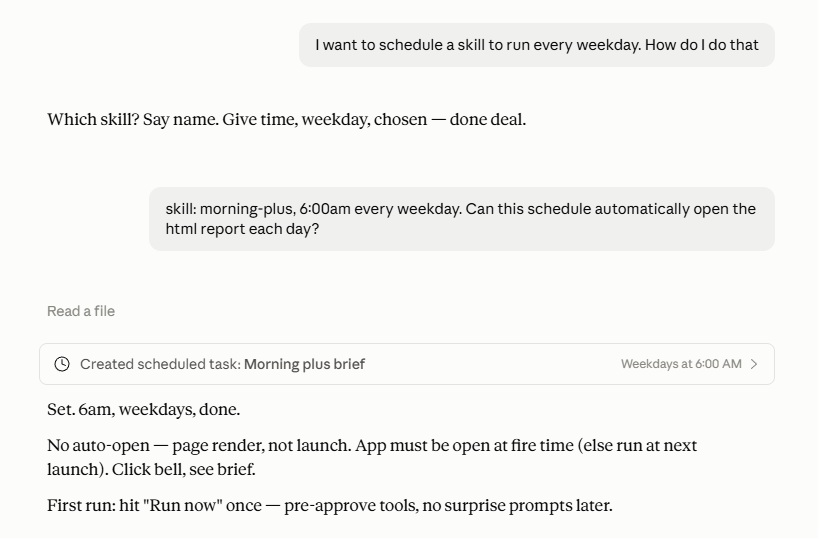
In the past I’d have tried to figure out how to schedule things. Here I just asked Claude. It did the work for me.
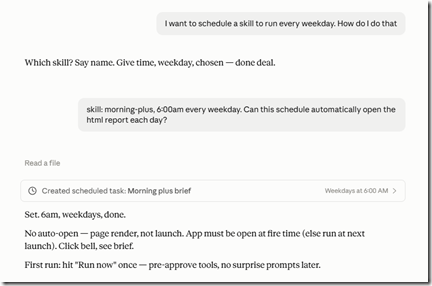
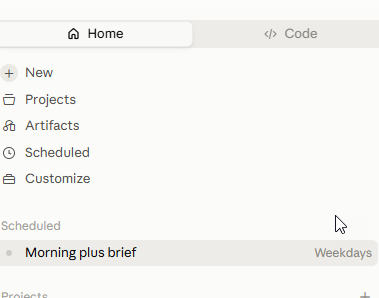
Once done, I have an item entered in my Scheduled area. This is a Claude thing, so Claude needs to run, which is fine. My desktop is running all the time.
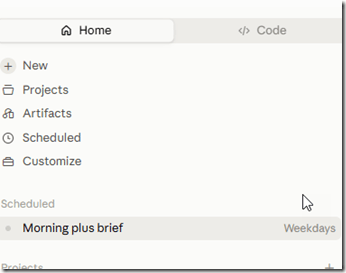
I clicked the item and selected Run Now from the menu that popped up. This ran and went through all the tasks and produced a report. It took a few minutes, maybe 5? It’s slow, but not a lot of stuff going on when this will run for me, so it’s not a big deal. The report:
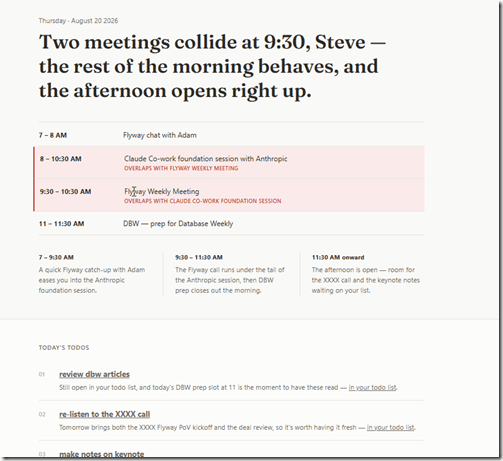
Not bad, but I also want to get anything from overnight that is important. I tend to look at Slack for mentions/links, so I added the Slack connector, which Redgate has authorized. This will let the agent scan for things that mention me and I can get a summary rather than searching through all folders.
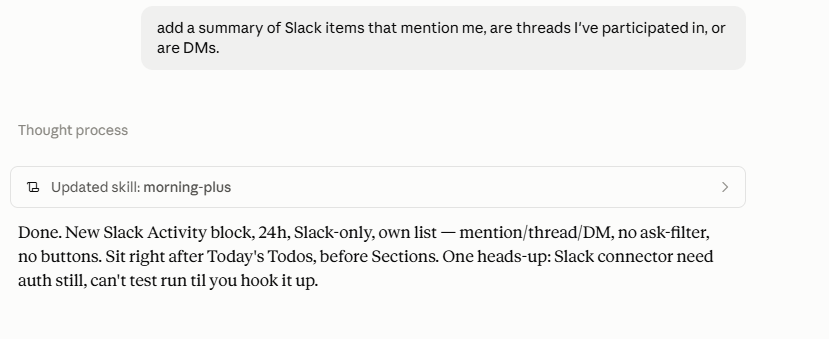
I added a prompt to help here, which is great.
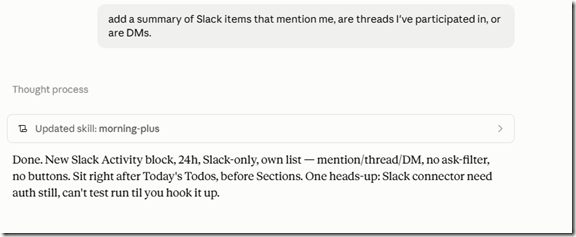
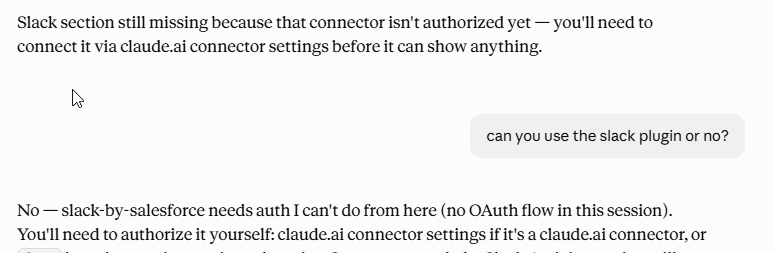
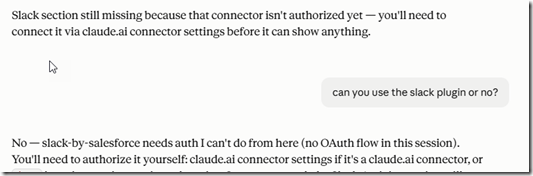
That didn’t work, and Claude explained why.

One note, each time I altered the skill, I had to approve the changes after Claude decided what to do. It’s a good idea, but the list of stuff it lists in a stream of text is too much to read, so I’m not sure how well this secures things.
I also have to re-approve a changed skill to access my e:xxx folder on each run. I guess it’s good, but in a practical sense, I’m going to just approve this.
The last thing I added was a Windows Scheduled task to run Edge and load this page. This was easy to do, and it will bring up a browser on my desktop that I can see when I log in. Now I can skip some of the checks I might do early in the am, knowing that I’ll get a view of my day when I get to my desk.
Summary
One of the interesting things the trainer noted was that when you start using a new tool, productivity can go down until you get the hang of it. This applies to many tools, but certainly Claude and AI chat/agents. It takes some time to see benefits, which is something I’ve noticed myself. Part of this is learning to use the tool, and part is deciding how you want to use the tool.
In my case, I was skeptical this was actually a useful thing. My days can be chaotic and crazy. However, I’m willing to give it a try. I am starting to have more and more things that I need to keep an eye on, and things that span more than a day. I use calendar reminders constantly, but there are a lot of moving parts here. Keeping a todo list is a start, though I likely need to add some dates or priorities. I’ll play with this over time.
The lack of Slack integration is annoying, but if I can keep other things organized, this will be helpful.
Is this helpful and worth it? I don’t know. This is an experiment on my part, which I’ll run for 3-4 weeks to see if this is helpful in tracking lots of disparate work. I certainly forget some things and then end up working late, or miss deadlines.
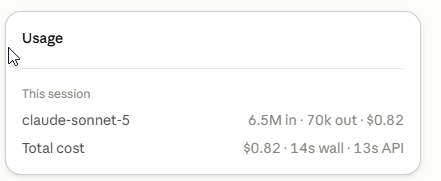
Is this worth the cost? Running a report costs $0.82 in its current iteration. Is it worth $1 to organize my day and prevent missed items? Perhaps. I’m not sure, but this is an experiment.
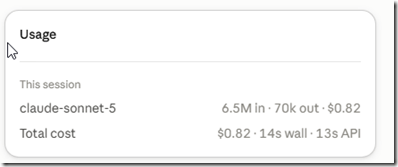
A small AI thing, but at $200 a year, this might be a nice productivity helper for me, partially to ensure work is done, and partially to reduce stress from the chaos of my life.