Tag: Azure Data Studio

  • Jupyter Book Challenges in ADS

    I was excited to try the Jupyter Book feature in the March Azure Data Studio (ADS) release. I’ve thought notebooks were an interesting way to teach and I’m looking to expand my use of them, especially now that SQL Prompt is (kind of) in there.

    I saw the new notebook icon in the sidebar when I restarted ADS.

    2020-03-23 15_48_05-Window

    If you put the cursor on the “Saved Books” line, you’ll see a few things. There is an “Open Book”, a collapse all, and an ellipsis there.

    2020-03-23 15_48_45-Window

    I didn’t have any books, and don’t see any “create” in the file menu, so I ended up clicking the ellipsis. Then I see a “Create”.

    2020-03-23 15_48_49-Window

    Clicking this opens a notebook with three parts. These are designed to help you create a Jupyter Book. There are:

    1. Installation
    2. Create a New Book
    3. Open Your Book!

    2020-03-23 15_52_09-Window

    I started with this and right away found issues.

    2020-03-23 15_29_54-Window

    What in the world is the f”xxx” thing?

    I wrestled with this a bit, trying to search for Jupyter Books, but most of the results are Jupyter Notebooks. Apparently Jupyter Books are new, and that should have helped. I did post a question at StackOverflow, and someone gave me the answer quickly.

    You need Python 3.6+. These are f strings, a new way of formatting, which I hadn’t heard of prior to this. I lightly use Python, and hadn’t upgraded since 3.5.3.

    OK, that’s another whole issue, but once I upgraded and fixed paths, this appeared to work. I first ran the jupyter-book install, and then created a demo book first to ensure things were working.

    I ran step 1 in the ADS notebook and it verified the Jupyter Book module was installed.

    Next I ran step two, which asks for a path for your notebook, which should be an empty folder or a new folder. I entered a new folder that doesn’t exist (e:\jbook). Next, I entered a folder where I have a few random notebooks. I also added a license file, since the Jupyter Book project suggests one. Here was the folder I added:

    2020-03-23 16_12_32-Window

    The cell appeared to run, but then I saw this:
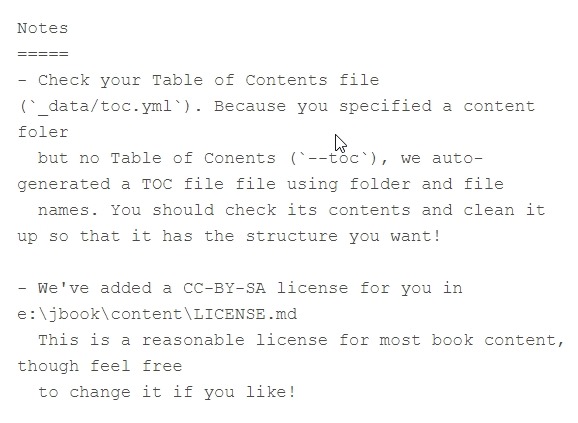
    2020-03-23 16_13_01-Window

    The license file is misnamed, which makes sense. However, I didn’t get a TOC, which I think means I need to have folders under my set of notebooks. I was thinking this book was a simple set, but maybe I need folders.

    I also didn’t create a TOC yaml file because a) I didn’t think I needed it and b) YAML is a PIA to work in. I don’t mind editing one, but creating from scratch is a mess.

    When I got to step 3 and opened my notebook, I got this:

    2020-03-23 16_07_39-Window

    An error down below, as I’m missing something. I’m not sure what, and I can’t open the book and see anything, but I produced something.

    I need to experiment more, so I’ll give this another try soon.

  • Charting in Azure Data Studio

    The March 2020 release of Azure Data Studio (ADS) includes a charting feature for SQL queries. This is a quick look at the feature, which I think will have some value for users.

    SQL Queries

    This has been available with SQL queries, but now it’s in notebooks as well.  If I run a basic query in ADS, I see something like this:

    2020-03-23 12_52_07-Window

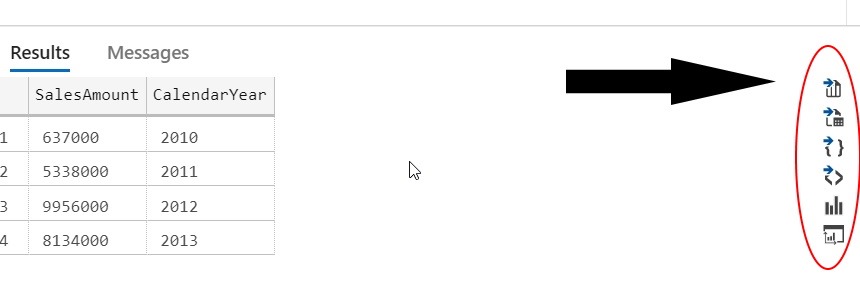
    I have a query and some results. These are numerical results that are easily graphed. However, in the results area, to the right, there are a few icons. I’ve added and arrow and oval in the image below to help you see them.

    2020-03-23 12_54_14-Window

    We have lots of options here for exporting results or visuals., The 5th one down is a chart icon. If I click that, I see this:

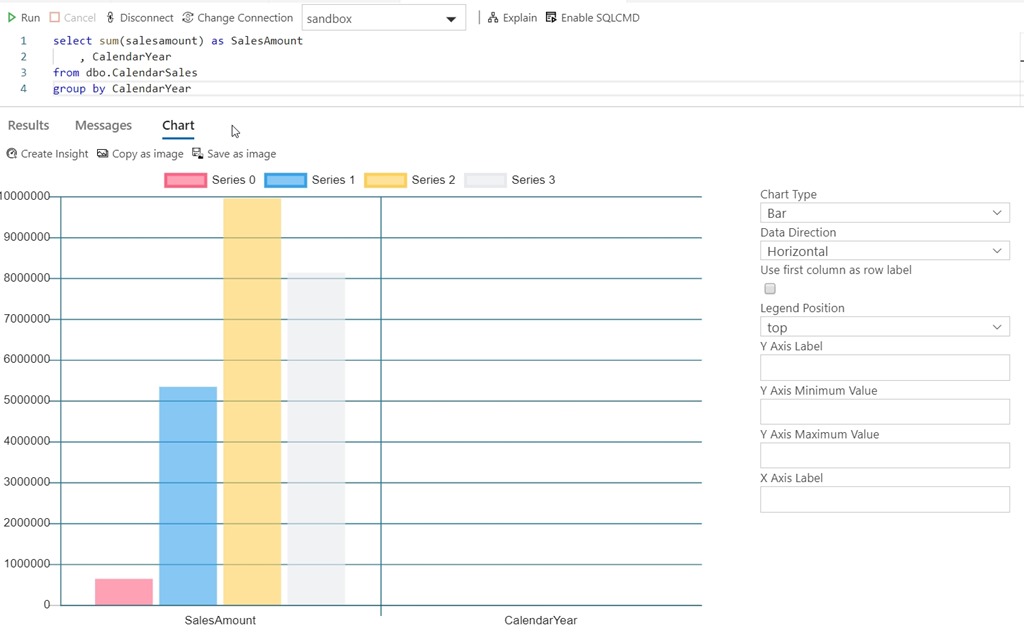
    2020-03-23 12_57_04-Window

    By default, a bar chart, but as you see on the right, there are lots of options. I’ll write more as I play with them a bit and get another ADS article at SQLServerCentral.

    Notebooks

    The charting experience comes to notebooks in a similar way. I can create a notebook and add a SQL cell. In there I have code and run it.

    2020-03-23 13_02_03-Window

    You can see the same icons here above the results. If I click the far right one (the chart), it changes to a chart.

    2020-03-23 13_02_40-Window

    If I save the notebook like this and reopen it, the chart is gone. The results are still there, as these are saved with the notebook, but the visual display is gone. I think this is fine, because the chart icon is there, but I wish the state was saved as I’d saved it.

    One note, once the chart appears, notice the right icon is now a table icon. Clicking it returns to the original view.

    This is a quick look at charting in ADS. I’ll do something more extensive at SSC soon.

  • A Quick Look at Travel

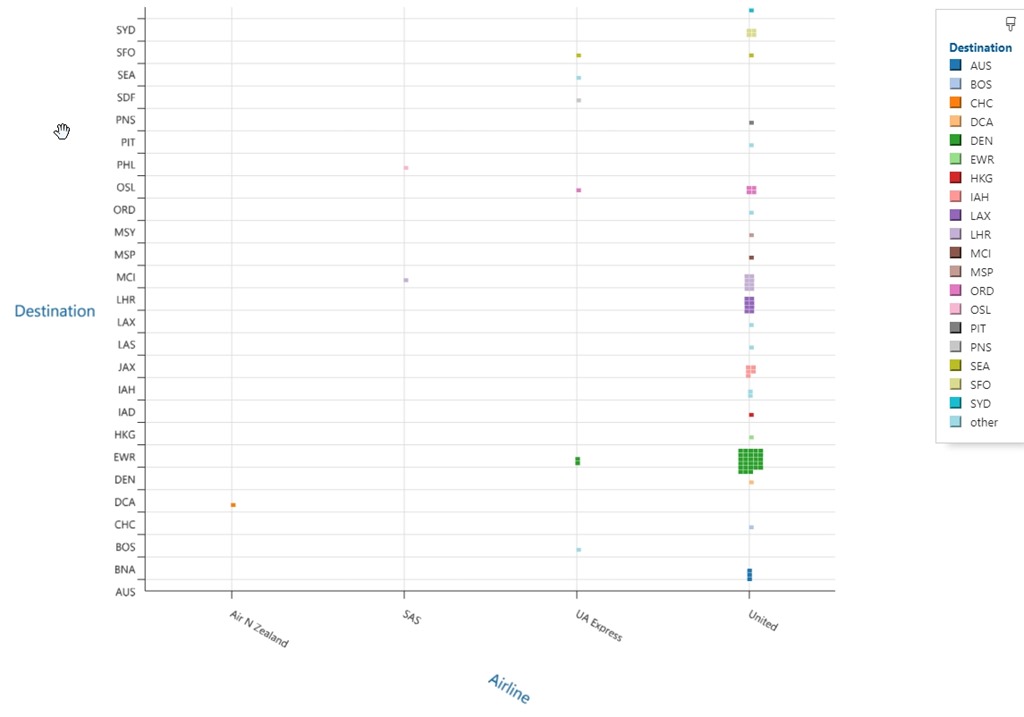
    I was experimenting with visualizations the other day, and started playing with SandDance, a tool from Microsoft that you can use in Power BI or Azure Data Studio. I’ll write more, but I loaded up a quick look at the last couple years of travel for me. Here are airlines v destinations:

    2019-11-25 16_02_17-SandDance_ unitedactivity.csv - Sample Data - Azure Data Studio

    Since I live in Denver, obviously that should be my top destination, but a few others are surprising. I go to London quite a bit, but LAX was surprising to me. It shouldn’t be, as I’ve flown through there quite a few times to get to London.

    I’ll write more about this later, but I thought this was an interesting visualization.

  • Powerhell Notebooks in ADS–A Minor Issue

    I heard about the addition of PoSh as a kernel for notebooks in Azure Data Studio. This is in the November 2019 release, and you can download/upgrade today to get the feature. I started ADS, let it download the update, and then ran the install.

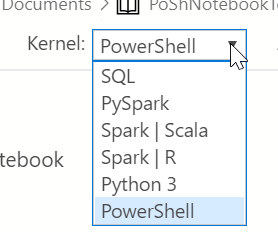
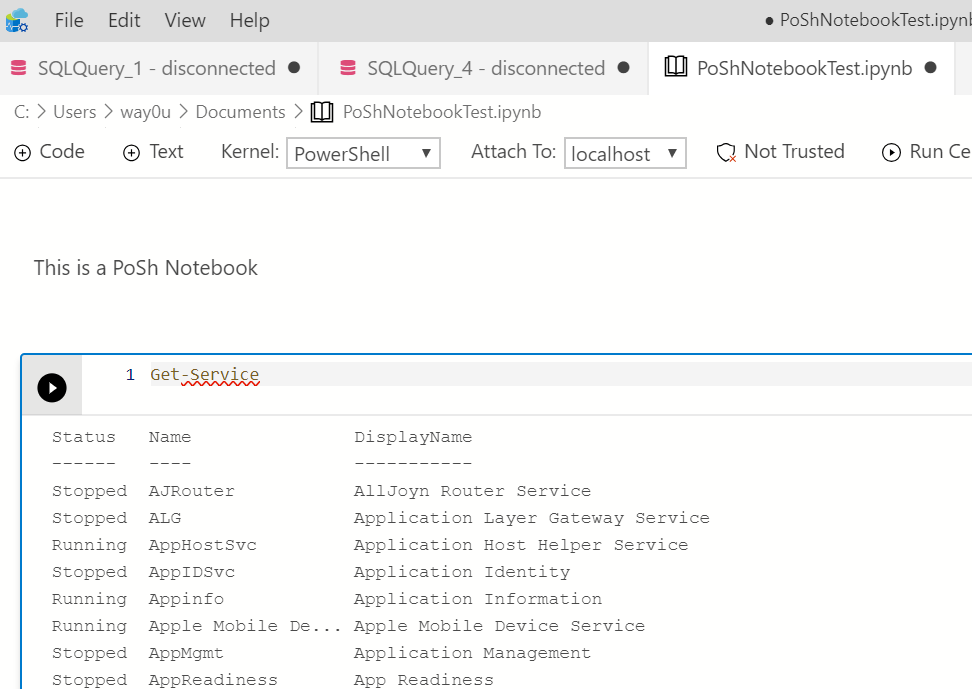
    As soon as ADS installed, I created a new notebook, and added a code cell. I saw Powershell in the kernel dropdown. Sweet!

    2019-11-05 15_32_11-● PoShNotebookTest.ipynb - Azure Data Studio

    I selected this dropdown and saw this:

    2019-11-05 15_05_22-● Notebook-0 - Azure Data Studio

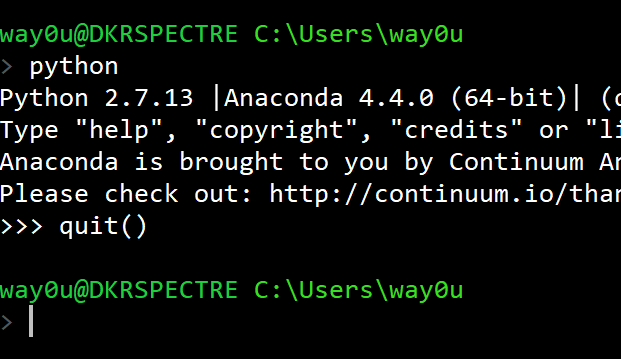
    Hmmm, maybe I picked the wrong one. I tried this again and got the same result. I checked, and I have Python installed, but apparently not a version compatible with ADS.

    2019-11-05 15_33_37-cmd

    I restarted ADS. Same thing.

    I restarted my computer; same thing. I saved the notebook, added other cells, did a few things and got the same result.

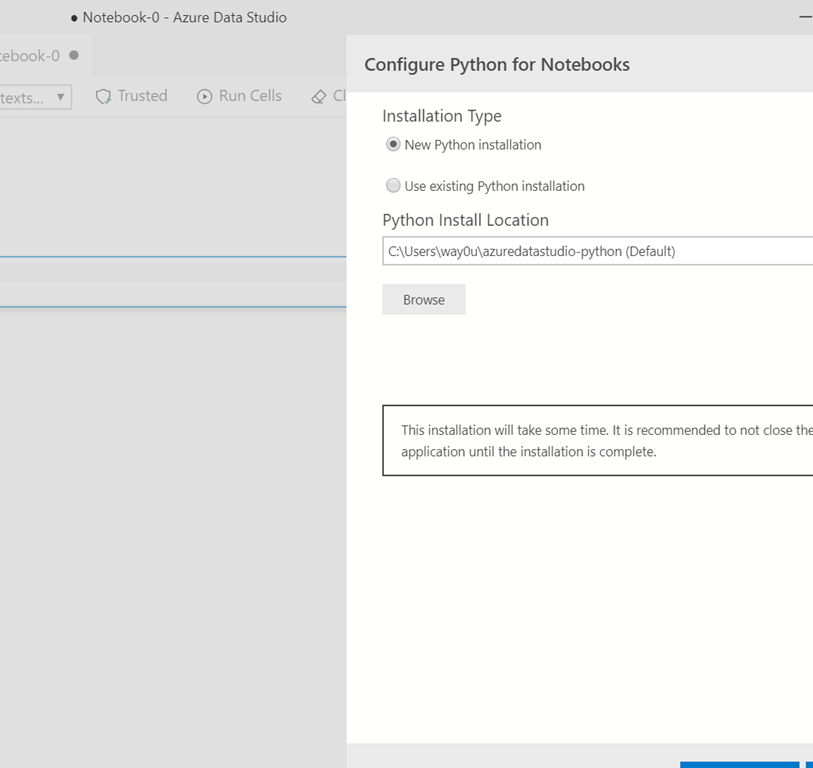
    At this point, I suspected that the developers of ADS had all installed Python as part of their core image for ADS. So I clicked “install Python”. Once this completed, which took awhile. Once this was complete, and the kernels reloaded, PowerShell notebooks work.

    2019-11-05 15_36_15-● PoShNotebookTest.ipynb - Azure Data Studio

    Aaron Nelson published a post about this, with more details on how to get the kernel working. To me, this is a bug, as the message should tell me Python is needed for the PoSh kernel.