Tag: Azure Data Studio

  • Launching ADS from SSMS

    If you haven’t heard, SSMS v18 went GA (Generally Availability) recently. You can download it from Microsoft, though if you have a preview version, you do need to uninstall that. You also have to reboot after install Sad smile

    There is one cool feature that’s easy to miss, and I wanted to point it out.

    Azure Data Studio

    I am warming to Azure Data Studio (ADS) as an editor. I like notebooks, and I’m hopeful SQL Prompt will come soon, but it’s a nice, lightweight editor. It’s based on Visual Studio Code, and I like some things, like version control.

    Others I find annoying, like the connection dialogs, the results display, trying to use the Object Explorer, and more. That means I am often still using SSMS as a primary tool to work with SQL Server.

    Switching between tools is sometimes a pain, but things got easier.

    SSMS Integration

    With SSMS v18, there’s a small item that you may easily miss. If I right click a database, I see this:

    2019-04-25 09_51_17-SQLQuery12.sql - 192.168.1.35.sandbox (sa (58))_ - Microsoft SQL Server Manageme

    I have the option to launch ADS with a new query or notebook. The connection context passes along, which is nice. I hate the connection dialog in ADS.

    If I click “New Query”, I see this:
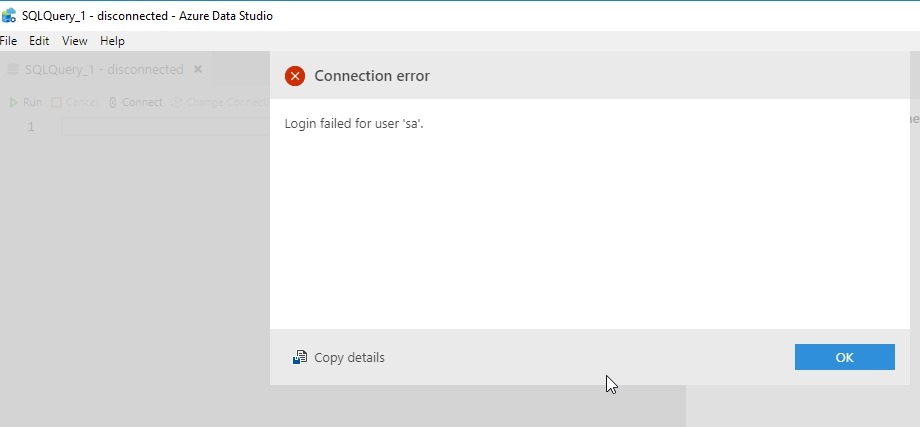
    2019-04-25 09_54_29-SQLQuery_1 - disconnected - Azure Data Studio

    Hmm, an error? No, this is actually good. The connection was SQL Auth to a Linux instance. I haven’t saved the password, so the current context can’t be passed. This is a new connection, and needs to authenticate. This is what I’d expect. When I click OK, I drop into the password box.

    2019-04-25 09_54_36-SQLQuery_1 - disconnected - Azure Data Studio

    Even if I’ve got a connection, if I go back to SSMS an open either a new query or notebook, I get the same result.

    If I have a Windows Auth connection, and I right click and choose New Query, I get this:

    2019-04-25 09_59_58-SQLQuery_1 - Plato_SQL2017.MLDemo (Integrated) - Azure Data Studio

    In this case, I was connected to Plato\SQL2017 as the instance and right clicked the MLDemo database. I also had ADS closed, with the notebook tab open when it closed. ADS restored my tab and then connected to the new database.

    A little thing, but a handy one that I expect more people will use over time.
  • Flipping Sides in SQL Operations Studio

    I’ve been starting to use SQL Operations Studio (SOS) a bit more. This is a small, lightweight editor that is based on Visual Studio Code. It’s fairly limited, though it’s still in preview. You can download it and give it a try.

    One of the things that I like is a consistent UI when writing code. I often hide the OE in SSMS, but I don’t want code moving left and right when I’m working with it. That can be a little jarring.

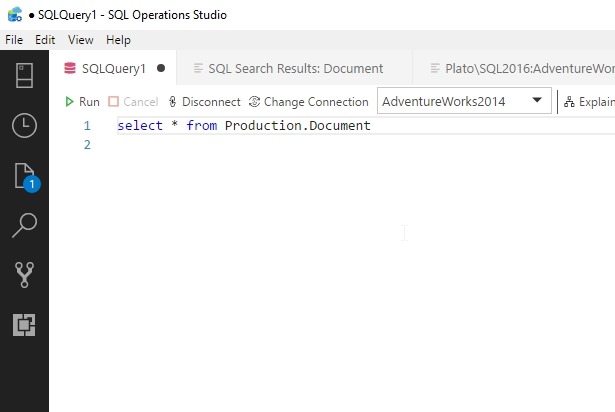
    When working in SOS, I usually start with a query, and no blades (panes?) open. My workspace looks like this.

    2018-07-09 20_02_47-● SQLQuery1 - SQL Operations Studio

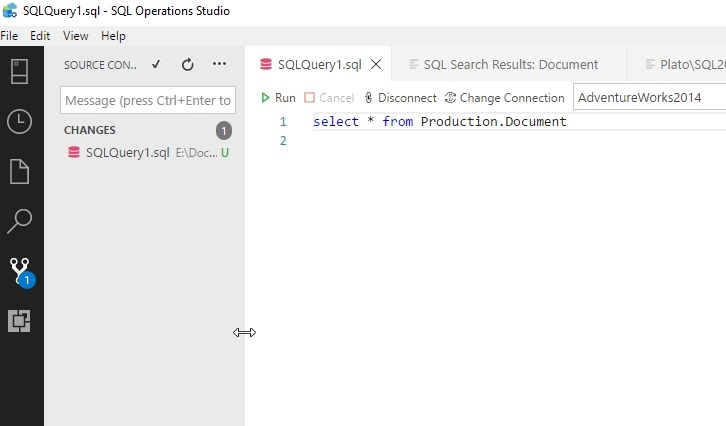
    If I need to commit to version control, I’ll click that button, but then my code moves. (I’m really not committing this query. It’s just an example.

    2018-07-09 20_04_12-SQLQuery1.sql - SQL Operations Studio

    The process is just a little distracting to me, especially if I make the pane wider to more easily see the Object Explorer or file list. I didn’t like this in Visual Studio Code when writing PoSh or Python, and I don’t like it here.

    Switching Sides

    Someone on Twitter posted a couple neat tricks, one of which was moving the panes to the right side. I know some panes in SOS, like the connection one, are always over there, but you can move the main panes.

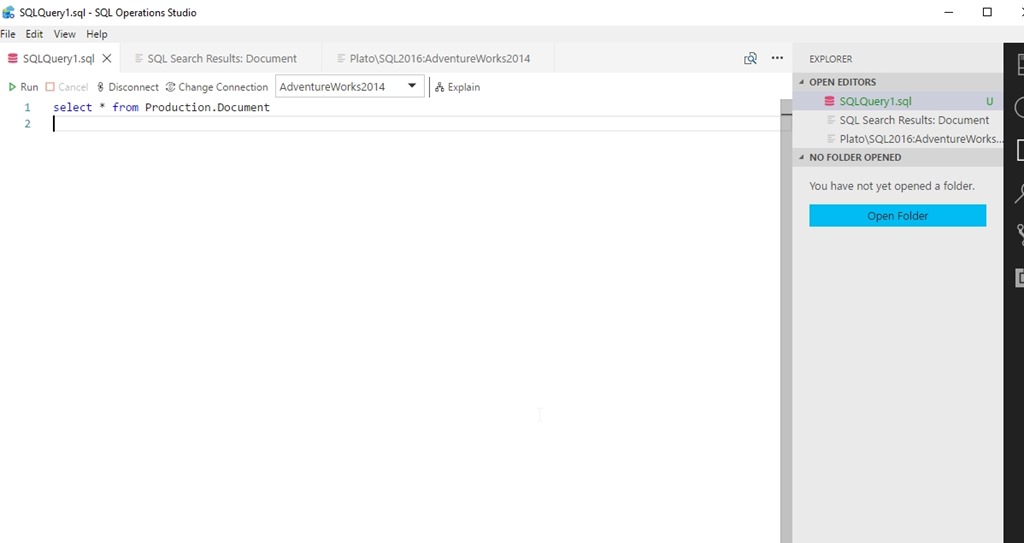
    I’m surprised I didn’t see it, but I really never even thought about this being an option. I was just annoyed.  If I’d looked in the View menu, I’d see “Move side bar right”. If I do that, I get this.

    2018-07-09 20_10_49-SQLQuery1.sql - SQL Operations Studio

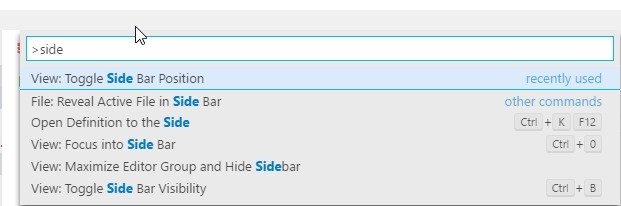
    I could also fine this in the command palette

    2018-07-09 20_11_25-SQLQuery1.sql - SQL Operations StudioThe other cool trick doesn’t do much in SOS yet, but it works in Visual Studio Code. I’ll show it there.

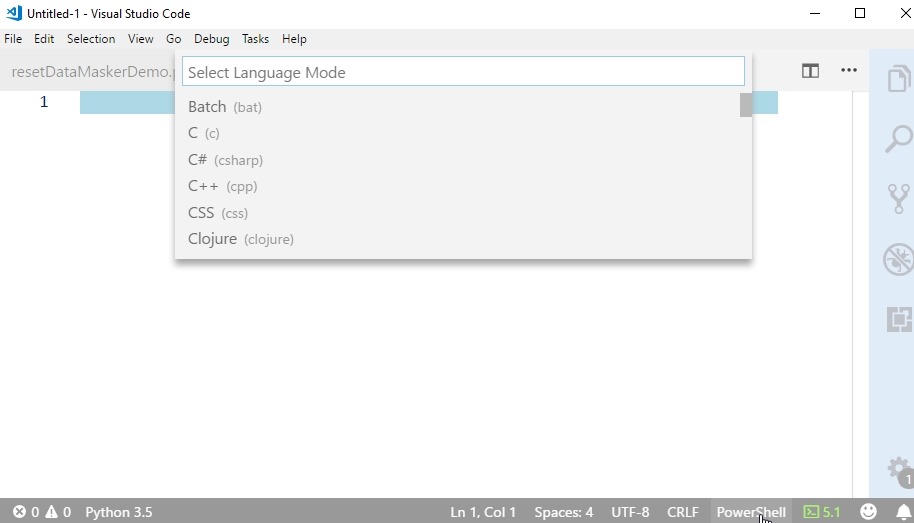
    If I create a new file, VSCode doesn’t know what I’m doing. About half the time I’m writing Python, but I don’t get any of the intellisense or other features unless I save the file and give it a type.

    The other option, is to click the language name in the lower right corner. In the image, I’ve clicked the “PowerShell” and this opens a list of languages. Type “py” and get Python.

    2018-07-09 20_13_17-Untitled-1 - Visual Studio Code

    Cool tricks. I expect that over time SOS will have more than just the “mssql” is has now. I’d expect MySQL, PL/SQL, and more.

    .