Tag: Azure

  • Create a SQL Azure Database–Old Portal

    Another post for me that is simple and hopefully serves as an example for people trying to get blogging as #SQLNewBloggers.

    I worry about beta software, so when I wanted to create a new Azure database, I stuck with the old portal. Call me nervous, but the new portal worries me at times. It works, but since the default is the old one, I often use that one.

    You can use either, but here I’ll show you how to create a database with the old (which will be gone someday) portal.  It’s simple and easy, and this only takes a few minutes.

    Creating a Database

    Here’s the “old” portal. I wish it had a major version number, because that’s what it needs.
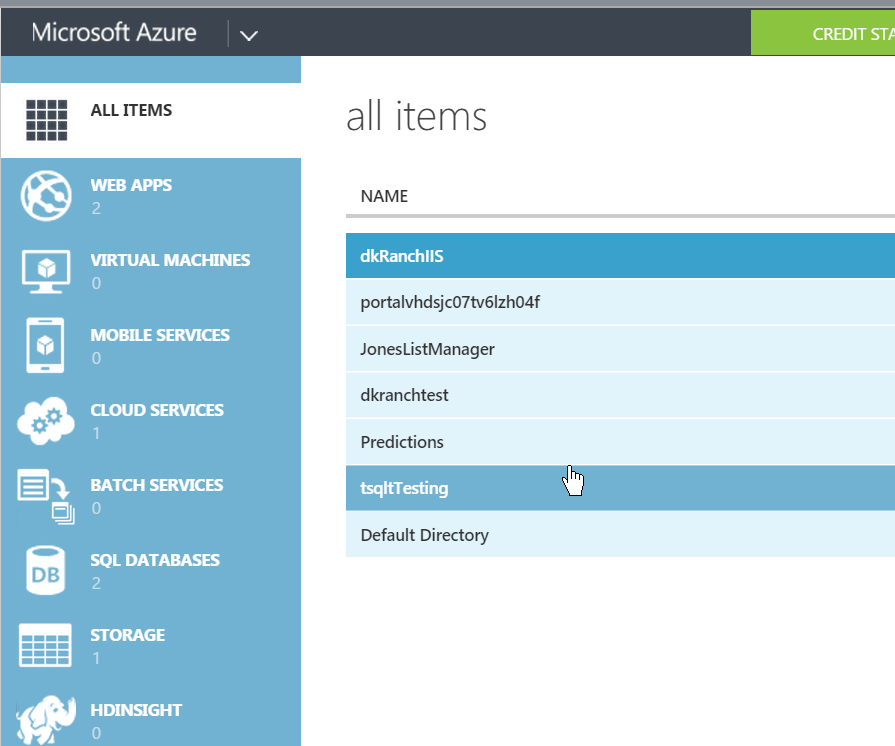
    2015-08-14 13_36_27-Movies & TV

    I’ve got a few things running here. In the lower left corner is a “New” button, which I can pick. When I do, I choose Data Services and get this.
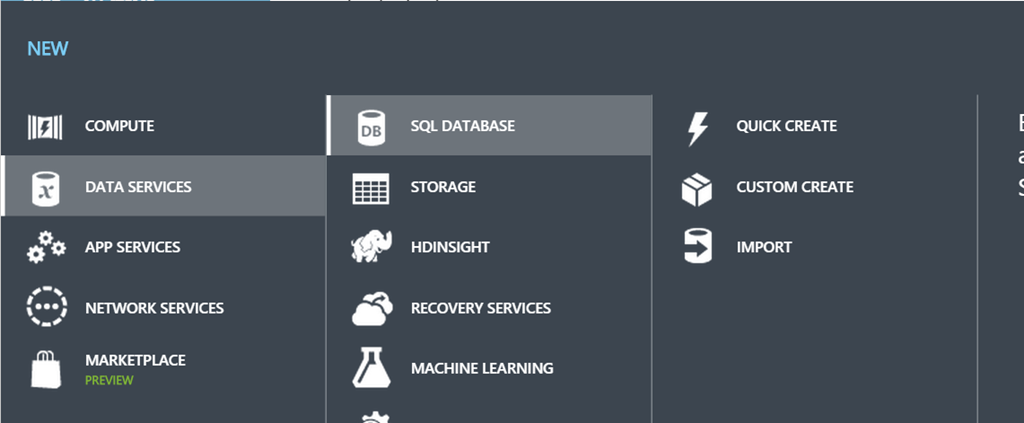
    2015-08-14 13_36_42-SQL Databases - Microsoft Azure

    I select SQL Database and then click “Custom.” You could click quick create, but I wanted to show more options. There aren’t a lot, but you can put in a few.

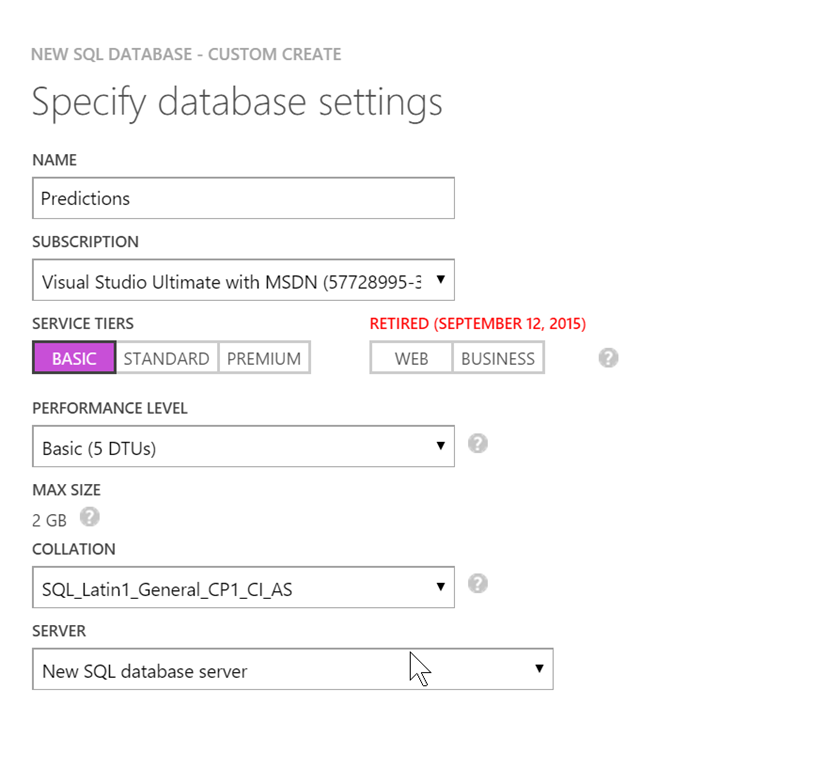
    You get the settings page. The first thing you need is a database name. You can pick your subscription as well as the size of the system. Be aware of charges when you pick sizes. S0 is not cheap.
    2015-08-14 12_21_27-SQL Databases - Microsoft Azure

    I had an existing server, so I used that, but the system will create one for you if you need it. This is really the name you connect to, so if you care, create one first and then use it here.

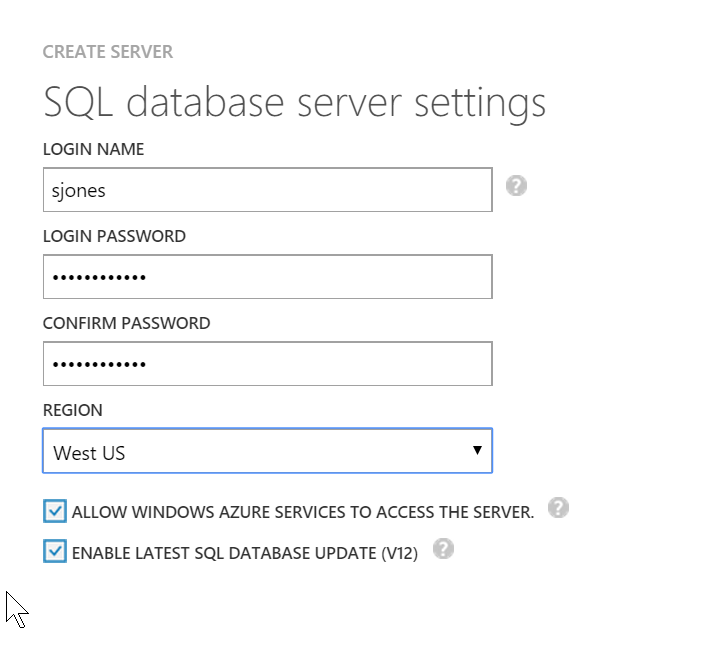
    The next screen is really for the main admin account. Enter a decent password and save it. You can reset this form the portal once it’s up, so don’t be too concerned, but build good habits. Don’t use the same password everywhere and use a password manager so you pick strong ones.
    2015-08-14 12_22_28-Store

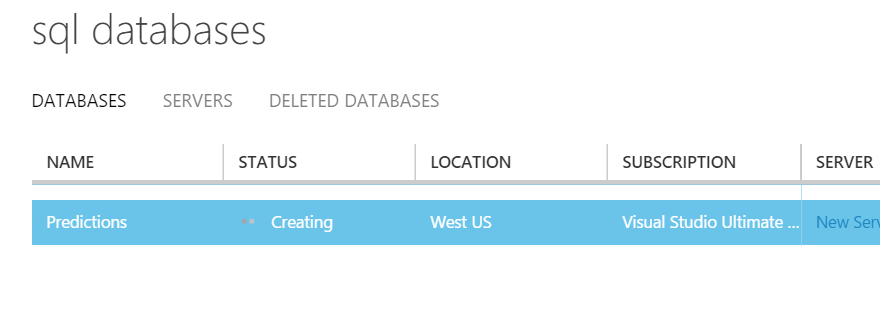
    Once that’s done, create the database. It will take a little time, but you’ll see a moving “Creating” item in the status. There’s no percentage, but I think it was about 3-4 minutes for me one afternoon.
    2015-08-14 12_22_39-SQL Databases - Microsoft Azure

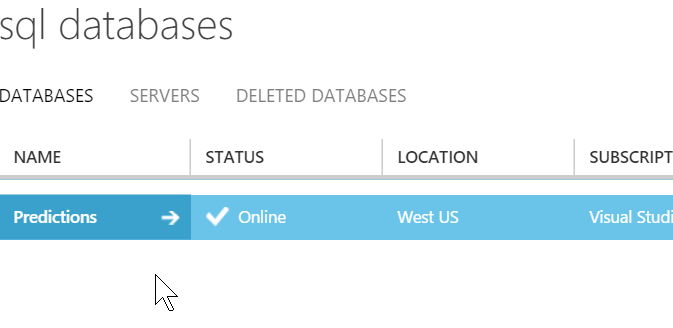
    Once it’s done, the database list will show you the database as online.
    2015-08-14 12_28_16-Store

    If you go to the dashboard, you’ll see  a number of items listed.
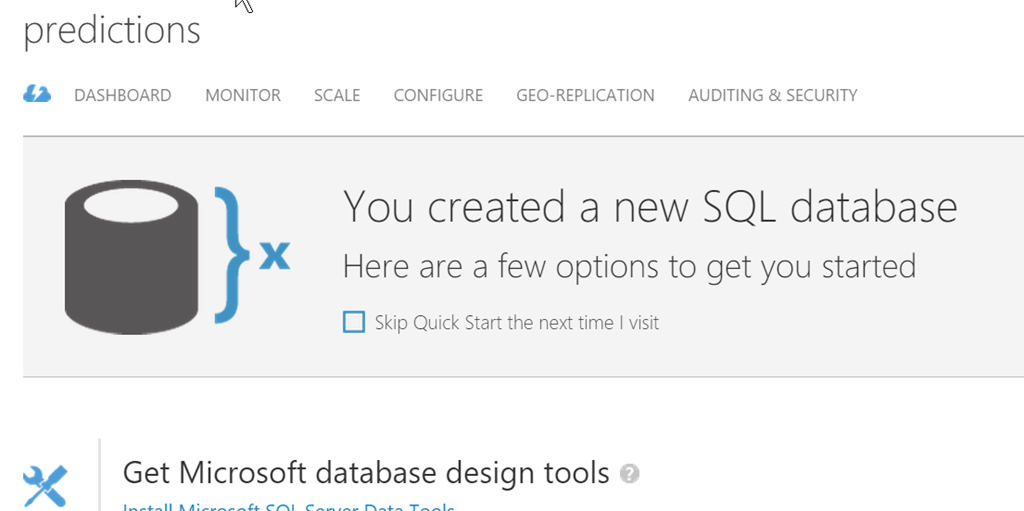
    2015-08-14 12_28_47-Greenshot capture form

    Scrolling down, you might see the important item that you care about. How to connect. The server is listed, and if you’re using an app with ADO, PHP, OLEDB, etc, you can click the link and get the strings you will use.

    2015-08-14 12_29_01-SQL Databases - Microsoft Azure

    That’s it. Simple, easy, and ready for you to use.

    SQLNewBlogger

    I was actually working on something in the new portal and wanted to go back to the old portal to see how things worked. As I waited for the main screen to refresh, I though, hey, write a post.

    So I captured screen shots. It took maybe 10-15 minutes to type this up.

    References

    None used.
  • Azure SQL Database – Link User to Login

    I’m writing this post as a way to help motivate the #SQLNewBloggers out there. Read the bottom for a few notes on structuring a post.

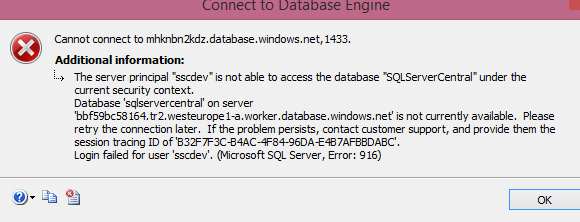
    I created a login for an Azure SQL Database, but couldn’t log in. I would get this message, which makes perfect sense.

    2015-06-23 14_52_41-Connect to Database Engine

    Just like an on-premises instance, I need to link a user to the login for access. However, unlike an on-premises SQL Server, I can’t willy-nilly change databases. If I do this:

    Use SQLServerCentral GO

    I’ll get this message.

    2015-06-23 15_00_31-SQLQuery3.sql - mhknbn2kdz.database.windows.net,1433.SQLServerCentral (jt (58))_

    I can’t switch, I need to reconnect. In this case, I use the same login (an admin level) and reconnect to a different database. This certainly can make scripts more cumbersome, and imply that your work, whether through T-SQL or PoSh, needs to include the connection strings for the correct database. In fact, I might recommend PoSh over SSMS for this reason.

    Once I’ve connected, I can use standard commands. In this case, I’ll use this code:

    add user to SQLServerCentral database connect to database CREATE USER sscdev FROM LOGIN sscdev; add a role for ddl admin EXEC sp_addrolemember db_ddladmin, sscdev;

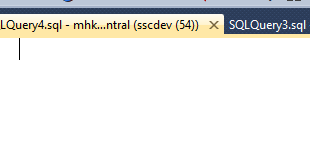
    Now when I click connect with my user, I see this:

    2015-06-23 15_02_22-SQLQuery4.sql - mhknbn2kdz.database.windows.net,1433.sqlservercentral (sscdev (5

    Just what I need.

    SQLNewBlogger

    This was a second post as part of the previous one. I was adding a user and login as part of a bit of work and when it didn’t work, I captured screen shots and split this part from the last one.

    Five minutes writing this one, probably no more than five minutes slower in running the code to capture the images.

    You can do this.

    References

  • Azure SQL Database – Adding a Login

    I’m writing this post as a way to help motivate the #SQLNewBloggers out there. Read the bottom for a few notes on structuring a post.

    I am trying to slowly do a little work in the Azure SQL Database world, building some skills that I can use, and I can teach you a bit more about. One of the things I needed to do lately was add a new login to my system, which isn’t intuitive in the portal.

    I did go to the Managing Databases and Logins in Azure SQL Database to get some help, but it wasn’t completely clear how to do this.

    I setup a database recently for a test project, but I wanted a different user for this database than others I have on this particular Azure SQL Server. I am using the new (2015) portal, and there didn’t seem to be a good way to add a new login, so I connected to do this in SQL. The reference below showed me the standard “CREATE LOGIN” statement I’d use with an on-premise instance, so I tried to run that.

    CREATE LOGIN sscqa WITH PASSWORD = mypwd; GO

    I got this:

    2015-06-23 14_45_19-SQLQuery3.sql - mhknbn2kdz.database.windows.net,1433.AdventureWorks2012 (sjones

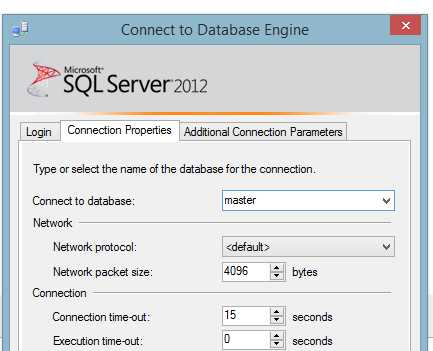
    OK, no issues. I changed the connection to the use the master database. I used the options after clicking the “Change Connection” button and put in master.

    2015-06-23 14_47_06-SQLQuery3.sql - mhknbn2kdz.database.windows.net,1433.AdventureWorks2012 (sjones

    I connected and ran the code to get this:

    2015-06-23 14_47_30-SQLQuery3.sql - mhknbn2kdz.database.windows.net,1433.master (sjones (63))_ - Mic

    I needed to not only change my database user connection, but also use the admin user I have. In this case, it’s the jt user I inherited from Jamie Thomson as part of the Hosted AdventureWorks project he started.

    Once I did that, the login was created without an issue. Now I need to link it to a user.

    SQLNewBlogger

    This took about 5 minutes to write, and 5 minute to reshoot some screen shots. The rest was really the 20 minutes I spent mucking around, researching, and reading how to do this. Hopefully this is quicker for me, and you, if you have this need.

    Anyone could write this, and I’d encourage you to write your own stories about working with an Azure database if you want to learn about the topic.

    Reference

  • Load Balanced IIS Machines

    I noticed a contest this week while working on the Database Weekly newsletter. It’s the Cloud Hero contest, with the chance to win a Surface Pro 3. I could always use another device, or at least a device I could give away, so I decided to enter.

    There are a few things you can do, all of which are interesting to me in terms of a direction that I, and Red Gate, want to move. I don’t know if Azure works everywhere, but we are considering moving SQLServerCentral, or perhaps parts of it, to Azure, so this was a good chance for me to try out some new Azure stuff.

    I’ve messed with a few things in Azure, but mostly on the PaaS side. That interests me more, and I’ve done little with IaaS. I certainly haven’t really worked with IIS much in Azure. I decided to go through the VM setup, to create two IIS machines, load balanced on the same URL. I used this blog post with a cartoon and demo to run through the process.

    It was a bit more than 10 minutes, mostly because some of the allocation stuff in Azure took time, and the responsiveness from the VM in Azure was slow. From the time I connected to the time Server Manager popped up was over two minutes for each machine. Since I was going through some of the steps sequentially, that meant it was slow to get going.

    The video and the portal bring to light some of the issues of Azure. It’s a great tutorial and I was able to get the two machines load balancing IIS in 20 minutes (or less). It was surprised how quickly it went, but I also had to stop and think. The load balancing and cloud services are different now than they were when the post was written.

    I’m sure that’s the case with lots of Azure content. In some sense, this means that we will have lots of issues with people trying to learn how to use Azure as they’ll find content and information that is woefully out of date, sometimes quickly. I wonder if we need to think about having some code on blogs for Azure that marks the content as potentially out of date after it’s been out for 6 months.

    It’s a challenge to keep the content up to date, and luckily the changes weren’t too different in the portal.

    I am glad that I was able to get to IIS machines up and load balanced, delete them, and bring them back. That makes me think I may find some use for this Azure stuff, yet. I have a few projects in mind, including rebooting my personal site. Perhaps Azure will be the place I give it a go.