Tag: Data Generator

  • SQL Data Generator–Getting a value based on another column

    This is a series on SQL Data Generator, covering some interesting scenarios I’ve run into. If you’ve never tried it, SQL Data Generator is a part of the SQL Toolbelt. Give it a try today with an evaluation today.

    One of the things that people often want to do is generate data, but limit the generation to some data in another column. Here’s a good example. Let’s suppose I have some data that represents a balance in an account. That’s in a column we’ll call Balance. In another column, I have a status that is either OK or Overdrawn, depending on whether the Balance column is positive or negative.

    If I perform a random generation on these columns, I’ll get some strange data. Sometimes the data below matches up, sometimes it doesn’t. I have positive numbers as Overdrawn and negatives as OK

    2017-10-05 10_51_08-SQL Data Generator - New project _

    Let’s fix that.

    In Data Generator, I have a variety of choices for the generators. Let’s look at what I can do for the Status column.

    2017-10-05 10_52_27-SQL Data Generator - New project _

    Certainly there are RegEx and Python scripts, but there’s a nice “Cross Column” section with some examples. In this case, let’s look at the Age in Years generator. The definition is:

    2017-10-05 10_53_11-SQL Data Generator - New project _

    In this case, it’s a simple .NET date function and some math. I can do that. Most importantly, I can see the “Insert Column Name”, which lets me pick another column in my table.

    Python

    The language of choice in SQL Data Generator is Python, specifically Iron Python. Outside of C# Datatime values, Python is needed. If you examine any of the other cross column items, you’ll see we need a main() function that returns something.

    In this case, it’s a simple expression. I’ll use an If statement to check if the Balance is >= 0. Here’s a Python construct.

    def main(config):
         if Balance >= 0:
             return “OK”
         else:
             return “Overdrawn”

    Whitespace matters, as does indentation. If I put this in like so:

    2017-10-05 10_57_57-SQL Data Generator - New project _

    I’ll get this. Notice that the status is correct.

    2017-10-05 10_58_05-SQL Data Generator - New project _

    In a real project, you may have more complicated logic, or more likely, status values. One way to handle those is to use a Python function and return the appropriate values for your system.

    You can build some complex and interesting data generation projects with SQL Data Generator. Give it a try today.

  • Getting the Random Module in SQL Data Generator

    This is a series on SQL Data Generator, covering some interesting scenarios I’ve run into. If you’ve never tried it, SQL Data Generator is a part of the SQL Toolbelt. Give it a try today with an evaluation today.

    I have SQL Data Generator, and use it regularly to build quick  test data in non-trivial scenarios. One of the things I ran into recently was a minor bug, but one that’s been logged. Hopefully you won’t need this, but in case you do.

    I was trying to use a Python script and return a random value from a list. My code was:

    return random.choice(mylist)

    This gave me an error.

    2017-10-05 11_02_09-SQL Data Generator - New project _

    No biggie, I’ll add “import random” to the top of the script. That didn’t help. Apparently the distro with SQL Data Generator is missing the random module for some reason.

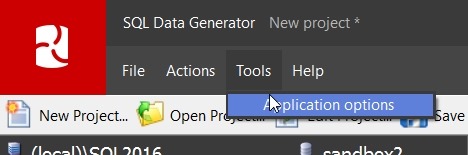
    Fortunately, I have Python 2.7 on my system. I clicked “Tools” and “Application Options” in SQL Data Generator.

    2017-10-05 11_00_47-SQL Data Generator - New project _

    This gave me a dialog. On the General tab, there’s a “Python” section. I added the path to my Python lib folder in here.

    2017-10-05 11_01_00-Application Options

    That worked fine. I didn’t need to import random; it was available. My script now worked.

  • Compound FKs with SQL Data Generator

    This is a series on SQL Data Generator, covering some interesting scenarios I’ve run into. If you’ve never tried it, SQL Data Generator is a part of the SQL Toolbelt. Give it a try today with an evaluation today.

    A person was wondering about how data is generated with SQL Data Generator and foreign keys. In this case, the person was having an issue with a compound foreign key.

    Here’s a quick look at how this works. I’ve got two tables

    CREATE TABLE Product
    (   ProductCode VARCHAR(30) PRIMARY KEY
       , ProductDesc VARCHAR(100))
    ;
    CREATE TABLE SubProduct
    (   SubProductCode VARCHAR(30)
       , ProductCode    VARCHAR(30)
       , SubProductDesc VARCHAR(100)
       , CONSTRAINT SubProductCodePK PRIMARY KEY (ProductCode, SubProductCode)
    );
    ALTER TABLE dbo.SubProduct
    ADD
         CONSTRAINT fk_SubProduct_ProductCode FOREIGN KEY (ProductCode)
                          REFERENCES dbo.Product (ProductCode)
    ;
    GO

    These two tables are related with a FK. In this case, SubProduct relates to Product, but there is a constraint that says I can’t have duplicate product/subproduct combinations. That’s fine, and my data looks like this:

    2017-09-27 12_58_04-SQLQuery1.sql - (local)_SQL2016.sandbox (PLATO_Steve (63))_ - Microsoft SQL Serv

    Now, I have a new table, this one contains a FK back to the other tables. In fact, I have two FKs, though I could deal with one.

    ALTER TABLE dbo.SubProduct
    ADD
         CONSTRAINT fk_OrderItems_ProductCode FOREIGN KEY (ProductCode) REFERENCES dbo.Product
                                              (   ProductCode)
    ;
    ALTER TABLE OrderItems
    ADD
         CONSTRAINT fk_OrderItems_SubProductCode_within_ProductCode FOREIGN KEY
                                                                 (
                                                                     ProductCode
                                                                   , SubProductCode) REFERENCES dbo.SubProduct
                                                                 (
                                                                     ProductCode
                                                                   , SubProductCode)
    ;

    This FK is compound, consistenting of both ProductCode and SubProductCode. What does this mean? It means I can’t have an entry in OrderItems for a SubProductCode unless that SubProductCode has a matching ProductCode in the SubProduct table.

    Or, in better English, If I have a Product Code of “RXZP”, of which I have 2 above, I can’t have a SubProductCode of “BA”, which isn’t in the table. I’ve constrained my SubProductCodes to those values that are available for a particular ProductCode. In this case, my only SubProductCode choices are “TJ” and “TW”.

    A good data consistency model.

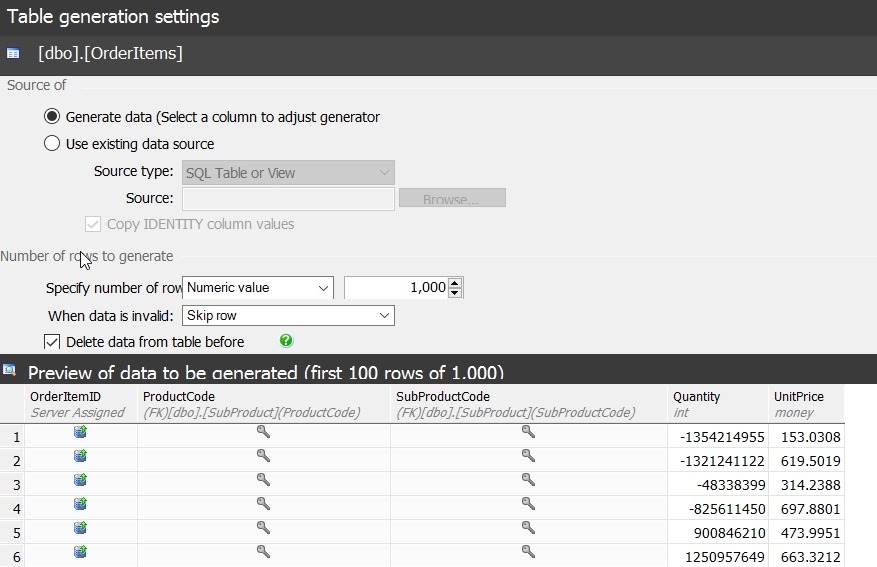
    In Data Generator, this DRI is picked up. If I look at the generation for the OrderItems table, I see that both ProductCode and SubProductCode are listed as FK values.

    2017-09-27 13_10_49-SQL Data Generator - datagen_fk.sqlgen _

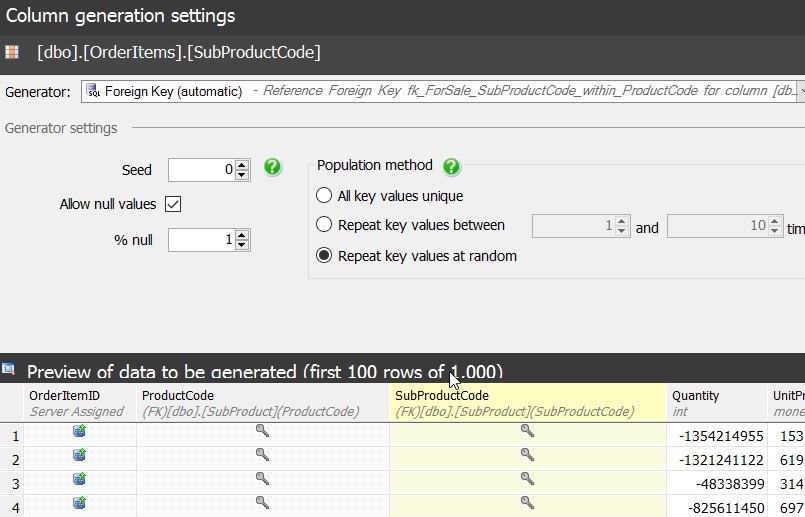
    That’s good, but I have two FKs on OrderItems. Which one is important? In this case, I can click the column and see. For ProductCode, it’s using the compound FK.

    2017-09-27 13_11_41-SQL Data Generator - datagen_fk.sqlgen _

    The same thing appears for the SubProductCode

    2017-09-27 13_11_47-SQL Data Generator - datagen_fk.sqlgen _

    If I generate data, I then get something like this:

    2017-09-27 13_27_58-● SQLQuery1 — carbon

    As you can see, my product “RXZP” will all have “TJ” or “TW”. I know this because the FK will prevent anything else. This is handled and enforced by SQL Server, but Data Generator doesn’t create any errors when it generates the data since it’s using the source tables as the domain of possible values.

    The User’s Problem

    The user in this case didn’t have any DRI declared in this way. Their schema actually had the primary key in Subproduct as only the SubProductCode, not as a compound primary key. Their FK from OrderItems had the same issue, with a FK only to SubProductCode. As a result, Data Generator, and really any script, would assume that all values in SubProductCode are valid, regardless of ProductCode.

    The lesson here is that DRI matters, and if you have business rules such as these, use a FK to enforce them.

  • SQL Data Generator –Specific Domains for a Column

    This is a series on SQL Data Generator, covering some interesting scenarios I’ve run into. If you’ve never tried it, SQL Data Generator is a part of the SQL Toolbelt. Give it a try today with an evaluation today.

    I was mocking up some test data and wanted to limit my list of values to specific items. In this case, I was modeling the game, Rock Paper Scissors. In my modeling, I had a field for the value played by someone. In this case, I used a text field in a quick model, but I wanted only those three values in the list.

    However I wanted a lot of data and used SQL Data Generator to put a few thousand rows in the table. In doing this, I needed to customize the pattern for this field.

    TLDR; Use (Rock|Paper|Scissors)

    My table was simple, a player, a game, the play, and a win. The schema looked like this:

    2016-03-10 11_17_50-Start

    In data generator, I selected a first name for the first column, and then noticed the default data generation preview.

    2016-03-10 11_19_08-Store

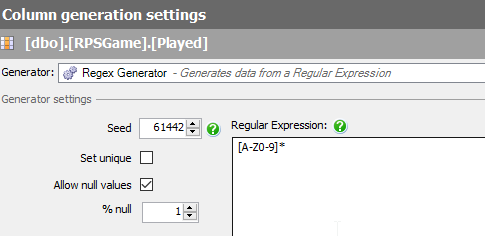
    Random text, which isn’t what I need. This comes from this mask.

    2016-03-10 11_20_03-Store

    This is a Regular Expression, and will use random letters to fill the field. What I want is specifics. To do this, I need to specify the values I want. If I replace the middle values with Rock, I get this:

    2016-03-10 11_22_09-Store

    Not really what I need. This is randomly choosing values. What I want is a literal, so I’ll change the brackets to parenthesis.

    2016-03-10 11_22_52-Store

    This gives me Rock in places, repeats or NULL in others.

    To specify an OR, I use the | operator. This allows me to choose one of two options.

    2016-03-10 11_23_12-Store

    Or three

    2016-03-10 11_24_05-Store

    Removing the * removes the matching multiple times.

    If I have a domain of specific values (say for a lookup table or limited entries), using a custom regular expression can allow you to generate useful, but specific, test data.