Tag: Data Masker

  • Redgate SQL Data Masker Refreshing Schema

    This is a quick blog to help me remember what is going on with the Data Masker product. This is for the SQL Server version, but I believe the Oracle one is very similar.

    I added a new column to a table, and I had a masking plan already built. How do I get my masking plan to show the new column?

    Here is my masking plan:

    2020-10-27 10_56_12-simpletalk_5_prod_ Data Masker for SQL Server

    I added a new column to the DCCheck table, which is under rule 01-0026.

    2020-10-27 11_00_47-SQL Change Automation - Microsoft SQL Server Management Studio

    If I open that mask and add a new column, I get this, but I can’t expand the dropdown. All the columns in this table are masked, and data masker doesn’t know about the new one.
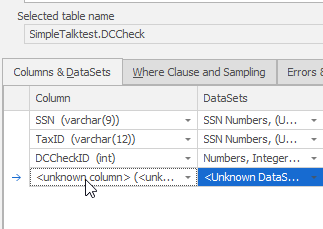
    2020-10-27 10_57_23-Edit Substitution Rule

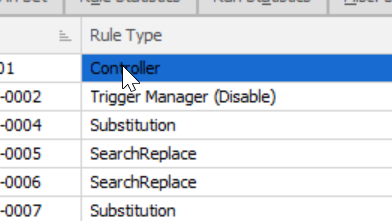
    I need an updated schema, as the rules do not update in real time. To get this to work, I need to return to the masking plan and double click the controller at the top. This is the schema manager for my set of rules.

    Note: If I mask different schemas, I need different controllers.

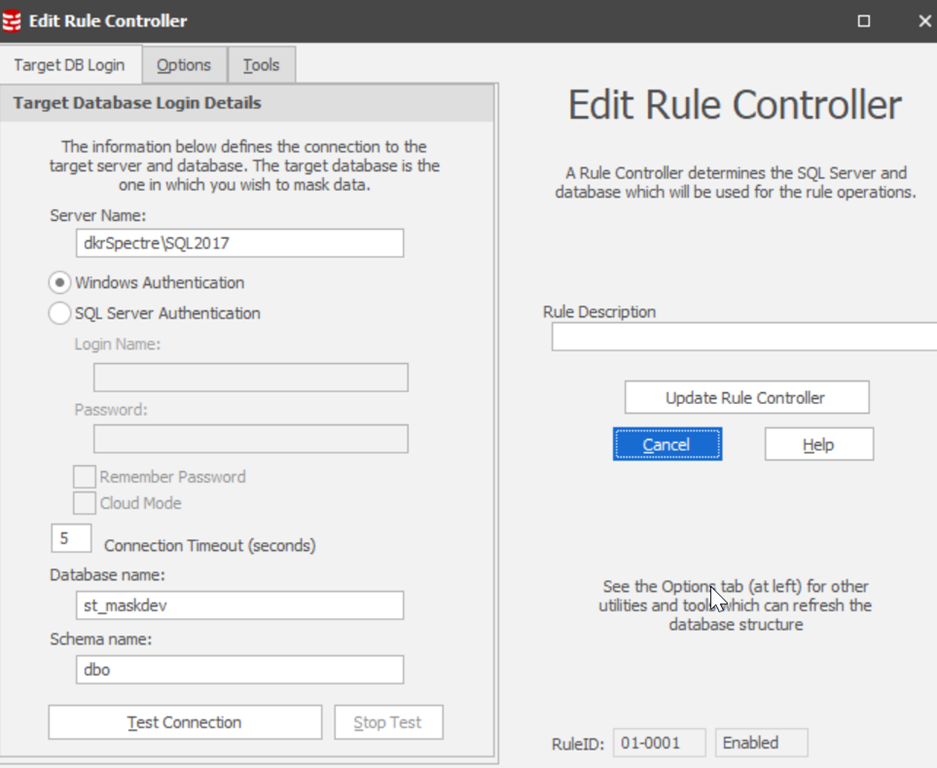
    Once this opens, I can see my connection to a database. In my case, I’m building this in dev areas, so it’s pointed to the QA environment.

    2020-10-27 10_57_50-Edit Rule Controller

    If I click the “Tools” tab at the top, I see lots of options, one of which is to refresh.

    2020-10-27 10_57_57-Edit Rule Controller

    Once I pick that one, I have a bunch of more options, which gets confusing, but I can click the “refresh all tables” at the top, leaving everything alone. Once that’s done, I get a note.
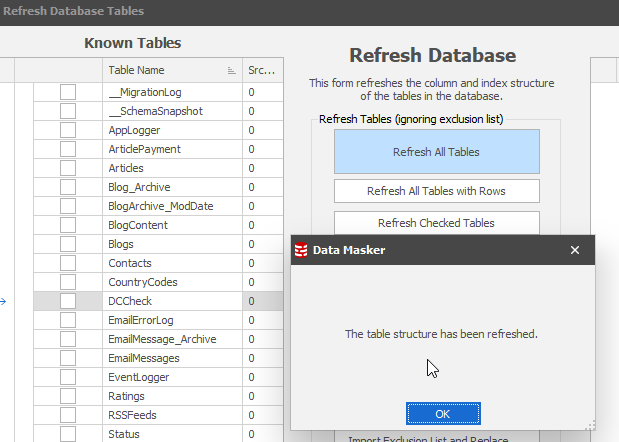
    2020-10-27 10_58_12-

    Once I get this, I can return to my rule, and when I add a new column, and I see it listed.
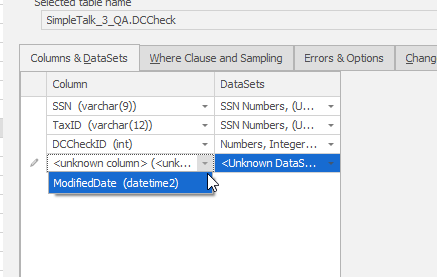
    2020-10-27 10_58_29-Edit Substitution Rule

    This isn’t the smoothest flow, but data masker isn’t something that is likely to be in constant use. For many of us, adding new schema items is relatively rare, so we can adjust our plans as needed.

    The one good thing is that I can easily find where I need to add a column, as opposed to digging through a number of .SQL scripts.
  • Hiding Data Isn’t Always Easy

    There is an article about redacting data in a report done poorly. A consulting firm hired by Frontier Communications wrote a report and redacted lots of information. However, they apparently didn’t do a good job as all the information they blacked out could be read if the data were copy and pasted elsewhere. Something that’s much easier in digital reports than analog ones.

    This was a PDF document, and I checked it. On page 25, there is this sentence: ” Annual capital expenditures for Frontier’s West Virginia local exchange carrier companies have averaged over XXXXXXXX for the past nine years.” The XXX is blacked out, but pasting it into a document shows this is a $70mm amount. It pays to know your tools.

    This certainly isn’t a good technique for hiding information, but it’s not far off from what some people do when trying to mask or obfuscate sensitive production data in development environments. There are lots of cases where people use scripts that change data in one table, but not related data. Or that the changes are incomplete and don’t do a good job of ensuring there isn’t sensitive data leakage.

    To be fair, this is a hard problem, and there are no perfect solutions. Anyone masking data likely needs to take a few passes at the problem, making adjustments over time to try and ensure that the data is protected from unauthorized disclosure. There also isn’t a perfect solution, as many researchers have found ways to reconstruct the original data after it’s been anonymized.

    This is an area that I think is still somewhat immature, with relatively few best practices available for anyone to look at. While I have seen some guidance, I don’t see much on how one could verify they had done a good job. I hope we find ways to do better in the future, with more knowledge that helps data professionals ensure they are doing a good job. Otherwise, we won’t be able to protect data the way we want to protect it.

    Steve Jones

    Listen to the podcast at Libsyn, Stitcher or iTunes.

  • Data Masker Reads Column Classificiations

    One of the newer features in Data Masker for SQL Server is the ability to read column classifications and suggest rules to clean the data. I decided to give this a try and see how things work.

    Importing Column Classifications

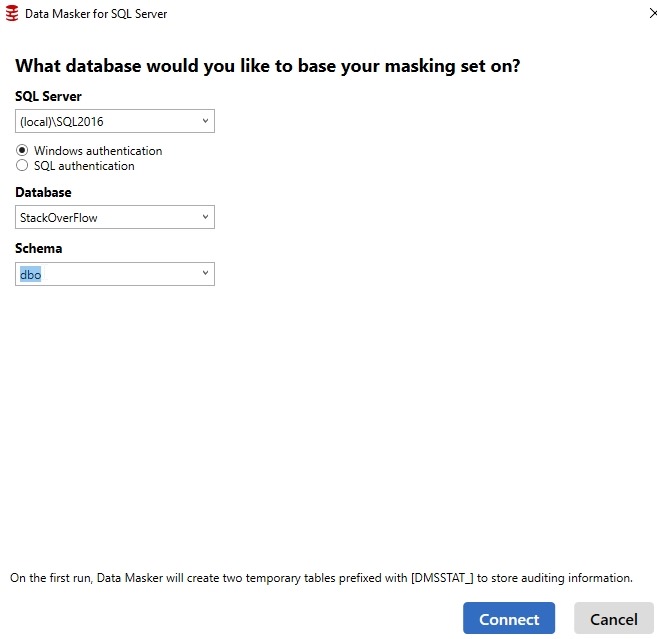
    I created a new Masking Set, and I do like the new connection dialog. It works well makes it easy for me to focus my masking on a schema.

    2019-11-13 10_49_03-Data Masker for SQL Server

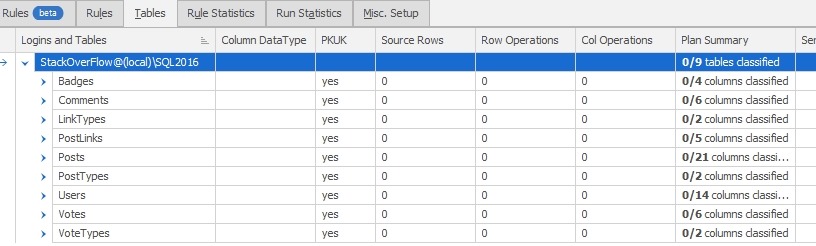
    From here, I went to the Tables tab to check on the classifications. I didn’t see any, which felt slightly strange.

    2019-11-13 11_01_39-Data Masker for SQL Server

    I went back to SSMS and double checked my work. I do have things classified.

    2019-11-13 10_47_58-Data Classification - StackOverFlow - Microsoft SQL Server Management Studio

    After a quick reach out to the team, I remembered that a plan is an item you need to create and save. In this case, the feature is importing information from the database. I can then work with it in a plan. To get the data, I click the “Export/Import Plan” button at the bottom of the Tables tab.

    2019-11-13 11_10_57-Data Masker for SQL Server

    This brings me a dialog of the plan details. I can choose to import a plan from a CSV file, or from the SSMS classifications. I’ll choose the latter.

    2019-11-13 11_11_34-Data Masker for SQL Server

    Note: plans are specific to a controller. If I have two controllers, I need to import the plan into both (or all). When I click “Import”, the data is added to my plan. I can see that now there are four columns classified.

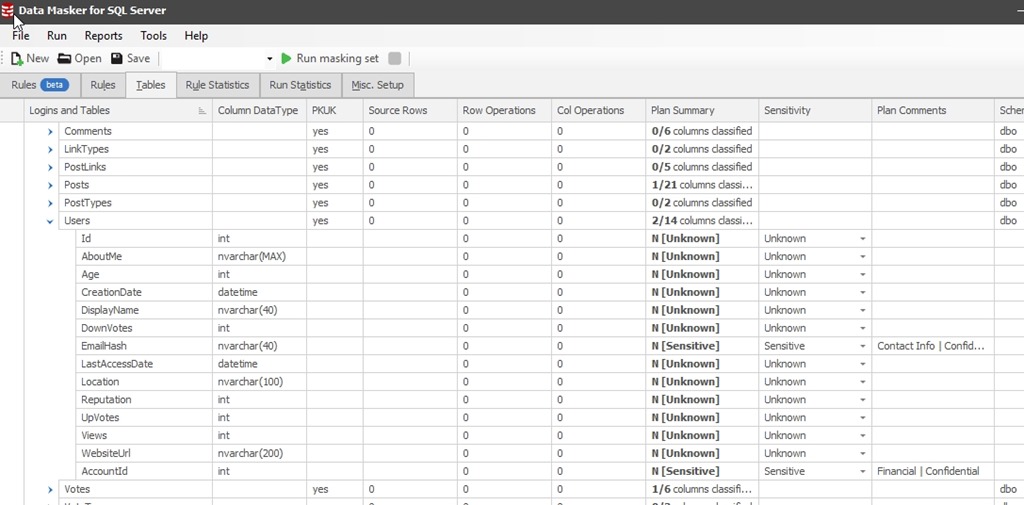
    2019-11-13 11_18_37-Data Masker for SQL Server

    If I expand one of these nodes, like the Users table, I see that there are columns marked as sensitive and the comment includes the classification. That’s very handy for deciding how to mask the data.

    2019-11-13 11_23_11-Data Masker for SQL Server

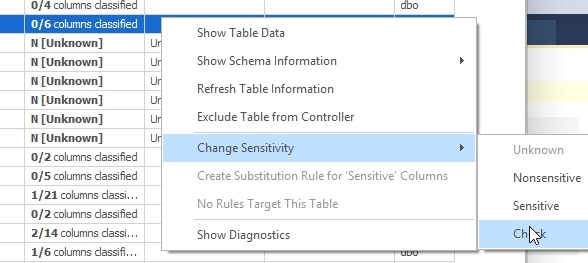
    Another welcome improvement is that I can change my plan sensitivity for all the columns in a table at once. In this case, I’ll right click the Sensitivity column for a table. I can then pick “Check”.

    2019-11-13 11_25_56-

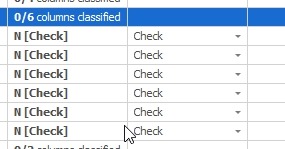
    Once I do this, all columns are set to check for this table.

    2019-11-13 11_26_07-Data Masker for SQL Server

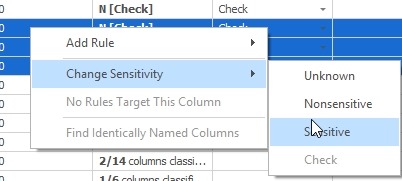
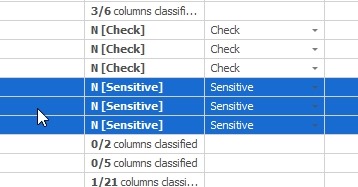
    I can also multi-select columns (with the CTRL key held down) and then right click. In this case, I can pick three and then choose “sensitive”.

    2019-11-13 11_26_53-Data Masker for SQL Server

    They’ll all be set, and I can see that I need to get to work.

    2019-11-13 11_28_35-Data Masker for SQL Server

    Quick Rules

    One other nice thing is that I can create a rule for multiple columns at once. If I have a few selected, I can right click and create a rule. I’ll choose Substitution rule here.

    2019-11-13 11_29_16-

    This brings me up a dialog with the columns already in my rule, and now I can pick the specific customizations I need for each.

    2019-11-13 11_29_24-New Substitution Rule

    It’s a little thing, but it greatly speeds up the process of masking data.

    Give It A Try

    Data Masker is part of SQL Provision, and it’s an amazing tool that allows me to mask data in almost any way I can think of to protect data in non production environments.

    There are some other nice enhancements in this v6.3.13.x release. If you haven’t given Data Masker a try, do so today.

  • Changing the SQL Data Masker Connection Target

    This post will explain how to change the connection in your masking set when using SQL Data Masker from Redgate.

    I’m writing this more for myself than anyone else. I find myself using Data Masker for different databases at times, and I keep forgetting this. I just spent more than the 2 minutes I’d expect on Google searching, so I’m adding a post in hopes that I’ll remember this.

    When you start creating a masking set, you’ll connect to a SQL Server and choose a database. Later, you might want to change this, or test the masking set elsewhere. Where is the connection string? I had thought it would be in the settings somewhere, but it’s not.

    It’s in the controller.

    The controller is usually at the top of the list, but there could be other ones. However, they are the most left displayed items.

    2019-09-02 14_28_27-SimpleTalk_Prod_Mask_ Data Masker for SQL Server

    Double click the controller, and you’ll see something like this.

    2019-09-02 14_29_14-Edit Rule Controller

    Here you can change the instance and database needed. To save the changes for your session ,click the “Update Rule Controller” on the right. To save the changes in the set, save the entire set.

    Hope this helps you, and hope it helps me remember how to do this.