Tag: encryption

  • Restoring an Expired Certificate–#SQLNewBlogger

    Another post for me that is simple and hopefully serves as an example for people trying to get blogging as #SQLNewBloggers.

    One common task that you might need to handle if you work with encryption is dealing with a certificate. Whether this is for TDE, SSL, or something else, you will want to ensure that you know how to restore a certificate.

    I’ve written about this before (restoring a certificate), but what about restoring an expired certificate? If you forget to replace one in TDE, does it still work?

    Tl;dr yes.

    Validating a Restore

    I backed up an certificate from one instance that had expired. I used this in a customer demo a few years ago, and it was on my system. Here’s what I saw.

    2019-08-23 14_35_57-SQLQuery1.sql - Plato_SQL2014.MASTER (PLATO_Steve (57))_ - Microsoft SQL Server

    I ran the backup script shown to get the expired backup of the cert.

    Next, I connected to a new instance and ran this.

    CREATE CERTIFICATE FinanceCert
    FROM FILE = N'C:\SQL\FinanceCert.cer'
    WITH PRIVATE KEY
    (
         FILE = N'c:\SQL\FinanceCert.pvk',
         DECRYPTION BY PASSWORD = N'AReallyStr0ngK#y4You'
    );

    This completed, but I get the warning that this cert is expired. It’s a warning. SQL Server will still use the certificate to decrypt anything necessary, like a DEK for TDE.

    2019-08-23 14_37_20-SQLQuery2.sql - Plato_SQL2017.master (PLATO_Steve (55))_ - Microsoft SQL Server

    This is a good reason to keep an eye on certificates, as someone might be worried about expired certs. They work, but some people (auditors) do not like to see these in use.

    To change the certificate used, see Key Rotation in TDE.

    SQLNewBlogger

    Anything DR related is a good skill to showcase. Blog about your practicing different skills. The writing will cement the skills further in your mind and employers will appreciate you showing the way you handle things.
  • High Prices for High Security

    I was excited to see the new Secure Enclave technology come to Always Encrypted (AE) in SQL Server 2019. I’ve thought that the way Microsoft implemented the AE technology in SQL Server 2016 was a start and a good step forward, but it had too many restrictions. Kind of like Availability Groups in 2012 and In-Memory technology in 2014. A good idea, but not really ready for most of us to use.

    One of the biggest restrictions in SQL Server 2016, in my opinion, was the inability to run range queries on encrypted data. These are the greater than, less than, and LIKE items that many of us need to use in applications. This made sense, since the server doesn’t know how to decrypt the data, but many applications need these queries.

    That goes away in SQL Server 2019 with Secure Enclaves. I’m looking forward to testing and working with this, but there’s one interesting limitation for me. The SQL Server computer that runs the secure enclave must meet one of these requirements. It has to run on Windows 10 or Windows 2019 Server – Datacenter Edition. There also has to be an HGS server for attestation, but this can be a WS2019 Standard Edition.

    Is it a big deal? I don’t know. Windows Server 2019 lists  with Datacenter at $6155 and Standard at $972. That means it will cost me $5,183 for Always Encrypted on my SQL Server. Not a bad price for the encryption and additional security. An HSM appliance goes for quite a bit. One in Azure is $5k + $4.85/hour and most of the enterprise appliances I’ve priced at $10k+. And you need two.

    In some sense, maybe this doesn’t matter. The cost of $5k isn’t much, especially when you consider the downside of not using encryption and having a data breech. You don’t need this on all SQL Servers, just those that need AE, and even then you can run SQL Server Standard Edition. The cost of core licensing is likely going to already be quite a bit and this is just like having to pay for a few more cores. Is this an impediment for your organization?

    At first this seemed like a burden, but the more I look at it, $5k isn’t a lot for encryption on your server. I hope this doesn’t deter organizations from adopting AE, and more importantly, I hope Microsoft continues to invest in this technology. I’d like to see multi-certificate support and the ability to easily revoke access for a compromised system while I deal with any security issues. There are other things, and we’ll see how this evolves in the future.

    Steve Jones

    Listen to the podcast at Libsyn.

  • High Security Prices–Always Encrypted 2019 needs Datacenter Edition

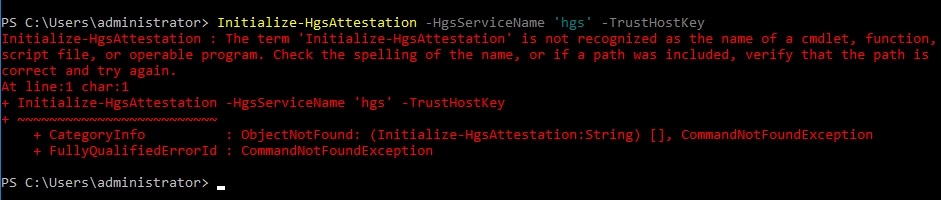
    I was recently doing some work on Always Encrypted in SQL Server 2019 and needed to set up an HGS server. I went through most of the setup, and then encountered this issue:

    2019-04-24 07_52_51-Window

    After embarrassing myself to other MVPs and Microsoft, I realized I hadn’t read the requirements for the secure enclaves. I need 2 machines, but the SQL Server has to run on Windows 10 or Windows 2019 Server – Datacenter Edition.

    Grrr, I had built a machine for this and need to tear it down and restart the process. It’s not that hard, but it’s annoying.

    I should learn to read more carefully.

  • Initialize-HgsServiceName Fails in VMWare

    A short one, but one that took some digging and debugging and help from others. Saving here, so I remember, as do others.

    I had a VMWare Workstation v12.x VM of SQL Server 2016 and was working with this tutorial on Always Encrypted with Secure Enclaves. In setting up the HGS server, I got to step 3 which has this code:

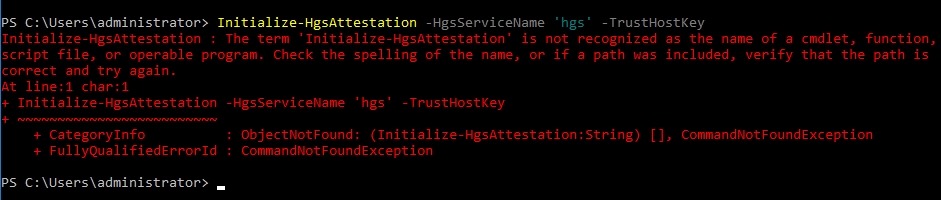
    Initialize-HgsAttestation -HgsServiceName 'hgs' -TrustHostKey

    When I ran this, I got an error:

    2019-04-24 07_52_51-Window

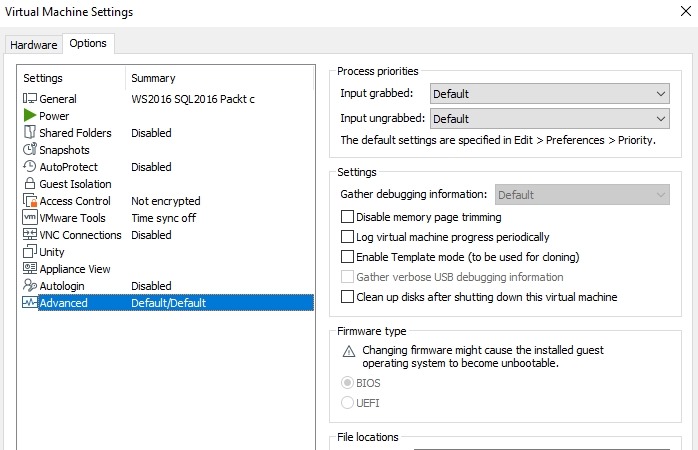
    That’s not good. In trying to find why this won’t run, eventually, I realized that my VMWare system needs the Microsoft Virtualization Based Security. This isn’t an option in my older VM, I believe because this is

    a) v12 and not v14+

    b) BIOS firmware

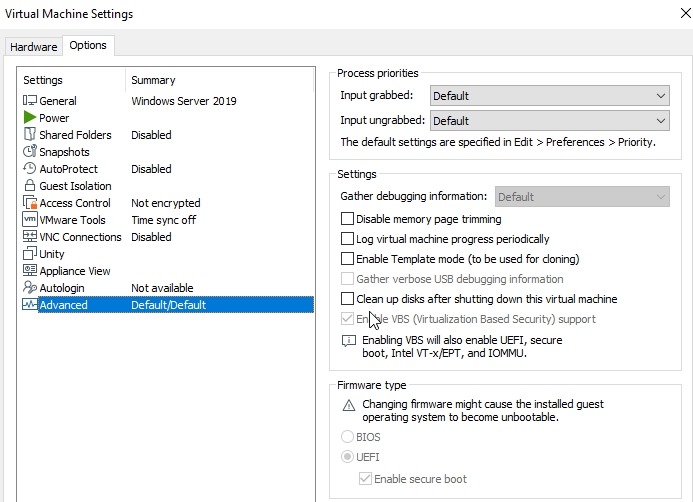
    You can see my settings here:

    2019-04-24 07_53_42-Window

    Fortunately I had an upgrade for VMWare available and updated to v15, and then build a new VM as a v14+ hardware version. This gave me UEFI and once the VM was shut down, I could check the VBS box.

    2019-04-24 07_53_26-Window

    After doing this, I could move forward with my secure enclave config.