Tag: full text search

  • Setup Full-Text using T-SQL–#SQLNewBlogger

    Another post for me that is simple and hopefully serves as an example for people trying to get blogging as #SQLNewBloggers.

    I wrote a previous post on how to set up full-text searching (FTS) and indexes in SSMS. This post looks at the T-SQL equivalent.

    Everything in SSMS uses T-SQL under the covers. Often, you can get the code from a dialog in SSMS and use that for repeatable operations. For FTS, that’s not the case. When we get to the end of the wizard, there is no “Script” button.
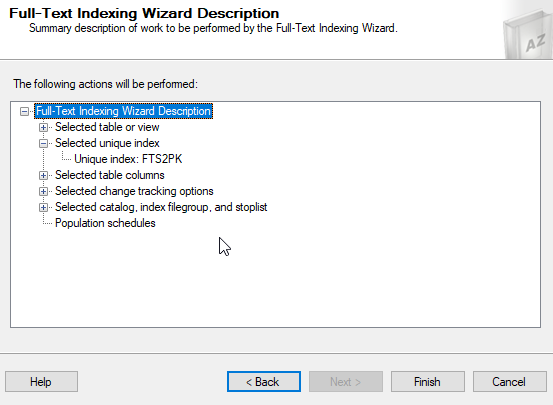
    2021-06-28 15_04_32-Full-Text Indexing Wizard

    there isn’t one on other screens, either. This is an omission (and bug in) from SSMS, IMHO.

    In any case, we need to do these things:

    • create a catalog
    • create a full text index
    • populate the index

    That’s what we’ll do.

    Create a Catalog

    A FTS catalog is a logical group of FTS indexes. That’s it. This is used to be a way to decide where indexes are stored, as you can choose the filegroup for these. However, after SQL Server 2008, the storage decisions (path or filegroup) have no effect.

    Now we really run this:

    CREATE FULLTEXT CATALOG name

    We can add accent sensitivity or a default setting (or an owner), but really we’re just picking a name here for the most part.I’ll run this:

    CREATE FULLTEXT CATALOG FTSCat

    That gives me a place to put indexes. I can create multiple catalogs, if needed.

    Creating FTS Indexes

    The next step is to actually create an index. The basic syntax uses the CREATE FULLTEXT INDEX DDL, with the table and column. We need a PK on the table for this to work, so make sure your table has one.

    We can add some options for language, statistical semantics to be gathered, and population parameters. All of those are documented in the Docs. To create a basic index you can use, this is what I’ll do. First, here’s my table.

    CREATE TABLE dbo.FTS2
    (   myid INT NOT NULL CONSTRAINT FTS2PK PRIMARY KEY
       , Val  VARCHAR(2000));
    GO

    Next, let’s create the index. I want to index the val column in this table. I’ll use this statement:

    CREATE FULLTEXT INDEX ON dbo.FTS2(Val) KEY INDEX FTS2PK ON FTSCat

    This statement lists the table and the column(s) in parenthesis, much like any other index. I need to provide the unique index used to track rows, which in this case is the PK. I also give the catalog on which I store this index.

    Once this is done, the index is created. This auto populates by default, which means I can query using the CONTAINS() function to search.

    Populating Indexes

    If I had specified manual population for the index, then I’d need to populate it myself. Plenty of people want to choose the time to populate indexes, as this can be resource intensive.

    To do this, the ALTER INDEX can be used to start this. This is simple with the START FULL POPULATION (or UPDATE POPULATION) command.

    ALTER FULLTEXT INDEX ON dbo.FTS2 START FULL POPULATION

    That’s it.

    Summary

    This post essentially duplicates what I did in the previous post, but with direct T-SQL instead of using the GUI. It’s always good to know both ways to accomplish something, especially as the GUI might not contain an option you want to use.

    SQLNewBlogger

    This was easy to do after the previous post. I essentially repeated everything, except I had to look up the T-SQL for each step to check syntax.

    This is a great example of showing some learning, and adding depth to a previous post. Easy to do, another item that can impress an interviewer.

  • Setting up a Full Text Index–#SQLNewBlogger

    Another post for me that is simple and hopefully serves as an example for people trying to get blogging as #SQLNewBloggers.

    I saw a question recently on  Full Text Search. I knew the answer, but to test some code, I had to reset up an index, which took just a minute, but I decided to write about it. This post gets the basics of setting an index.

    Setup

    A full text index allows you to search a little more freely than standard T-SQL with a LIKE or wildcards. It’s useful for going through large amounts of text, mainly hundreds or thousands of words.

    To get started, you need to know a few things. First, this system in modern SQL Server (2008+) is set up on all instances. You don’t enabled FTS like you would for In-Memory OLTP tables or FILESTREAM.

    Next, you need a catalog for the FTS indexes, which is a logical container.

    Next, a table with data.

    Finally, you create the index. In this post, I’ll look at SSMS and the GUI. In another one, I’ll look at the T-SQL itself.

    Using SSMS

    The quick way to get started is to right click your table. As noted, the database is already enabled for FTS. In the right click menu, there is a Full-Text index section, and under there there is a “define” choice, as shown here.

    2021-06-09 11_51_25-

    Click that and the wizard will start. The intro screen appears, and you can click next.

    2021-06-09 11_52_11-Full-Text Indexing Wizard

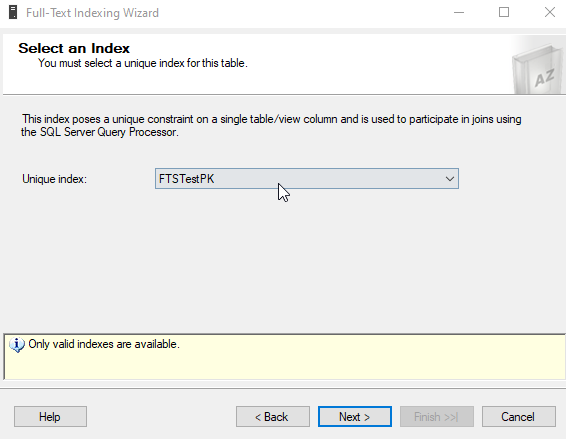
    A unique index is required, and the next step let’s you pick the one you want to use. This allows the various FTS query items to return the key value used here in the index. In my case, I only have a PK, but if you have unique indexes, you can choose any one.

    2021-06-09 11_53_38-Full-Text Indexing Wizard

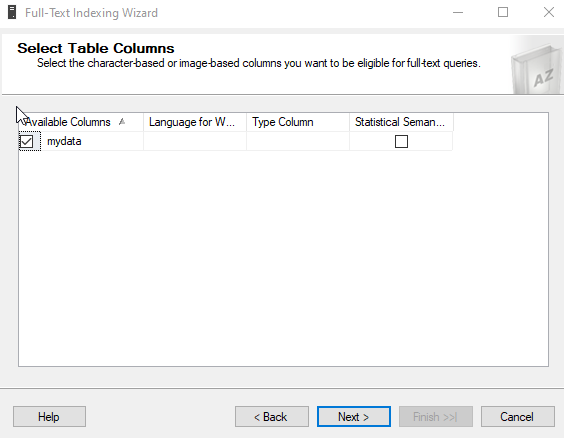
    The column(s)  you want to index need to be selected. I only have one here, but you can choose any, or multiple, character or image based columns. Image would be binary columns that might contain something like a Word document.

    The statistical semantics are used to extract key phrases from documents. For basic FTS of character data, you wouldn’t use this, but if you are searching things like PDFs, Word, etc., you might enable this.

    2021-06-09 11_56_29-Full-Text Indexing Wizard

    If you want to track changes as the data changes and update the index, choose auto or manual.

    2021-06-09 11_56_58-Full-Text Indexing Wizard

    The next page is where you assign this to a catalog. This is where you can create one if necessary. You can also choose a different filegroup for storing the index, and set the sensitivity for accents and choose a stop list. If you don’t know these terms, something to look up (and blog about).

    2021-06-09 11_58_16-Full-Text Indexing Wizard

    The next step is the population schedule. This is the place where you decide when the index is updated. You can allow the system to run when it detects changes if this isn’t a lot of data, or you can schedule this. Large indexes with lots of data can take time and consume resources, so some instances need this scheduled during low workload hours.

    I tend to ignore this for demos.

    2021-06-09 12_00_02-Full-Text Indexing Wizard

    You get a final summary of everything. You can check each item and go back if necessary to fix something. Or click finish.

    2021-06-09 12_00_13-Full-Text Indexing Wizard

    For my small demo table, this completed quickly.

    2021-06-09 12_00_20-Full-Text Indexing Wizard

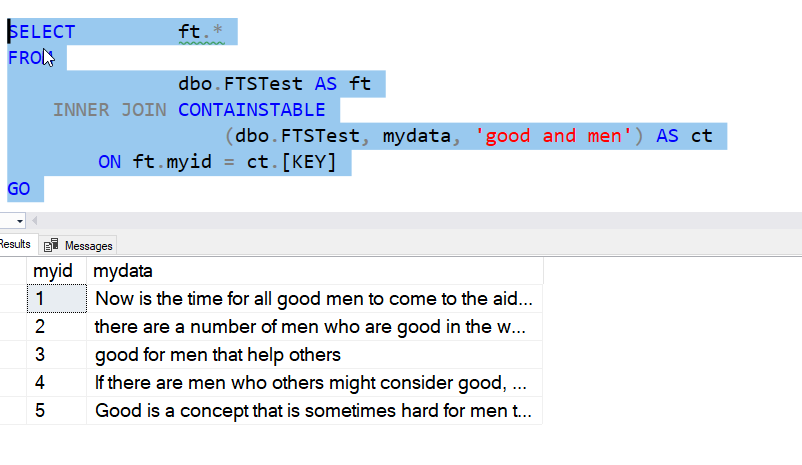
    From here, I can run queries using CONTAINS() or other terms, as shown below.

    2021-06-09 12_02_15-SQLQuery1.sql - ARISTOTLE_SQL2017.sandbox (ARISTOTLE_Steve (61))_ - Microsoft SQ

    If you want to follow along, here’s the table setup I used.

    CREATE TABLE FTSTest (
    myid INT NOT NULL IDENTITY(1,1) CONSTRAINT FTSTestPK PRIMARY KEY
    , mydata VARCHAR(MAX)
    )
    GO
    INSERT dbo.FTSTest (mydata)
    VALUES ('Now is the time for all good men to come to the aid of their country'),
    ('there are a number of men who are good in the world'),
    ('good for men that help others'),
    ('If there are men who others might consider good, we should support them'),
    ('Good is a concept that is sometimes hard for men to comprehend'),
    ('Good is a concept that is sometimes hard for anyone to comprehend')
    GO

    That’s a quick setup. I’ll look at queries and the T-SQL setup in another post.

    SQLNewBlogger

    This post was the first of a few that I made after solving a problem for someone. I took my 10 minutes of code writing and added about 10 minutes each for a few posts, including this one.

    A good way to break down a problem into a few posts and get a few weeks worth of content that shows your knowledge and learning.

  • Killing FTS

    In almost every application that I’ve helped build, we had a need to perform textual searches of fields. Sometimes this was in short fields, like names, where we usually needed some sort of wildcard search to let users find information. When we got to larger volumes of text, such as note or description fields, it was essential that the application allow a way to find information that doesn’t exactly match some term.

    SQL Server has had the Full-Text Search (FTS) subsystem for a long time. Built as an improvement over the LIKE keyword, FTS implements its own index system that better understands language and takes some burden off the developer when trying to find keywords and terms inside of a volume of text. However, this system hasn’t advanced much since 2005, with limited improvements in each version, and more stable performance, but not substantially improved. New languages get added, but not development language improvement.

    These days, many of the individuals that need to search text fields used ElasticSearch instead. In previous years, Lucerne was a popular choice, along with other software add-ons. In fact, most people want to use anything other than SQL Server’s FTS. Even at SQLServerCentral, our experimentation with FTS led us to abandon this early on as the work required to structure a UI around the CONTAINS code, along with poor search performance, made the decision easy. Google custom search or another package are far superior.

    I wonder if it’s time for SQL Server to abandon FTS. Maybe their limited development resources would be better spent integrating other third party engines into SQL Server. Or maybe some of their profits are better spent licensing or purchasing a different technology for searching. Certainly they should deprecate the current FTS implementation and allow applications using it to continue to do so, but cease additional work beyond limited maintenance.

    At the very least, they should move in some direction. I’m sure Microsoft could come up with ways to improve FTS, but I don’t know they can do it quickly enough, or that it’s a good use of developer resources. There is other technology that does this very well, so take advantage of it and build hooks that make integration simple. That might be the big search win for SQL Server databases.

    Steve Jones

    Listen to the Podcast at Libsyn.

  • Missing Full Text Extensions in Express

    I was tasked recently with removing the full text indexes in Adventureworks for a demo. The full text indexes were causing a few extra items to appear in a SQL Compare demo and weren’t needed. The individual that had set up the VM I was using wasn’t sure what to do, so they asked me.

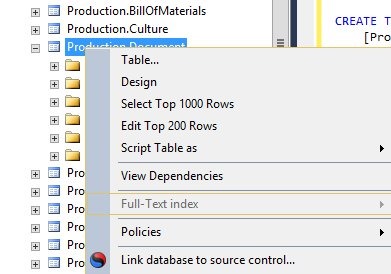
    I logged on to AdventureWorks and right clicked the Production.Document table. I knew that had full text indexes because I’d tested them before. However, what I got was this:

    fts1

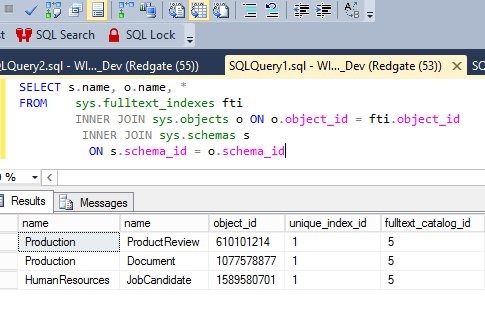
    The Full Text index part was grayed out. Strange, since the database was attached, and with a query, I could see FTS indexes below.

    fts2

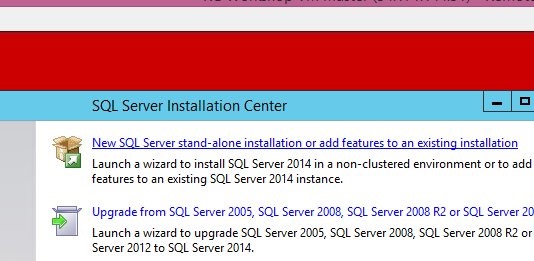
    I suspected that the FTS extensions weren’t installed. I decided to check by running setup. When it started, I clicked the top item to "add features", as shown here.

    fts3

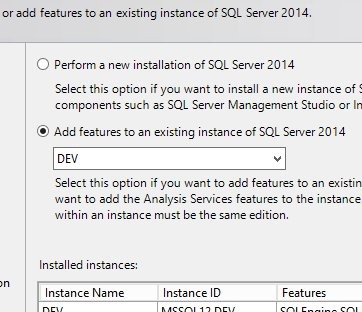
    That brought up a list of instances. The default is the top radio button below, but I selected the second one, which let me select an existing instance.

    fts4

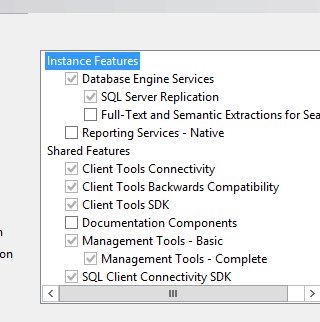
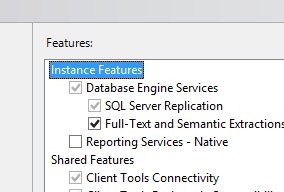
    Next, I saw the features, and sure enough, FTS wasn’t checked.

    fts5

    I checked it and then clicked next to continue the installation.

    fts

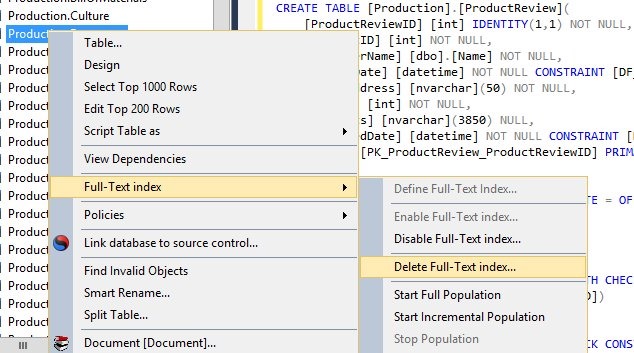
    Once this was done, I could run SSMS and sure enough, I could delete the FTS indexes (shown below).

    fts6

    I actually had two instances on this VM, but this FTS feature isn’t in SSMS. It comes from the instance. After I deleted these three indexes, I connected to the second instance and tried to delete the FTS indexes, but things were grayed out, as shown in the first image above.

    I had to re-run setup for the second instance and add the FTS components there as well to delete the indexes from that database. Once that was done, I could easily delete all the FTS indexes and complete this simple task.