Tag: full text search

  • Full-Text Search – Stoplists in SQL Server

    Full-text search is an interesting subsystem in SQL Server. It allows you to implement searches through a variety of text formats stored in SQL Server. This is a one of a series of posts that looks at different facets of full-text search.

    What is a Stoplist?

    A stoplist is a list of stopwords that SQL Server should not include in a full-text index.  These are words that are seen as not adding any value to the full-text index. We typically see these words as important in language for structure, but not for content. Examples of stopwords are:

    • the
    • a
    • an
    • is
    • are

    In previous versions of SQL Server, these were also known as noise words and a noise word list. You can read about the topic in Books Online.

    How are they used?

    Stoplists are used when building the index. The words that are contained in the text, and also in the stoplist are ignored and not populated inside the index. This makes for a smaller index, and it also means that the stopwords are not

    The position of these words in the text being indexed, however, still do matter. This is to be sure that searches using proximity are still correctly carried out.

    Each index can have a specific stoplist associated with it. You can associate a stoplist at index creation time, or alter the index later to add or change the stoplist.

    Creating a Stoplist

    For each language supported in the full-text system, there is a stoplist installed with SQL Server. These are the commonly used words that should be ignored for each language.

    You can, however, create your own stoplist of word with the CREATE FULLTEXT STOPLIST command. The creation can be for a new stoplist, or you can copy an existing stoplist.This includes system stoplists, which you can use as a basis for your custom stoplist. The commands are simple, and they are well documented in BOL.

    To add or remove words from a stoplist, the ALTER FULLTEXT STOPLIST command is used with the ADD or DROP parameters. Alterations to a stoplist must be for a specific language, which is specified with the LCID or name of the language.

    Practical Points

    The stoplists are important for limiting the size of the stoplist and making a more efficient index. Full-text indexes are very efficient and scalable in SQL Server, but the less data that needs to be indexed and searched, the most efficient the system will operate.

    System stoplists works well for many natural language searches, but are not necessarily adequate for domain specific searches. For example, if I were indexing all white papers on SQL Server, I might want to ignore extremely common words or phrases that are in all documents. For example, I might consider “SQL” to be so common as to be useless in searches. Rather than bloat the size of the index with this word, I may add this to a stoplist for the full-text index and assume it’s a word like “the”, which I would not use for searches of these documents.

    I haven’t necessarily found a reason to use custom stoplists in the past, but if my full-text index were extremely large or I had a large volume of searches, I might consider using stoplists to prune down my indexes.

    If you have used these in your system, I’d be interested in knowing the reasons and effects.

  • Building a Full Text Index

    I hadn’t used full-text indexing in production throughout my career. We hadn’t had the need in the applications I worked on, all of them depending on LIKE searches in specific, normalized data.

    However I have always been interested in it and as I try to find data more often in various systems, I’ve been playing with it on the SQLServerCentral systems. One of the first things I had to do on a copy of the system was build an index. It’s surprisingly easy. I’ll build a basic index and explain a few options.

    If you don’t know what a full-text index and full-text search (FTS) is, here’s a short introduction from BOL.

    Creating an Index

    Let’s take a basic table. In this case, let’s look at the AdventureWorks 2008 database. There’s a table called ProductDescription in there without an FTS index. Let’s add one there. First we right click the table and select the full-text index item.

    fts1

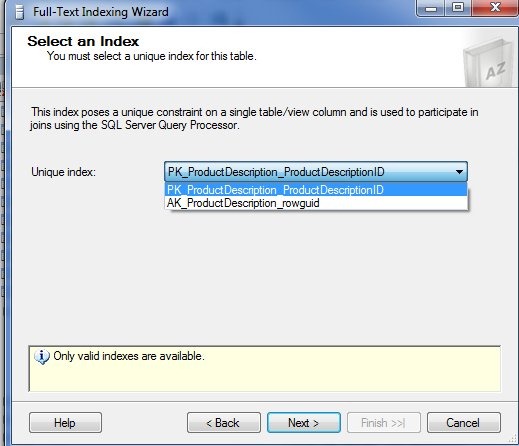
    This starts a wizard that we can use to pick the full text index. The first step is basing this on a unique index. The wizard is smart enough to only show those valid indexes for you to choose. I tend to choose the PK in most cases. That’s what I’ll do here. If your situation calls for something different, be sure you understand why.

    fts2

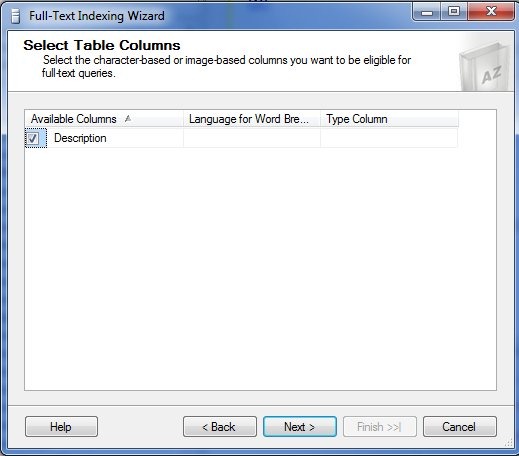
    The next step for is to choose from the available columns that are valid for full text indexes. In this case we only have one, so I’ll pick it.

    fts_2

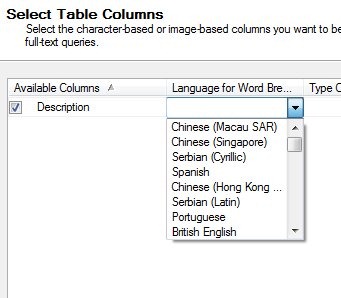
    Once I do that, I then can examine the other options. The middle item is for Word Breakers. These are the rules by which we decide where word boundaries are.

    fts_3

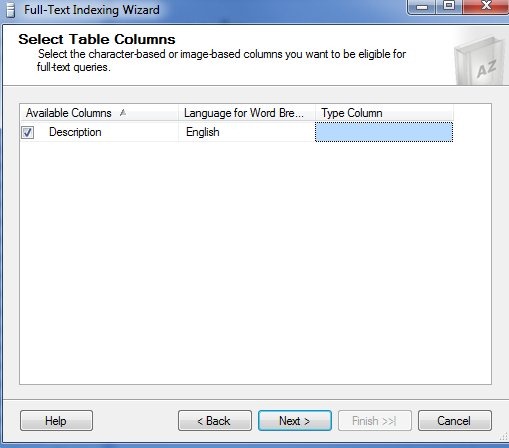
    These rules can vary by language, and as you see above, there are multiple language choices. We’ll stick with English.

    The last column is for the “type” of data stored in the column we are indexing. This is for the use of iFilters for our data.

    fts_4

    In this case there is no other column that makes sense for a type. If you examine the full text index on the Production.Document table, there is a “FileExtension” column that is specified here.

    fts_6

    That column is named appropriately, but the name has nothing to do with the use here. If the column were named “Type” or “Extention” or even “Blue” it would still work as long as it contained the correct file type extension for the data stored in the full-text indexed column.

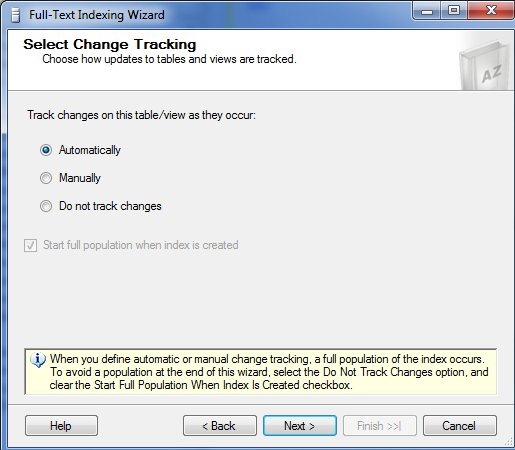
    Next we have the change tracking. You have three choices: automatic, manual, or do not track. The default is automatic, which I’ve often used.

    fts_5

    If you have a large index, with large changes, you might choose to manually update the index, but you then need to do that. If you don’t want an automatic population to start after the wizard, then you need to choose “Do not track changes” as noted at the bottom.

    The catalog is like a filegroup for the full text index. There can be multiple indexes in one catalog, but an index is only in one catalog. Note that you can select the actual filegroup in which this will be stored at the bottom.

    fts_7

    I haven’t had enough experience here to give guidance. I’ve just had one catalog for the systems I’ve worked on.

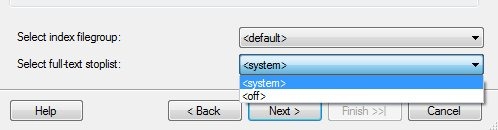
    The stoplist is the list of words ignored in the index. This was called the “noise word list” in SQL 2005 and prior. You can create your own stoplist, or use the system one.

    fts_8

    Here I only have one, though I could not use one and allow all words in the index, which tends to bloat the size.

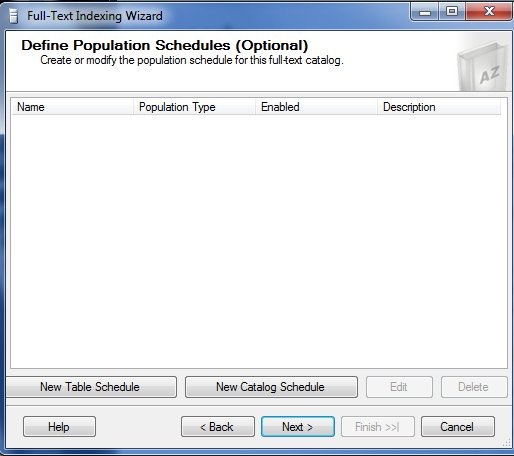
    Next we have the standard scheduling mechanism in SQL Server. Here it’s applied to the index population, or what you might see as the rebuild.

    fts_9

    No guidance here other than choose what works. If population is an issue, pick a low time to schedule things.

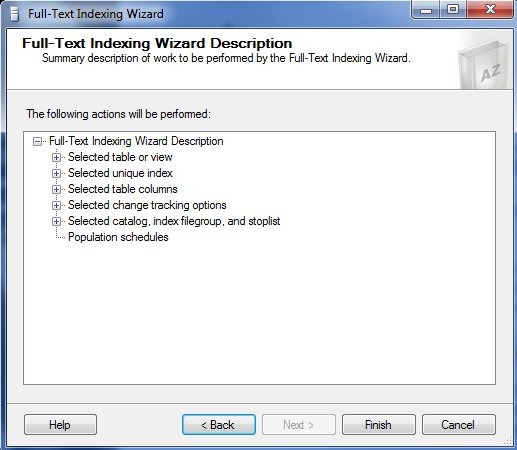
    The last part is the summary.

    fts_10

    My one complaint here is the fact that there is no “Script” button for this. That’s a royal PIA and it’s why I’m showing the GUI here. This is the easiest way to build the index. Once it’s done, you can go into SSMS and get the properties.There’s a script button there.

    fts_11

    However if you press this, you get this

    fts_12

    No scripting for the index, which is a hole. I’ve submitted an item on Connect, which you can vote for.

  • Searching Binary Data in SQL Server

    More and more data collected in organizations is in an encoded format, essentially a binary classification of data. These can be images, audio files, video, or even common formats like Word and Excel files. This data contains lots of important data, but the formatting must be stripped out in order for users to effectively search this data.

    This presentation starts with a discussion of the three types of data in SQL Server to set the framework. It demos and explains:

    • structured data
    • semi-structured data
    • unstructured data

    The talk then looks at how unstructured data is stored in SQL Server, specifically briefly looking at Filestream and Filetable.

    There is a short discussion of full text search, with a look at the changes in SQL Server 2012 before moving on to the iFilter interfaces which are used to search the binary data while ignoring the encoding. There are demos of the basics of CONTAINS and FREETEXT searches, along with some of the more advanced options, like customizable NEAR and weighting of search terms.

    The talk finishes with a short look at the new semantic search feature in SQL Server 2012.

    Level: 200

    Length: 60 minutes

    Downloads: PPTX, code

    Presentation Schedule:

    June 1, 2013 – SQL Saturday #200 – Philadelphia

    May 3, 2013 – SQL Bits XI

    April 7, 2013 – SQL Saturday #197 – Omaha

    October 30, 2012 – SQL Connections, Fall 2012

  • Full Text Search – CONTAINS

    I’ve been working on a new presentation for full text search and brushing up on some of my T-SQL operators. Part of my talk goes into the CONTAINS operator, which is one of the full text search keywords you need to know.

    This operator is only used with full text indexes, so if you have a column that isn’t full-text indexed, it returns an error. If I issue this:

    SELECT *
     FROM dbo.salary
      WHERE CONTAINS(empname, 'Steve')


    I get this:

    Msg 7601, Level 16, State 2, Line 3

    Cannot use a CONTAINS or FREETEXT predicate on table or indexed view ‘dbo.salary’ because it is not full-text indexed.

    I have a table that is full text indexed and I can issue a basic query, which looks like so many other T-SQL queries.

    SELECT
     name
     FROM authordrafts
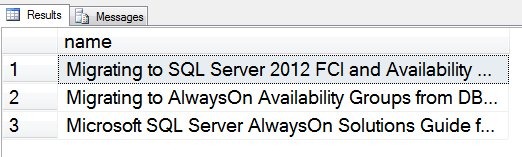
     WHERE CONTAINS(*, 'AlwaysOn')
     ;
     go
    

    This returns me all the rows where the columns in the full-text index (I used the star, *), have the term “AlwaysOn” in them. In this case, I’m hitting a FileTable table with lots of whitepapers in there.

    fts_1

    This query is essentially a LIKE search, but it isn’t doing character matching. Instead it is working with those keywords in the full text index. I’ve used a simple search above. I could replace the * with the column, in this case the file_stream column.

    SELECT
     name
     FROM authordrafts
     WHERE CONTAINS(file_stream, 'AlwaysOn')
     ;
     go
    

    I could also use a prefix term and the * wildcard, similar to LIKE.

    SELECT
     name
     FROM authordrafts
     WHERE CONTAINS(file_stream, 'Always*')
     ;
     go


    These match other rows where “always” is the document, which matches “always” as a standalone word as well as “alwayson” as a term.

    I could also limit the search to particular columns, using parenthesis and commas to separate them out. The BOL example from the CONTAINS page does a nice job of showing this.

    Use AdventureWorks2012;
    GO
    SELECT Name, Color
     FROM Production.Product
     WHERE CONTAINS((Name, Color), 'Red');


    This is just a very basic look at CONTAINS. In another post, I’ll look at a few more possibilities with this term.