Tag: FWTips

  • Friday Flyway Tips–Comparison Options

    Recently a customer asked how they could get index changes to be captured in Flyway Desktop. In their case, they wanted a different fill factor, but I decided to investigate a bit more how things work.

    This post looks at how to control the comparison options in Flyway Desktop (FWD).

    I’ve been working with Flyway Desktop for work more and more as we transition from older SSMS plugins to the standalone tool. This series looks at some tips I’ve gotten along the way.

    The Setup

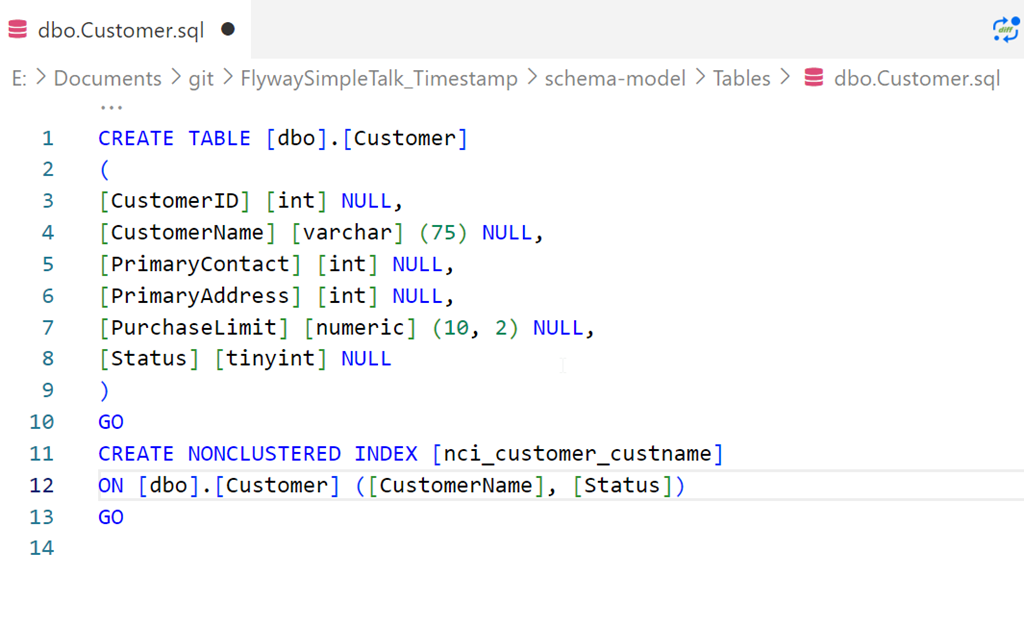
    I’ve got a table and an index, which I created with this script.

    CREATE TABLE [dbo].[Customer]
    (
    [CustomerID] [int] NULL,
    [CustomerName] [varchar] (75) NULL,
    [PrimaryContact] [int] NULL,
    [PrimaryAddress] [int] NULL,
    [PurchaseLimit] [numeric] (10, 2) NULL,
    [Status] [tinyint] NULL
    )
    GO
    CREATE NONCLUSTERED INDEX [nci_customer_custname] ON [dbo].[Customer] ([CustomerName], [Status])
    GO

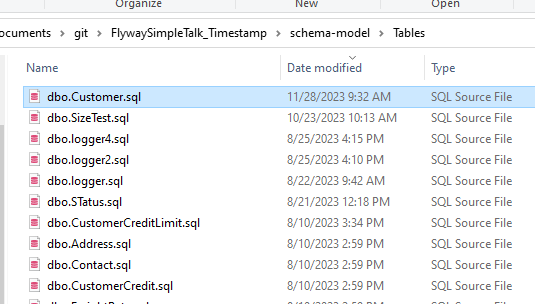
    I saved this in Flyway Desktop, which we can see here in the filesystem:

    2023-11-28 09_48_55-Window

    and here in VS Code.

    2023-11-28 09_52_32-Window

    If I refresh the schema model tab in FWD, there are no changes.

    Making Index Changes

    I’m going to alter this index. Specifically, I’m changing the pad index, fill factor, and statistics options. Here’s the script I’ll run.

    ALTER INDEX [nci_customer_custname] ON [dbo].[Customer] 
    REBUILD PARTITION = ALL 
    WITH (PAD_INDEX = ON, STATISTICS_NORECOMPUTE = ON, SORT_IN_TEMPDB = ON, ONLINE = OFF, 
           ALLOW_ROW_LOCKS = ON, ALLOW_PAGE_LOCKS = ON, FILLFACTOR = 80)
    

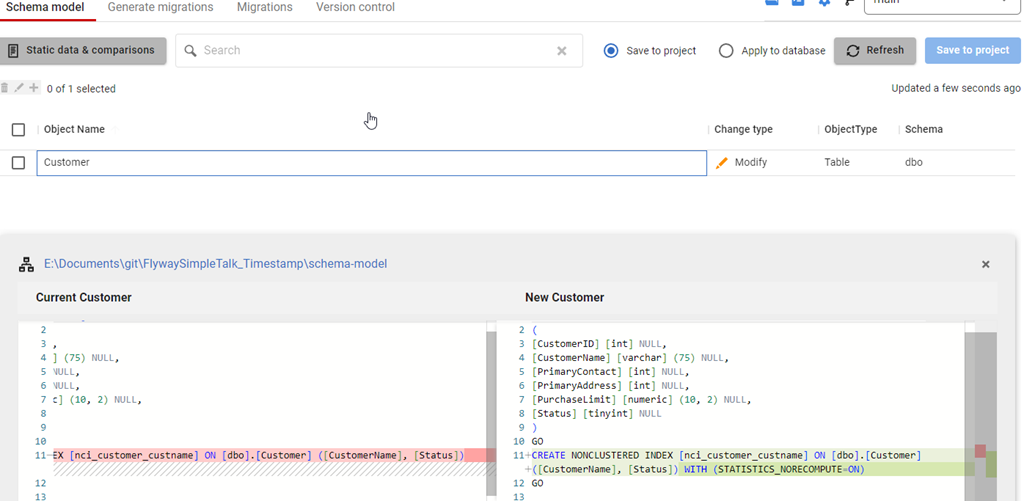
    Once this runs, I’ll refresh FWD and I see this. Note that I see an index change, but only one option is captured: STATISTICS_NORECOMPUTE.

    2023-11-28 09_54_21-Window

    What’s happening is that FWD is using the SQL Compare engine and the default options set in the engine. Among these are to ignore fill factor and pad index. However, I can change this.

    Changing Configuration

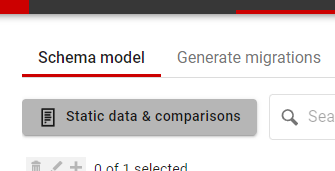
    In the past, I would need to edit a config file to make this change, but the team has enhanced FWD to add new options. In this case, notice the button near the top of the Schema model tab: Static data & comparisons. Not a great name, but it’s there:

    2023-11-28 09_56_31-Window

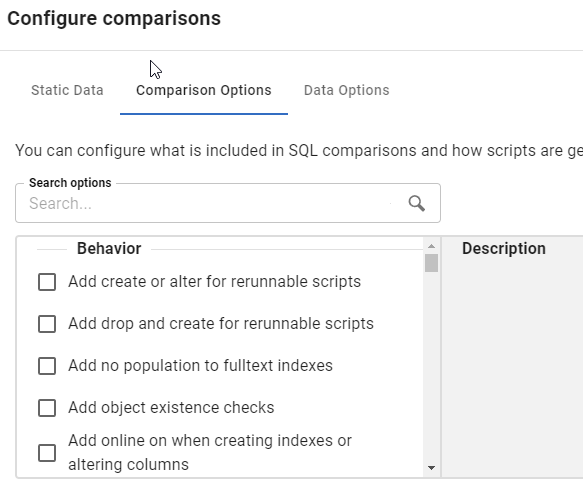
    Once I click that, I get a new dialog. This starts with static data, but I’ll click the second tab, which is Configure comparisons. This shows all the options available in the Compare engine

    2023-11-28 09_56_37-Window

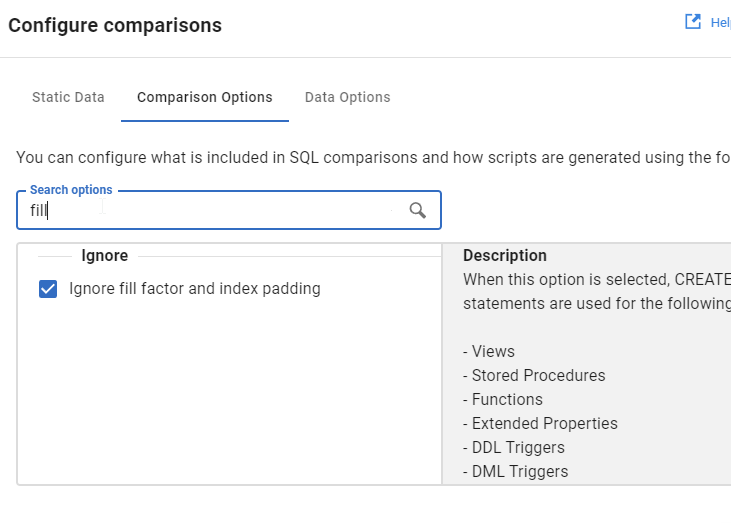
    Rather than scroll, I’ll type in the search box, and I see fill gets me the “Ignore fill factor and index padding” option.

    2023-11-28 09_56_42-Window

    I’ll uncheck this and click OK.

    Once I do that, I’ll refresh the comparison, and now I see my options.

    2023-11-28 09_58_46-Window

    Try it out today. If you haven’t worked with Flyway Desktop, download it today. There is a free version that organizes migrations and paid versions with many more features.

    Video Walkthrough

    I made a quick video showing this as well. You can watch it below, or check out all the Flyway videos I’ve added:
  • Friday Flyway Tips – Adding the Type of Database Project

    There was an update to Flyway Desktop which lets you see the type of database your project is associated with, and this post shows how to get this in your list of projects.

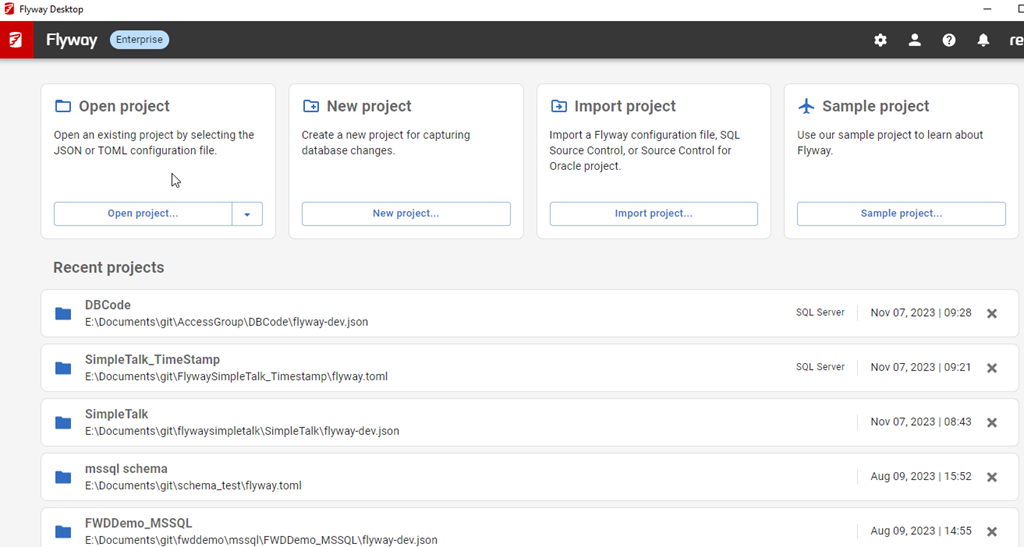
    As an example, you can see below my first project is a “SQL Server” project.

    2023-11-07 09_27_18-Flyway Desktop

    I’ve been working with Flyway Desktop for work more and more as we transition from older SSMS plugins to the standalone tool. This series looks at some tips I’ve gotten along the way.

    Two Simple Steps

    The first step to seeing the type of database project is to upgrade Flyway Desktop. The team is releasing basically every week. My version, upgraded before this post, is 6.9.3, so anything after this should have this capability.

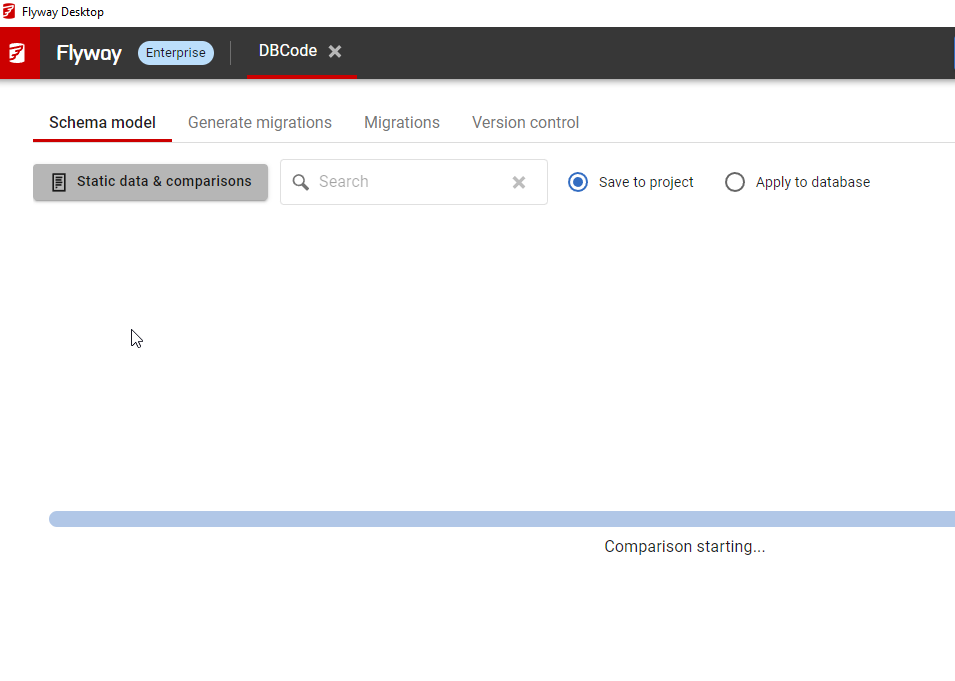
    The second step is you need to open your project. If I open the “DBCode” project above, it starts the comparison.

    2023-11-07 09_28_51-Flyway Desktop

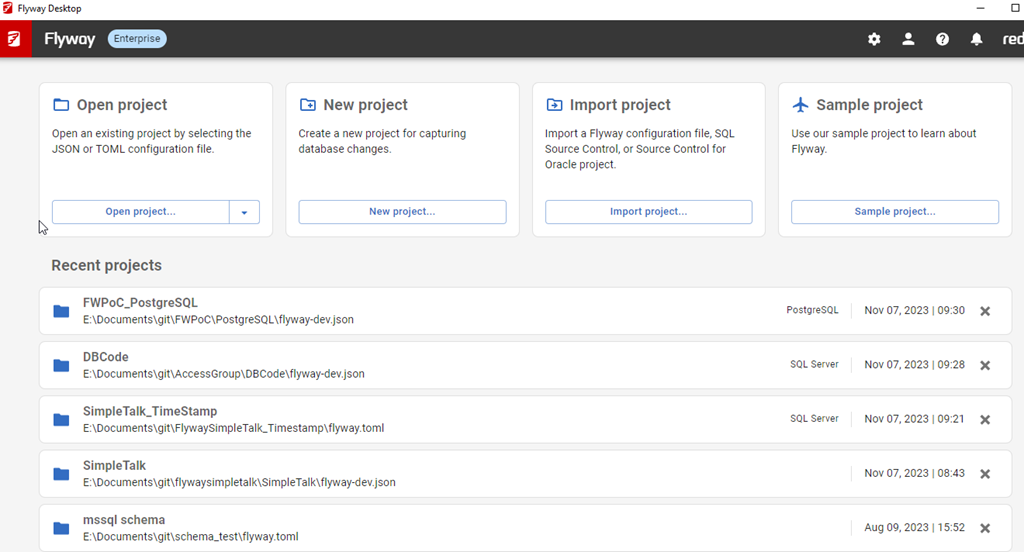
    I don’t have to wait for the comparison, I can just close the project. Once I do, the type of project appears on the right side.

    2023-11-07 09_29_57-Flyway Desktop

    If you’ve been working with Flyway Desktop for awhile, you might have noticed an “Upgrade project” in the upper right. This is to upgrade the project from a JSON format to a TOML format, which doesn’t matter for you, but it does make the management of the internals of Flyway and Flyway Desktop easier for the developers.

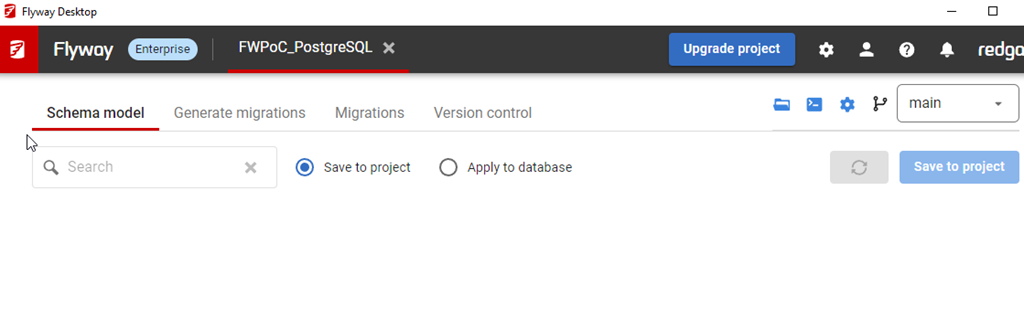
    In any case, you don’t need to upgrade the project. If I open and close a PostgreSQL project, I see this:

    2023-11-07 09_30_22-Flyway Desktop

    If I reopen the FWPoC_PostgreSQL project (named before this feature appeared), I see the upgrade is still there.

    2023-11-07 09_34_50-Flyway Desktop

    Try it out today. If you haven’t worked with Flyway Desktop, download it today. There is a free version that organizes migrations and paid versions with many more features.

    Video Walkthrough

    I made a quick video showing this as well. You can watch it below, or check out all the Flyway videos I’ve added:
     

  • Friday Flyway Tips–Seeing Pending Migrations

    I find that quite a few people using Flyway will end up with a lot of migration scripts over time. While you can certainly re-baseline and split scripts into separate folders, visualizing these over time can be hard.

    The Flyway Desktop team added a nice little option that makes it easier to see new work as opposed to old work.We’ll look at that in this post.

    I’ve been working with Flyway Desktop for work more and more as we transition from older SSMS plugins to the standalone tool. This series looks at some tips I’ve gotten along the way.

    Lots of Migration Scripts

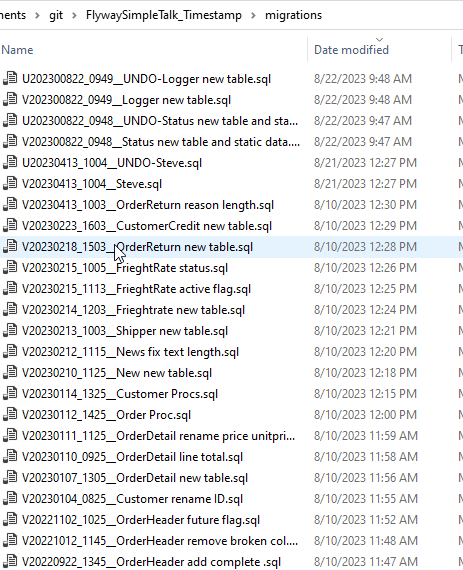
    We might see a lot of migration scripts over time in a folder. Certainly I can see this in the file system for one of my projects.

    2023-10-19 15_06_07-migrations

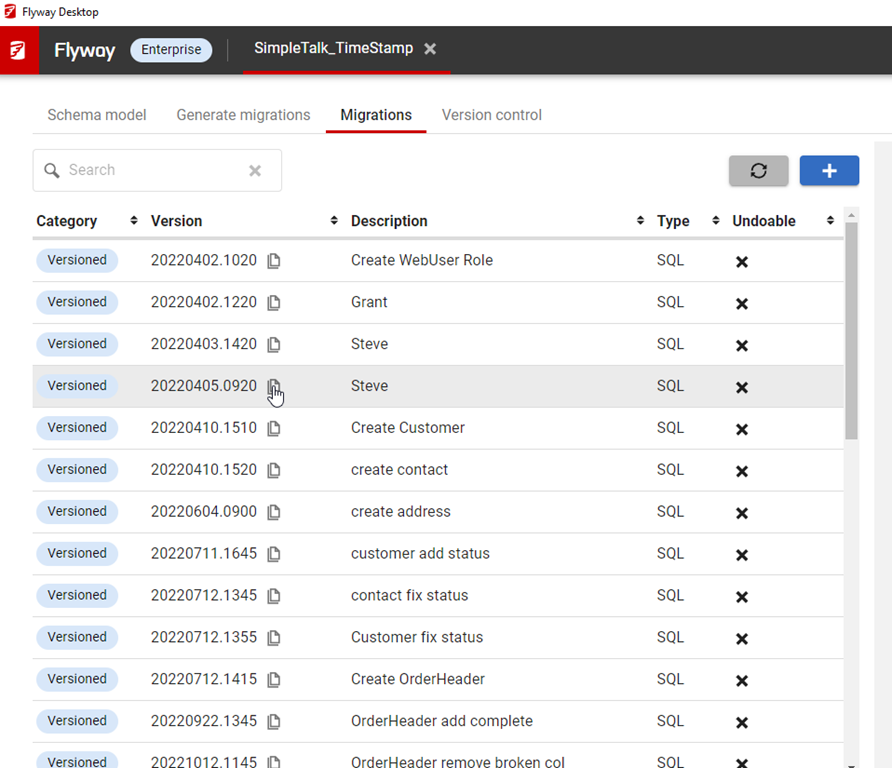
    In Flyway Desktop,  here is my view.

    2023-10-19 15_40_08-Flyway Desktop

    That is a lot of scripts. Since these are ordered as they would apply, it can be a lot of scrolling to find the ones that haven’t been applied.

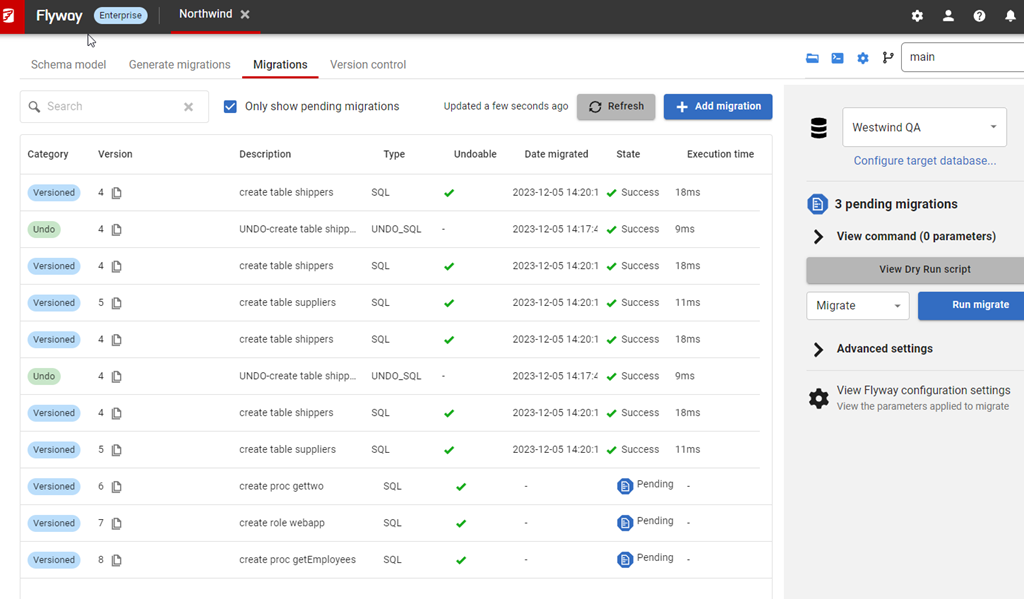
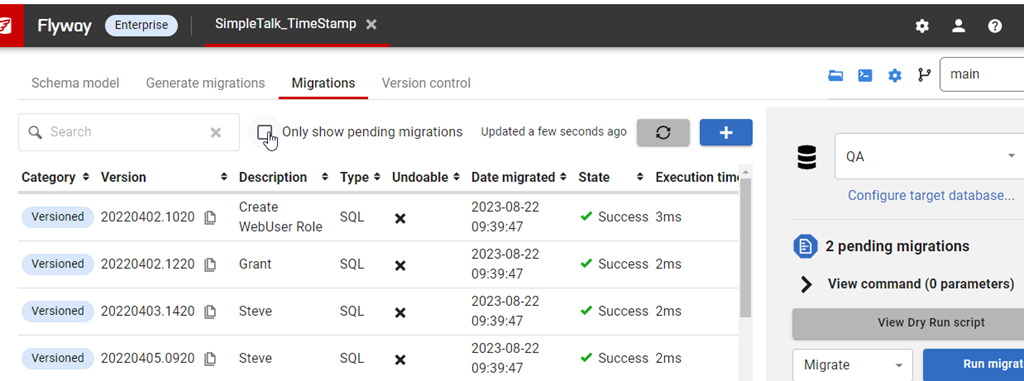
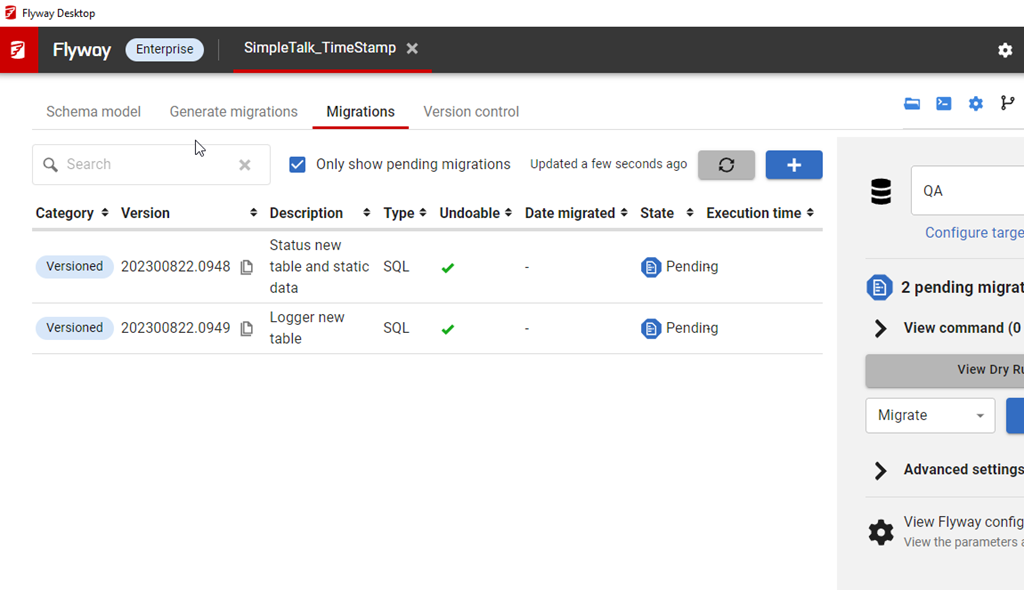
    However, if I click an environment on the right, I get a different view. Now I see a checkbox above the migrations that says “Only show pending migrations”.

    2023-10-19 15_40_29-Flyway Desktop

    If I click that, I see a view of the few that haven’t been applied to this environment.

    2023-10-19 15_42_13-Flyway Desktop

    A quick way to see what work has been added to the project, but not applied to other environments.

    Try it out today. If you haven’t worked with Flyway Desktop, download it today. There is a free version that organizes migrations and paid versions with many more features.

    Video Walkthrough

    I made a quick video showing this as well. You can watch it below, or check out all the Flyway videos I’ve added:
  • Friday Flyway Tips–Flyway Parameters

    Flyway is a command line tool with lots of options and parameters. Working with those is a pain, but we’ve made this easier in Flyway Desktop 6.5+. In this tip, see how you can add parameters to your Flyway command.

    I’ve been working with Flyway Desktop for work more and more as we transition from older SSMS plugins to the standalone tool. This series looks at some tips I’ve gotten along the way.

    Flyway Options

    There are a lot of options in Flyway that you can use, and we added a dialog in Flyway Desktop to make it easy to construct a command line call. However, we also made the FWD tool work better recently, removing the need to save your changes.

    In the migrations tab, I have all my migrations listed, and on the right side, I can see the command that would be run with the Flyway CLI.

    2023-09-18 14_11_01-Window

    If I click “View command”, I can see this command, which has a number of parameters by default.

    2023-09-18 14_11_08-Window

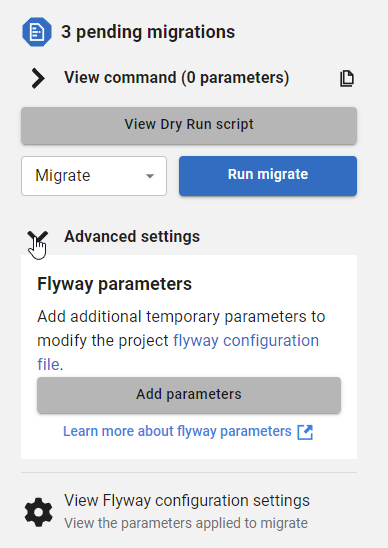
    However, often I want to add other parameters. Below this dialog is the Advanced settings area, which is where we add parameters.

    2023-09-18 14_11_19-Window

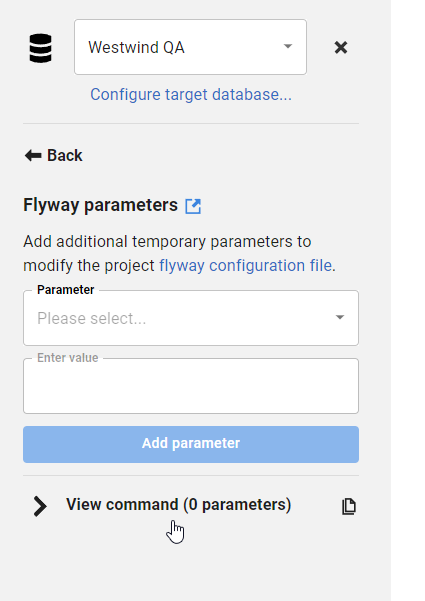
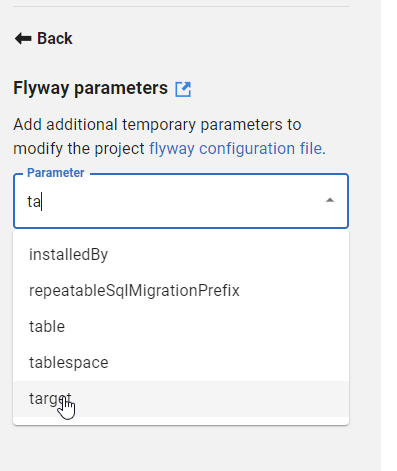
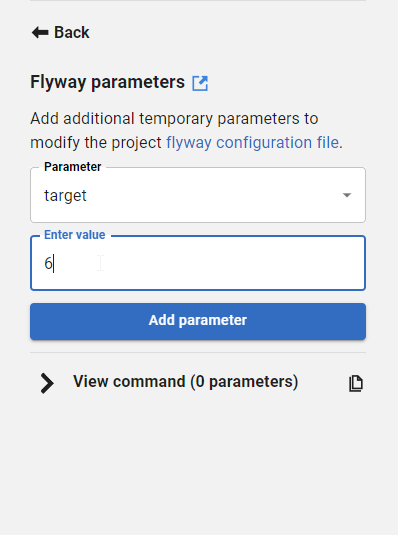
    If I click Add parameters, I get a list of all the parameters, and I can type in the list to filter them down. For example, I often want outOfOrder, so if I type “out” I see this listed.

    2023-09-18 14_11_42-Window

    I can select this and then enter a value for the parameter. I showed in a previous tip how you can easily copy migration numbers, which is handy for using in some of these parameter values.

    2023-09-18 14_11_49-Window

    Once I enter a value, I can click “Add parameter”. Of course, if I’ve done something silly, like enter an integer for a true/false value, the GUI tells me.

    2023-09-18 14_11_57-Window

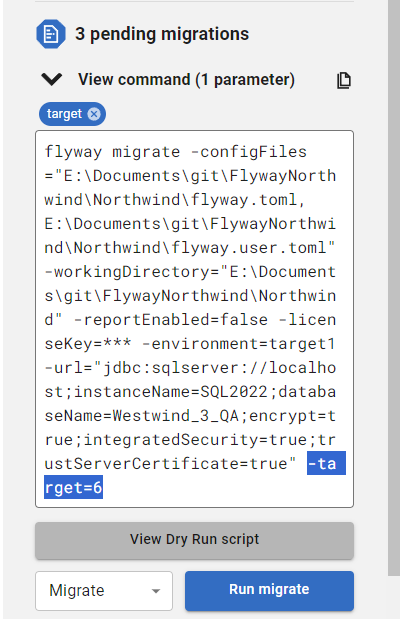
    If I add this, then it’s reflected in the command, which is what I’d copy and paste into some deployment tool like Azure DevOps, GitHub Actions, Octopus Deploy, etc.

    2023-09-18 14_12_05-Window

    Try it out today. If you haven’t worked with Flyway Desktop, download it today. There is a free version that organizes migrations and paid versions with many more features.

    Video Walkthrough

    I made a quick video showing this as well. You can watch it below, or check out all the Flyway videos I’ve added: