Tag: FWTips

  • Friday Flyway Tips–Commit and Push

    Flyway Desktop includes version control features with Git. One thing that was added in v6.5+ was the ability to commit and push.

    I’ve been working with Flyway Desktop for work more and more as we transition from older SSMS plugins to the standalone tool. This series looks at some tips I’ve gotten along the way.

    All in One Press

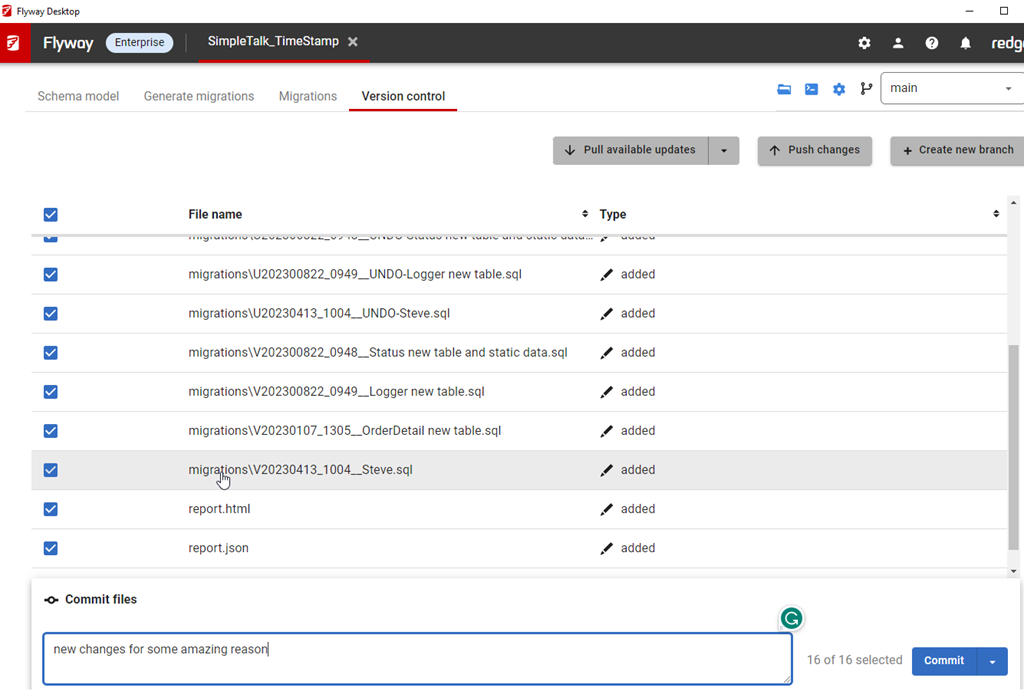
    This isn’t a big change, but it is one that customers have asked for. On the version control tab, when you have changes, they are listed with a commit button in the lower right.

    2023-08-25 16_06_35-Flyway Desktop

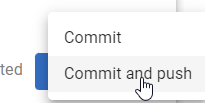
    We’ve added a drop down to this.

    2023-08-25 16_07_13-Flyway Desktop

    If you click this, you now have commit or commit and push options.

    2023-08-25 16_07_17-Flyway Desktop

    Pick the lower one, and you’ll get things committed and pushed up.

    2023-08-25 16_17_42-Flyway Desktop

    The choice isn’t saved, which I think isn’t a great design choice, but for now, you do have the option with each commit.

    Try it out today. If you haven’t worked with Flyway Desktop, download it today. There is a free version that organizes migrations and paid versions with many more features.

    Video Walkthrough

    I made a quick video showing this as well. You can watch it below, or check out all the Flyway videos I’ve added:
    https://youtu.be/QsWVcYxFdnM

  • Friday Flyway Tips: Visualizing Undo Scripts

    One nice thing with Flyway Enterprise is that it will automatically generate the undo scripts for migration scripts. However, it used to be that finding these and seeing the script was hard. It’s easier after Flyway Desktop 6.5.2

    I’ve been working with Flyway Desktop for work more and more as we transition from older SSMS plugins to the standalone tool. This series looks at some tips I’ve gotten along the way.

    Undo Scripts

    If you have Flyway Enterprise, you can have Flyway Desktop automatically generate scripts: both forward (versioned) and undo scripts.

    The config option for this is in project options, which is in the upper right.

    2023-08-10 15_53_53-Flyway Desktop

    Clicking this

    2023-08-10 15_53_57-Flyway Desktop

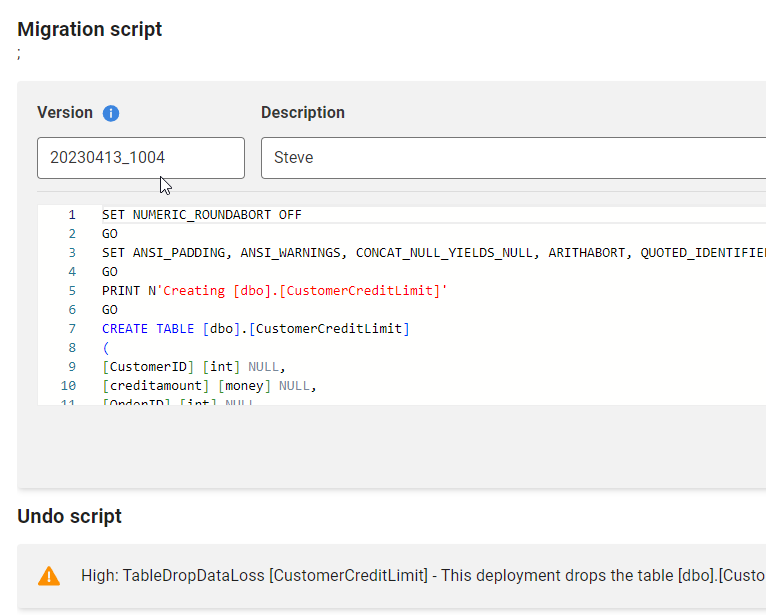
    Once have this, if you add a new object, when you generate the migration script, Flyway Desktop will generate the undo script. In the older UI (pre 6.5) this was a script below the generated script, which meant you had to scroll down, or up and down to compare the forward and undo scripts.

    The new UI is better. Now there is just a button. Let me show you how to do this.

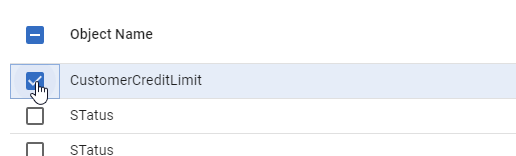
    First, I have a few changes in the schema model. I’ll select one.

    2023-08-21 12_27_19-Flyway Desktop

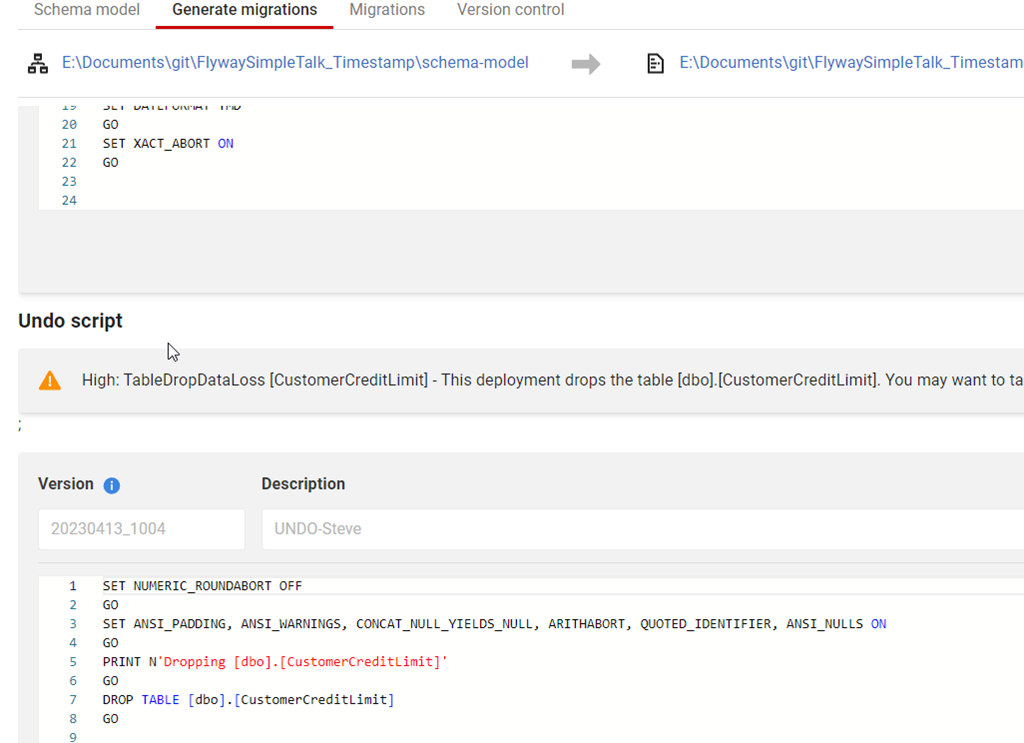
    Now I’ll generate the scripts. When I do that, I see the two scripts. The versioned (forward) script is first, and you can see the “Undo” at the bottom.

    2023-08-21 12_28_05-Flyway Desktop

    Below this, the rest of the undo script is visible if I scroll down.

    2023-08-21 12_28_12-Flyway Desktop

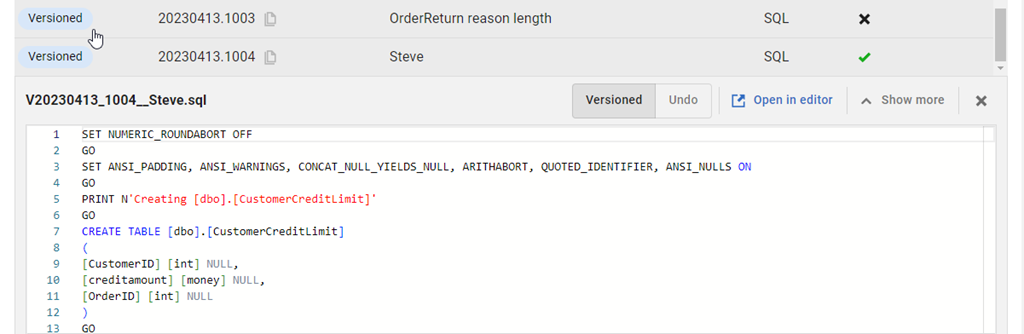
    It’s a bit of a pain to scroll up and down, so there is a small improvement in the migrations tab. If I go there, I can find my script at the bottom of the list and click it.

    2023-08-21 12_30_33-Flyway Desktop

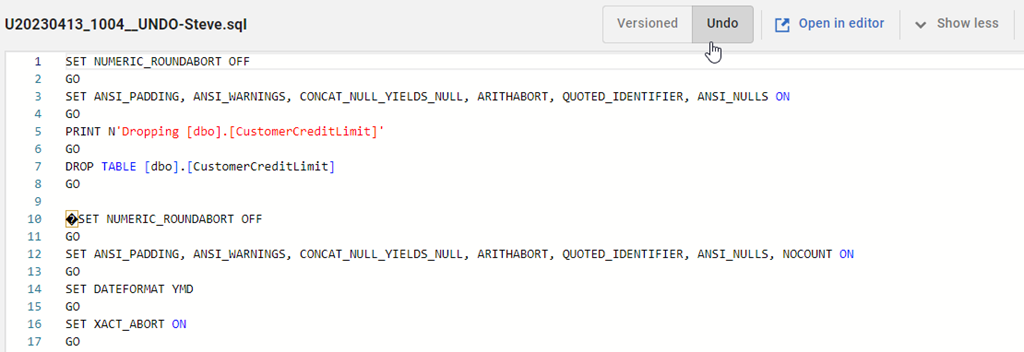
    At the top of the script, in the bar, there is now a set of toggle buttons for version and undo.

    2023-08-21 12_24_35-Flyway Desktop

    I can click back and forth to easily see both scripts. The V script is above, and the undo is below.

    2023-08-21 12_39_44-Flyway Desktop

    Try it out today. If you haven’t worked with Flyway Desktop, download it today. There is a free version that organizes migrations and paid versions with many more features.

    Video Walkthrough

    I made a quick video showing this as well. You can watch it below, or check out all the Flyway videos I’ve added:
     

  • Friday Flyway Tips: More Config Options

    Working with various Flyway configuration options used to be a pain since they were either CLI parameters or in a text files. We’ve made editing these easier in Flyway 6.5.4.

    I’ve been working with Flyway Desktop for work more and more as we transition from older SSMS plugins to the standalone tool. This series looks at some tips I’ve gotten along the way.

    All the Options

    Maybe not all, but most and certainly more.

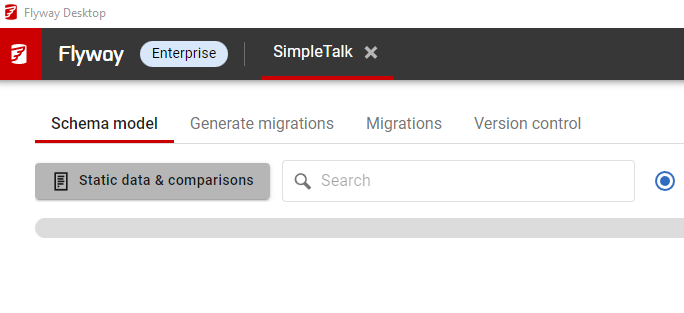
    In the Schema Model tab, there is a button that says “Static data & comparisons”. I don’t love the UX, but there’s a lot of stuff to show here, and this is really relevant here, which is where we start using these options: when we get the object definition.

    2023-08-10 15_41_20-Flyway Desktop

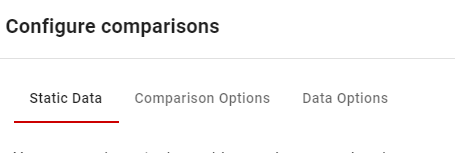
    If you click this, you’ll see a dialog pop up, with any tables where you are tracking static (or reference/lookup) data. There are two other tabs: comparison options and data options.

    2023-08-10 15_41_28-Flyway Desktop

    Clicking comparison options shows you the options for schema comparison. Essentially the options for SQL Compare (for SQL Server), Schema Compare for Oracle (for Oracle), or Redgate Compare (everything else). You can toggle these on or off by clicking checkboxes.

    2023-08-10 15_41_36-Flyway Desktop

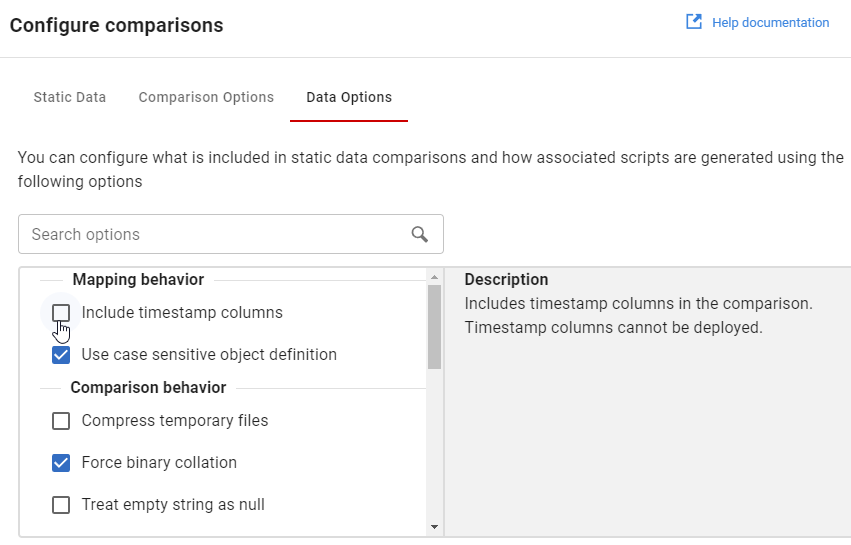
    Likewise, there are the static data comparison options, equivalent to project settings in Data Compare.

    2023-08-10 15_41_48-Flyway Desktop

    There are still a lot of options, and these can be confusing. Knowing what is set and choosing those isn’t simple, but it is easier than trying to edit these in a config file.

    Try it out today. If you haven’t worked with Flyway Desktop, download it today. There is a free version that organizes migrations and paid versions with many more features.

    Video Walkthrough

    I made a quick video showing this as well. You can watch it below, or check out all the Flyway videos I’ve added:

  • Friday Flyway Tips: Copying the Migration Number

    It’s a small thing, but copying the migration number can be a pain. However, we’ve made this easier in Flyway 6.5.4.

    I’ve been working with Flyway Desktop for work more and more as we transition from older SSMS plugins to the standalone tool. This series looks at some tips I’ve gotten along the way.

    Lots of Migration Numbers.

    I’ve got a lot of migrations in this project. You can see below in the image, noting the scroll bar goes up and down here.

    2023-08-10 12_30_54-Flyway Desktop_thumb[1]

    These are easy to read numbers, but some companies use dates and times. Like this:

    2023-08-10 15_06_25-Flyway Desktop

    Those are harder to read, but more importantly, easy to mis-type. If you were using flyway migrate or undo with a specific version, you don’t want to make a mistake.

    We’ve made it easy in Flyway. We added a copy button, which you can see below. This is to the right of each migration. I missed this until a dev pointed it out.

    2023-08-10 15_06_38-Zoomit Zoom Window

    If I click this, the version is copied. I can paste it into the search, as shown here.

    2023-08-10 15_06_57-Flyway Desktop

    Or an email.

    2023-08-10 15_07_18-Untitled - Message (HTML)

    A small change, but a handy one. One way to make working with Flyway smoother and reduce mistakes. That’s a big part of DevOps, trying to reduce mistakes.

    Of course, you have to click the right line. Winking smile

    Try it out today. If you haven’t worked with Flyway Desktop, download it today. There is a free version that organizes migrations and paid versions with many more features.

    Video Walkthrough

    I made a quick video showing this as well. You can watch it below, or check out all the Flyway videos I’ve added: