Tag: Git

  • Changing the Origin in Git–#SQLNewBlogger

    I needed to show a customer how to migrate from Azure DevOps to GitHub recently, and to smooth this process, we needed to repoint the origin remote.

    Another post for me that is simple and hopefully serves as an example for people trying to get blogging as #SQLNewBloggers. You can see all posts on Git as well.

    Changing the Remote

    When you want to see remotes, you run this code:

    git remote –v

    As you can see, I have my origin pointed to Azure DevOps..

    2023-12-19 11_46_54-cmd

    Now, I can delete and add back the origin remote if I want, but there is an easier way. I’ll use the set-url parameter with this code:

    git remote set-url origin https://github.com/way0utwest/DatabaseDevOpsMS.git

    This points the origin to my new remote in GitHub. Once I run this, I’ll set the branch and push, as the GitHub repo is empty. This pushes everything to GitHub and voila, I’ve got code there.
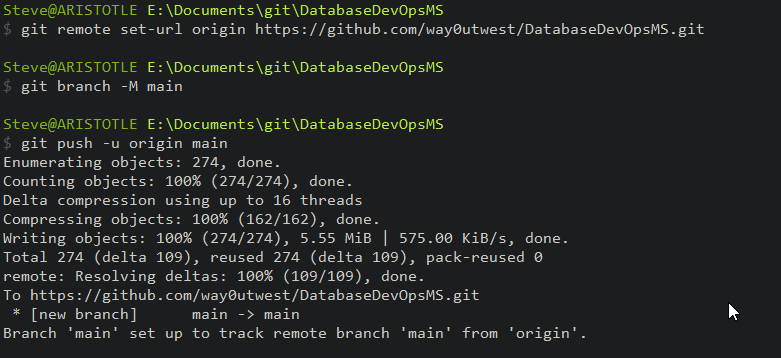
    2023-12-19 11_48_22-cmd

    You can see this online

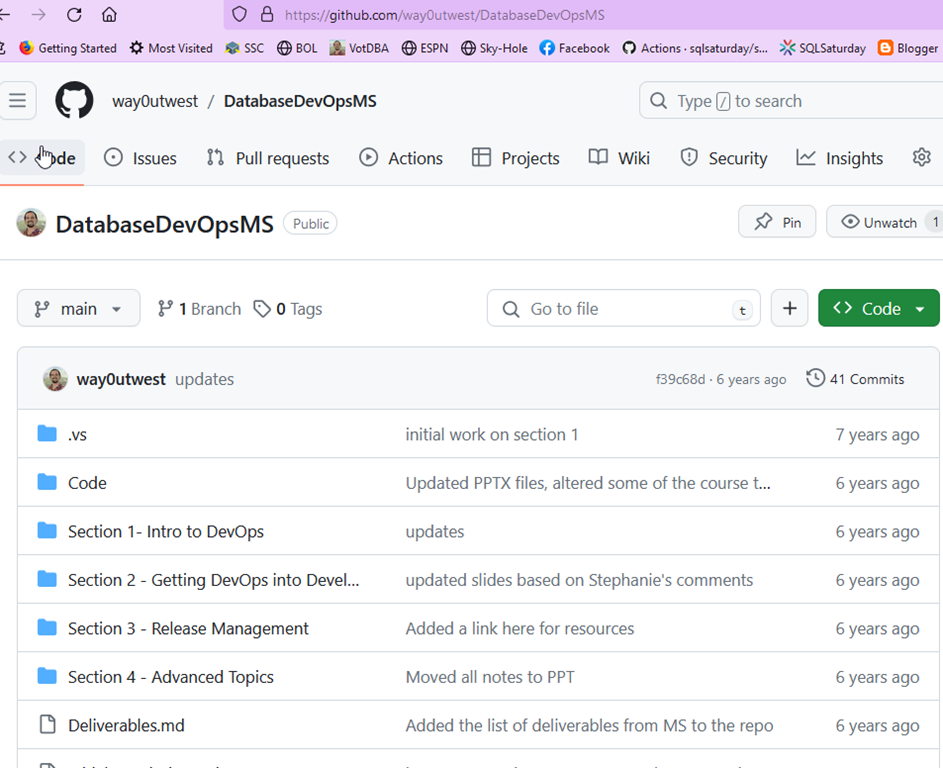
    2023-12-19 11_35_59-way0utwest_DatabaseDevOpsMS — Mozilla Firefox

    SQL New Blogger

    I had to write this up in more detail for a customer as documentation. You might do this at work for someone, but I grabbed this focused, small piece of this and created my own blog, reusing a few screenshots.

    Note: Don’t reuse screenshots of company assets. Recreate this in your own space.

    This took me only about 5 minutes to write up after the other work was done. You could easily do that.
  • Deleting a Git Branch–#SQLNewBlogger

    I had someone ask me recently about deleting branches. While I had known how to delete a local branch, I had to look up how to delete a remote one. Documenting these both will hopefully help me remember this.

    Another post for me that is simple and hopefully serves as an example for people trying to get blogging as #SQLNewBloggers.

    Deleting Branches

    Most parameters have something do to with the action, and most people might guess a –d is used to delete a branch in Git. The actual syntax for a branch named “Feature123” is:

    git branch –d Feature123

    You can also use a –D, though be aware that –D is the same as –d with the –force option. The –d actually aliases to –delete, so you have three options:

    • -d
    • –delete
    • -D (this will run –-force)

    To delete a remote branch, you can use (with v1.7+)

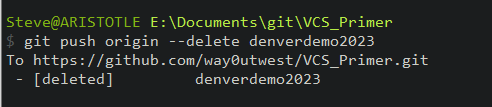
    git push origin –-delete Feature123

    where origin is the remote name and Feature123 is the branch. This is better than the old syntax, and you ought to keep your git up to date.

    You can see this working for one of my branches below:

    2023-10-11 13_20_00-cmd

    Git docs for branch have more details.

    Use this to clean up branches if your changes are merged and you don’t need to send in any more PRs for this branch.

    SQL New Blogger

    This is a simple thing, but one that I don’t do often, so I wrote this as much to document it for myself as to put this out there as a piece of knowledge. If someone reads this post and asks the question in an interview, it’s likely an easy one for me to give.

    You can do this, help showcase your career knowledge and control the interview. This piece took me about 8 minutes to write. You could do your own version of this topic.

  • Creating an Empty Repo in GitHub–#SQLNewBlogger

    I saw someone struggling with getting started with a Visual Studio project and Azure DevOps. They got a conflict, which I’ll show and then get you started with an empty repo.

    Another post for me that is simple and hopefully serves as an example for people trying to get blogging as #SQLNewBloggers.

    The Problem with Initialized Repos

    I wrote about this recently with Azure DevOps and empty repos.. If I initialize a repo in GitHub, or any online provider, and try to push up a local repo, it returns an error that I have conflicts.

    I’ve learned that when I want to start a new project, either I create the repo locally and then make an empty one online, or I create it online, clone it, and then start working.

    I try to do the second (create online first), but I don’t always remember.

    Creating an Empty Repo

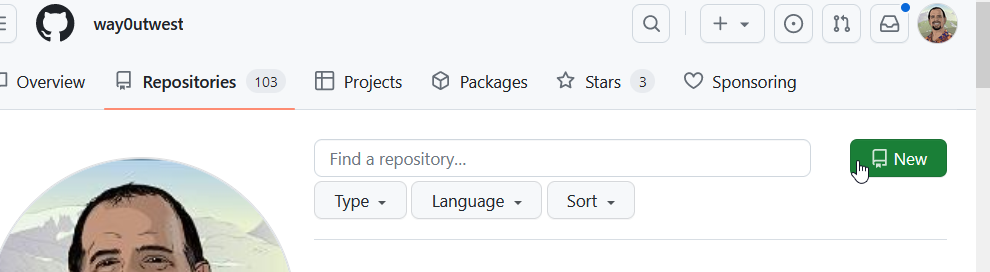
    In GitHub, if you go to your repositories page, you can see a “New” button on the right.

    2023-08-25 16_56_06-Your Repositories — Mozilla Firefox

    Click this and enter a name, as I’ve done below. BTW, I love the suggested name.

    2023-08-25 16_56_30-New repository — Mozilla Firefox

    If you look at the image above, near the bottom, you can see my mouse pointer.

    DO NOT check this box if you want an empty repo. Don’t add a .gitignore either. You’ll be adding code from your own project, which likely has a gitignore file and might have a repo. If not, just create a readme.md file in your local git repo.

    Don’t add a license file either.

    Pushing My Project

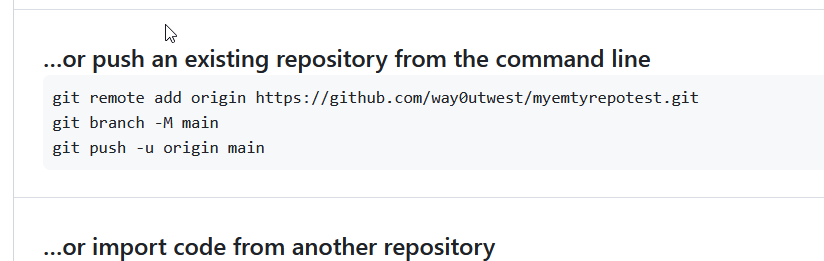
    Now when you create this, you get the details of how to push your repository. If you have never used git, just open a command prompt and paste these lines in one by one and run them.

    2023-08-25 17_00_57-way0utwest_myemtyrepotest — Mozilla Firefox

    That’s it and now you can work and commit in either repo and deal with merges.

    SQLNewBlogger

    This post was easy for me, but I’ve been in the situation where I’ve made this mistake. In this case, I’d written the other post, so I knew what to do here. I spent another 10 minutes getting GitHub set, taking images, and writing this.

    Easy to do, 2 posts from one idea, and showcasing knowledge on another platform. I could do another one with BitBucket or somewhere else, and maybe I will. I have customers that use other platforms.

    Maybe you should do this and showcase your versatility to the next person that wants to interview you. If you want to work with software and Git, show them you know the basics. Or even more.

  • Creating Empty Repos in Azure DevOps–#SQLNewBlogger

    I saw someone struggling with getting started with a Visual Studio project and Azure DevOps. They got a conflict, which I’ll show and then get you started with an empty repo.

    Another post for me that is simple and hopefully serves as an example for people trying to get blogging as #SQLNewBloggers.

    The Problem with Initialized Repos

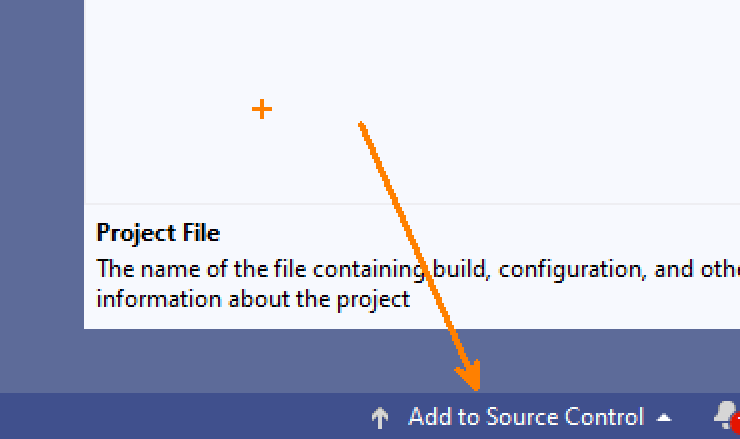
    First, I’ll open VS 2019 and create a new database project. I won’ t walk through that, but once I do, then I can add my project to source control. In the lower right corner, this is an option:

    2023-08-09 12_58_07-Zoomit Zoom Window

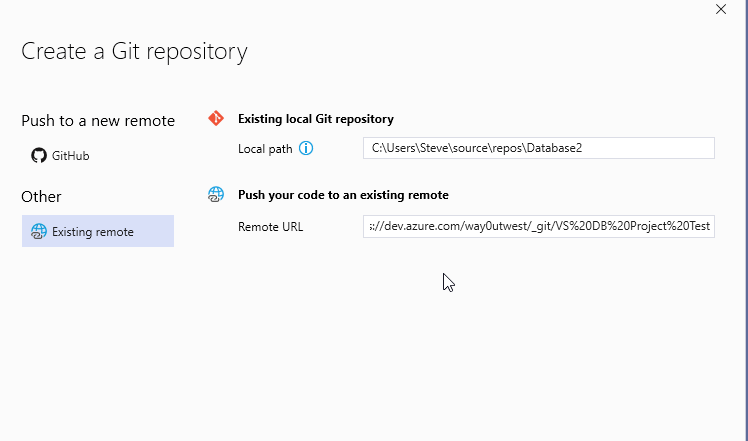
    I’ll choose a local repository here. I see plenty of people do this if they don’t want to use GitHub.

    2023-08-09 12_58_34-

    Now, I go to Azure DevOps and create a project. I initialize that project with a Readme, which seems like a good idea. You can see my online repo below:

    2023-08-09 12_56_01-VS DB Project Test - Repos

    When I create this, I get the options to link an existing repo or push up.

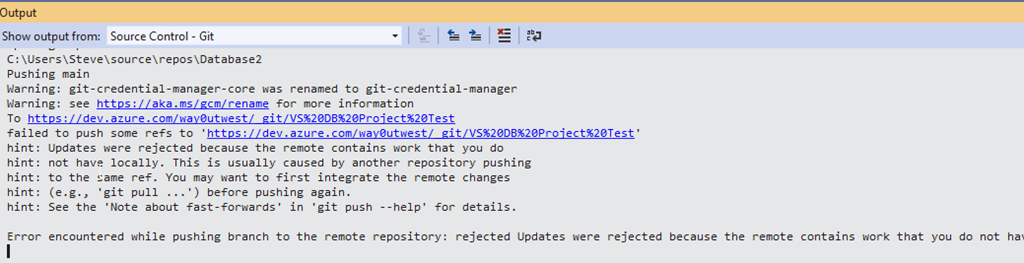
    2023-08-09 12_59_54-Database2 - Microsoft Visual Studio

    However, if I try to link my existing local repo, I get an error.

    2023-08-09 13_00_19-Database2 - Microsoft Visual Studio

    Why? I have a commit in the report (initialized with a readme) and commits locally. That’s a conflict.

    Creating an Empty Repo

    The way to avoid this is make an empty repo in Azure DevOps without anything in it. When you see this screen, un check the “add a README”. No matter how much you want to have one, don’t do this.

    2023-08-25 16_35_11-VS DB Project Test - Repos

    Now, you have an empty repo for the remote. You should see this online, with the first line noting this is empty. From here, you can use the second box to push your repo from the command line.

    2023-08-25 16_36_17-Files - Repos

    SQLNewBlogger

    This post was easy for me, but I’ve been in the situation where I’ve made this mistake. It’s annoying, but it’s also confusing as you should be able to make changes in both repos. That’s why we use git.

    You can, but not when both are initialized. You need to clone one from the other.

    This post took me about 15 minutes to create, with a good portion of time spent creating the scenario twice (two repos) and the db project in VS, which is slow. You could do this same thing and show how (and why) you set up a project linked to source control. If you use a couple systems (one at work and one at home) make two posts!