Tag: Git

  • Deleting Old Local Git Branches–#SQLNewBlogger

    I had a lot of local branches for a repo (actually a few repos). I know these are old and not used anymore, so how do I delete them? This post shows how to do that on Windows.

    Another post for me that is simple and hopefully serves as an example for people trying to get blogging as #SQLNewBloggers. You can see all posts on Git as well.

    The Problem

    As I’ve been making changes for various SQL Saturday events

    I saw this SO post, which was a good starting point. I grabbed this code, which I’ll explain below.

    git fetch -p && git branch -vv | awk '/: gone]/{print $1}' | xargs git branch -d

    The problem is this doesn’t work on Windows.

    2024-06-23 10_24_52-cmd

    Running This on Windows

    I assume most of you installed Git and have Git Bash. The xargs and awk commands are Unix/Linux ones, so you need a bask shell to tun them

    The solution for me, was to open a bash shell in the repo with the right click menu on Windows.

    2024-06-23 10_33_35-sqlsatwebsite

    Then run the code:

    2024-06-23 10_24_44-MINGW64__e_Documents_git_sqlsatwebsite

    Local branches removed. Well, almost; read the next section.

    Additions

    Note that in the first execution, I had two errors noting that there were some unmerged branches. When I look at these, I see they were old branches, ones that haven’t been used in years. I’m guessing either I was fixing something for someone, or they fixed something in another branch.

    So, I forced delete by re-running the command a capital D.

    How this Works

    This code uses some Unix based utilities that I haven’t used in a long time. The flow of this is similar to how PowerShell, or even VBScript works, but on a single line. In this case, this code:

    • Gets a list of branches from the remote with git fetch after pruning the references for local branches that don’t exist on te remote.
    • Run the branch command with the verbose output. Could be –verbose as well
    • Take the output if the previous step and pipe that through awk. This command will parse text, looking for “gone” in a line and then printing the branch name.
    • This text is then taking with xargs and passing it to the git branch command with the delete option.

    Note this doesn’t force delete branches.

    SQL New Blogger

    This post took about 20 minutes to write. I spent about 5 minutes checking a few code examples online, and then tried one after I’d killed branches from GitHub. I don’t have a great solution there, but I don’t do this often and I can click a few buttons to manage this.

    I then structured this post with a few screenshots and spent 15 minutes working on it. I’d actually sketched it in 5 minutes with the major sections and a sentence in each and realized this would be quick to write, so I just filled it in on a Sunday morning.

    You could do this as well and give an interviewer something to ask you in the next interview. This might catch their eye. I’d also suggest (and I will) do a few posts on awk and xargs. Those are good skills to have and you might spent 20 minutes experimenting and having fun with them.

  • DBAs, Organizing Your SQL Scripts in Git

    I wrote an article that was published on SQL Server Central on how to get your scripts into Git. This post adds a few more thoughts on how you might get started.

    This is part of my series on git that is designed to help people get started using version control in their daily work. You can see all my other posts on Git as well.

    Organizing My Scripts

    I showed a sample folder that looked like this, with a main area of scripts and then a subfolder for reports.

    2024-06-20 16_14_40-dbascripts

    As a DBA team, I want to ensure we all easily can find things. If we don’t have a lot of scripts, I might keep most in a single folder. However, if this becomes 3 or 40 scripts, it’s easy to make mistakes or have too many similar things.

    What I might organize things slightly better like this:

    2024-06-20 17_02_03-dbascripts

    Here I’ve moved the Diagnostic queries from Glenn Berry into their own folder. Those I might run more rarely, though I might update them more often. Getting them into their own folder lets me move them out of the way. You could organize those by version, but the names keep them separate, so I’d probably just keep them all there.

    I added a “ETL” folder for specific scripts related to that function. I might need those regularly, but this helps me find them. If I had different types of ETL stuff, like on-prem and AWS, or maybe different apps (“Sales DW” vs. “Inventory ETL”), I might put those in subfolders below there.

    I also renamed the who_is_active.sql to “common_who_is_active_scenarios” where I have some calls with specific parameters set.

    I didn’t do this, but looking at this, I’d probably add a “installation scripts” folder where I moved the sp_WhoIsActive.sql and other install versions of scripts into that location.

    What I’m trying to do is just get DBAs to easily and quickly find scripts without accidentally picking the wrong scripts. This helps in pressure situations and also helps onboard new team members.

    I didn’t show how to update and version scripts, but I’ll do that in a new SSC article.

  • Resetting Git and Abandoning Changes–#SQLNewBlogger

    I recently had an issue in one of my Git repos, and decided to drop all my local changes and just pull down from the remote. This post looks at what I did.

    Another post for me that is simple and hopefully serves as an example for people trying to get blogging as #SQLNewBloggers. You can see all posts on Git as well.

    A Bad State

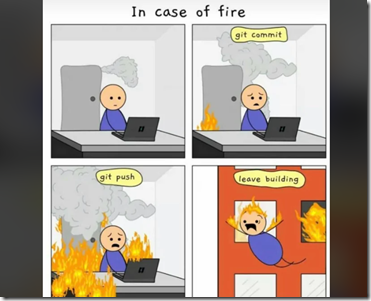
    The old cartoon looks like this:

    2024-06-17 16_35_56-Never forget _ r_git

    In my case, I hadn’t done this. I didn’t have a fire, but I did leave the building.

    Actually, what I’d done was made a few changes at home and hadn’t committed them. I was in between trips and in a hurry, and walked away. On the road, I made similar changes and did commit/push them. When I got home, I couldn’t git pull because of the conflict.

    What’s worse, these were binary (Excel) files.

    I could have tried to sort things out, but in this case, I knew the remote copy was likely more up to date in place and I could easily re-enter the data I’d saved but not committed.

    The way to do this for me, for tracked changes, was git reset.

    In my case, I wasn’t trying to reset to a particular commit, I just wanted to whack all changes I’d made. This was just one file for me, so I issued:

    git reset -–hard

    The -–hard discards changes to any tracked files. Changes to untracked files aren’t affected. I’ll write about that in another post.

    This cleaned my local repo back to the last time I’d had a git pull. From here, I could just get changes from the remote and work on.

    SQL New Blogger

    This post took about 5 minutes, literally, to write. Some of that is I’m a good typist, some is this is a simple story. Any tech pro ought to be able to do this in 5 minutes as well. If not, learn to type or to structure a short story.

    This shows a little tech knowledge, but also an explanation of a situation.

  • Deleting Stale Local Database Git Branches with SSMS–#SQLNewBlogger

    I wrote a post recently about pruning branches in git. That’s part of the job, but the other part is removing local branches. This post looks at one way to do that in a semi-manual fashion.

    This could be automated, but it took seconds, so I did a quick manual thing. I’ll work on an automated way, but since I do this rarely, manual is fine for me.

    Another post for me that is simple and hopefully serves as an example for people trying to get blogging as #SQLNewBloggers. You can see all posts on Git as well.

    Getting a List of Branches to Delete

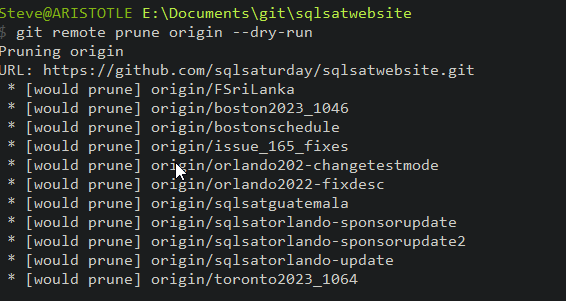
    In the last post I showed how to get a list of branches with dry run. This was the image I showed of branches. If I re-run that without the dry run, the branches are removed.

    2024-04-11 10_51_57-cmd

    The output is similar, but either set of output works. Once we have a list of branches, what do we do? Let’s use SSMS to help.

    SSMS Makes This Easy

    If I highlight the results of my git prune, I can copy/paste those into SSMS. You can see below I’ve done this, and then held the ALT+Shift key to select a bunch of text in a box. This is all the text apart from the branch names.

    2024-04-11 10_54_39-SQLQuery4.sql - not connected_ - Microsoft SQL Server Management Studio

    Once I’ve done this, I can let go of those keys and type “git branch –d “, which will replace the text on every line. You can see this below.

    2024-04-11 10_54_52-SQLQuery4.sql - not connected_ - Microsoft SQL Server Management Studio

    This is a great technique, and while it works in VSCode and some other editors, I usually have SSMS open and it works very well here. I then select all this text, paste it back into the CMD window, accept the note that this is a multi-line paste, and all my deletes run.

    2024-04-11 10_55_27-cmd

    Voila, all remote branches deleted are removed from my local git install. A few of these were already removed manually as I experimented.

    SQL New Blogger

    As I mentioned in the previous post, version control skills (especially git) are core for most technology pros. DBA, developers, sysadmin, anyone working with modern software development or administration likely needs to know about version control.

    This post was about 10 minutes. You could write this in 15 and showcase your tech skills to a future employer.