Tag: VCS

  • Resetting Git and Abandoning Changes–#SQLNewBlogger

    I recently had an issue in one of my Git repos, and decided to drop all my local changes and just pull down from the remote. This post looks at what I did.

    Another post for me that is simple and hopefully serves as an example for people trying to get blogging as #SQLNewBloggers. You can see all posts on Git as well.

    A Bad State

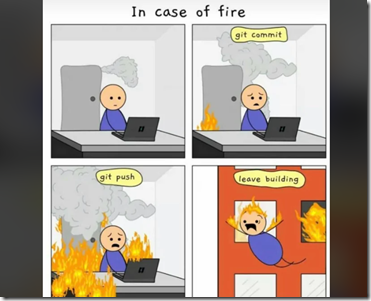
    The old cartoon looks like this:

    2024-06-17 16_35_56-Never forget _ r_git

    In my case, I hadn’t done this. I didn’t have a fire, but I did leave the building.

    Actually, what I’d done was made a few changes at home and hadn’t committed them. I was in between trips and in a hurry, and walked away. On the road, I made similar changes and did commit/push them. When I got home, I couldn’t git pull because of the conflict.

    What’s worse, these were binary (Excel) files.

    I could have tried to sort things out, but in this case, I knew the remote copy was likely more up to date in place and I could easily re-enter the data I’d saved but not committed.

    The way to do this for me, for tracked changes, was git reset.

    In my case, I wasn’t trying to reset to a particular commit, I just wanted to whack all changes I’d made. This was just one file for me, so I issued:

    git reset -–hard

    The -–hard discards changes to any tracked files. Changes to untracked files aren’t affected. I’ll write about that in another post.

    This cleaned my local repo back to the last time I’d had a git pull. From here, I could just get changes from the remote and work on.

    SQL New Blogger

    This post took about 5 minutes, literally, to write. Some of that is I’m a good typist, some is this is a simple story. Any tech pro ought to be able to do this in 5 minutes as well. If not, learn to type or to structure a short story.

    This shows a little tech knowledge, but also an explanation of a situation.

  • Deleting Stale Local Database Git Branches with SSMS–#SQLNewBlogger

    I wrote a post recently about pruning branches in git. That’s part of the job, but the other part is removing local branches. This post looks at one way to do that in a semi-manual fashion.

    This could be automated, but it took seconds, so I did a quick manual thing. I’ll work on an automated way, but since I do this rarely, manual is fine for me.

    Another post for me that is simple and hopefully serves as an example for people trying to get blogging as #SQLNewBloggers. You can see all posts on Git as well.

    Getting a List of Branches to Delete

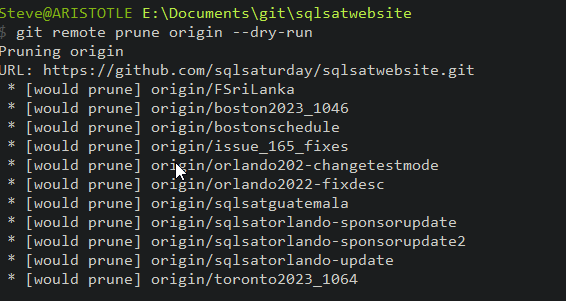
    In the last post I showed how to get a list of branches with dry run. This was the image I showed of branches. If I re-run that without the dry run, the branches are removed.

    2024-04-11 10_51_57-cmd

    The output is similar, but either set of output works. Once we have a list of branches, what do we do? Let’s use SSMS to help.

    SSMS Makes This Easy

    If I highlight the results of my git prune, I can copy/paste those into SSMS. You can see below I’ve done this, and then held the ALT+Shift key to select a bunch of text in a box. This is all the text apart from the branch names.

    2024-04-11 10_54_39-SQLQuery4.sql - not connected_ - Microsoft SQL Server Management Studio

    Once I’ve done this, I can let go of those keys and type “git branch –d “, which will replace the text on every line. You can see this below.

    2024-04-11 10_54_52-SQLQuery4.sql - not connected_ - Microsoft SQL Server Management Studio

    This is a great technique, and while it works in VSCode and some other editors, I usually have SSMS open and it works very well here. I then select all this text, paste it back into the CMD window, accept the note that this is a multi-line paste, and all my deletes run.

    2024-04-11 10_55_27-cmd

    Voila, all remote branches deleted are removed from my local git install. A few of these were already removed manually as I experimented.

    SQL New Blogger

    As I mentioned in the previous post, version control skills (especially git) are core for most technology pros. DBA, developers, sysadmin, anyone working with modern software development or administration likely needs to know about version control.

    This post was about 10 minutes. You could write this in 15 and showcase your tech skills to a future employer.

  • Using Git Prune–#SQLNewBlogger

    As I’ve been working with SQL Saturday and managing changes to events, I’ve accumulated a lot of branches. Even though I’m a solo developer, I decided to use branches, as I expect others to share this load in the future. This post looks at how to start cleaning those up.

    Another post for me that is simple and hopefully serves as an example for people trying to get blogging as #SQLNewBloggers. You can see all posts on Git as well.

    Another post for me that is simple and hopefully serves as an example for people trying to get blogging as #SQLNewBloggers.

    Finding Old Branches

    When I ran the git branch command, I saw this. There are a lot of old branches in there.

    2024-04-11 10_44_53-cmd

    I decided that I should reduce this number. After all, even removing stale branches means I have a lot of events in flight.

    We use GitHub, and when I go on the site, I see lots of branches, some of which date back to last year. Those events are done, so I decided to delete some branches. In the image below, there are three branches. To the right, there are delete icons on the bottom two as I’ve already pressed the one to delete the remote branch on the top one.

    2024-04-11 10_51_00-Branches · sqlsaturday_sqlsatwebsite — Mozilla Firefox

    Now, how do I delete the local branch? Let’s start by removing it.

    Git Prune

    There is a command to remove references to remote branches that are deleted: git prune. I deleted a few older branches, and then ran git prune for remotes, with the –dry-run option. This tells me what would happen. As you can see, a number of branch references would be deleted.

    2024-04-11 10_51_57-cmd

    Nothing in here I’m worried about or that is active. I’ve deleted these on GitHub, so I’ll re-run the command without dry run. This removes the references.

    Unfortunately, the local branches still exist. We don’t remove these, as it’s possible I have work on a local branch not sent to the remote, so doing this automatically, even if I do it, is dangerous.

    I’ll do another post on removing the local branches.

    Automating the Removal of Remote references

    I might want to remove local references for branches that get deleted on the remote. This is useful if you delete branches on merge. I don’t in this case, as I’m often using the same branch for multiple changes for an event, rather than a new branch for every one.

    One way to do this is to change the config with this:

    git config remote.origin.prune true

    This will then run the prune on each fetch or full. This helps keep things cleaner, though local branches still exist. However, if I commit to a local branch and push, I’ll get an error that I need to configure the upstream. That helps with me being aware of what’s active or not.

    SQL New Blogger

    Using version control is a core skill for anyone in technology. Even database people. You could write posts on how you use or learn about git (or something else) and showcase your skills.

    This post took me about 15 minutes to write, even with screen shots.

  • This is Why You Use Git for Scripts

    Git has become a fantastic tool for me, and many other technologists, over the last ten years. It’s almost ubiquitous in most of my clients, and so many people are comfortable with it. Many others aren’t, which is why I started a Git series for DBAs (and other Ops people) on my blog.

    Quite a few people asked me why I recommend git over a file share for storing code that a team of Ops people or DBAs might use. Why isn’t a global file share a better choice in an organization? I think I have a few good reasons, but if you disagree, let me know in the discussion for this piece.

    First, I’ve worked with a lot of file share tech over the years. Microsoft has done a good job of trying to ensure that a “file server” works well for organizations. I’ve used simple file shares on a particular server, I’ve had mapped drives to a file share appear on every desktop in the org, and I’ve even had to work with large orgs that use DFS (or something similar) to ensure we can replicate files across multiple servers for backup and speed.

    All of those work, but they have a complexity, and a dependency on the team managing the file share. They also require a network connection to the share in order to see the files, which isn’t always as reliable and solid as we would like, especially in this modern world of working at home, databases in the cloud, and a widely dispersed workforce that uses BYOD devices. Don’t get me wrong, those aren’t bad things, but they complicate the idea of having a single global location for stuff.

    Second, I want to version scripts because sometimes one team member alters a script for their piece of work, but it causes issues with another member’s use of the script. If we catch this quickly, we can usually CTRL+Z or revert the script, or we can copy the script to a new file and then try to edit it for a different purpose. The challenge is we don’t always catch it quickly. We also sometimes don’t know what was in the old script. While I wish most of you always logged the results of all executions, at the very least, save the script you ran. That’s not easy to do in a file share, and it’s something we don’t think about. Getting used to committing code helps us remember to do this, or at least, get the history of the files.

    Third, in the case above, the last writer wins. In a busy team, I’ve seen person A save changes to the script, and then run it, while person B saves changes to the same script and runs it. Person A might get a “reload” notification and re-save theirs. Person B might also do that, or they might reload Person A’s changes and lose theirs. It’s a nightmare. Imagine group work in Google Docs, trying to edit scripts with others while you try to execute them and complete some tasks. That would be frustrating and it’s a really good reason to use Git. Let’s not step on each other’s toes.

    Lastly, with a file share, I’m dependent on some other group for backup and recovery. If they have an issue, I am hoping they didn’t mess up my scripts. I have to wait on them if they are doing maintenance on the file share or patching the server.

    With Git, I can keep the scripts on my machine, while easily replicating and sharing with others. We each have a backup of the script in case of emergency. We can even protect the main branch, forcing everyone to make changes on another branch and then use a pull request so that someone on our team can approve merging those changes into the main folder that we all use. If we don’t like the script, or there are breaking changes, we haven’t edited a file that others are using because it’s in a branch.

    Using Git (or any VCS) is a change in habit for many people, but it has a lot of benefits. I think it’s worth the investment of time for teams.

    Steve Jones

    Listen to the podcast at Libsyn, Spotify, or iTunes.