Tag: Git

  • Creating a Repository from VSCode–#SQLNewBlogger

    I’ve been working with a few different git clients, and trying to write some articles to help people get started. As I do this, I thought it was interesting that I could initialize a repository from within Visual Studio Code and decided to make a short post.

    If I want to open a folder in VS Code, I can also create one from that dialog. Here I clicked the Open Folder item and then browsed to my git folder. I named this “GitTest”.

    2020-05-28 13_23_53-Open Folder

    Once this is open, I see it in VS Code as the open folder.

    2020-05-28 13_24_06-Welcome - GitTest - Visual Studio Code

    Now I click the Source Control icon in the menu. Since the folder is open, and it’s not a repo, I see the “Initialize Repository” button in this blade. I’ll click that.

    2020-05-28 13_24_16-Welcome - GitTest - Visual Studio Code

    I checked from the command line, and saw this was a git repository. Now I’ll create a new file. I click the new file icon, give it a name, and enter some code.

    2020-05-28 13_26_59-experiment.sql - GitTest - Visual Studio Code

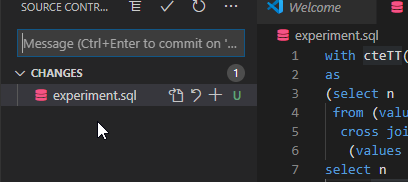
    Now when I go to the Source Control tab, I see the file as one that’s changed. I can now enter a commit message and commit it if I want.

    2020-05-28 13_27_04-experiment.sql - GitTest - Visual Studio Code

    If I go to git, sure enough, here’s my untracked file.

    2020-05-28 13_27_18-cmd

    That’s it. I can now follow the normal commit process in VS Code for this repo.

    SQLNewBlogger

    Working with different IDEs and learning to be efficient is important. This is one of those places where I was able to easily learn a skill and spend 10 minutes writing about how it works.

    Putting this down is a nice showcase of skill, and learning to work better. You could do this as well and help drive that someone might ask you in the interview.

  • Setting Up GitHub Desktop (formerly GitHub for Windows)

    When I started using Git, I first download GitHub for Windows.

    I went searching, and instead found GitHub Desktop, which is the new client from GitHub for working with Git. This replaces GitHub for Windows, and gives a unified experience across Windows and MacOS. I hope it also works better, as I found the GitHub for Windows software to be quite flaky. I abandoned it early and moved to SourceTree and GitFrakken ( I couldn’t decide).

    I downloaded the installed and when I clicked the file, the install ran, with no other actions from me. No UAC, no picking files, not EULA, no crazy installer. It just runs. Good and bad, but overall, this is likely a few MB, and I like this.

    Installer Notification

    When this gets done, I get asked to sign into GitHub. I can skip this, and likely use this as a local git manager, but since I have a GitHub account, I’ll do that. Signing up is easy, it’s free, and since lots of people use GitHub, just sign up.

    GitHub Desktop Welcome Screen

    Once I sign up, I need to approve permissions. I’m always wary of this, and I think that I should really understand what this means, but for most things, this is fine. If I lose control of my local machine, I have bigger issues.

    Authorize GitHub Desktop

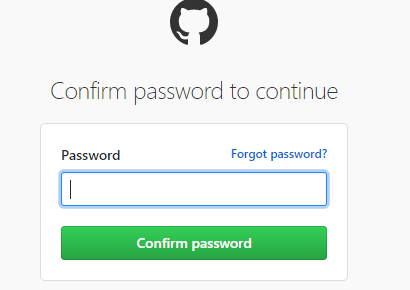
    I do have to authenticate, which I think is important. I have two factor set up, which ensures that you can’t just link to my repos and guess my password.
    Enter GitHub Password

    Once this completes, I get asked to allow my browser to open the app. I agree, and I see a get started view, with my online repos listed.
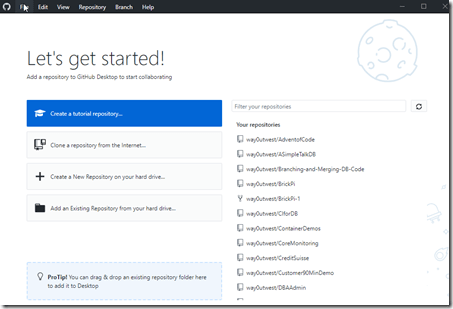
    GitHub Desktop Get Started Screen

    Trying Out the Interface

    I decided to see how well this works, to see if this is more stable. With that in mind, let’s drop an existing repo folder onto the client. I have a git repo that isn’t in GitHub yet, so let’s drag that folder and drop it on the “Pro Tip” section in the lower right (see the image above).

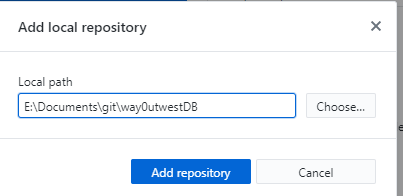
    When I do that, I get a pop up.

    2020-05-26 18_25_49-Window

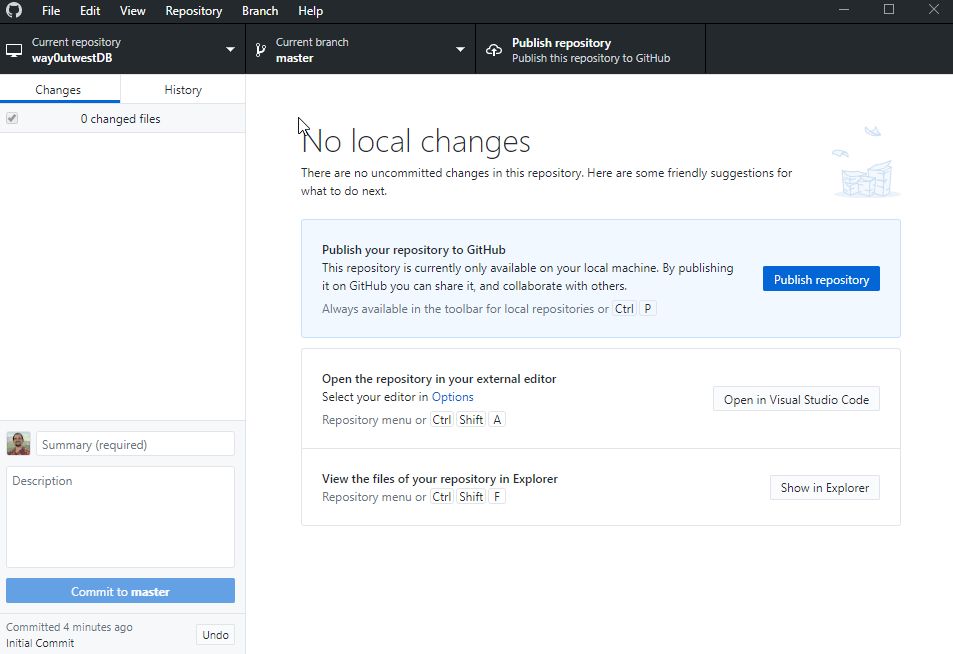
    This is the path of the repo. I click “Add”, and it’s added. This becomes my current working repo, and I can see a somewhat standard view of my repo that I see in SourceTree or GitKrakken or any client.
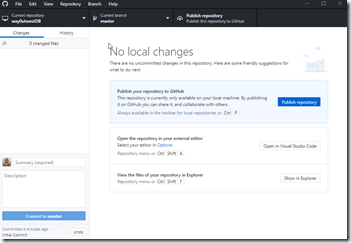
    2020-05-26 18_26_58-Window

    As you might expect, this is geared towards publishing to GitHub. I have a “publish to GitHub” link. I also have a link to open VS Code.

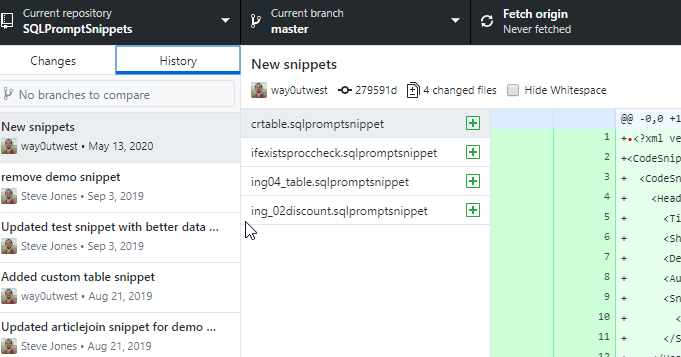
    If I click the “History” tab, I see my commit of this repo on the left, the files in the middle, and file contents on the right. Standard stuff, but a nice layout.
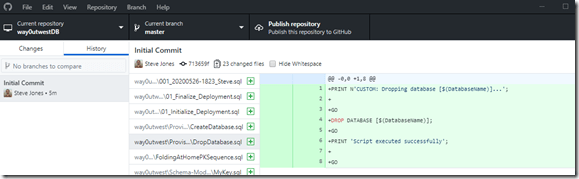
    2020-05-26 18_28_42-Window

    I wonder what happens if I drop a local repo on here that’s in GitHub? Let’s try that.

    The “Getting Started” screen isn’t listed, and I can’t close the repo. At least, I don’t see a close menu item. If I restart the app, I come back to my main repo screen. Let’s try using the “Add repository” menu item. This gives me the same type of dialog I got from a drag and drop repo.

    I can cancel that and just drop another repo folder onto the app, and I get the same dialog as well. So drag/drop seems to always work. When I look at history for an older repo, I see lots of commits. No graph, but all the commits and dates.
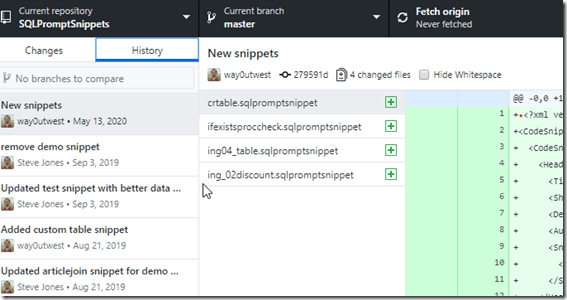
    History of older repo

    This repo always has a remote at GitHub, so I see the “Open the repository” link on the “Changes” tab.
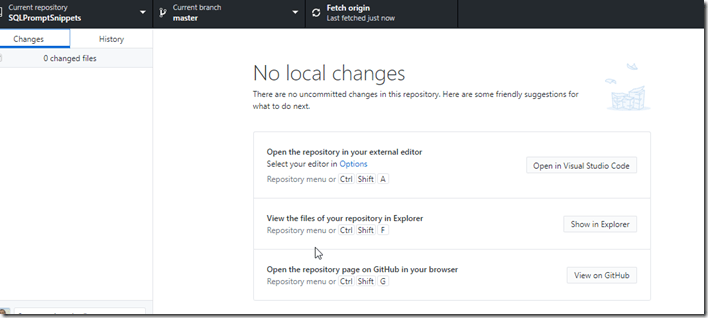
    Main repo page with open on GitHub link

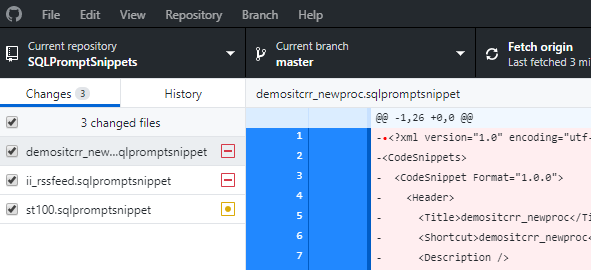
    If I make a few changes in this repo, in a few seconds I see the changes reflected on the main page. I deleted two files and edited another. The right side of the filename has a hyphen for a delete and a circle for a chance.

    List of Current changes

    I committed two changes and that left the third. I don’t see a stage/unstage option here. If I right click the file, I do see a few options. This is likely good enough for me that I can discard the changes. However, the “ignore” feature is nice, as well as the add all of this type option.
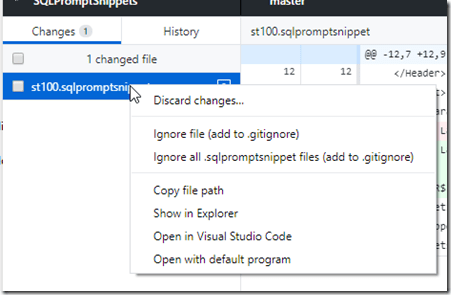
    2020-05-26 18_38_20-Window

    Opening this in VS Code, Explorer, or a default program is a nice touch as well.

    Options

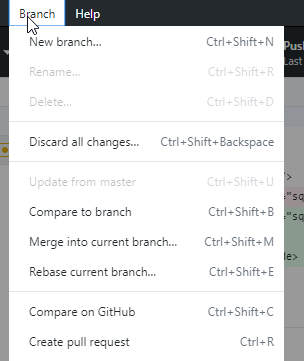
    There some interesting options in the tool. I’ll cover a few things I found to be nice items. First, I like that the branch menu has some things beyond the “new branch” and compare. I can merge, or rebase. Those are good things to have in this tool and common tasks.
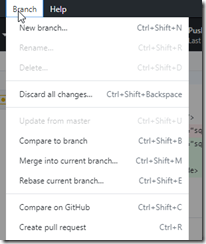
    Branch menu items

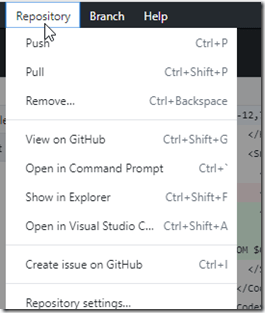
    The Repository menu is what you’d expect, but the “Create issue on GitHub” is really nice. I submit quite a few of those to keep track of work, so it’s nice to be able to get there quickly from here.
    2020-05-26 18_40_35-Window

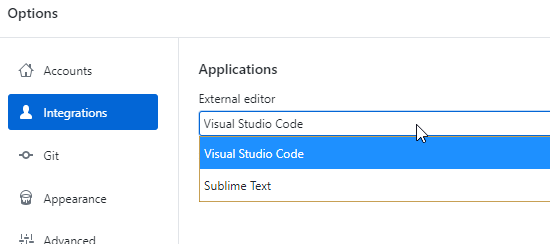
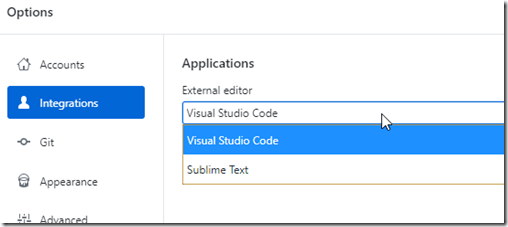
    Under File – Options, there are some good, handy things that much software has these days, but much also doesn’t. For Integrations, the app detected I have Sublime Text installed, so I can use that instead of VS Code. I assume notepad++ or other editors might appear here.
    Integration Options

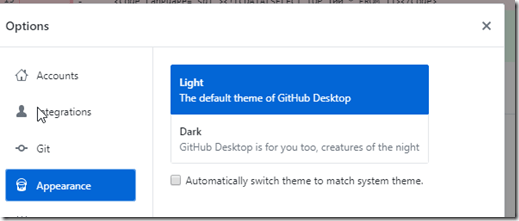
    The Appearance option has a light and dark theme. Important to a lot of people, though I’d like the ability to easily modify things here. I find that these pre-defined themes are sometimes hard for me to see. I’d like to alter the colors slightly in many of them, especially as I get older.
    2020-05-26 18_41_05-Window

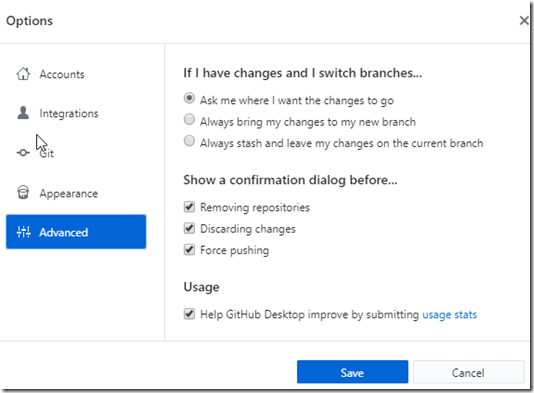
    I like that the Advanced menu lets me choose to get rid of some confirmation dialogs. Overall, I like these, but they do get annoying for some things.I also get a basic default of what to do with changed files when I switch branches. Since I sometimes do this without thinking, it’s a nice feature.
    2020-05-26 18_40_59-Window

    Impressions

    So far my initial impressions are positive, but I need to use this for a bit as my main git tool to see if it works well. I enjoyed GitHub for Windows as well, but I kept having it break with certain changes I’d make, which forced me to learn the command line to fix my repos.

    This is a much simpler app, and it provides the basic git functions I mostly need. Time will tell if this feels intuitive, but I like the simple nature and the ability to quickly navigate back to a file in Explorer or VS Code. I don’t know if I need that, since often I have an IDE open when I’m working with files, so I’ll experiment and see how well this works.

  • The Power of Git–Getting Code

    I find git to be incredibly useful, and this is a quick example of one of the ways that this matters to me.

    This post is also available in video format here: https://youtu.be/Drwt6nseeJM

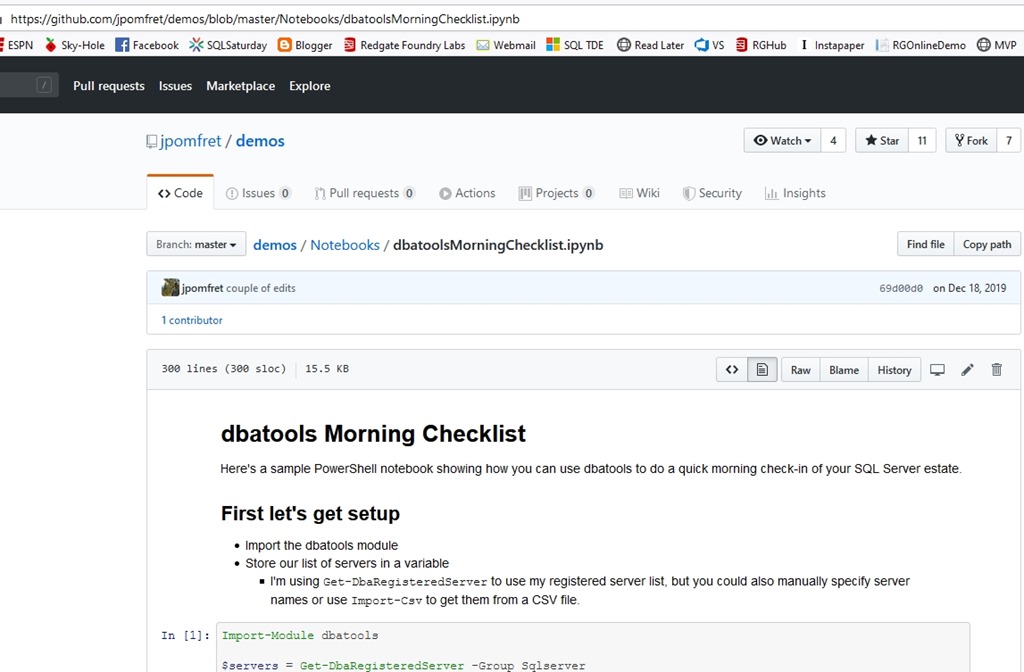
    I got this link from Jes Pomfret for a Jupyter notebook she’d built: https://github.com/jpomfret/demos/blob/master/Notebooks/dbatoolsMorningChecklist.ipynb

    I see this on GitHub, but this isn’t easy to download, though this could have just been a file share.

    2020-03-25 10_47_31-Window

    However, since it’s on Github, I can easily get this as a copy of code that stays updated. To do this, I’ll copy, or “clone” the code to my machine.

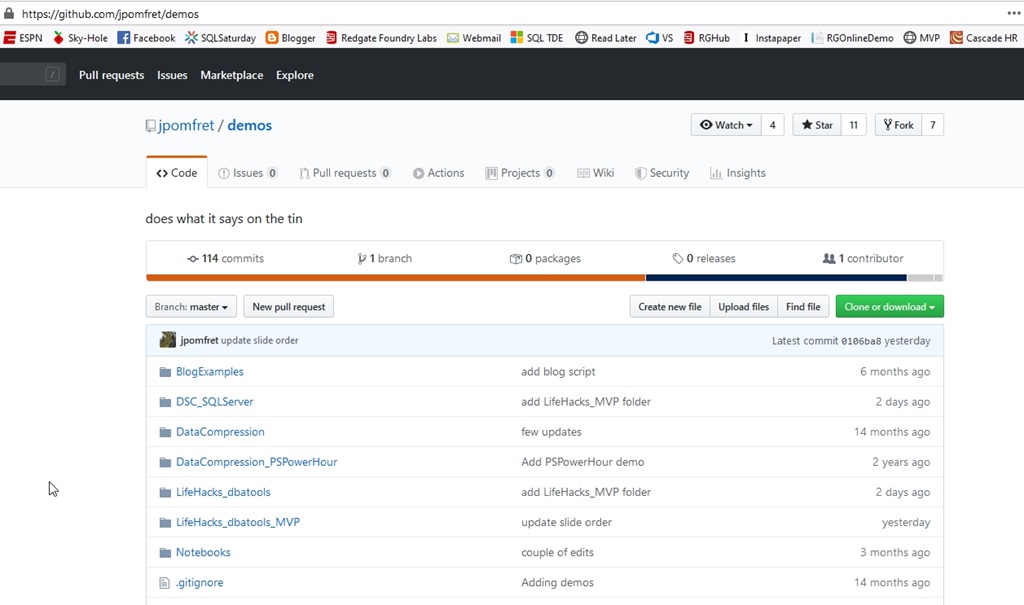
    First, I go to the root of the repository, which is really a folder of code. This is the “demos” repo in this case (https://github.com/jpomfret/demos)

    2020-03-25 10_48_20-Window

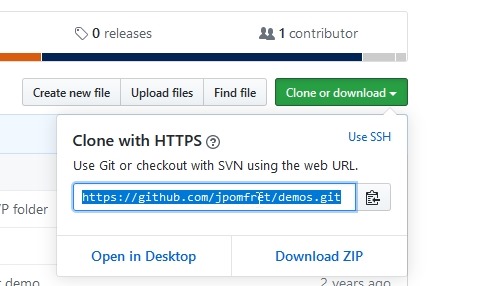
    There’s a large green button on the right, that is the Clone button. Click the clone button and copy the URL.

    2020-03-25 10_48_41-Window

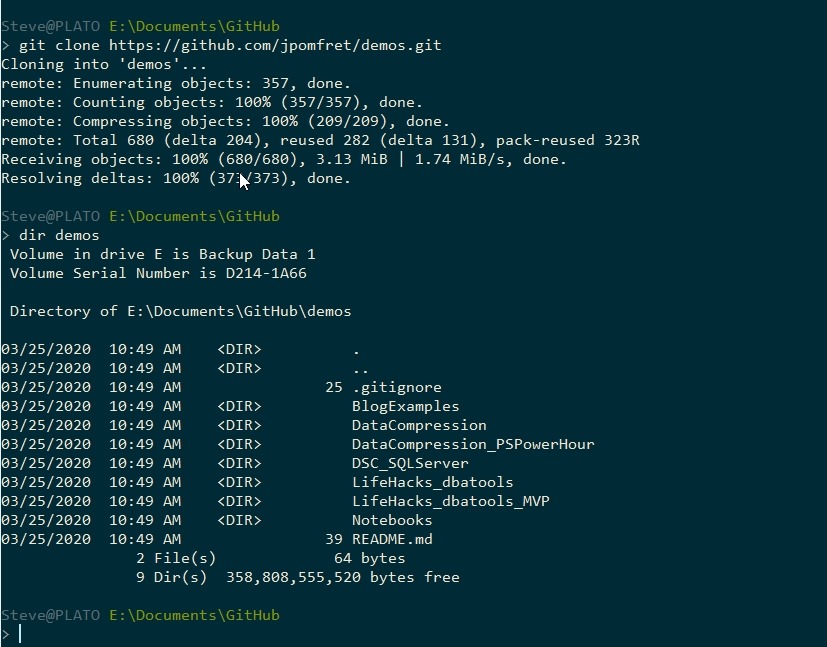
    I’ll do this in a cmd prompt, though you could use the open in GitHub desktop, or any git client. I prefer the cmdline, because this is really how I learn and get used to doing automation. GUI tools make this easy, but the cmdline is what I want to remain familiar with for DevOps. I can clone this with easy code:

    git clone https://github.com/jpomfret/demos.git

    You can see the results here.

    2020-03-25 10_49_57-Window

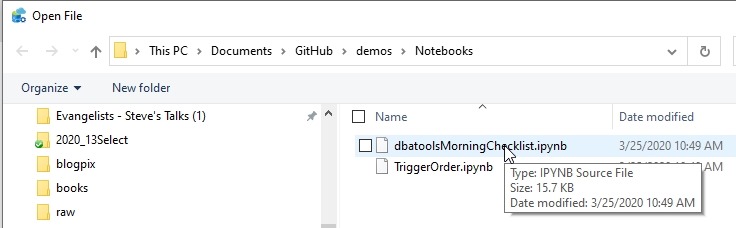
    I have all this code now on my machine. I can open this notebook in Azure Data Studio (ADS). Here I’ve picked “Open File” in ADS and browsed to the folder.

    2020-03-25 10_50_39-Window

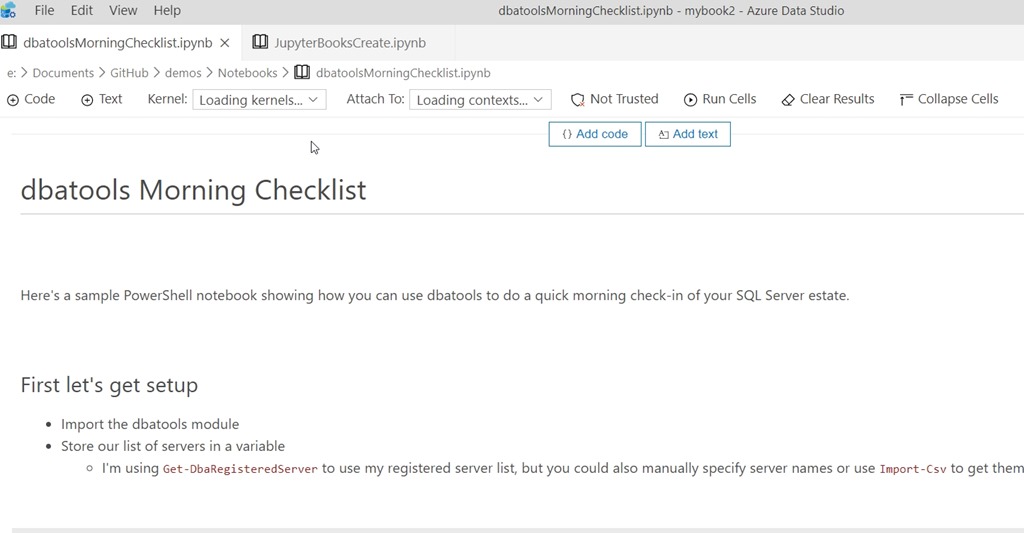
    And I see the notebook.

    2020-03-25 10_50_45-Window

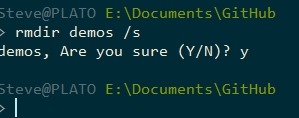
    If I don’t like this, or want to get rid of it, I delete the folder.

    rmdir demos /s

    And the code is gone.

    2020-03-25 10_51_35-Window

    There’s more to this, because I can keep the code up to date with Jes’ changes or even copy the code to my own workspace on Github and keep it up to date there with my machines, or share with others.

    There’s a lot of power to Git, and you can easily get started by doing what I did here and testing Jes’ notebook. Install git today and try this out for yourself.

  • Changing Git Credentials in Windows

    tl;dr For Windows when you need a different account.

    I had to work with a new GitHub account recently and needed to add a separate account. I worked through that process and managed to get things to work with a Personal Access Token (PAT). Since I have 2FA (2 Factor Authentication) on my GitHub account, my user/password doesn’t ever work in the command line.

    Once I was done, I wanted to change back. I had cloned a new repo, made a couple changes, and then when I went to push, I got:

    2019-08-08 16_38_19-cmd

    sjonesdkranch is the wrong account. I want to use my way0utwest account, but despite entering a new PAT, it wouldn’t save. Since I use SQL Source Control, this was a pain as the terminal access isn’t there. I googled around and eventually realized that my generic git credentials are stored in the Windows Credential Manager, not the Git config files.

    This is in the Control Panel –> User Accounts –> Credential Manager (shown here)

    2019-08-08 16_40_35-Credential Manager

    I first went to the Web Credentials, as I saw two https://www.github.com entries. This was incorrect, because I don’t want the web, I want the git:github.com entry, which is under the Windows Credentials section.

    You can see I have a lot of Git stuff, but I want the GitHub.com one.

    2019-08-08 16_41_33-Credential Manager

    I expanded this down and then clicked Edit.

    2019-08-08 16_42_13-Credential Manager

    This had been created by the PAT I’d entered awhile ago. I had saved the one I generated today in my password manager and entered it in this dialog.

    2019-08-08 16_42_45-Edit Generic Credential

    I saved it and my git push worked, both from the CLI and SQL Source Control.

    2019-08-08 16_43_39-cmd

    Good reminder. Windows, especially Win10, has started to save and use credentials in new ways and lots of software is integrating with it in those ways.