Tag: graph

  • Creating a Simple Graph in RedisGraph

    I delivered a session on graph databases, and in it I used RedisGraph to show how you can work with graph data on that platform. This blog shows a basic creation of a graph in RedisGraph. This isn’t intended to be a comprehensive post, but more a basic look at the code to work with graphs.

    Adding Data

    I connect to Redis with the command line. If you don’t know how to do that, I covered this in another post. Once I’m connected, I can run this code to create a graph and a node:

    GRAPH.QUERY Northwind "CREATE (:employee {employeeID: 10, firstName:'Steve', title:'President'})-[:REPORTS_TO]->(:employee {employeeID: 11, firstName:'Tia', title:'CEO'})"

    This will create a graph, two nodes, and one edge between them. This starts with GRAPH.QUERY, which let’s Redis know this is a graph query. I then give the name of the graph, which is Northwind since I based this on the Northwind dataset.

    Next I use a Cyper language CREATE and enter the data in what is very similar to JSON. I label a node (employee), add the properties and values (employeeID and firstName with 10 and Steve as values).

    I use the square brackets with the edge name in between this and another node. This will get me the results shown below. You can see that one label, two nodes, six properties, and 1 relationship created.

    2023-03-24 15_34_05-cmd - redis-cli

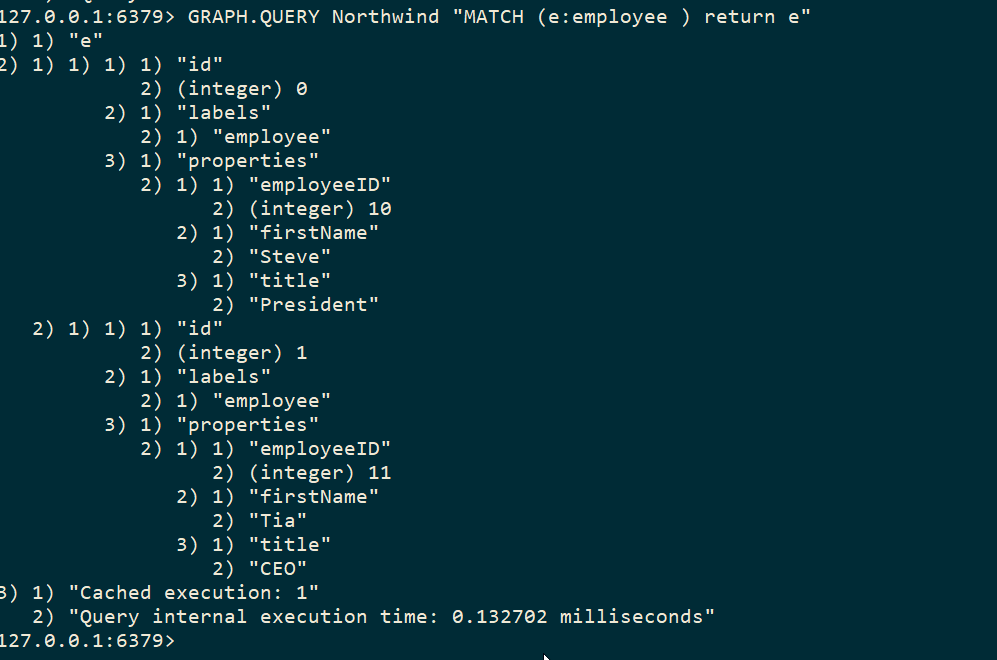
    I can get the employee nodes with this code:

    GRAPH.QUERY Northwind "MATCH (e:employee ) return e"

    This returns the two nodes.

    2023-03-24 15_37_23-cmd - redis-cli

    If I want to see the relationship, I need to ask for that with this code:

    GRAPH.QUERY Northwind "MATCH (e:employee)<-[:REPORTS_TO]-(sub) RETURN sub.firstName as employee, e.firstName as manager"

    This returns my graph as a series of data elements.
    2023-03-24 15_37_23-cmd - redis-cli

    Tada!

    There is more you can do and certainly you can create more complex (or larger) graphs in Redis. The drivers from various languages should return JSON to you that you can deserialize and visualize or otherwise process results.

    A lot of this is basic, but if you want to experiment with Redisgraph,  a container and the CLI is a good way to get started.

  • Experimenting with RedisGraph on Docker and Windows

    I have been experimenting a bit with graph databases, trying to learn more about them. One of the platforms I wanted to experiment with was RedisGraph. This post looks at getting this set up and running on a Windows machine.

    Things You Need

    A list of things:

    These are what I used.

    Getting Setup

    I won’t go into getting Docker running, but you should ensure you have Docker running and set to Linux containers on Windows. Once you’ve done that, then you can start up a container.

    You also need to run the Redis install to get the CLI to connect. I installed this and then set Redis to start manually and not start. You don’t need this running, nor do you want lots of extra services going. Plus, you’ll get a port conflict with instructions below.

    2023-03-23 22_30_20-Redis Properties (Local Computer)

    To start the container, run this code from a command prompt:

    docker run -p 6379:6379 -it --rm redislabs/redisgraph

    This does run the container with output to the command line, and you should see this when you run this:

    2023-03-23 22_32_21-cmd - docker  run -p 6379_6379 -it --rm redislabs_redisgraph

    To stop it, CTRL+C will stop the container.

    Connecting

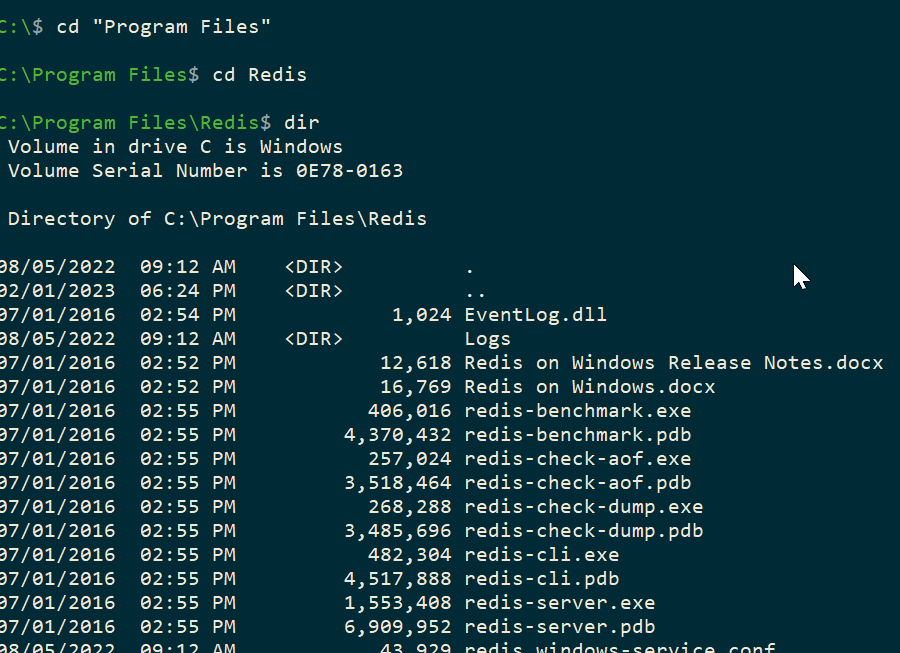
    To connect, we will run the Redis-cli.exe program. We can connect from programs, but for testing, let’s work at the command prompt. In a second command window, you will run this. My exe was in c:\program files\Redis, as you see below. Yours might be different, but once you find it, change to that directory.

    2023-03-23 22_34_01-cmd

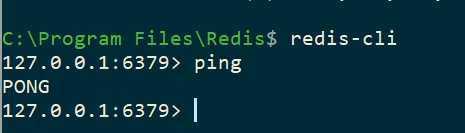
    If you run the redis-cli, you see this, a connection to the local host, with the port:

    2023-03-23 22_34_55-cmd - redis-cli

    In another post, I’ll create a graph, but to test this, if you type “ping”<enter>, you’ll get PONG back. That means your install is working fine.

    2023-03-23 22_36_49-cmd - redis-cli

  • Resources for Adding Graph Structures to Your Database at VS Live

    Thanks to everyone who attended my talk at VS Live Las Vegas 2023 on graph databases. I hope you enjoyed it, and if you have questions, please feel free to reach out.

    Resources

    Here are the resources: